Guarded Access: Let Only Allowed Emails Open Your Event Gallery
A normal Kamero gallery opens for anyone who has the link. That is what most events want, but a school sharing photos of its students usually doesn't. Links get forwarded to group chats and posted online, and a school can't control where they end up.
Guarded access fixes that. When it is on, guests sign in with their email before the gallery opens, and only allowed emails get in. You decide who is allowed in one of two ways:
- Email domains: anyone with an email at your school or company, for example everyone at
@yourschool.edu.au. - Email list: only the email addresses you add, from a CSV file or pasted in. Use this when parents sign in with personal Gmail or Outlook addresses.
This guide walks through turning it on, both options, editing the list later, and what your guests see. For wider privacy advice, see private and secure photo sharing for events.
Where to find guarded access
- Sign in to your Kamero dashboard and open the event.
- Go to Settings.
- Scroll to the bottom. Guarded access is the last card on the page.
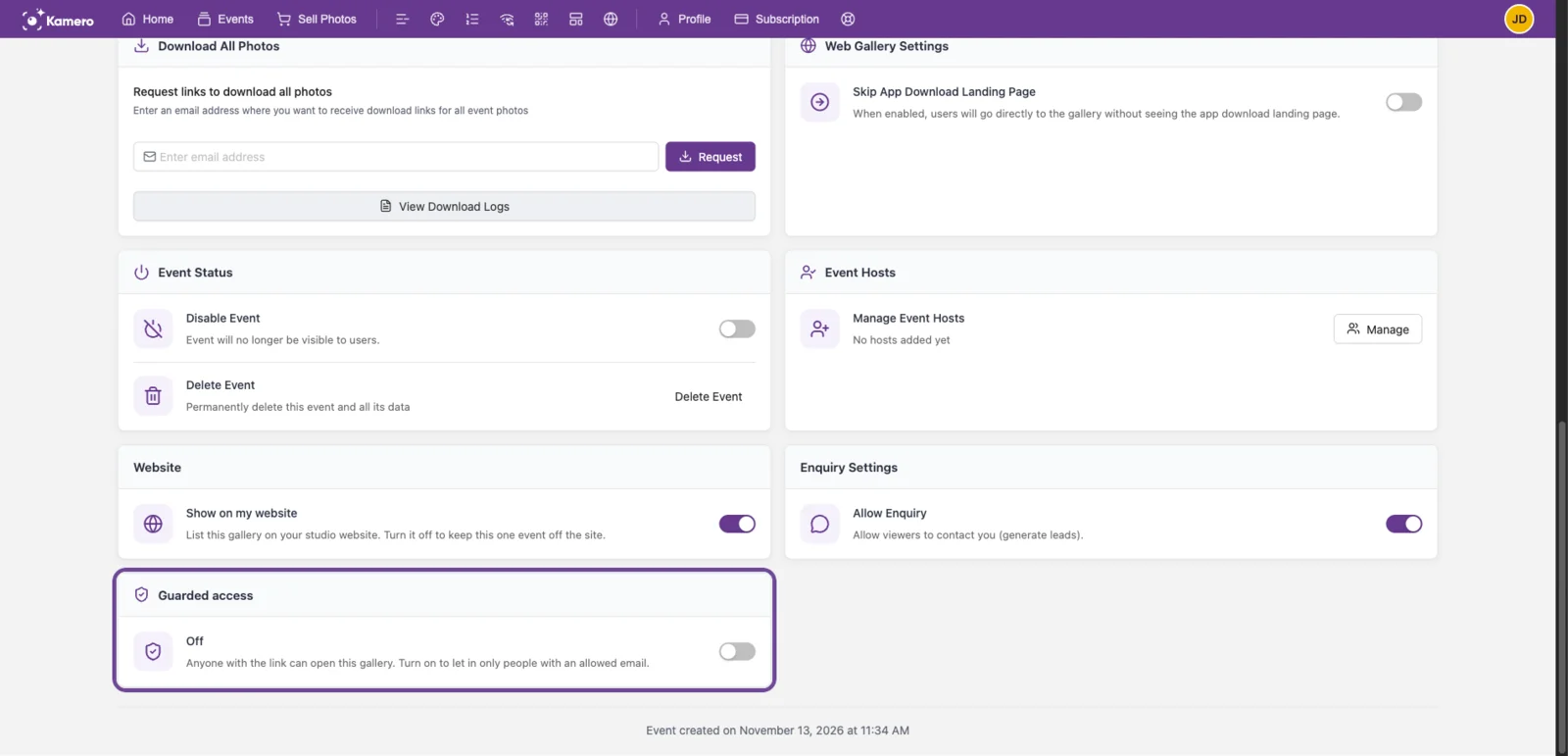
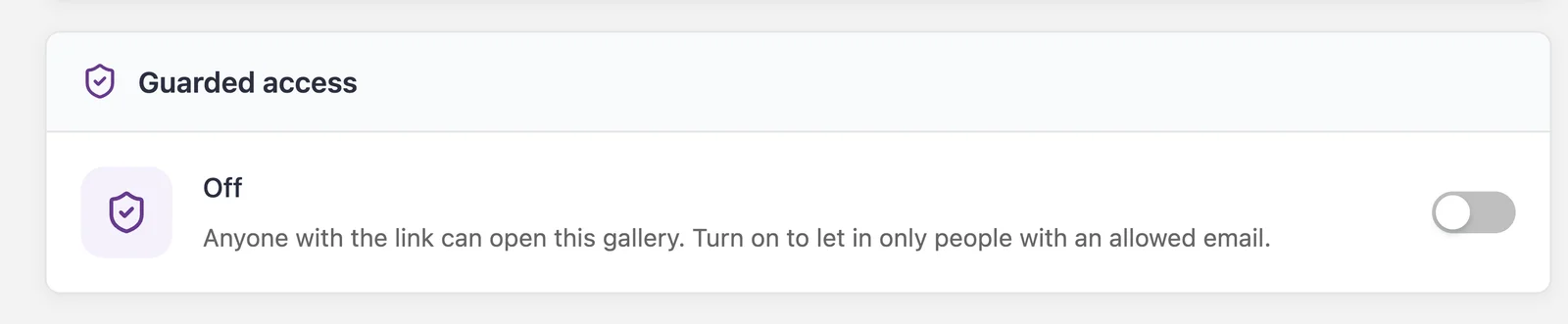
While it is off, the card says Anyone with the link can open this gallery. Nothing changes for your guests until you turn it on and save.
Turn on guarded access
Click the switch on the card. A setup window opens and asks Who can get in. Choose Email domains or Email list. Each event uses one option at a time.
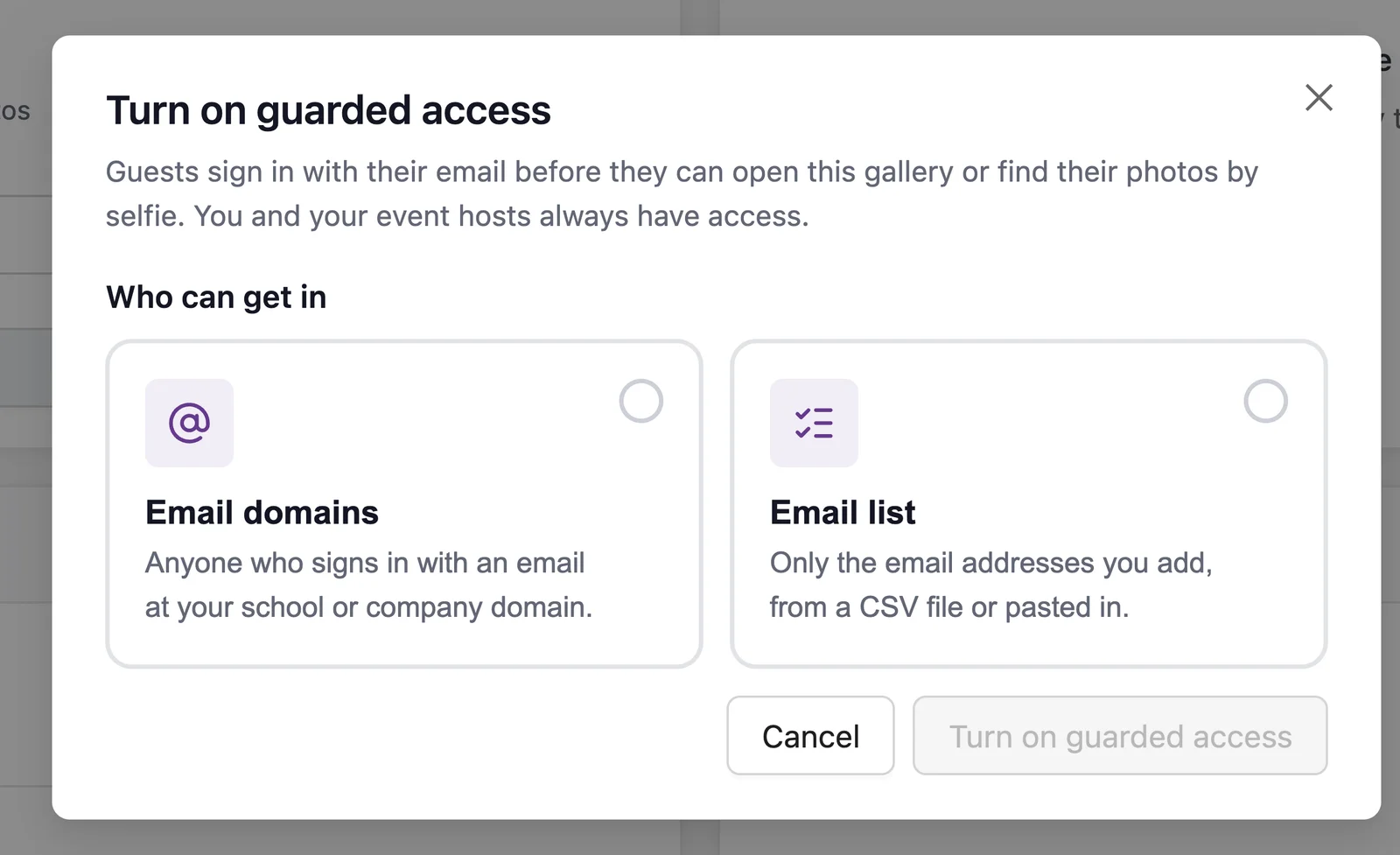
The switch stays off until you finish. If you click Cancel, nothing is saved and the gallery stays open.
Option 1: Email domains
Use this when everyone who should see the photos has an email at your school or company, such as staff and students with school accounts.
- Choose Email domains.
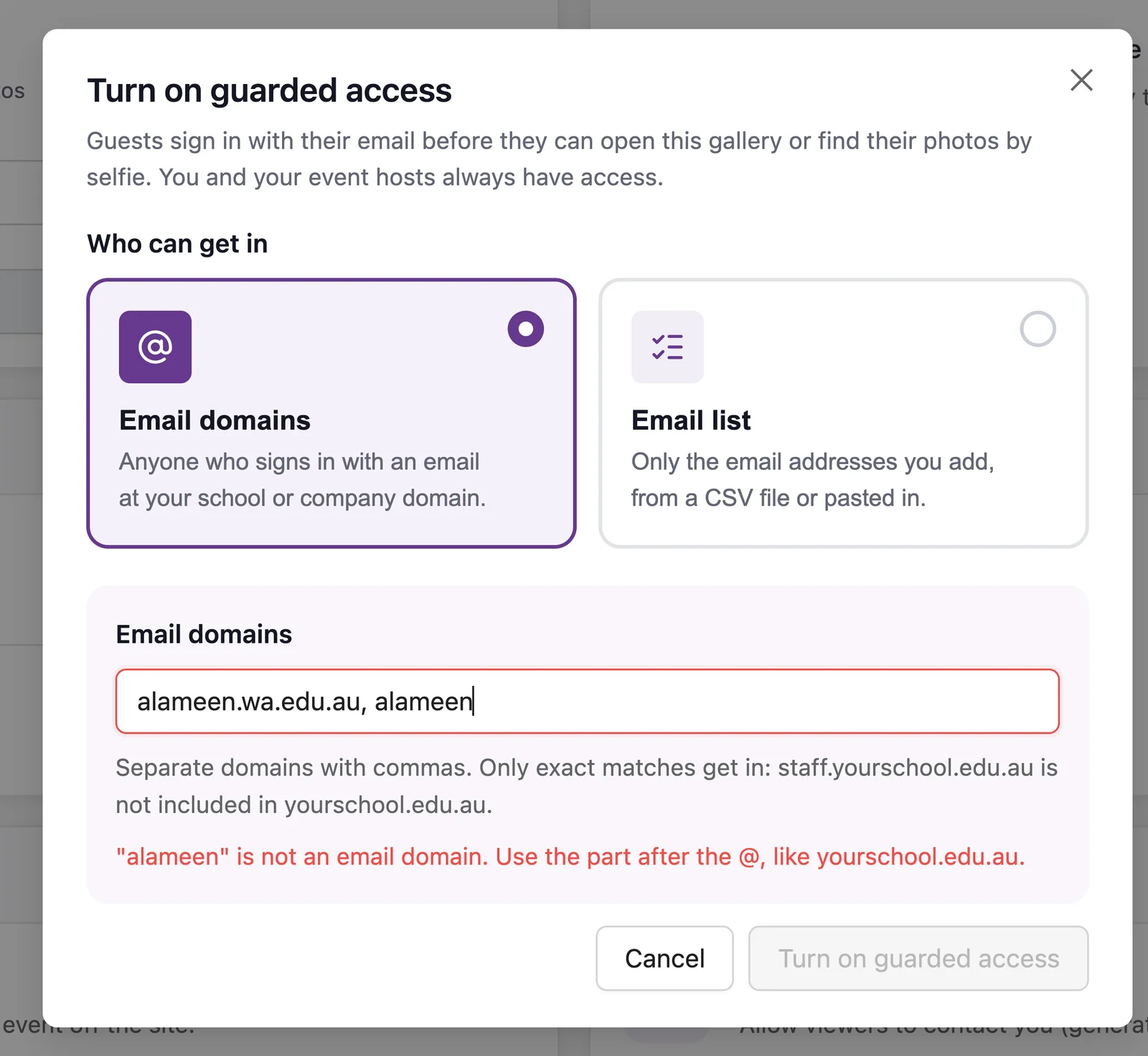
- Type your domain, for example
yourschool.edu.au. To add more than one, separate them with commas. You can add up to 20 domains. - Check the list under Domains that will be allowed.
- Click Turn on guarded access.
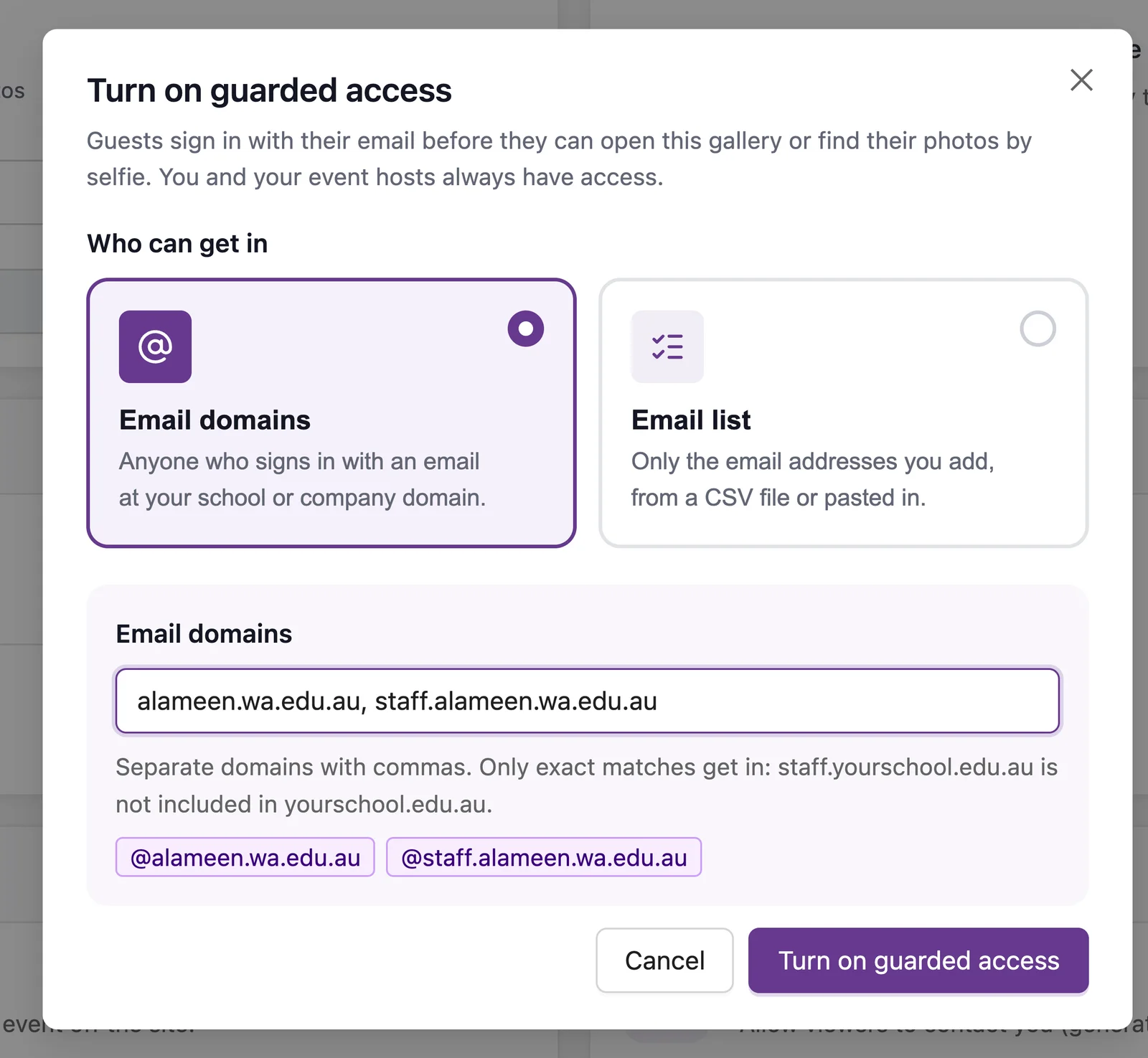
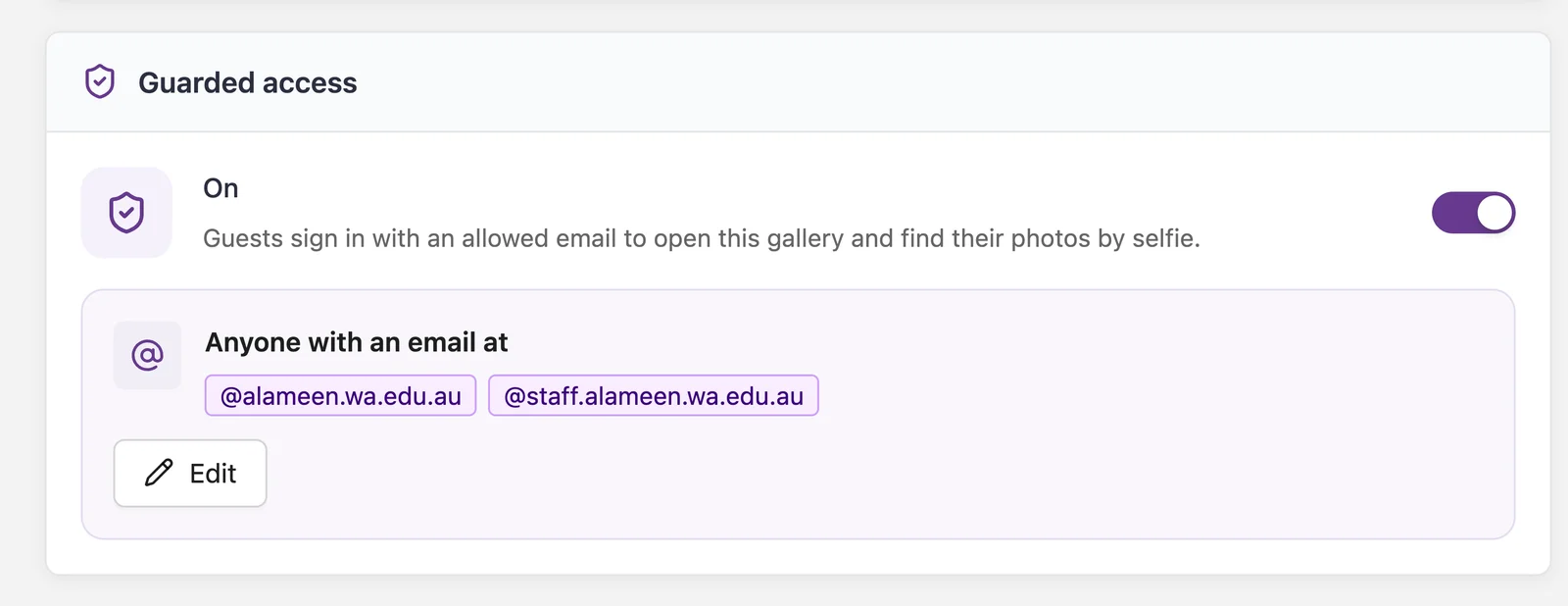
Domains must match exactly. Allowing yourschool.edu.au doesn't let in someone at staff.yourschool.edu.au. If your staff use a different domain, add it as a second domain, as in the screenshot above.
If you type something that isn't a domain, such as the school name on its own, Kamero tells you before you can save.
When guarded access is on, the card lists the allowed domains:
Option 2: Email list
Use this when guests sign in with personal emails, for example a class list of parent emails from your school office. You can upload a CSV file or paste the emails in.
Upload a CSV file
- Choose Email list, then stay on Upload CSV.
- Drop your file on the box, or click it to choose the file.
- Check the count Kamero shows, then click Turn on guarded access.
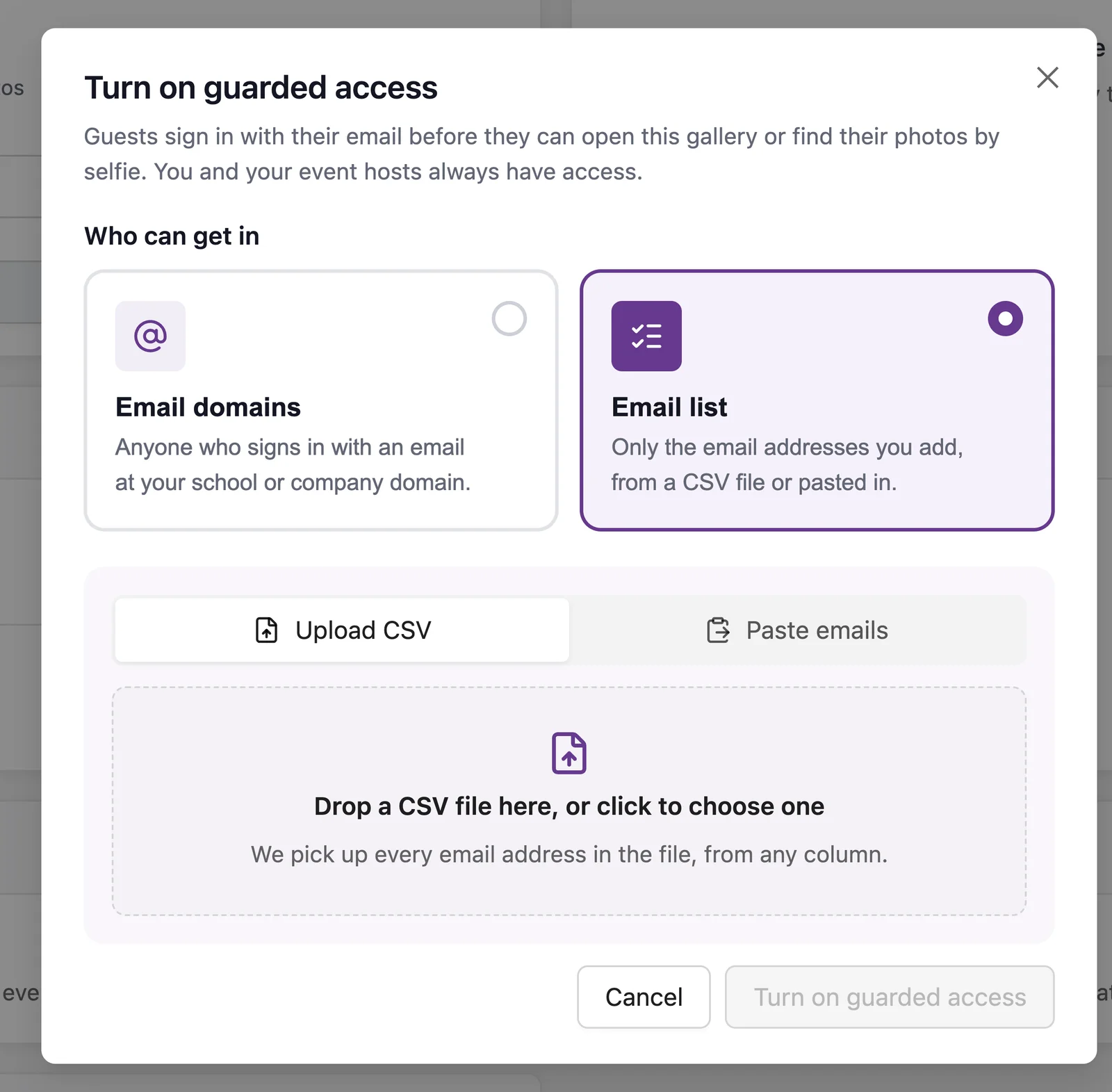
You don't need to clean up the file first. Kamero finds every email address in it, from any column, and ignores names, class labels and header rows. It tells you how many emails it found and how many entries weren't valid emails, so you can spot a broken export before you save.
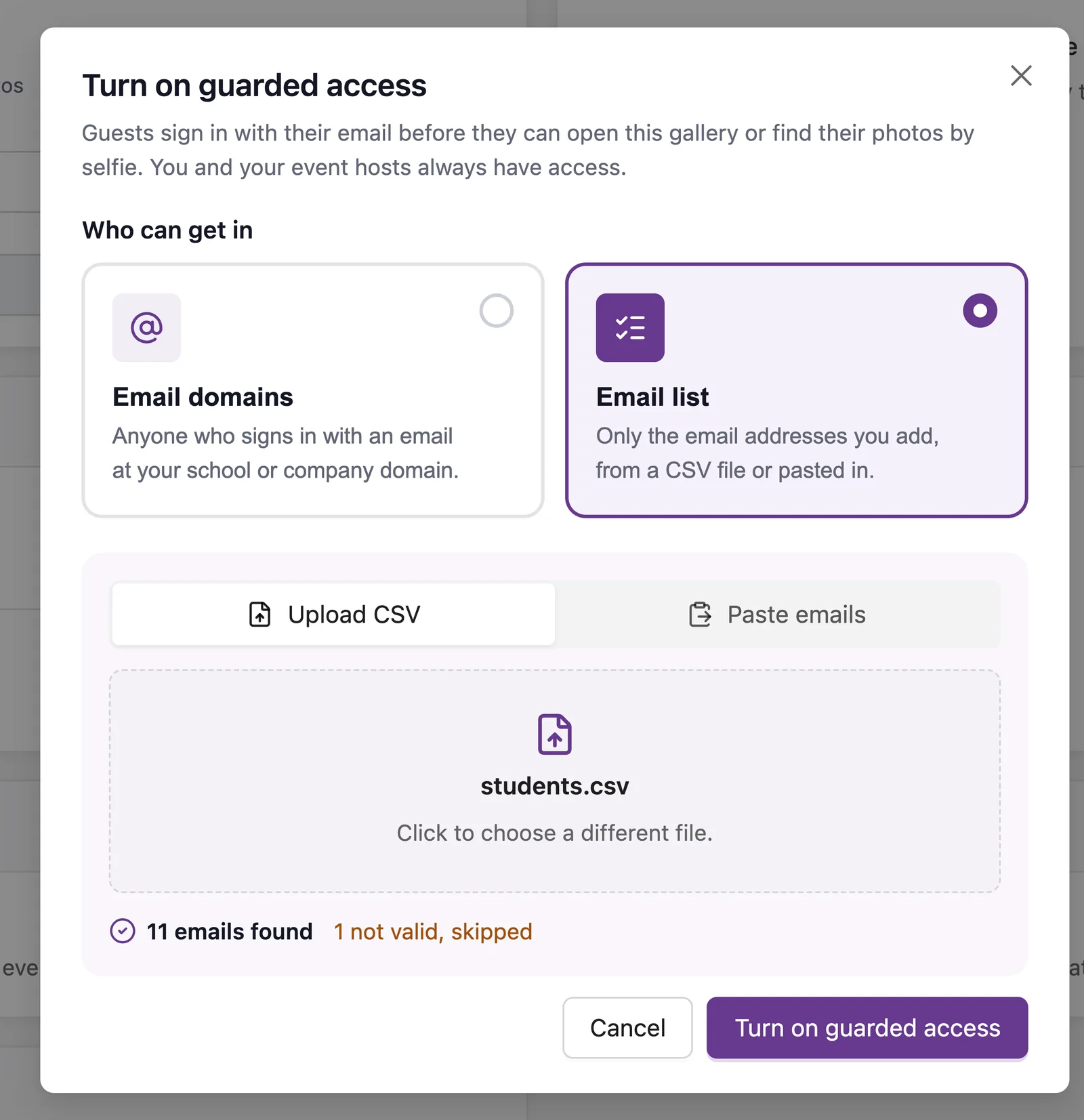
A few rules for the file:
- It must be a CSV file under 5 MB. A list can hold up to 20,000 emails.
- Excel (
.xlsx) and Numbers files aren't accepted. Open the sheet and use File > Save as > CSV (in Google Sheets, File > Download > Comma-separated values), then upload that file. - Each email is only counted once, even if it appears twice.
Paste emails
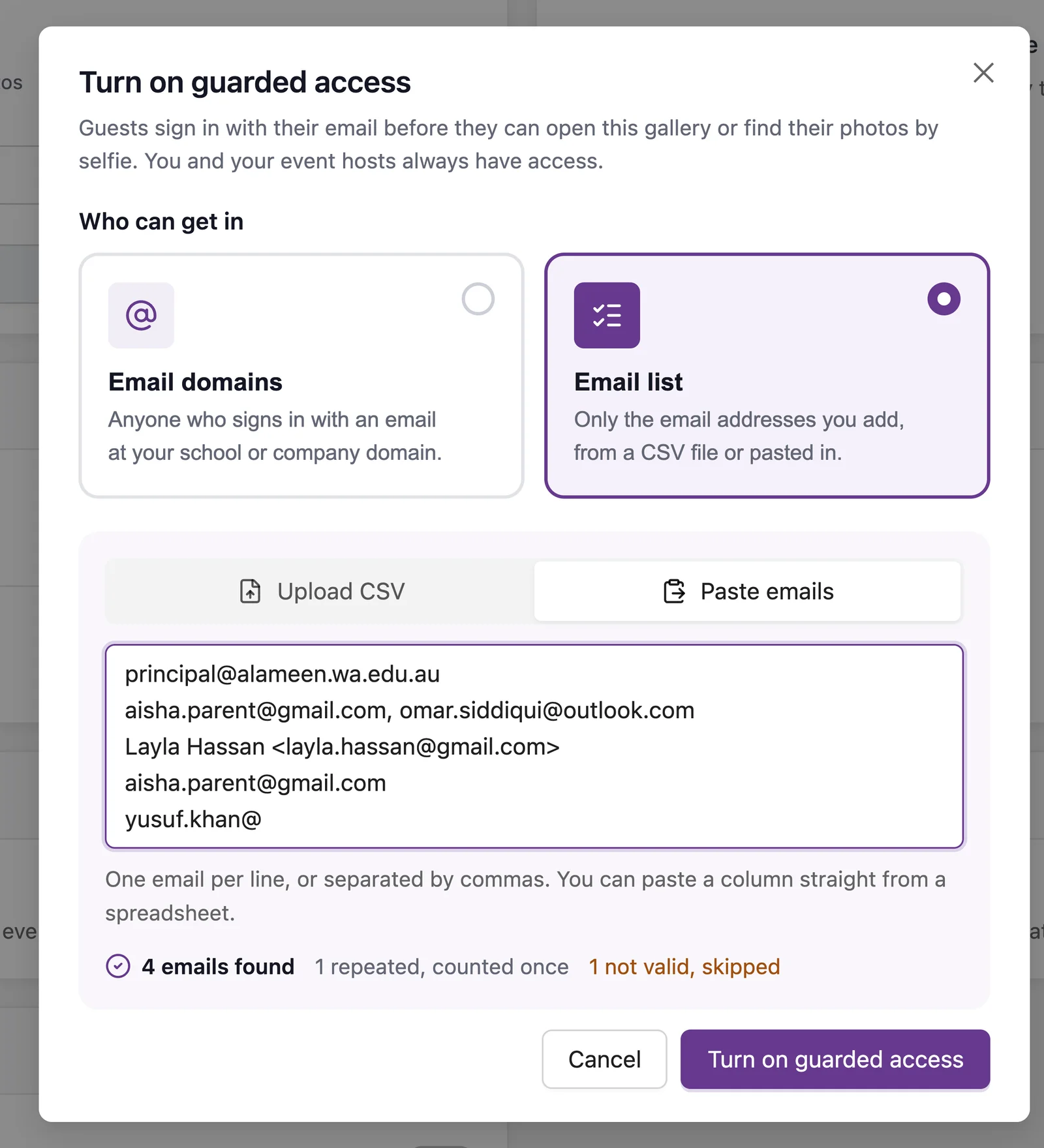
For a short list, click Paste emails and paste them in: one per line, or separated by commas. You can copy a whole column straight from a spreadsheet. Kamero shows how many emails it found, how many were repeated, and how many weren't valid.
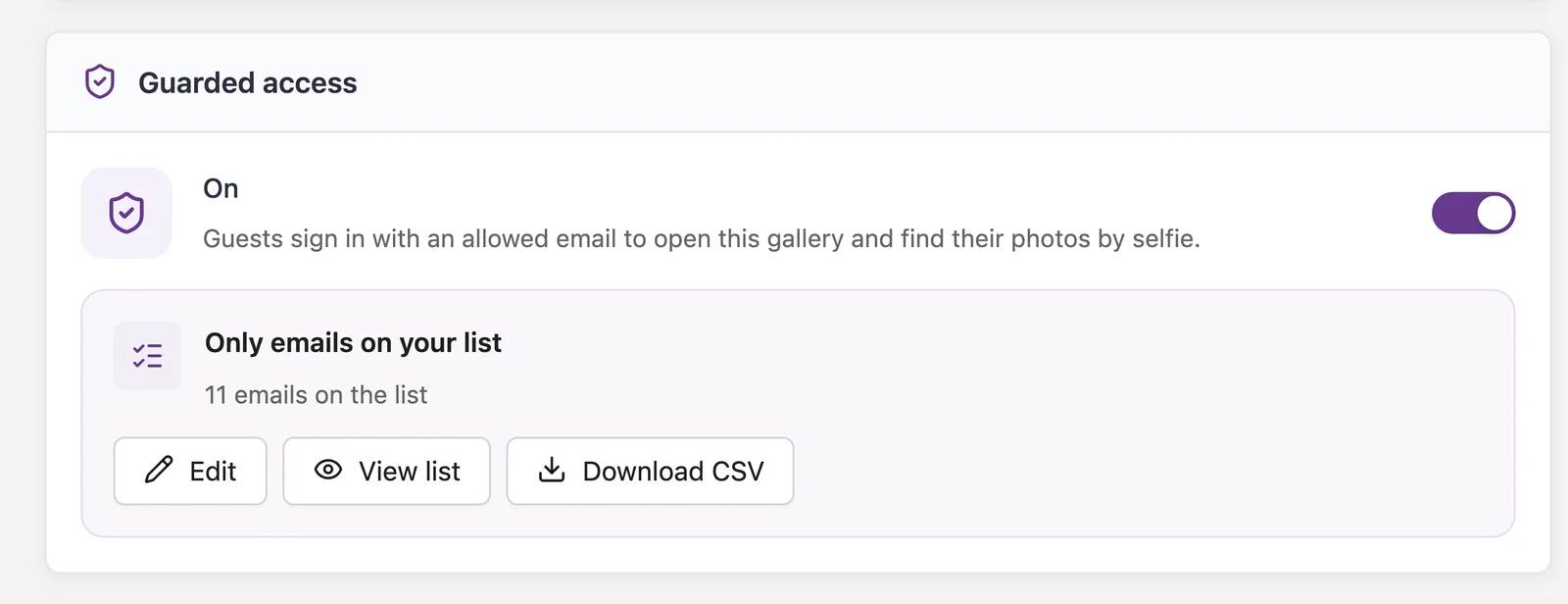
When it is on, the card shows how many emails are on the list:
Manage the email list
View, search, add and remove emails
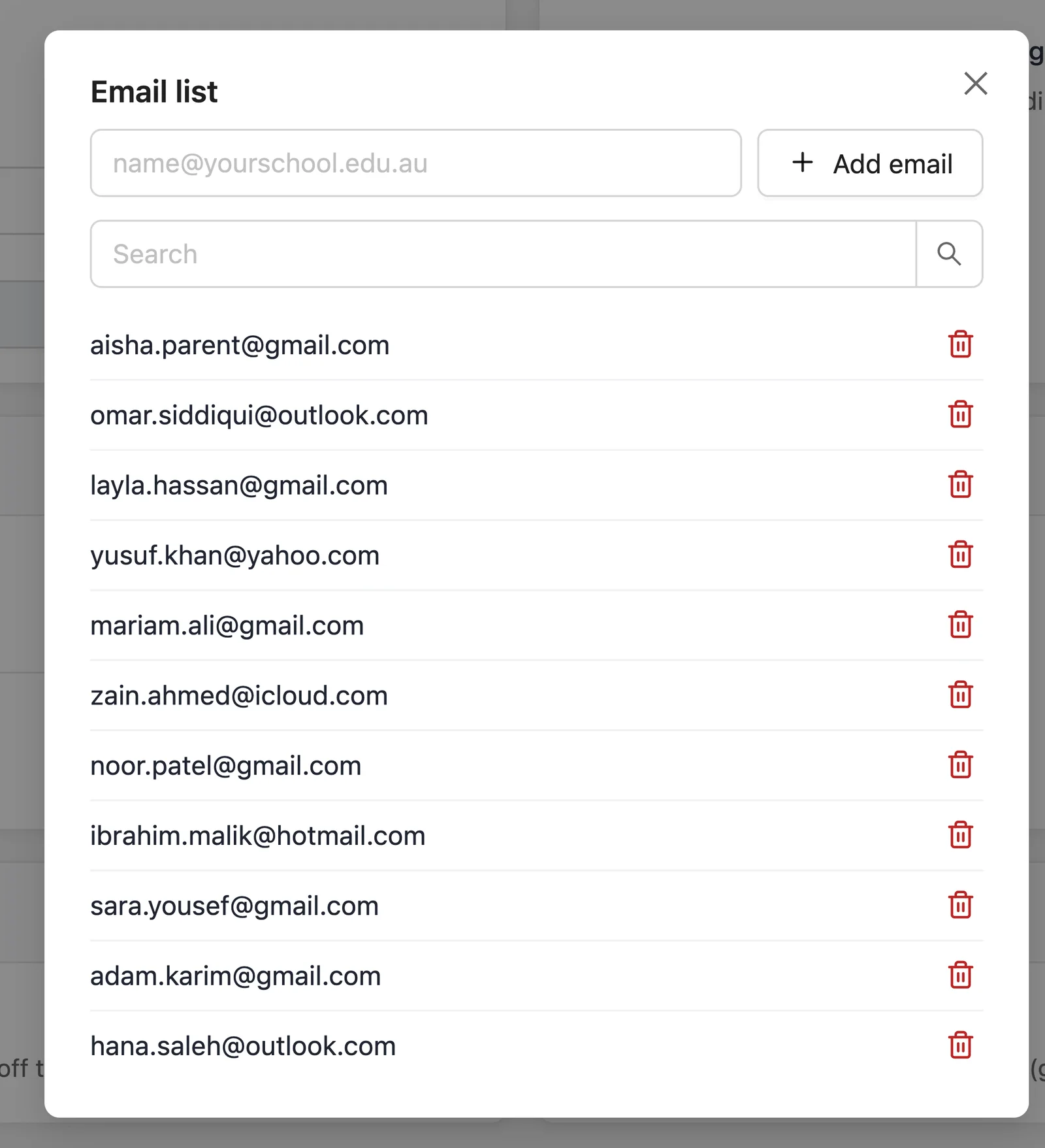
Click View list on the card. You can search the list, add one email at a time with Add email, and remove an email with the bin icon. Changes save straight away.
You can't remove the last email on the list while guarded access is on, because then nobody could open the gallery. Add another email first, or turn guarded access off.
Upload a new file: add or replace
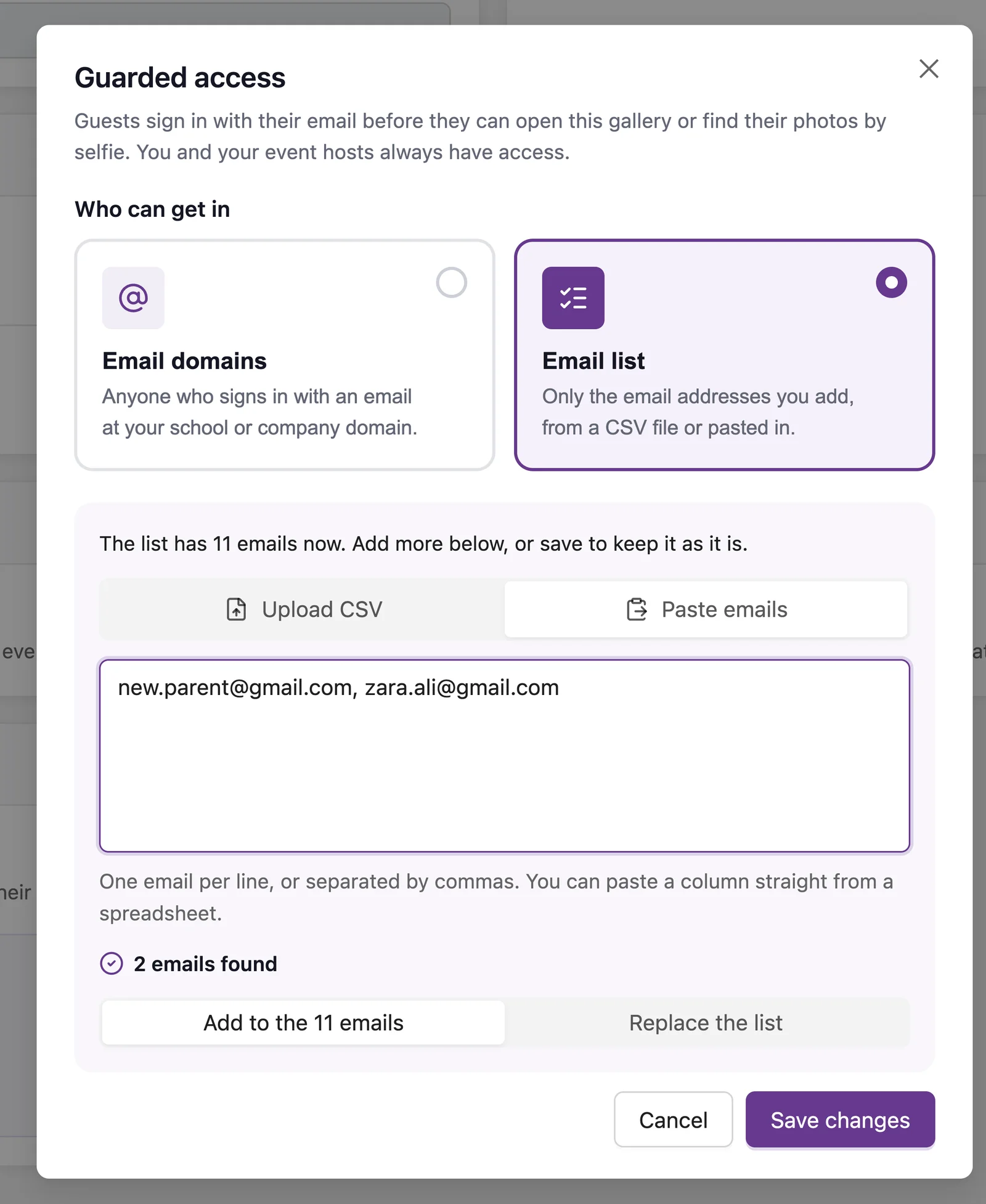
To change a lot of emails at once, for example at the start of a new term, click Edit and upload or paste again. Kamero asks what to do with the new emails:
- Add to the emails already on the list: keeps everyone on it and adds the new emails.
- Replace the list: the new emails become the whole list, and everyone else is removed.
Click Download CSV on the card to get a copy of the current list, for example to check it against your school records.
Switch between domains and a list
Click Edit and choose the other option. Only the option you save lets guests in. The other one is kept, so you can switch back later without typing it again.
What your guests see
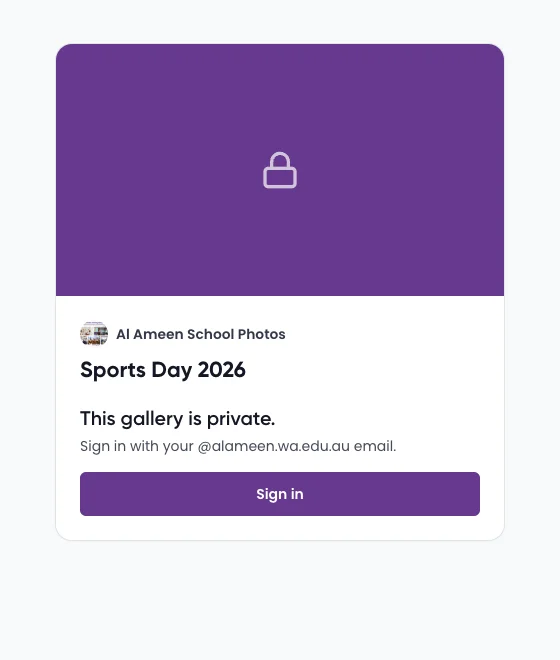
Guests open the same gallery link as before. Instead of the photos, they see the event name and your studio name with a sign-in button. On an email domains event, it tells them which email to use.
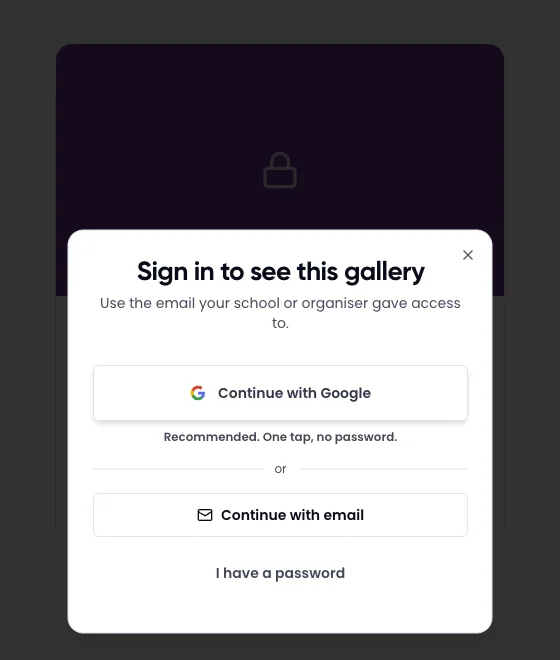
Guests sign in with Continue with Google or Continue with email, which sends a one-time code to their inbox. They don't need a password or the Kamero app.
After signing in:
- Allowed email: the gallery opens, and the guest can find their photos with a selfie as usual.
- Email not confirmed yet: guests who signed in with a password are asked to Confirm your email with a 6-digit code first. This stops someone typing another person's address.
- Email not allowed: they see a message that their email doesn't have access, with a Use a different email button to try another account.
You and your event hosts (added under Settings > Event Hosts) can always open the gallery. You don't need to add yourselves to the list.
Turn guarded access off
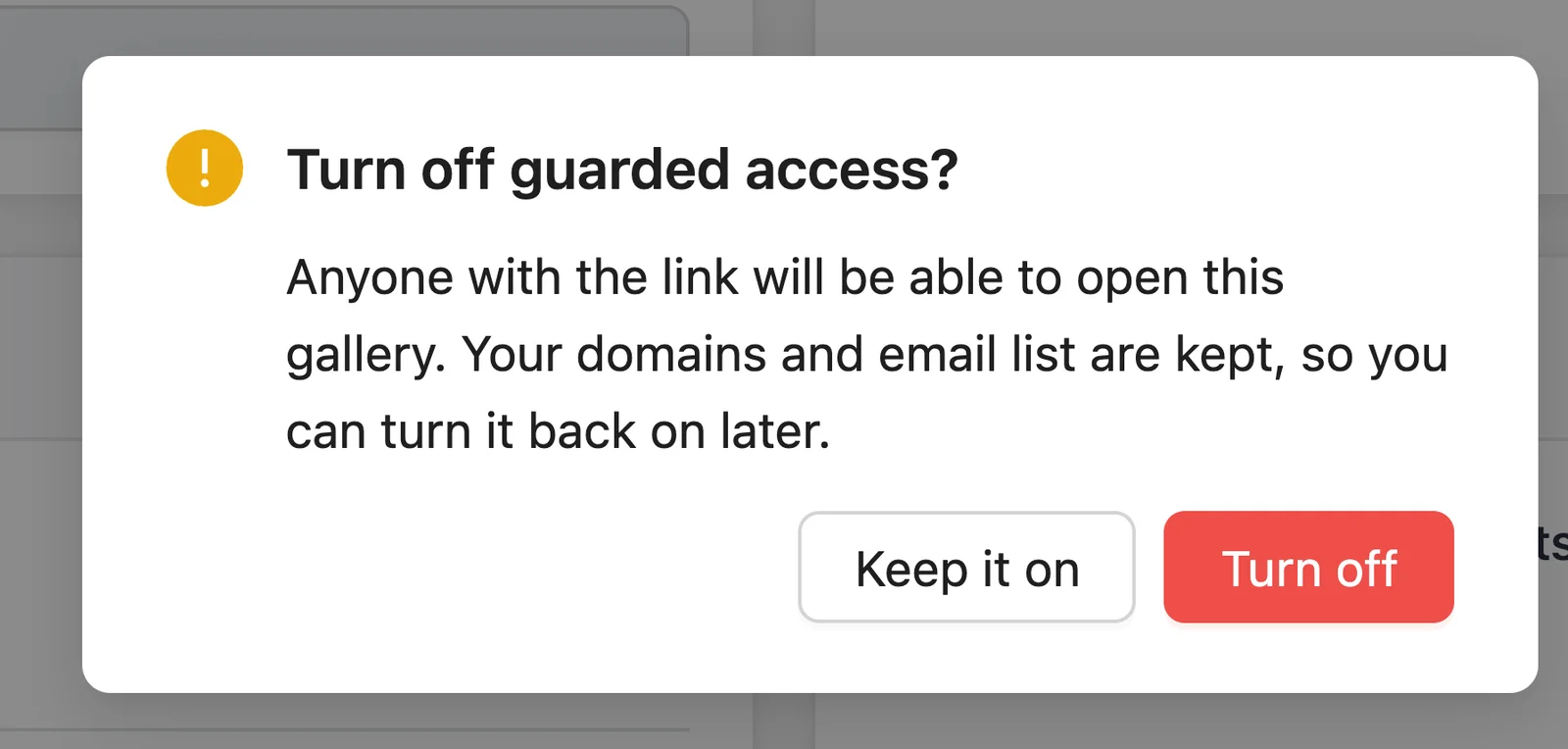
Click the switch on the card and confirm with Turn off. Anyone with the link can open the gallery again. Your domains and email list are kept, so turning it back on later takes one click.
Tips for schools
- Turn it on before you share the link. Guarded access covers the gallery and selfie search. Photo or download links shared some other way, for example a single photo link sent by message, aren't covered.
- Share the web link. Guests sign in on the web gallery. The Kamero app doesn't show the sign-in screen for guarded galleries yet.
- Tell parents which email to use. If the school office has their Gmail address, mention it in the message with the link. A guest who signs in with a different account sees the "doesn't have access" message.
- Use one event per group. Each event has its own setting, so Year 5 Sports Day and the staff awards night can have different lists.
Planning a school event? See the school sports day photo guide and sharing annual day photos with parents.
Frequently asked questions
What is guarded access in Kamero?
Guarded access is an event setting that makes a gallery private. Guests have to sign in with an allowed email before they can open the gallery or find their photos by selfie. You choose who is allowed: everyone with an email at your domains, or only the email addresses on your list.
Where do I turn on guarded access?
Open the event in your Kamero dashboard, go to Settings and scroll to the last card, Guarded access. Turn the switch on, choose Email domains or Email list, add who can get in and click Turn on guarded access.
Can I use email domains and an email list together?
No. Each event uses one option at a time. Pick Email domains when everyone has an email at your school or company. Pick Email list when guests use personal emails, for example parents with Gmail or Outlook addresses.
Which file types can I upload for the email list?
Upload a CSV file under 5 MB. Kamero finds every email address in the file, from any column, so you don't need to tidy the sheet first. Excel and Numbers files aren't accepted: save the sheet as CSV first. A list can hold up to 20,000 emails.
Do I or my event hosts need to be on the list?
No. You and the event hosts you added to the event can always open the gallery, whatever the guarded access setting.
What happens to my list if I turn guarded access off?
Turning it off opens the gallery to anyone with the link again, but your domains and email list are kept. When you turn guarded access back on, they are still there.
Does a subdomain count as part of my email domain?
No. Domains must match exactly. If you allow yourschool.edu.au, someone with an email at staff.yourschool.edu.au can't get in. Add staff.yourschool.edu.au as a second domain to let them in too.