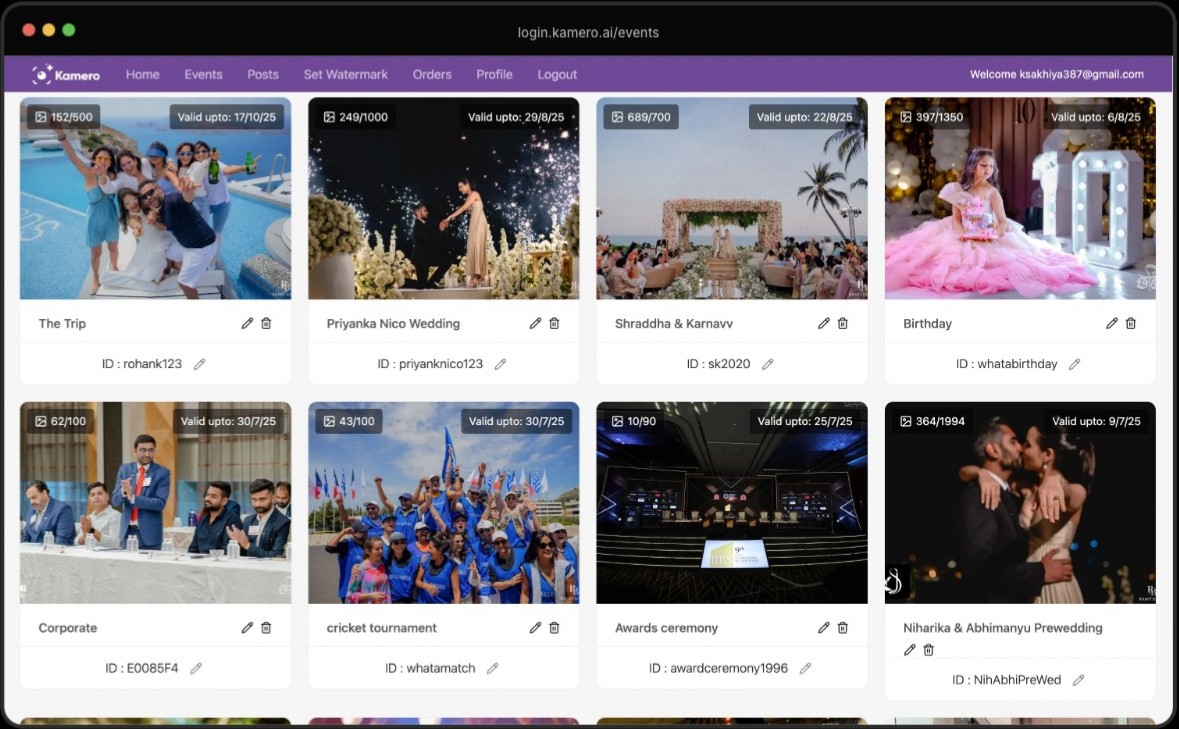
Kamero Admin · Free for Windows & Mac
Kamero Desktop App for Windows & Mac
The desktop photo uploader for Windows and Mac that also runs your whole Kamero dashboard. Bulk upload photos from a folder with subfolders, let uploads run in the background with auto-resume, get up to ~10x faster uploads* and download all photos from an event.
Free download · Windows (.exe) and macOS (.dmg) · Sign in with your existing Kamero account
- One-shot folder upload
- Background upload
- Auto-resume queue
- Up to ~10x faster*
*Kamero's internal measure, not an independent benchmark. Real speed depends on your internet connection, file sizes and computer.
Desktop vs web dashboard
What the desktop app does that the web dashboard can't
Same account, same events. The desktop app adds the tools you need when an event has thousands of photos.
| Feature | Desktop app (Windows & Mac) | Web dashboard |
|---|---|---|
| One-shot upload of a folder with subfolders (subfolders become albums)Desktop only | Yes | No, select files instead |
| Background upload without keeping a browser tab openDesktop only | Yes | No, the tab must stay open |
| Upload queue that survives closing and resumes automaticallyDesktop only | Yes | No |
| Upload speedDesktop only | Up to ~10x faster* | Standard browser upload |
| Bulk download of all event photos into album foldersDesktop only | Yes, straight to your computer | Download link sent by email |
*Kamero's internal measure, not an independent benchmark. Real speed depends on your internet connection, file sizes and computer.
One-shot upload: bulk upload a folder with subfolders
Pick one parent folder; every subfolder becomes an album and the whole event is queued in one go.
Select a single parent folder and Kamero Admin finds every photo in it and in the subfolders directly inside it. Each subfolder becomes its own album, named after the folder, and everything is queued in one go. No creating albums one by one and no selecting files in batches, which the web dashboard can't do.
- Click “One Shot Original Upload” on the event and choose the parent folder.
- Preview the photos found in each folder before anything uploads.
- Subfolders one level down become albums. Photos in the parent folder go into an album named after it.
- Files go up as originals (2 credits per photo, up to 50 MB each). Hidden and system files are skipped.
Use case: Wedding
Export the wedding to a “Sharma Wedding” folder with Haldi, Mehendi, Sangeet, Wedding and Reception subfolders. Select “Sharma Wedding” once and five albums are created and filled, ready for guests to find themselves by selfie.
Background upload: no browser tab to babysit
Uploads run in the app's background queue while you keep working. No tab has to stay open.
Uploads run in Kamero Admin's background queue while you carry on working, in the app or in Lightroom, email or anything else. Uploading from the web dashboard needs its browser tab to stay open; with the desktop app there's no tab to keep alive and nothing to lose if one is closed by accident.
- Keep Kamero Admin open or minimised while the queue runs.
- Manage events, albums and settings in the app while photos upload.
- See pending, uploading, completed and failed files on the Upload Queue screen.
Use case: Conference
At a three-day summit, start uploading Day 1 from the hotel and keep culling Day 2's keynote photos while the queue works through them.
Upload queue with auto-resume
The queue survives closing the app or a restart, and picks up automatically when you reopen it.
The upload queue is saved on your computer, so it survives quitting the app, a restart or a flat battery. When you open Kamero Admin again and you're signed in, it checks which interrupted files had already reached Kamero, marks those as done so nothing is uploaded twice, and resumes the rest automatically.
- Pause and resume the queue, or retry failed files, from the Upload Queue screen.
- Failed uploads are retried automatically before they're marked as failed.
- A file that was moved or deleted before it uploaded is flagged so you can find it.
- Finished items are cleared from the queue after 24 hours.
Use case: Sports
Uploading finish-line photos from the media tent at a city marathon? If the venue Wi-Fi dies or you have to quit and pack up, the upload carries on from where it stopped when you open Kamero Admin at the hotel.
Up to ~10x faster uploads than the browser
Uploads many photos in parallel with background workers: up to ~10x faster than the browser, by Kamero's internal measure.
By Kamero's own internal measurements, the desktop app gives you up to ~10x faster uploads than the browser. It uploads many photos in parallel (8 to 16 at a time, depending on your computer's processor) using background workers, so the app stays responsive while it works.
- Parallel uploads sized to your computer's processor.
- Uploads keep going while you use other apps.
- Kamero's internal measure, not an independent benchmark. Real speed depends on your internet connection, file sizes and computer.
Use case: Wedding
A 4,000-photo wedding delivery that would tie up a browser for an evening becomes a background job you start before dinner.
Bulk download: download all photos from an event
Download every photo in an event straight to a folder on your computer, organised by album.
Use Download All in the event settings to save a whole event to your computer. Choose the albums you want and a folder (your Downloads folder by default), and Kamero Admin downloads every photo straight into it as Event name / Album name, with progress shown album by album. On the web dashboard you request a download link by email instead.
- Select all albums or just the ones you need.
- Photos land in one folder per album, ready to copy to a drive.
- Track progress and failures for each album.
Use case: Sports
After a cricket tournament, pull every match album onto an external drive for the organiser's archive or an album designer, without waiting for an emailed link.
Not just an uploader
Plus everything in your web dashboard
Kamero Admin has the same features as the web dashboard at login.kamero.ai, so you can run events end to end without opening a browser.
Events and albums
Create events, organise albums, review photos and videos.
QR codes and sharing
Event links, QR codes and Common QR codes for your studio.
Kam-Sync camera accounts
Get FTP credentials and choose the target album for live uploads.
Watermarks
Set up the watermark applied to your event photos.
Sell Photos
Sale settings, orders, wallet and commission ledgers.
Reports
Event and usage reports for your account.
Google Drive import
Paste a public Drive folder link and import it. Subfolders can become albums.
Client favourites
See who favourited which photos and extract the originals, the same as in the web dashboard.
Getting started
How to install the Kamero desktop app on Windows or Mac
Download for your computer
Choose Windows (.exe installer) or Mac (.dmg disk image). Both are free and always point to the latest release.
Install Kamero Admin
On Windows, run Kamero_Admin.exe and follow the installer. On a Mac, open the .dmg and drag Kamero Admin into Applications.
Sign in with your Kamero account
Use the same login as the web dashboard. Your events, albums and settings are already there.
Upload your first event
Use One Shot Original Upload to pick a parent folder, or drop photos into an album. The queue runs in the background.
Free download · Windows (.exe) and macOS (.dmg) · Sign in with your existing Kamero account
Guides and related features
Get more out of Kamero Admin
Frequently asked questions
Kamero desktop app FAQs
Is the Kamero desktop app available for Windows?
Yes. Kamero Admin has a Windows installer (Kamero_Admin.exe) for 64-bit Windows PCs. Download it from this page, run the installer and sign in with your Kamero account.
Is the Kamero desktop app available for Mac?
Yes. Kamero Admin is available for macOS as a .dmg disk image. Open it, drag Kamero Admin into your Applications folder and sign in.
Is the desktop app free?
Yes, the download is free and you sign in with your existing Kamero account. Photos you upload use the same upload credits as uploads from the web dashboard.
What can the desktop app do that the web dashboard can't?
It adds one-shot upload of a folder with subfolders, background upload without a browser tab, an upload queue that resumes automatically after you reopen the app, up to ~10x faster uploads than the browser by Kamero's internal measure, and bulk download of whole events into album folders. Everything else in the web dashboard, including client favourites, is there too.
What is one-shot upload?
One-shot upload lets you select a single parent folder and upload every photo in it and in its subfolders in one go. Click “One Shot Original Upload” on an event, choose the folder, check the preview and start. Photos go up as originals.
Do subfolders become albums?
Yes. Each subfolder directly inside the folder you pick becomes a new album named after it, and photos in the parent folder go into an album named after the parent. Folders nested more than one level deep aren't scanned, so keep one level of album folders.
Do uploads keep going if I close the app or restart my computer?
Uploads pause while the app is closed, but the queue is saved on your computer. When you reopen Kamero Admin and sign in, pending uploads resume automatically. You can also pause, resume and retry from the Upload Queue screen.
Will auto-resume upload the same photo twice?
No. On startup Kamero Admin checks whether each interrupted file already reached Kamero. Files that did are marked as completed; only the rest are uploaded again.
How much faster is the desktop app than the browser?
Up to ~10x faster uploads than the browser, by Kamero's internal measure. It is not an independent benchmark, and real speed depends on your internet connection, file sizes and computer. The app uploads 8 to 16 photos in parallel depending on your processor.
Can I download all photos from an event?
Yes. Open the event settings, click Download All, choose the albums and a folder, and Kamero Admin saves every photo to your computer in one folder per album.
Can I upload photos larger than 50 MB?
Yes, as standard uploads from the desktop app. Original uploads, including one-shot upload, are limited to 50 MB per file, and photos for Sell Photos events can be up to 100 MB.
Which file types can I upload?
JPG, JPEG, PNG, GIF, BMP, WebP, HEIC and HEIF. Sell Photos events also accept TIFF and AVIF.
How do I update the desktop app?
Kamero Admin checks for new versions and lets you know when an update is ready. The download buttons on this page always point to the latest release.
Windows SmartScreen or macOS blocked the installer. Is that normal?
Yes, on first install. On Windows, open More info then Run anyway if you downloaded from this page or your Kamero dashboard. On a Mac, allow Kamero Admin in System Settings → Privacy & Security, or right-click the app and choose Open.
Does the desktop app replace Kam-Sync?
No, they do different jobs. Kam-Sync sends photos from your camera to Kamero live during the event. The desktop app is for uploading edited photos afterwards, and you can manage your Kam-Sync camera accounts from it too.
Free for Kamero users
Get Kamero Admin for Windows or Mac
New to Kamero? Start free on the web, then sign in to the desktop app with the same login.