How to sign in or create an account in the Kamero app
Photographers: send this page to your guests.
You can look through event photos in the Kamero app without an account. Signing in lets you do more:
- Mark favourites with the heart and see them in My Favourites on the Home tab.
- Download photos, when the event asks you to sign in first.
- Search with a selfie, when the event asks you to sign in first, and keep your selfies for next time.
- Use the same favourites and selfies on the website and on other phones.
Open the sign-in screen
Tap More at the bottom of the app, then Get Started on the Login to Your Account card. The app also opens this screen when you tap something that needs an account, such as the heart on a photo.
Sign in
The screen says Welcome Back. Choose one way:
- Email and password: type them and tap Sign In.
- Google: tap Sign in with Google and pick your Google account.
- Apple: on an iPhone, you can also tap Continue with Apple.
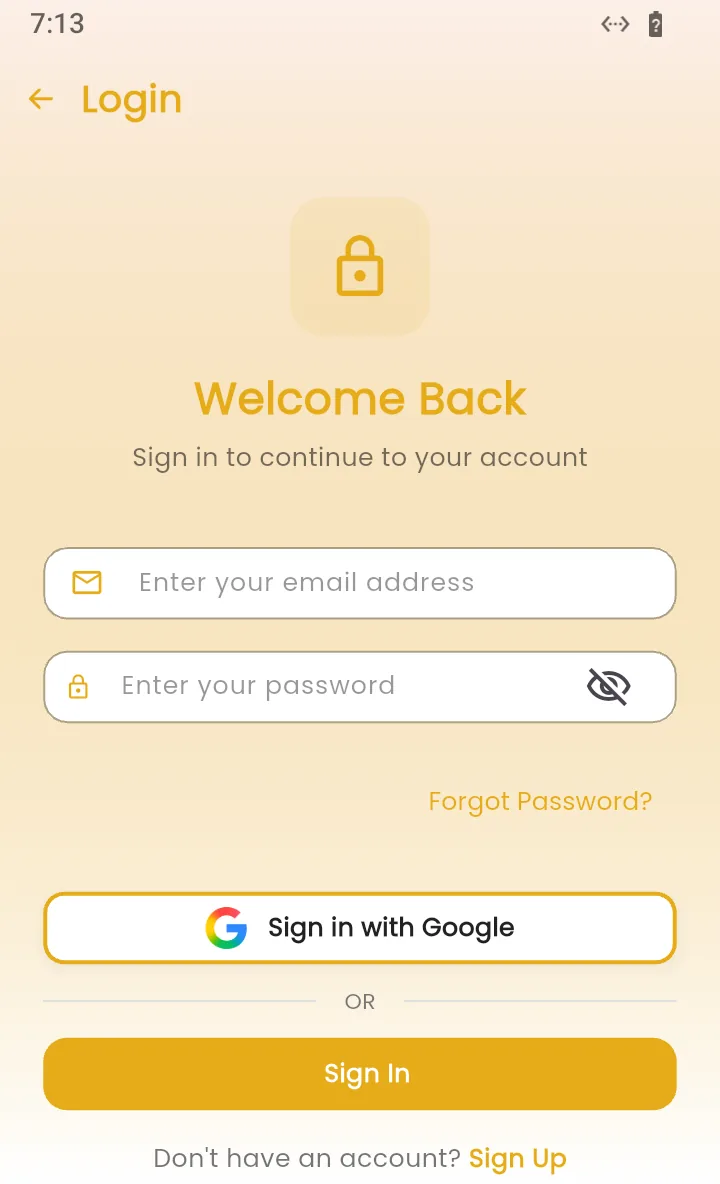
If you sign in with Google or Apple and some details are missing, the app asks you to Complete Your Profile with your name and phone number.
Create an account
- On the sign-in screen, tap Sign Up at the bottom.
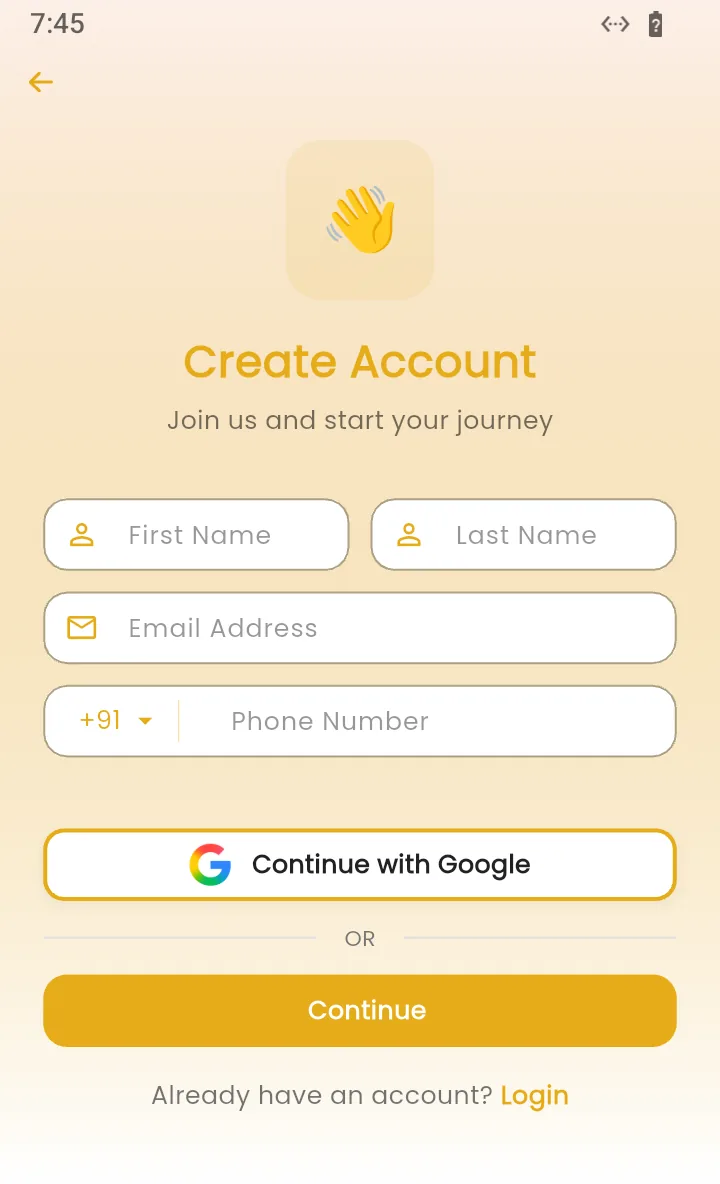
- On Create Account, type your first name, last name, email and phone number. In some branded apps the phone number is optional. Or tap Continue with Google to skip the form.
- Tap Continue. The app emails you a 6-digit code and shows OTP sent to your email!
- On Verify Your Email, type the code and tap Verify OTP.
- On Set Your Password, choose a password and tap Complete Signup.
If the app says Account Already Exists, you already have an account with that email. Go back and sign in instead.
Forgot your password
- On the sign-in screen, tap Forgot Password?.
- Type your email and tap Send OTP.
- Type the 6-digit code from the email.
- On Set New Password, choose a new password and tap Reset Password.
The app shows Password reset successfully! Welcome back! and signs you in.
Your profile, sign out and delete account
Once you are signed in, the first card on the More tab opens your profile. It shows your Personal Information and My Selfies. The settings button on the profile has Change Password, Sign Out and Delete Account. The More tab also has Logout.
To manage your account on a computer instead, see signing in and your profile on the website.
Frequently asked questions
Do I need an account to see event photos?
No. You can open events and view photos without one. You need an account to mark favourites, and some events also ask for one before you download photos or search with a selfie.
Is my app account the same as my account on the website?
Yes. Sign in with the same email or Google account in the app and on the website, and your favourites and selfies show in both.
I did not get the 6-digit code. What should I do?
Check your spam or promotions folder and make sure you typed your email correctly. The code is sent from Kamero to the email you entered.
The app says Account Already Exists. What now?
You already have an account with that email. Go back to the sign-in screen and sign in. If you don't remember the password, tap Forgot Password?.
How do I delete my account?
Open your profile from the More tab, tap the settings button, and tap Delete Account. You can also do it on the website.
More Kamero app tutorials
Try it in your dashboard
Sign in to Kamero and follow along. Questions? Raise a support ticket from the dashboard.