Signing In and Managing Your Guest Account
Photographers: send this page to your guests.
You can look at most event galleries without an account. You need to sign in to save favourites, find your photos with a selfie, download from most events, and buy photos. One free account works for every Kamero event and studio, and in the app.
When Kamero asks you to sign in
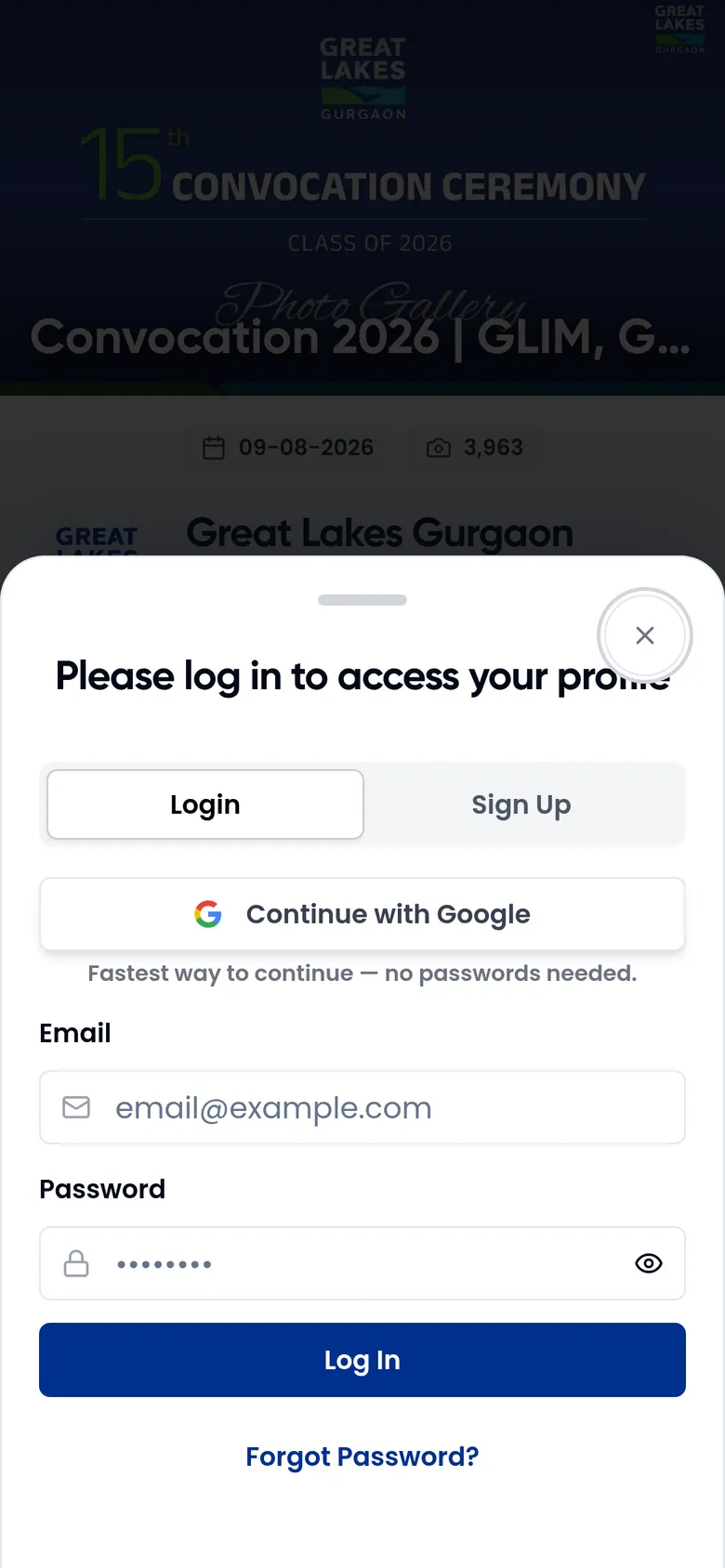
The sign-in window opens when you do something that needs an account. Its title tells you why, for example Please log in to mark favorites, Please log in to upload selfie, Please log in to download photos or Please log in to access this event. You can also sign in any time with the person icon next to Albums in a gallery.
Ways to sign in
- Google: tap Continue with Google and pick your Google account. No password needed. This also creates your account the first time.
- Email and password: on the Login tab, type your Email and Password and tap Log In.
- A 6-digit code by email: offered when you buy photos, open your orders, or open a gallery for invited emails only. See below.
- Apple: only in the iPhone app (Continue with Apple).
There is no sign-in with a phone number or SMS code.
Sign in with a code instead of a password
When you buy photos, open My Orders, or open a gallery for invited emails, the sign-in window looks different. It offers Google first (Recommended. One tap, no password.), then Continue with email.
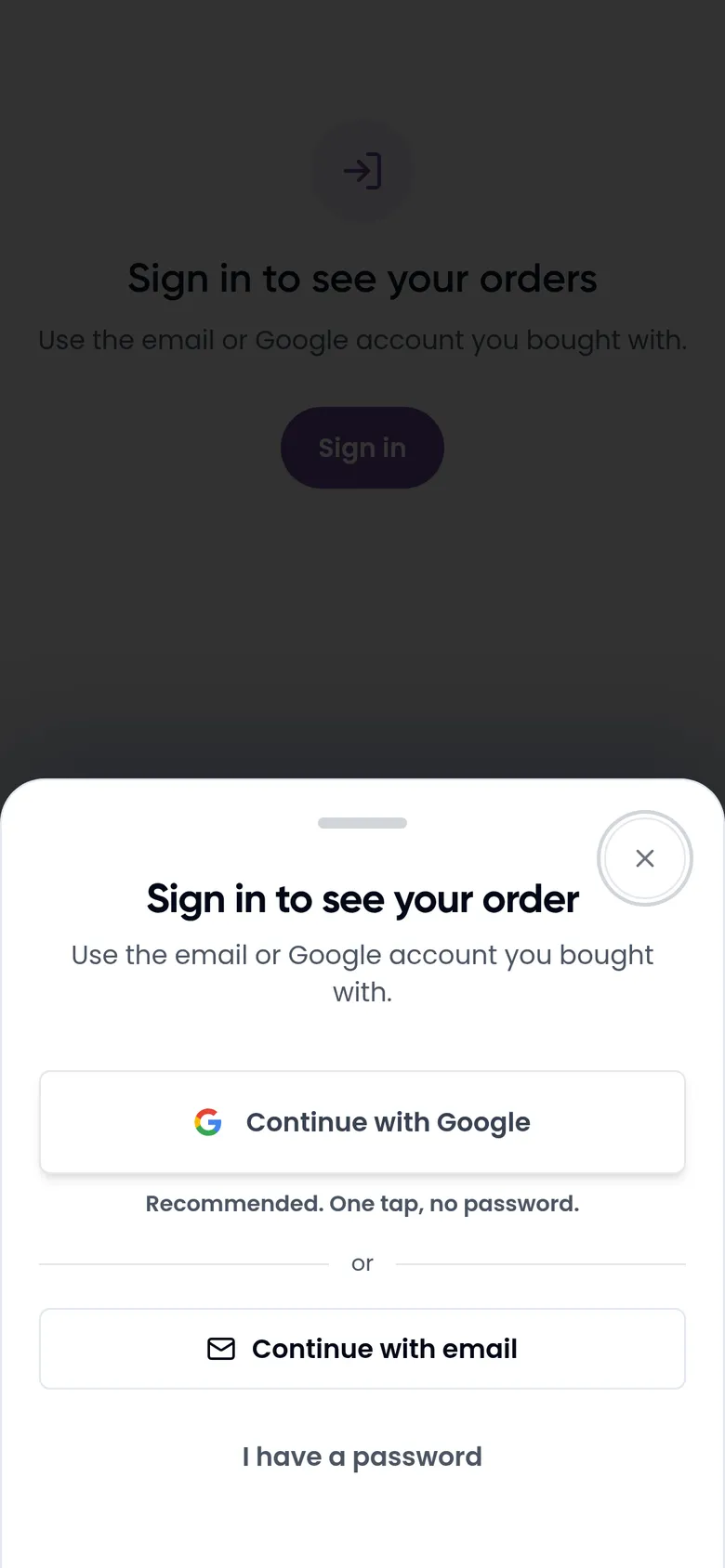
- Tap Continue with email.
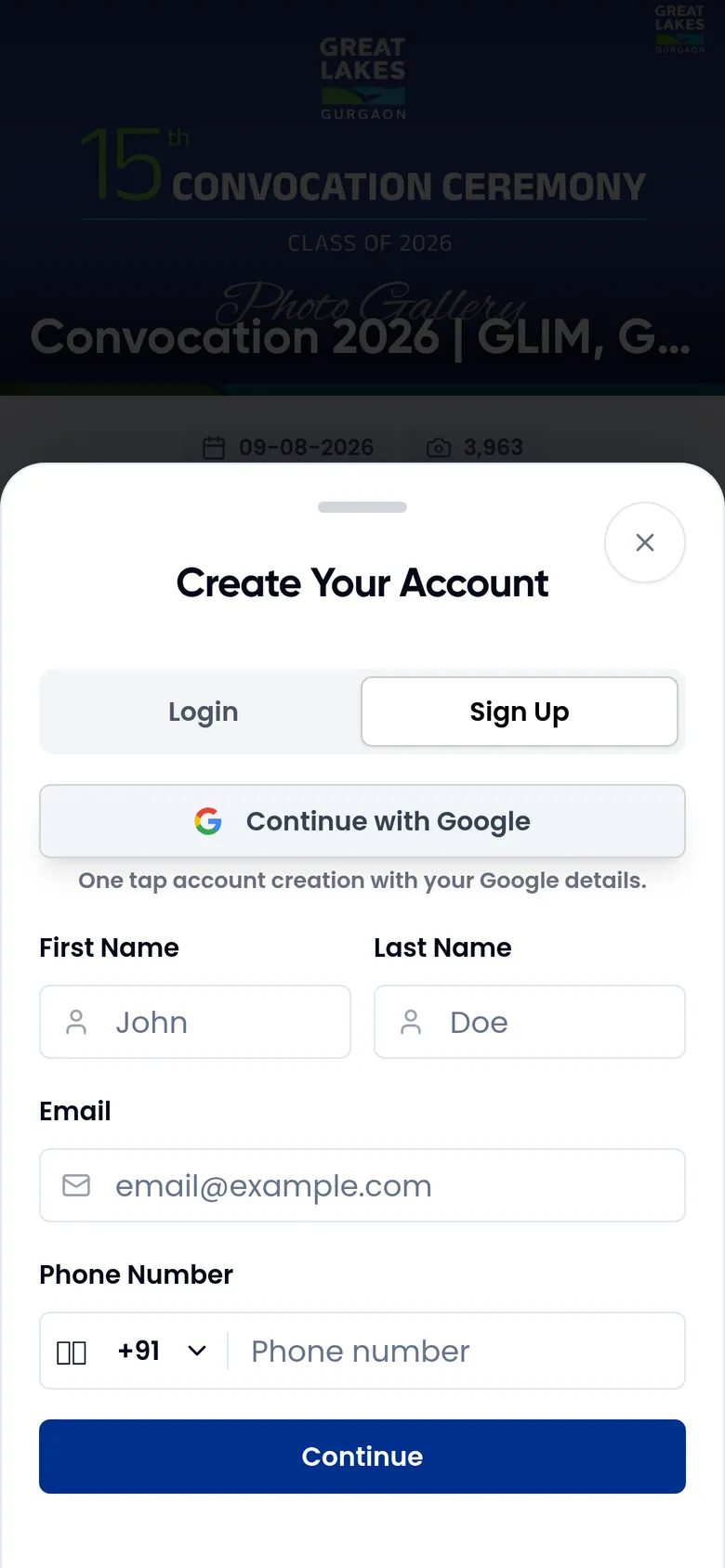
- Type your email and tap Email me a code.
- Kamero shows Check your email. Open the email from Kamero and type the 6-digit code.
- Tap the button below the code to finish, for example Sign in or Continue to my order.
No code? Check your spam folder, then tap Resend code. Typed the wrong email? Tap Use a different email. If you already have a password, tap I have a password to get the Login and Sign Up tabs.
Create an account
The quickest way is Continue with Google. To sign up with your email instead:
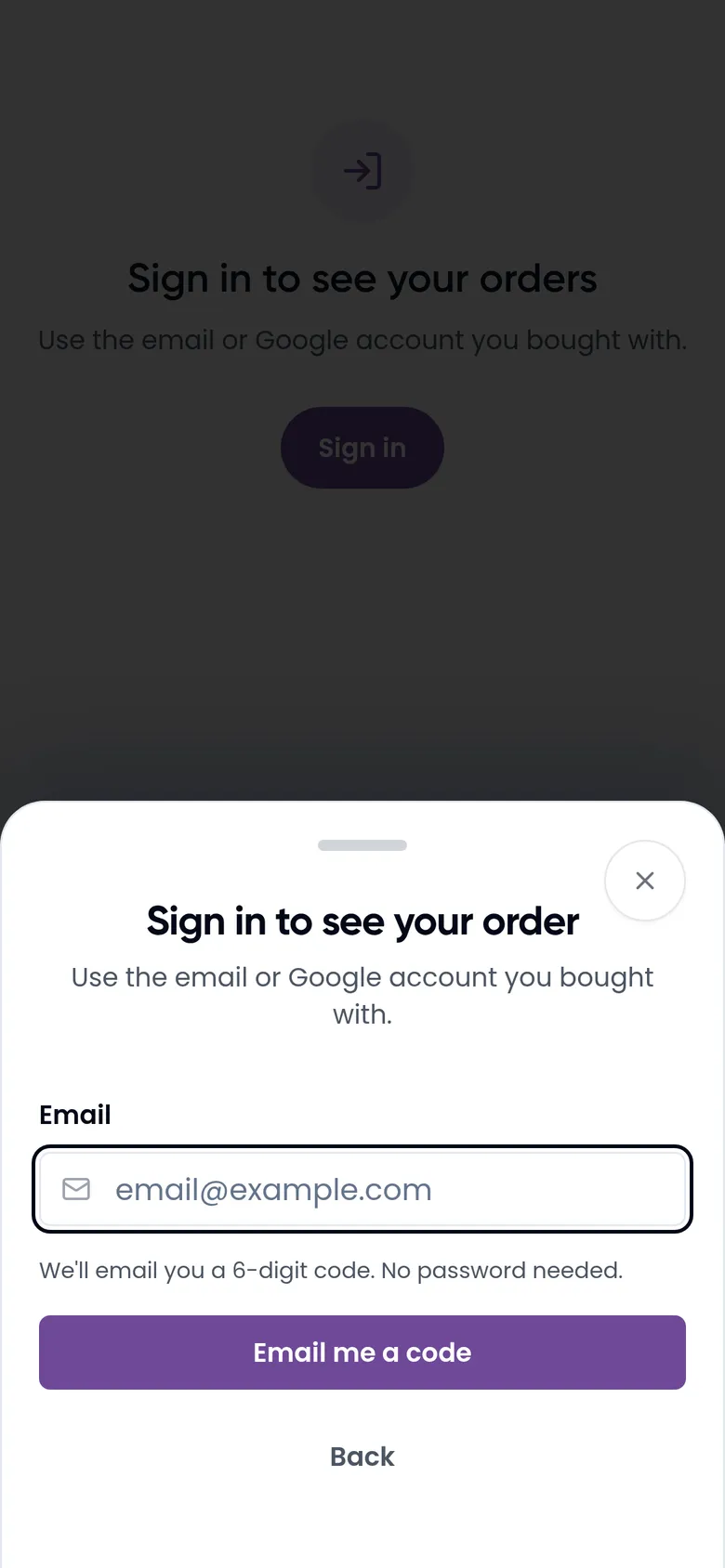
- In the sign-in window, tap the Sign Up tab. The title changes to Create Your Account.
- Fill in First Name, Last Name, Email and Phone Number. Pick your country code next to the phone number. All four are required.
- Tap Continue. Kamero emails you a one-time code (OTP).
- Type the code in OTP Code and tap Verify OTP. No email? Tap Resend OTP.
- Choose a password of at least 6 characters and tap Complete Signup.
Forgot your password
- On the Login tab, tap Forgot Password?.
- Type your email and tap Send Reset OTP.
- Type the 6-digit code from the email and tap Verify OTP.
- Type a New Password of at least 6 characters and tap Reset Password.
Your profile
Tap the person icon (or your picture) next to Albums in any gallery, or go to kamero.ai/user/profile. Your profile shows:
- Your name, Email Address, Phone Number, Location and User ID.
- Phone Verification and WhatsApp Verification, each marked Verified or Not verified.
- The Face Recognition Selfies card with your selfies.
- Account Actions: Sign Out and Account Settings.
My Selfies
Your default selfie is used to find your photos when you open My Photos in any event, so you don't need a new selfie for each event. In the My Selfies card you can:
- Tap Upload New Selfie to add a photo of your face from your phone or computer (up to 10 MB). Here you can pick an existing photo. In a gallery, the selfie button uses your camera.
- Tap Set Default on a selfie to make it the one Kamero uses. The current one is marked Default.
- Delete a selfie. This erases the stored photo from Kamero's servers and can't be undone. Photos you already found or bought stay available. To delete your default selfie when you have others, set another one as default first.
With no selfies, the card says No selfies yet. More on selfies is in find your photos with a selfie.
Account settings
On your profile, tap Account Settings. It has five cards. Not all of them let you change anything yet:
- Profile Settings (Edit Profile): shows your name, email and phone, but you can't edit them here. To change them, contact Kamero support.
- Password & Security (Manage Security): change your password. Type a New Password of at least 6 characters, repeat it in Confirm Password and tap Update Password. This is the only security option. There is no two-factor sign-in.
- Notifications (Configure Notifications): has no options yet.
- Privacy (Privacy Settings): has no options yet. To delete a selfie, use My Selfies on your profile.
- Delete Account: see below.
Sign out
On your profile, tap Sign Out under Account Actions. You stay signed in on kamero.ai and studio addresses until you sign out, so sign out on shared phones and computers.
Delete your account
- Go to Account Settings and tap Delete Account.
- Read the list. Deleting your account closes it and removes your access to your profile, saved favourites, download history, uploaded selfies and event registrations.
- Tap Delete My Account, then Yes, delete my account in the Are you absolutely sure? window. This can't be undone.
Closing your account does not by itself erase your stored selfie photos or the face data made from them. To erase a selfie, delete it under My Selfies before you delete your account. For any other data, email dpo@kamero.ai and Kamero will handle it as an erasure request.
If you bought photos, keep your account until you have downloaded them. See your orders and downloads.
Frequently asked questions
Can I sign in with my phone number?
No. Kamero has no phone or SMS sign-in. Sign Up asks for your phone number, but you always sign in with Google or your email.
Is a guest account free?
Yes. Creating an account and viewing, favouriting and downloading photos cost nothing. You only pay if an event sells photos and you choose to buy them.
Do I need a new account for each event or studio?
No. One account works for every Kamero event, on kamero.ai, on studio addresses such as studioname.kamero.ai, and in the app. Your favourites and selfies follow you.
I signed in with Google. Do I have a password?
No. Keep using Continue with Google. If you want a password as well, use Forgot Password? on the Login tab with your Google email.
How do I change my name, email or phone number?
You can't change them yourself yet. Profile Settings shows them read-only. Contact Kamero support and ask them to update your details.
Does deleting my account delete my selfies?
Not by itself. Delete each selfie under My Selfies on your profile first, which erases the stored photo. For anything else, email dpo@kamero.ai and ask for erasure.
More For guests tutorials
Try it in your dashboard
Sign in to Kamero and follow along. Questions? Raise a support ticket from the dashboard.