How to find your photos with a selfie
Photographers: send this page to your guests.
A big event can have thousands of photos. Instead of scrolling through all of them, you can take one selfie and Kamero shows you only the photos you are in. This happens in the My Photos tab of the event gallery. If you have not opened the gallery yet, start with opening your event photos.
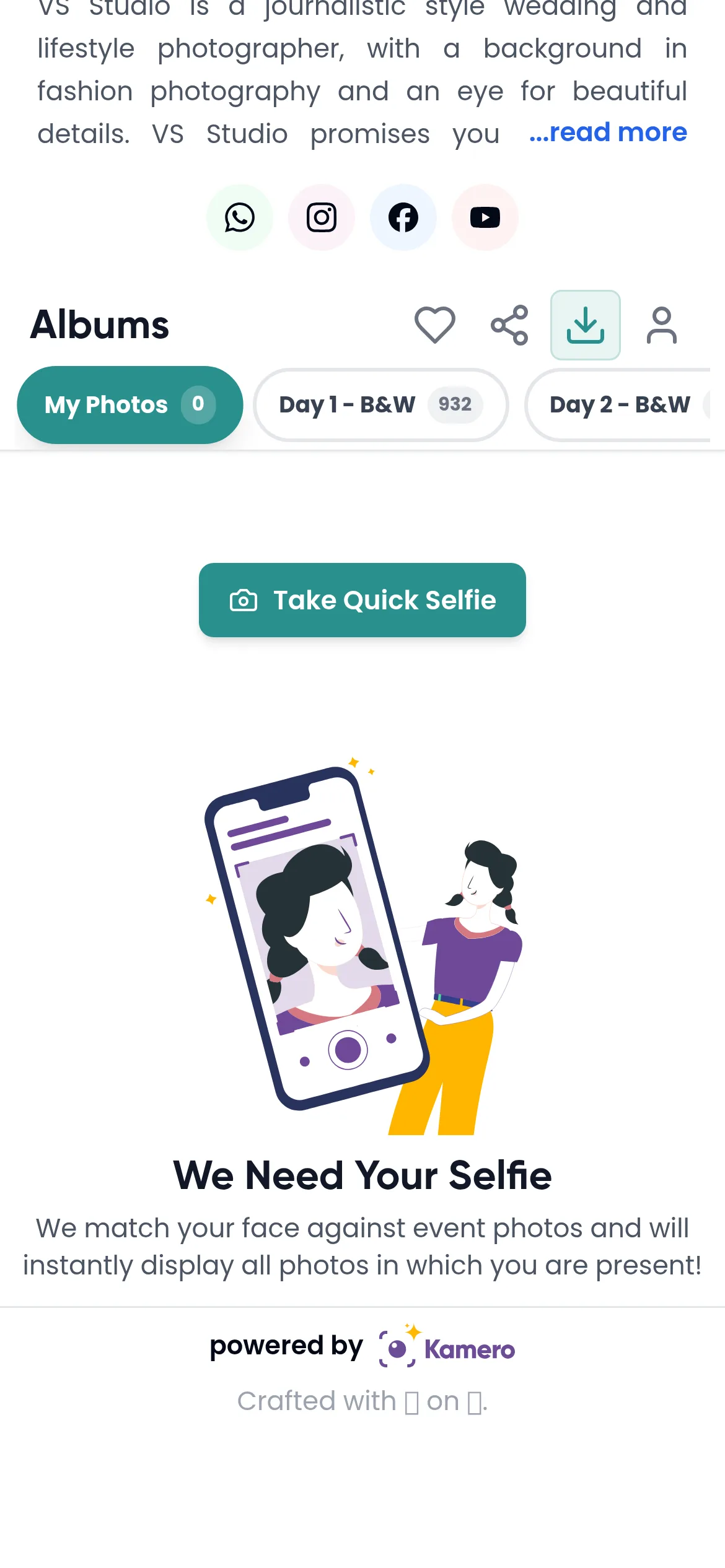
Take your selfie
- Open the event gallery and tap the My Photos album. It is the first one in the Albums row.
- Tap Take Quick Selfie.
- If the event asks you to log in, log in or sign up. Then tap the button again.
- When your browser asks to use the camera, tap Allow.
- Look at the camera and tap the round camera button in the Capture Selfie window.
- On Review Selfie, check the photo and tap Use This Photo. If it looks wrong, take it again.
By taking a selfie you agree to Kamero's Terms of Use and Privacy Policy.
When you need to log in
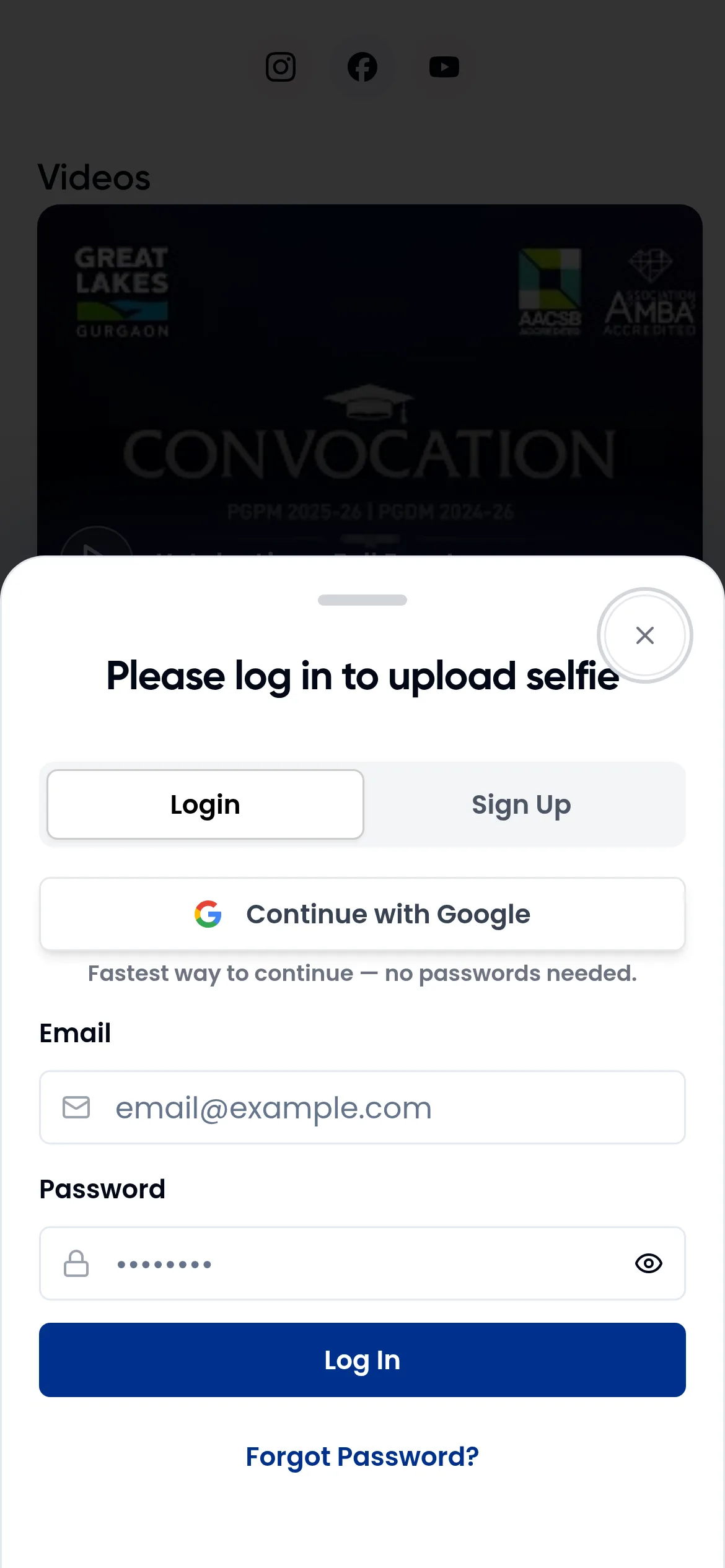
Most events ask you to log in before you take a selfie. You will see Please log in to upload selfie with Login and Sign Up tabs. Some photographers let guests search without an account, and events that sell photos let you search without one too. In those events the camera opens straight away. For help with accounts, see signing in and your profile.
Tips for a good selfie
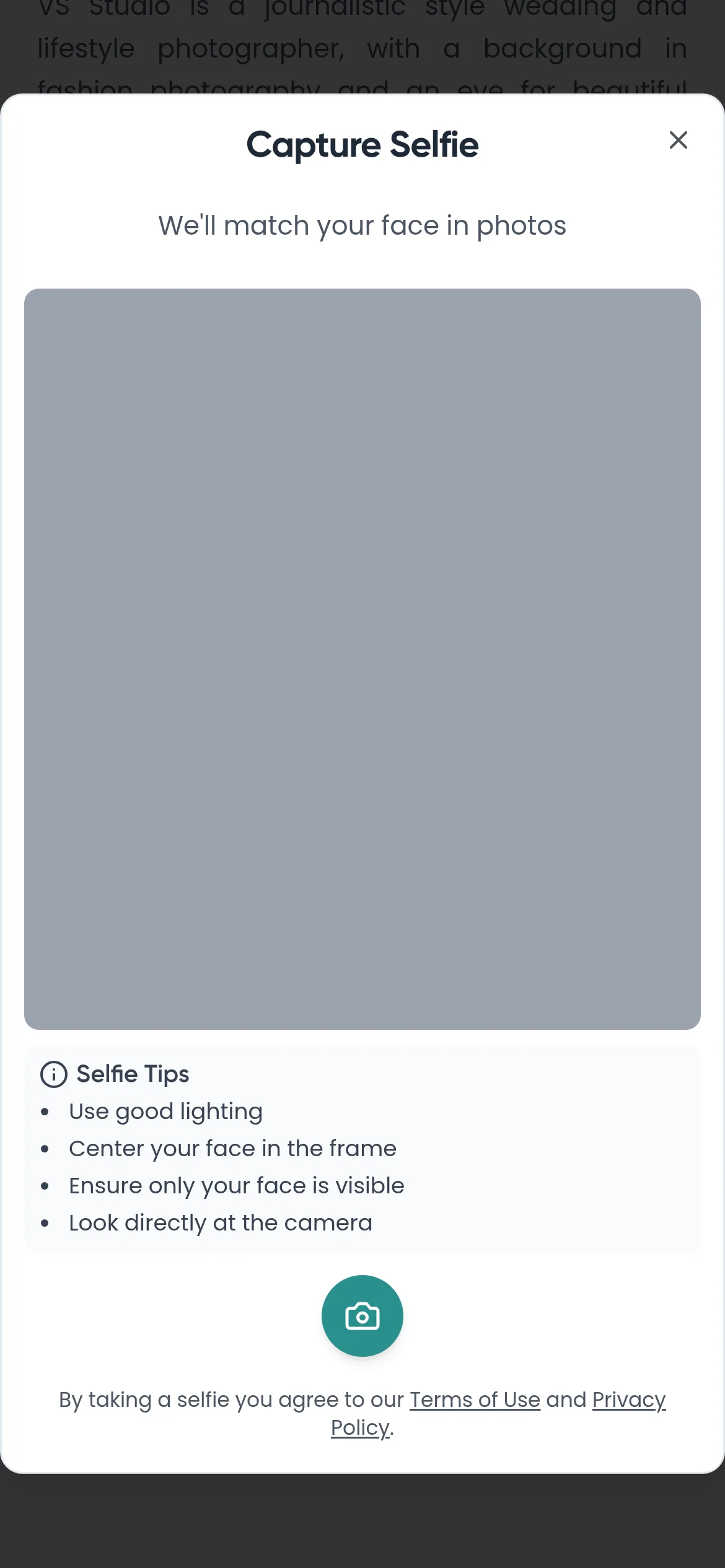
The Capture Selfie window lists the same tips:
- Use good lighting.
- Center your face in the frame.
- Make sure only your face is visible.
- Look directly at the camera.
If the camera does not open
- Camera access was blocked: allow the camera in your browser's address bar, then try again.
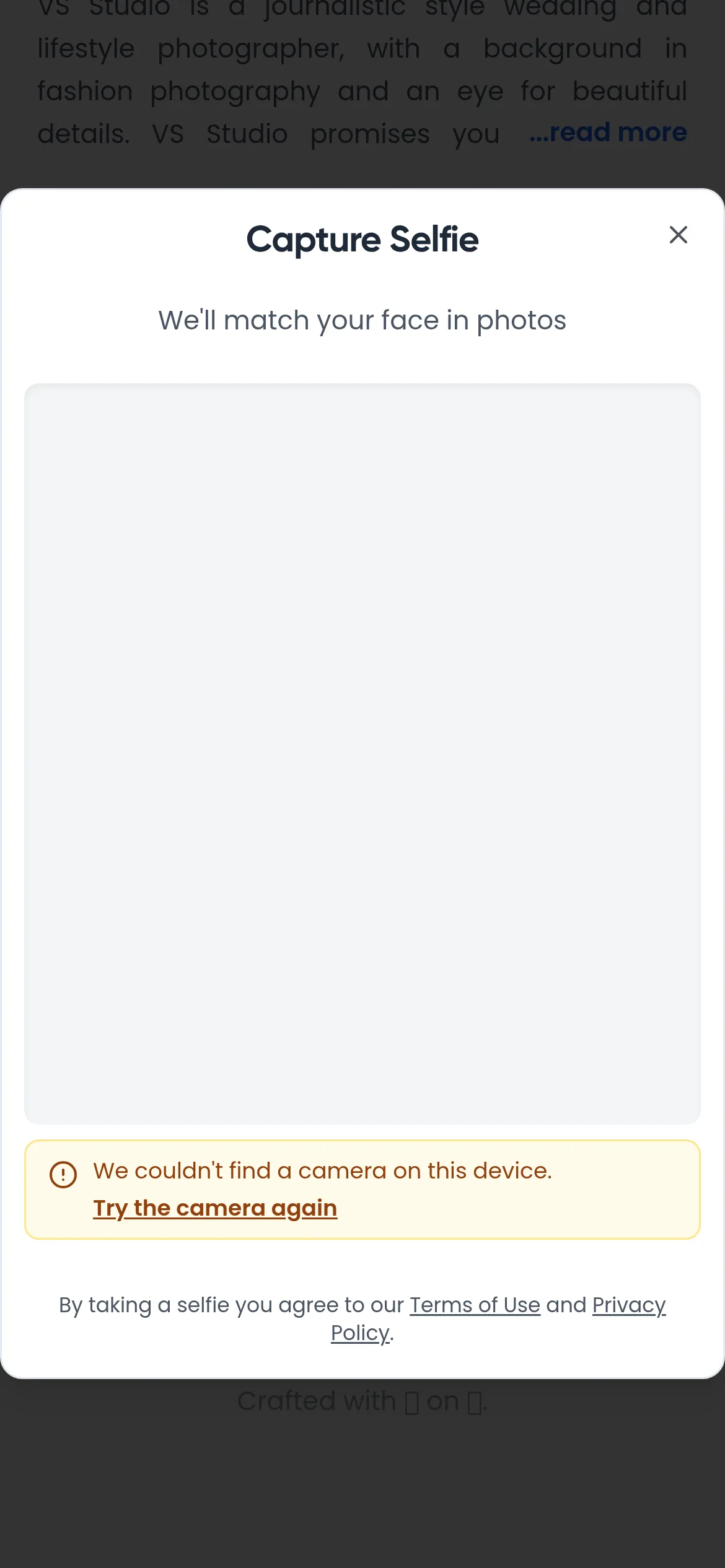
- We couldn't find a camera on this device: tap Try the camera again, or use a phone.
- The camera isn't ready yet: wait a moment and tap the button again.
- We couldn't process that photo: take another selfie.
- Too many searches: wait a minute before you try again.
The web gallery only takes a live selfie. To use a photo you already have, open your profile (the person icon next to Albums), go to Face Recognition Selfies and tap Upload New Selfie. The file can be up to 10 MB, and HEIC photos from iPhones are fine. The Kamero app also lets you pick a photo from your gallery.
What you see after the selfie
My Photos fills with the photos you appear in. Your selfie shows as a small circle at the top.
- Tap + to add another person's selfie, such as a child or a partner. Each person gets a circle, and tapping a circle shows that person's photos.
- Rename a circle with Update Person Name so you know whose photos it shows.
- Delete a circle you no longer need. Kamero asks Delete Selfie? first.
- Tap Download My Photos to save all your matched photos as one zip file. Some photographers turn downloads off, and then this button does not show. See downloading and sharing photos.
Your default selfie is used again on its own when you open My Photos in another event, so you only take it once. You can change the default in Face Recognition Selfies.
If no photos match
You see No Photos Available, or a message that starts with Sorry if you named your selfie. This can happen when:
- The photographer is still uploading. Check again later or ask the event organiser.
- The selfie was dark or blurry. Take a new one in better light.
- Your face was not clearly visible. Face the camera with nothing covering your face.
- The selfie is old. Use a recent photo.
Other messages you may see:
- Photos are still being processed: new photos are being prepared for search. Check back in a few minutes.
- Your selfie has expired: take a new selfie.
- Face search is temporarily unavailable: try again shortly.
- Face search is not available for this event: the photographer has not turned it on. Browse the albums instead.
Events with a PIN
Some events hide the full gallery behind a 4-digit PIN. Without the PIN you still see your own photos in My Photos. To see everything, tap Unlock All Photo Access, enter the PIN from the photographer and tap Unlock.
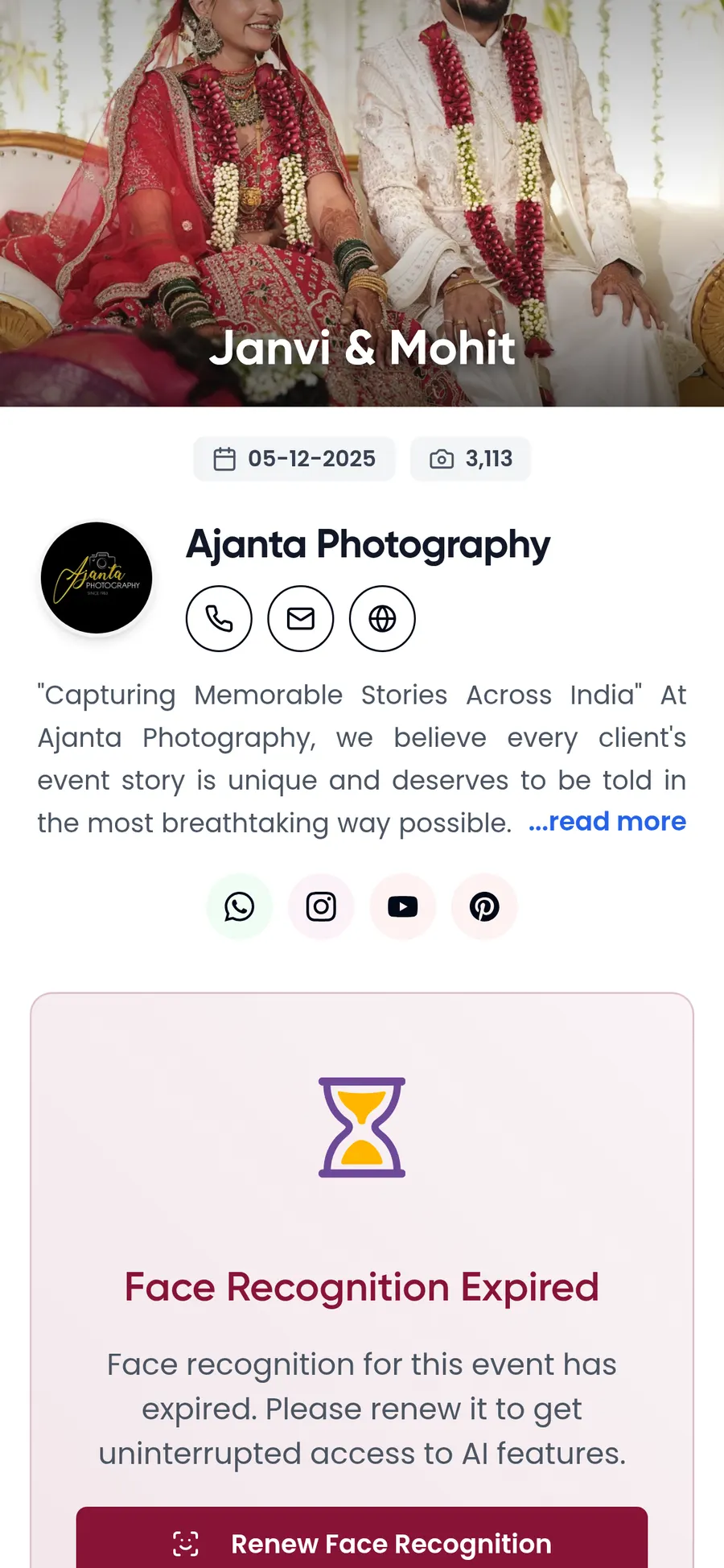
Face Recognition Expired
Selfie search runs for a set time on each event. When it ends, the gallery shows Face Recognition Expired. You can still browse the albums. To use My Photos again, tap Renew Face Recognition. If the whole event has expired, you see Event & Face Recognition Expired and Renew Event Access instead. See renewing an expired event.
Your selfie and your privacy
- Your selfie is used to find your photos. It is kept with your account so you do not need a new one each time.
- To delete it, open your profile, go to Face Recognition Selfies and delete it. This erases the stored photo, and it cannot be recovered. Photos you already found or bought stay available.
- Closing your account does not erase your selfies on its own. Delete them first. To ask for all your data to be erased, email dpo@kamero.ai.
Frequently asked questions
Do I need an account to search with a selfie?
Usually yes. Most events ask you to log in before you take a selfie. Some photographers let guests search without an account, and events that sell photos also let you search without one. If you see Please log in to upload selfie, log in or sign up and tap Take Quick Selfie again.
Can I upload a selfie from my phone's gallery instead of using the camera?
Not from the My Photos tab on the web, which only uses the camera. You can upload a saved photo in your profile under Face Recognition Selfies with Upload New Selfie (up to 10 MB, HEIC is fine), or pick one from your gallery in the Kamero app.
Why did my selfie find no photos?
The photographer may still be uploading, or the photo may not show your face clearly. Take a new selfie in good light, facing the camera, with only your face in the frame. If it still finds nothing, check back later or ask the event organiser.
Can I search for my family members too?
Yes. Tap the + next to your selfie to add another person's selfie. Each selfie gets its own circle, and you can rename a circle so you know whose photos it shows.
What does Face Recognition Expired mean?
The selfie search for this event has ended. You can still look through the albums. To use My Photos again, tap Renew Face Recognition.
How do I delete my selfie?
Open your profile, go to Face Recognition Selfies and delete the selfie. This erases the stored photo, and it cannot be recovered. Photos you already found or bought stay available. Closing your account does not erase selfies on its own, so delete them first.
More For guests tutorials
Try it in your dashboard
Sign in to Kamero and follow along. Questions? Raise a support ticket from the dashboard.