How to Open Your Event Photos
Photographers: send this page to your guests.
Your photographer shared the event photos on Kamero. This page shows how to open the gallery, get past a PIN or sign-in screen, browse the albums and look at photos full screen. It works the same on a phone and a computer, and you don't need to install anything.
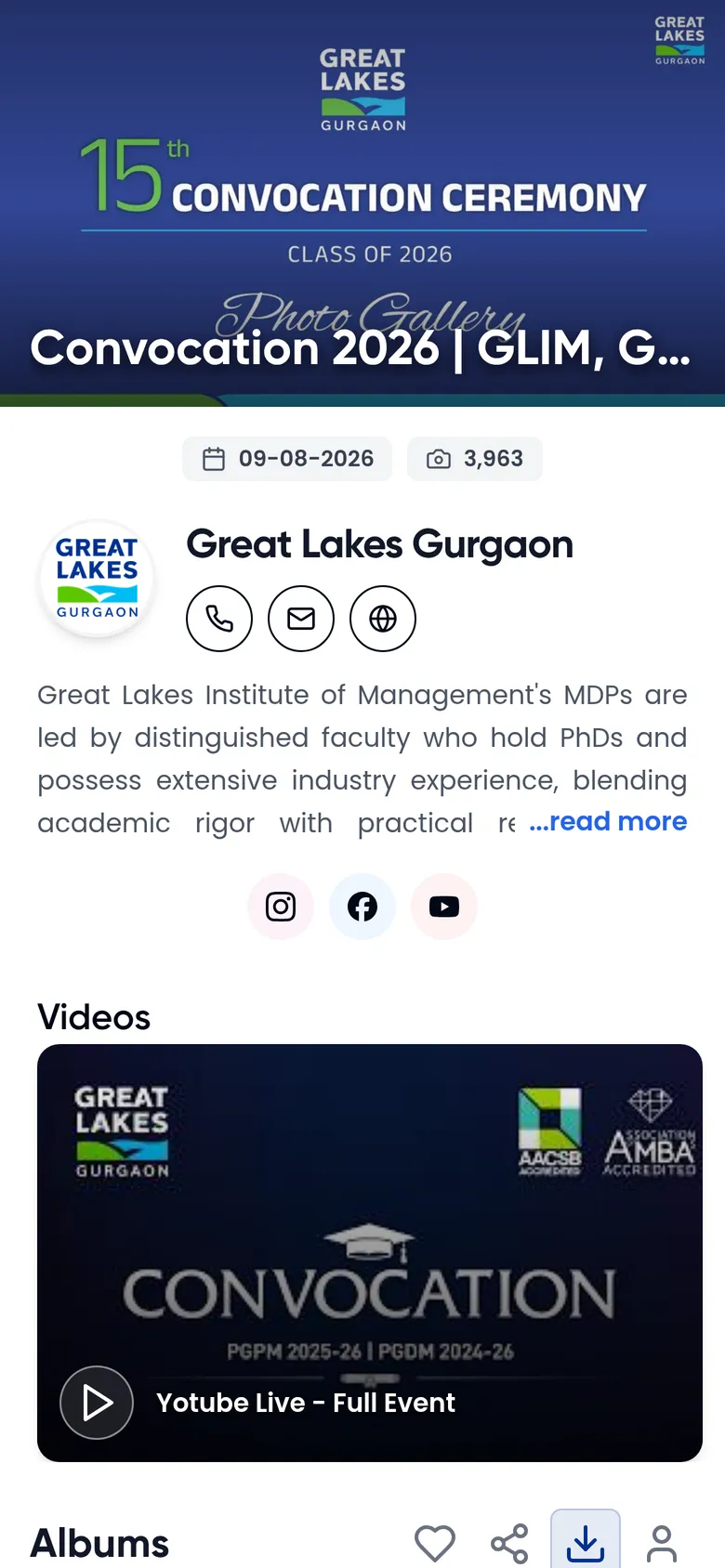
Open the event
You can open an event in three ways:
- A link. Tap the link the photographer sent you on WhatsApp, email or SMS. It looks like kamero.ai/convocation2026, or it uses the studio's own address, such as studioname.kamero.ai/convocation2026. Both open the same gallery.
- A QR code. Point your phone camera at the QR code on the invite, table card or screen, then tap the link that appears.
- An event code. Type kamero.ai/ followed by the code into your browser's address bar. The code is the part after the slash, for example convocation2026.
If the code is wrong, you see Event Not Found. Type the code again in the box on that page and tap Check Out Event Photos, or ask the photographer for the right link.
On a phone: View On App or Continue on Web
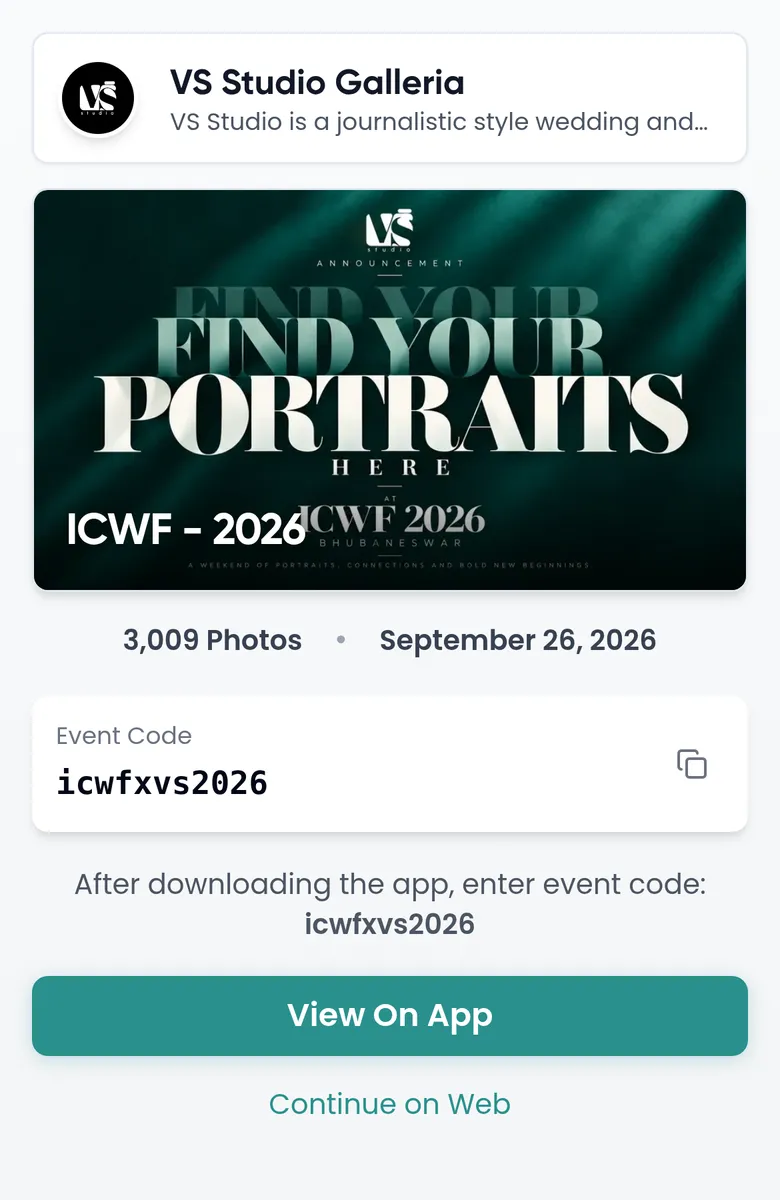
On a phone, many events first show a page with the cover, the photo count, the Event Code and two choices. Photographers can turn this page off, so you may go straight to the gallery.
- Continue on Web opens the gallery in your browser. Choose this if you just want to look at the photos.
- View On App copies the event code and opens the app store, or the app if you already have it. After you install the app, enter the event code shown on the page. Some studios have their own branded app, and the button takes you to that one.
Tap the copy icon next to the code to copy it.
Browse the albums
Scroll past the studio's details to Albums. The album names sit in a row you can swipe sideways, each with its photo count. Tap an album to see its photos. The first tab is My Photos, where you can find the photos you are in with a selfie (see find your photos with a selfie). If guests are allowed to add photos, you also see a Guest Uploads tab.
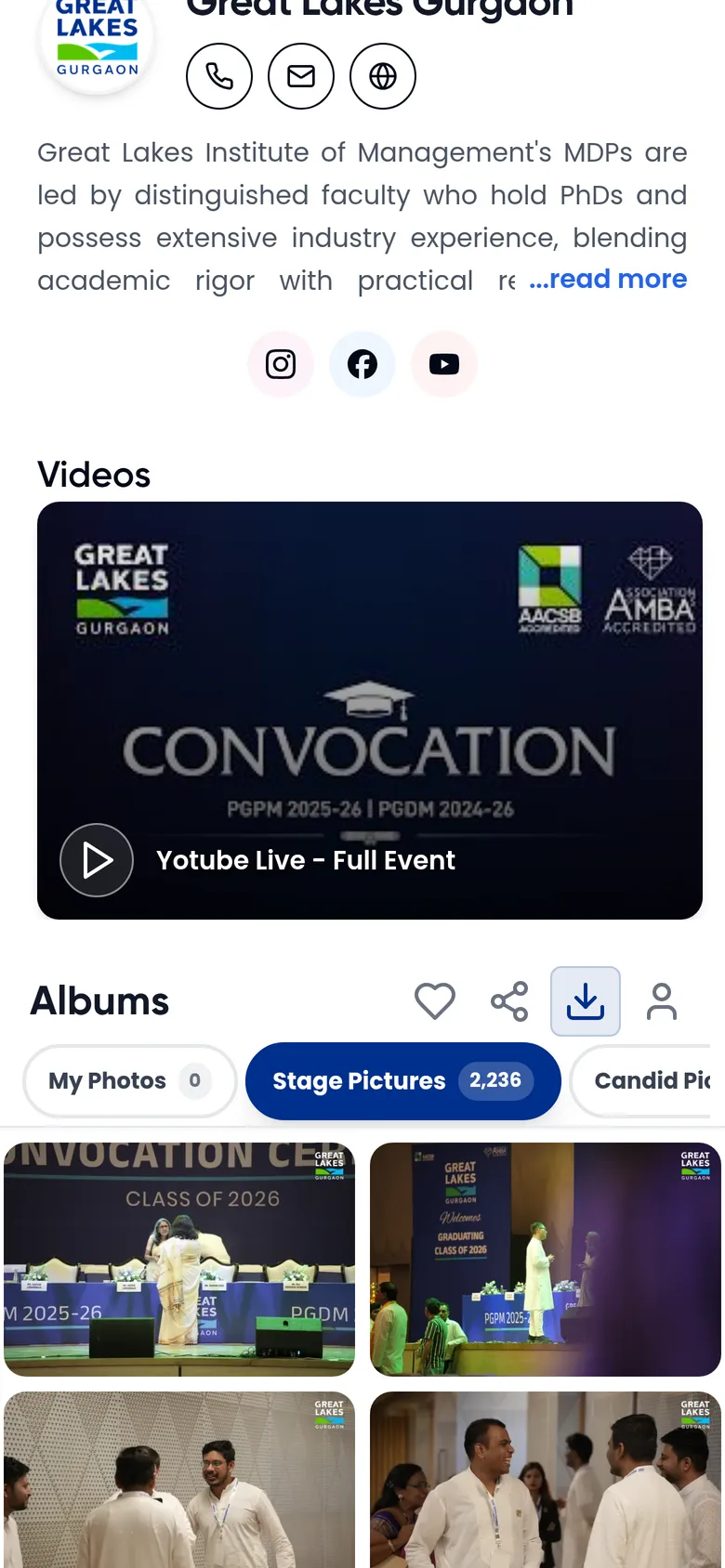
The icons on the right of Albums are:
- Heart (Favorites): your favourite photos in this event. See pick your favourite photos.
- Share: send the event to someone. See download and share photos.
- Download (Download All Photos): get every photo by email. On events that sell photos, this icon is Buy All Photos instead (see buy photos from a gallery).
- Open lock (Unlock All Photos): only on private events, until you enter the PIN.
- Person (Profile): sign in, or open your profile. See sign in and manage your account.
On events that sell photos, you also see a My Orders icon after you sign in.
On a computer the gallery looks the same, with more photos per row.
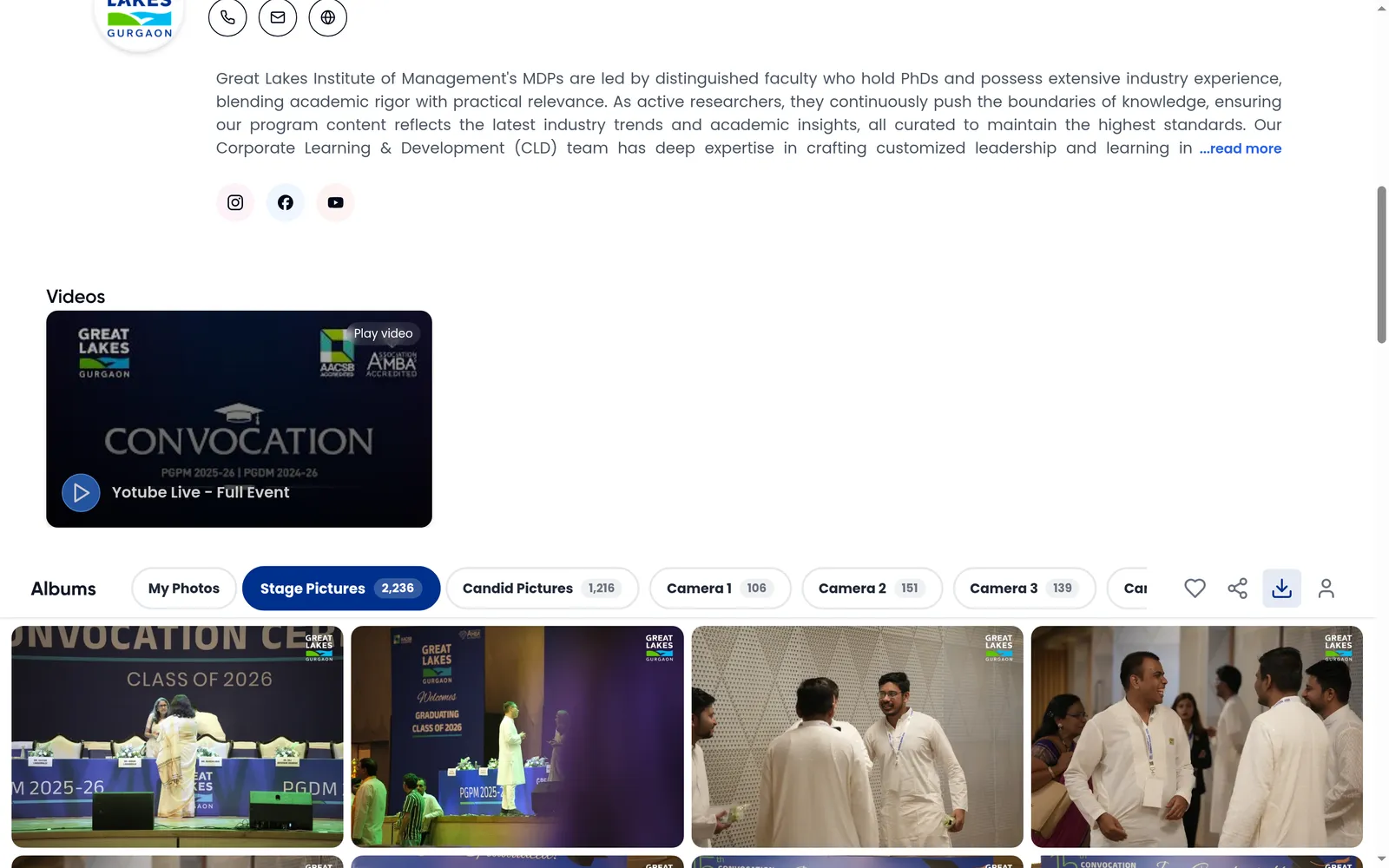
Look at a photo full screen
Tap any photo. It opens full screen in full quality. The counter at the top, for example 3 of 2236, shows where you are in the album.
- Swipe left or right, or tap the arrows, to go to the next or previous photo.
- The play button starts a slideshow. You can set how many seconds each photo stays on screen.
- The heart adds the photo to your favourites.
- The share and download buttons are explained in download and share photos.
- The buttons at the bottom rotate the photo left or right and flip it.
- The X closes the photo.

On a computer you also get zoom in and out, Fit, full screen, rotate, flip and Reset. Keyboard shortcuts: the arrow keys move between photos, L adds a favourite, S shares, D downloads (when downloads are allowed), Space plays the slideshow and Esc closes the photo.

Private events with a PIN
Some photographers make an event private. In a private event you first see only My Photos, the photos your selfie matches. An open lock icon appears next to the other icons.
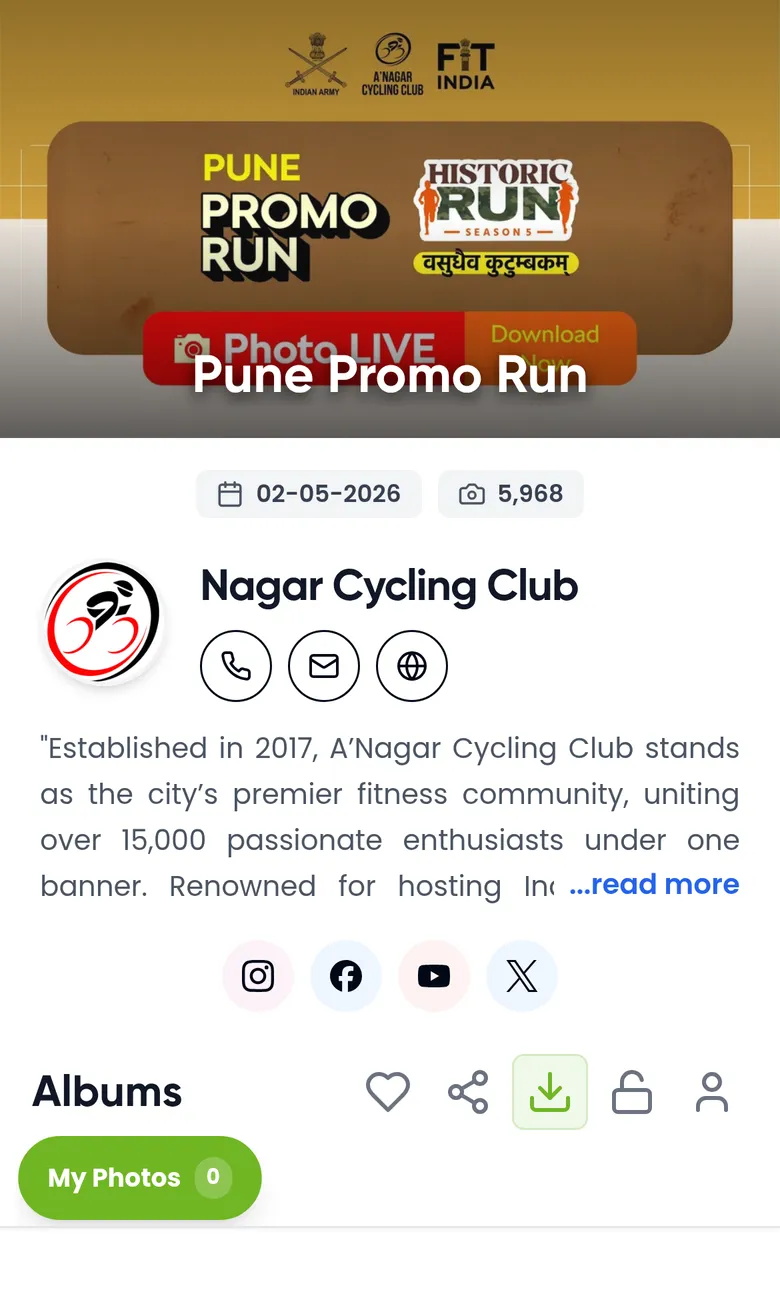
- Ask the photographer or organiser for the 4-digit PIN.
- Tap the open lock icon (Unlock All Photos). The Unlock All Photo Access window opens.
- Type the 4 digits in PIN and tap Unlock. All the albums appear.
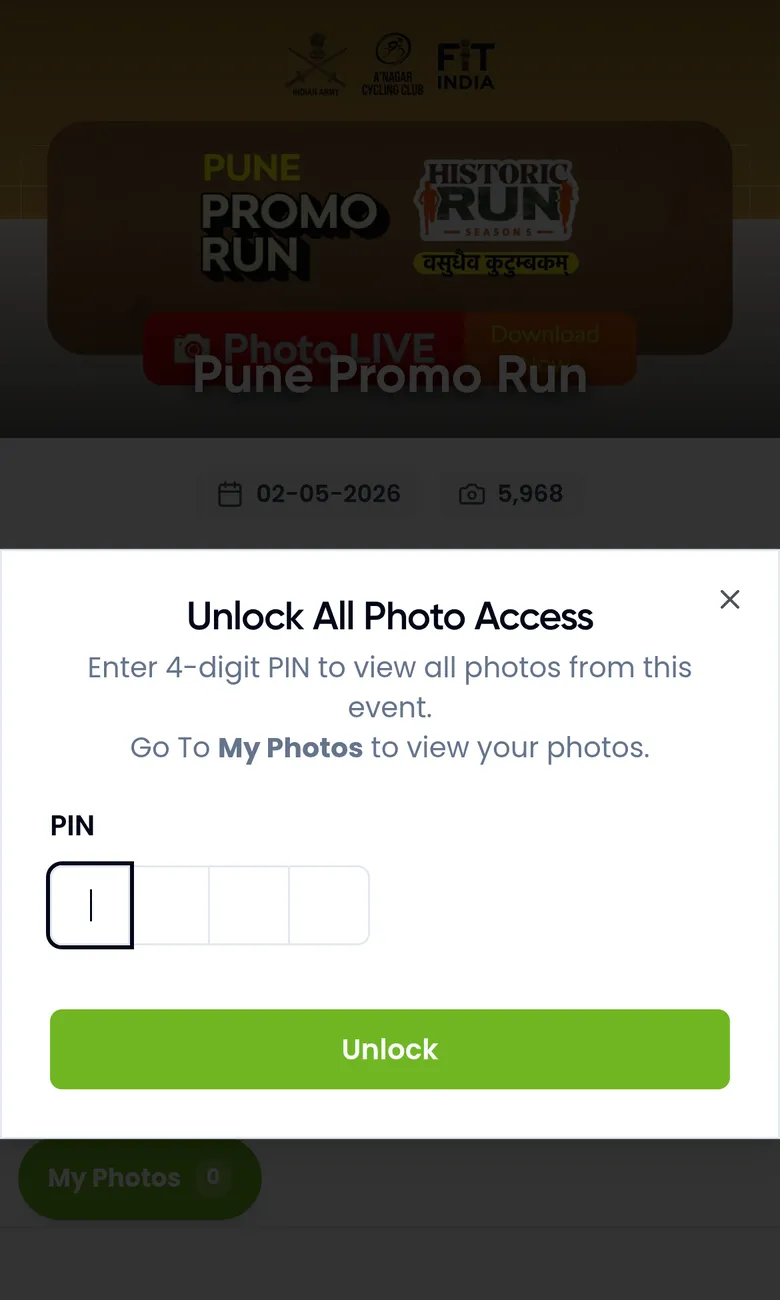
A wrong PIN shows Invalid PIN. Check the digits with the photographer and try again. Your browser remembers a correct PIN for that event, so you won't be asked again on the same phone.
Events that ask you to sign in first
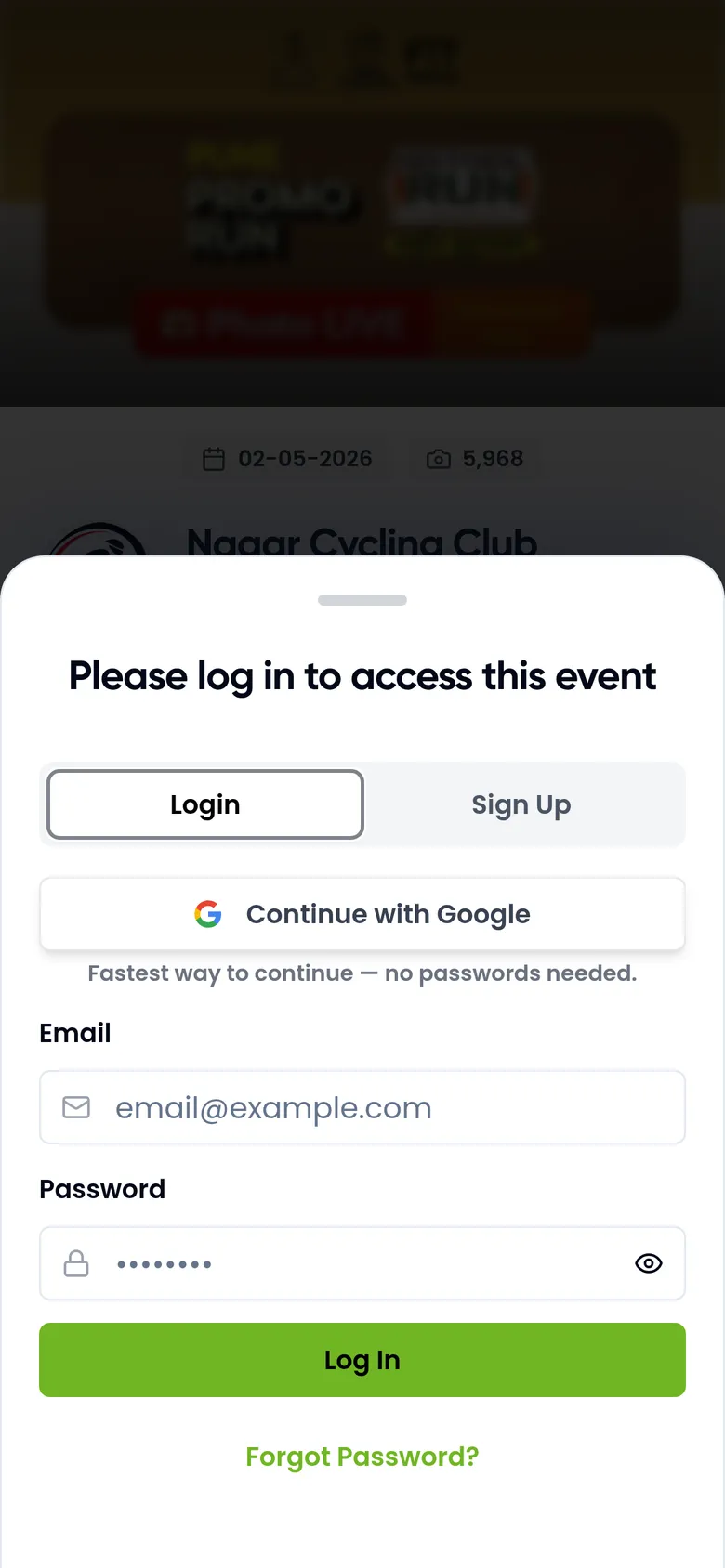
Some events show a sign-in window as soon as they open, with the title Please log in to access this event. The photographer wants to know who is viewing. Sign in with Google or your email, or create a free account on the Sign Up tab. The steps are in sign in and manage your account. If your account has no name or phone number yet, Kamero asks for them in a Complete Your Profile window. Then the gallery opens.
Galleries for invited emails only
Some galleries are only for people the school or organiser invited. Instead of the photos you see:
- This gallery is private. with a Sign in button. Sign in with the email your school or organiser gave access to. If the gallery names email endings, such as @school.edu, use an email that ends that way.
- If Kamero needs to check your email, it sends you a 6-digit code. Type it in and tap Confirm.
- If you see that your email doesn't have access, tap Use a different email and sign in with the invited one. If you don't know which email was invited, ask the organiser.
If the gallery shows a message instead of photos
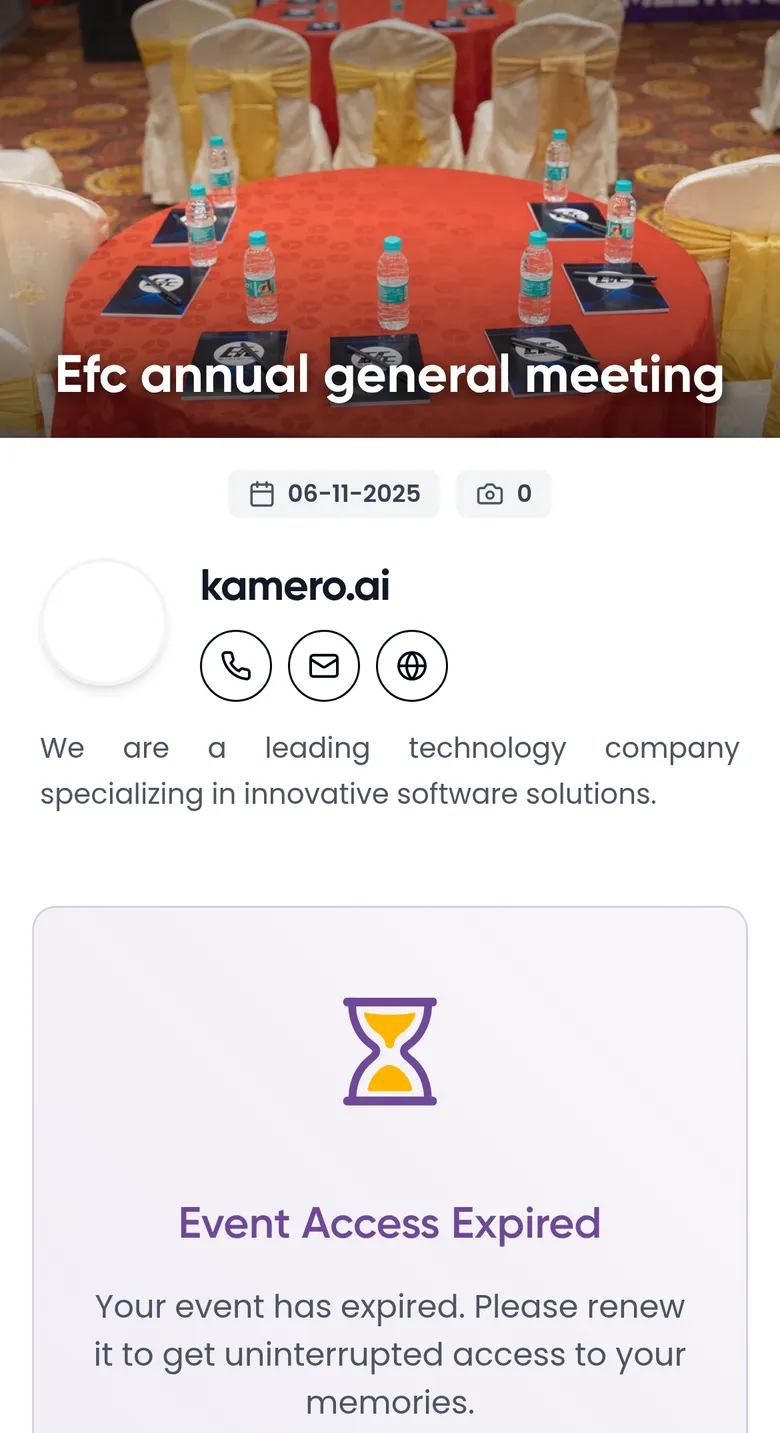
- Event Access Expired: the event's time ran out. The photos are hidden until someone renews it. Tap Renew Event Access to renew it yourself (see renew an event as a guest), or ask the photographer. Kamero may archive (remove) an event 7 days after it expires, so renew before then to be safe.
- Event & Face Recognition Expired: the event and selfie search both expired. The same Renew Event Access button renews them.
- Face Recognition Expired: a banner above the photos. You can still browse every album, but selfie search does not work until someone taps Renew Face Recognition.
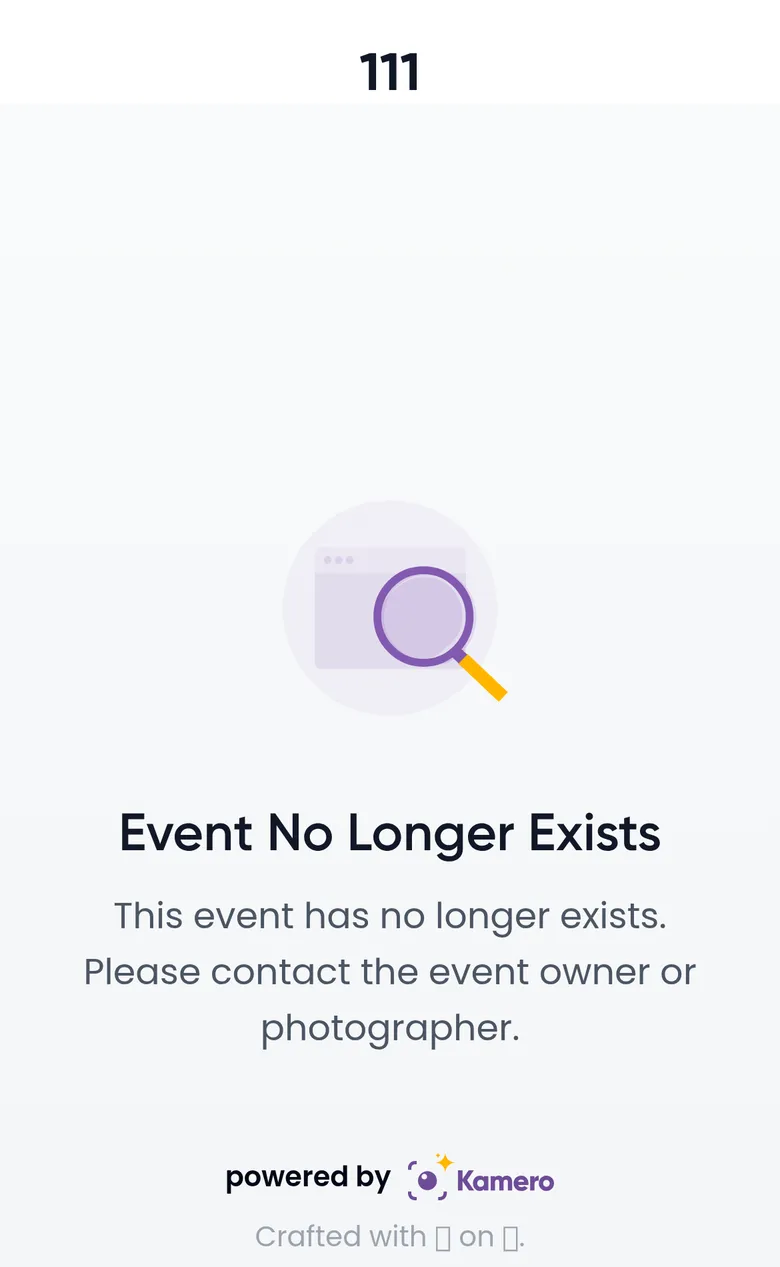
- Event No Longer Exists: the event was removed. Contact the photographer. They may still have the photos.
- A message that access to the event is temporarily paused: the photographer paused the gallery. Contact them.
- No Photos Uploaded Yet: the photographer hasn't uploaded anything. Check back later.
If the page says We couldn't load this gallery just now, check your internet connection and tap Retry.
Open the event in the app
The Kamero app, or your studio's own app, shows the same photos. Open the app and type the event code. If you tapped View On App first, the code is already copied, so you can paste it. On iPhone the app may pick up the copied code by itself. You sign in to the app with the same account as on the web, so your favourites and selfies are the same in both. Photographers can find more about the app in app features.
For photographers
The phone app page, registration, PIN and download switches are all in event settings. To share the link, QR code and PIN with guests, see share event links, QR and PIN.
Frequently asked questions
Do I need the Kamero app to see the photos?
No. Every event opens in your phone or computer browser. On a phone, Kamero first offers the app. Tap Continue on Web to stay in the browser.
Where do I get the event code or the PIN?
From your photographer or the event organiser. Kamero does not send codes or PINs to guests. The code is usually in the link, for example kamero.ai/convocation2026 has the code convocation2026.
Why can I only see My Photos?
The photographer made the event private. You can find the photos you are in with a selfie. To see every photo, tap the open lock icon and enter the 4-digit PIN from the photographer.
Do I have to enter the PIN every time?
No. After the PIN works, the browser remembers it for that event. You only enter it again on another phone, another browser, or after you clear your browser data.
Why does the page ask me to sign in before I see anything?
The photographer asked guests to register for this event, or only allowed certain emails. Sign in or create a free account. If the gallery says your email doesn't have access, use the email your school or organiser gave access to.
The page says the event expired. Are the photos gone?
Not yet. The photos are hidden until the event is renewed. Kamero may archive (remove) an event 7 days after it expires, so ask the photographer, or tap Renew Event Access yourself, before then.
More For guests tutorials
Try it in your dashboard
Sign in to Kamero and follow along. Questions? Raise a support ticket from the dashboard.