How to Download and Share Your Event Photos
Photographers: send this page to your guests.
You can save photos from a Kamero event one at a time, or ask for all of them in one email. You can also send the event or a single photo to friends and family. If you haven't opened the gallery yet, start with how to open your event photos.
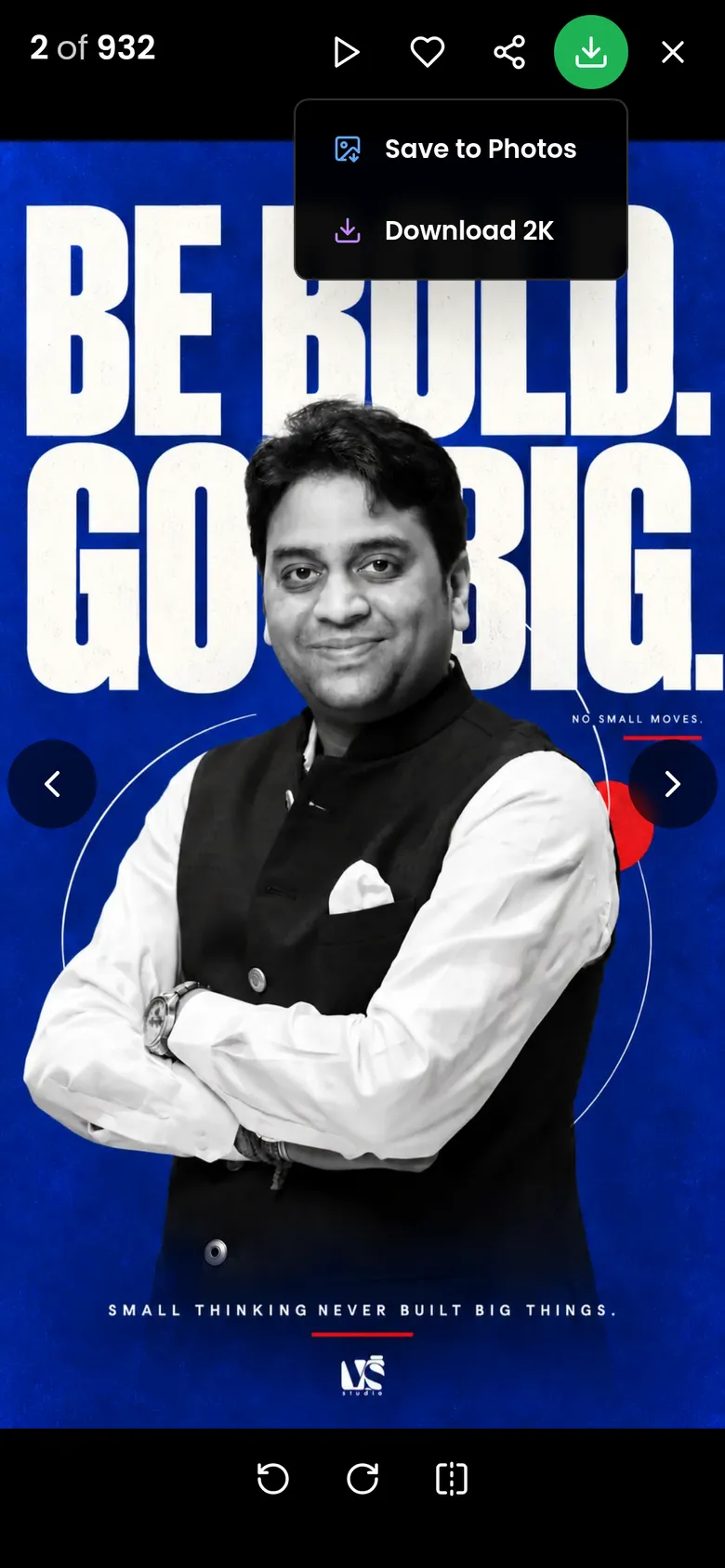
Download one photo
- Tap the photo to open it full screen.
- Tap the download button at the top (the arrow pointing down).
- Depending on the photo and your phone, the photo downloads straight away, or a small menu opens:
- Save to Photos (iPhone and iPad only): puts the photo in your Photos app.
- Download 2K: saves a 2K copy to your downloads.
- Download Original: saves the full file the photographer uploaded. It only shows when the photographer uploaded originals and allows guests to download them.
When the photo has no menu, the button saves the 2K copy and you see Photo downloaded successfully!. The file name starts with kamero-2k-. If the photographer set a watermark, the 2K copy carries it.

On a computer it works the same: open the photo and use the download button at the top, or press D.
Save to Photos on iPhone
Browsers on iPhone can't put a photo in your Photos app directly. Save to Photos opens the iPhone share sheet with the photo attached. Tap Save Image in that sheet, and the photo appears in Photos. If you use Download 2K on an iPhone, the photo goes to the Files app instead.
When you need to sign in
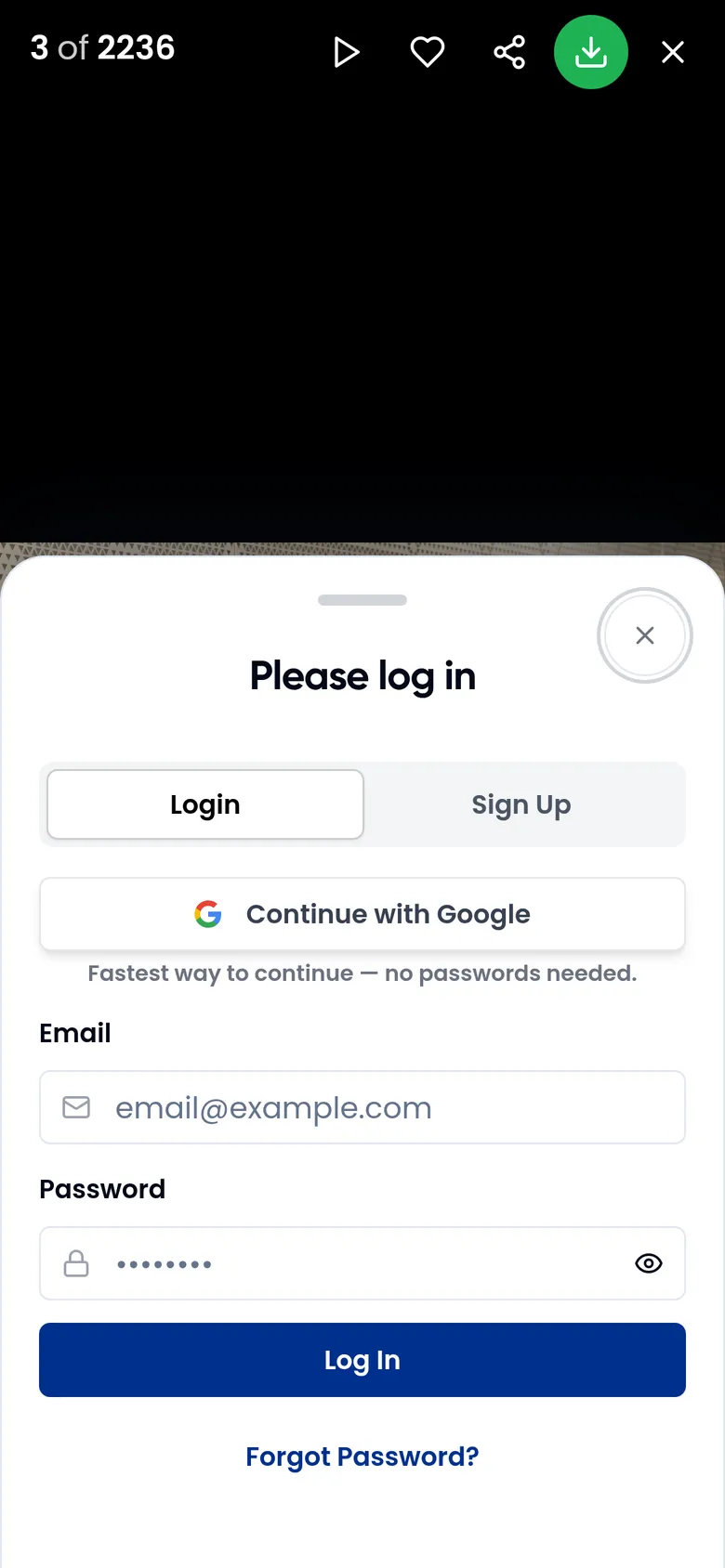
Most events ask you to sign in before your first download, with the title Please log in. Sign in with Google or your email, or create a free account (see sign in and manage your account), then tap download again. Some photographers allow downloads without signing in, and then the photo saves straight away.
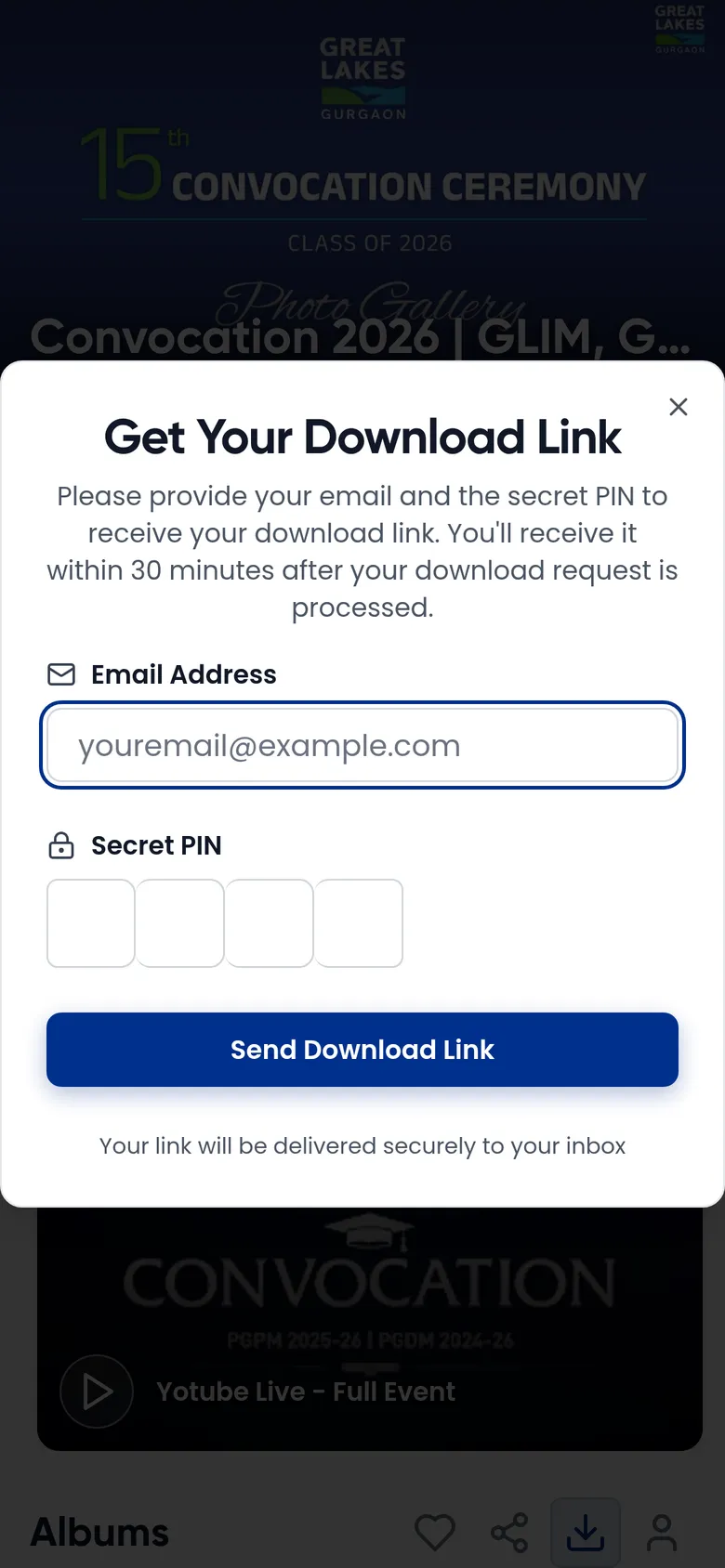
Download all photos
Download All sends you an email with links to zip files of the whole event. It needs the event's 4-digit PIN, which only the photographer or organiser can give you. The PIN is needed even when the gallery itself is open to everyone.
- In the gallery, tap the download icon next to Albums (Download All Photos). The Get Your Download Link window opens.
- Type your email in Email Address. If you are signed in, it is already filled in.
- Type the 4 digits in Secret PIN. If you already unlocked the event with the PIN, or your link had the PIN in it, this box is already filled in.
- Tap Send Download Link.
You see Download Request Submitted. The email arrives within 30 minutes. Download the zip files soon after it arrives, because the links expire.
- Invalid PIN!: the PIN is wrong. Check it with the photographer and tap Try Again.
- A download is already being processed for this event: wait for the first email before you ask again.
To download only the photos you picked, use Download All on your favourites page instead (see pick your favourite photos). To download the photos you are in, see find your photos with a selfie.
When downloads are off
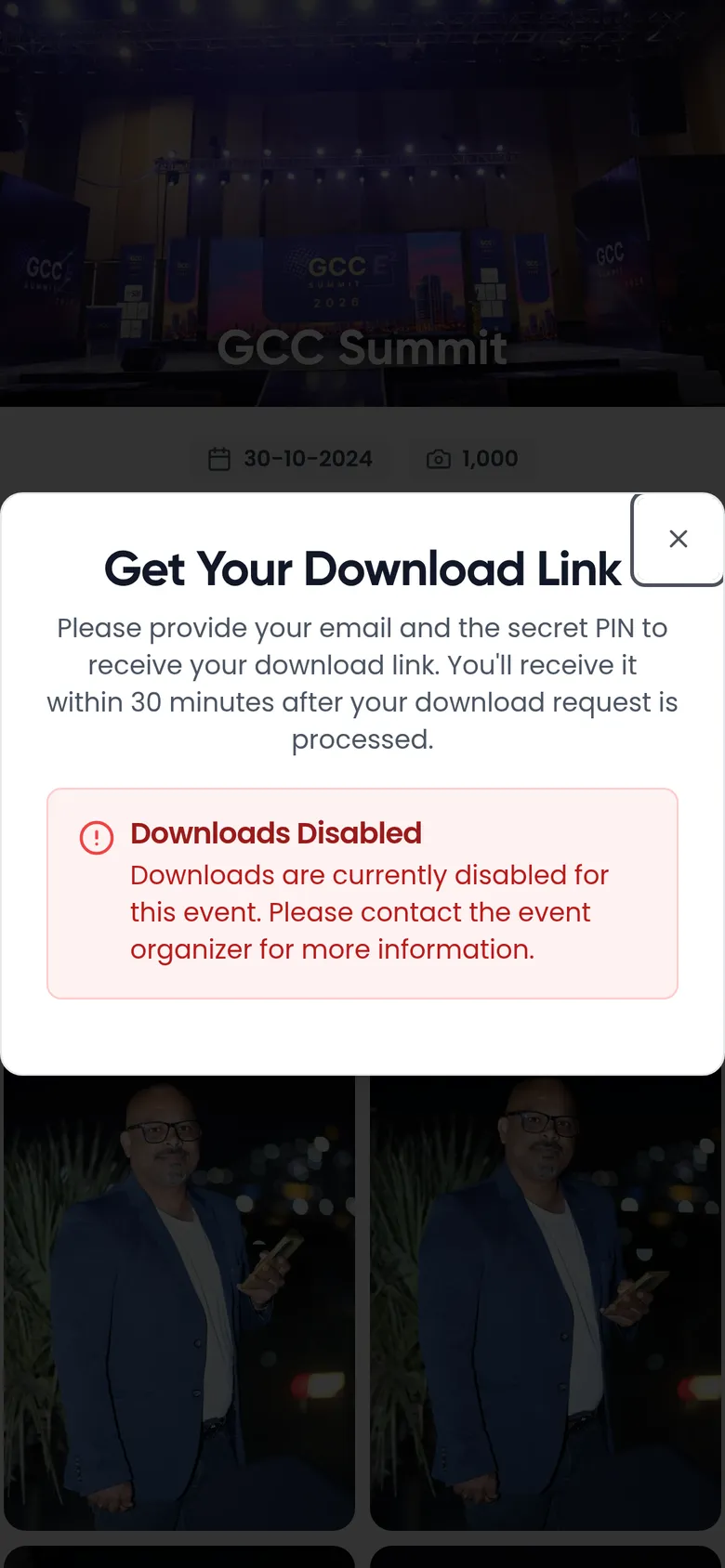
The photographer decides whether guests can download. When downloads are off for the event, photos have no download button, and Get Your Download Link shows Downloads Disabled. The photographer can also turn off downloads only for photos you find with a selfie, or allow 2K but not originals. Only the photographer can change this, so contact them if you need the photos.
If the event sells photos, the download icon reads Buy All Photos and you pay for the photos instead. See buy photos from a gallery.
Share the event
- Tap the share icon next to Albums. The Share Event window opens with a ready-made message: how to get the app and the event code, and the web link.
- Pick how to send it:
- Email (envelope): opens your email app with the message filled in.
- WhatsApp: opens WhatsApp with the message.
- Copy: copies the whole message so you can paste it anywhere. The icon turns into a tick when it is copied.
- Share: opens your phone's share menu with the gallery link.
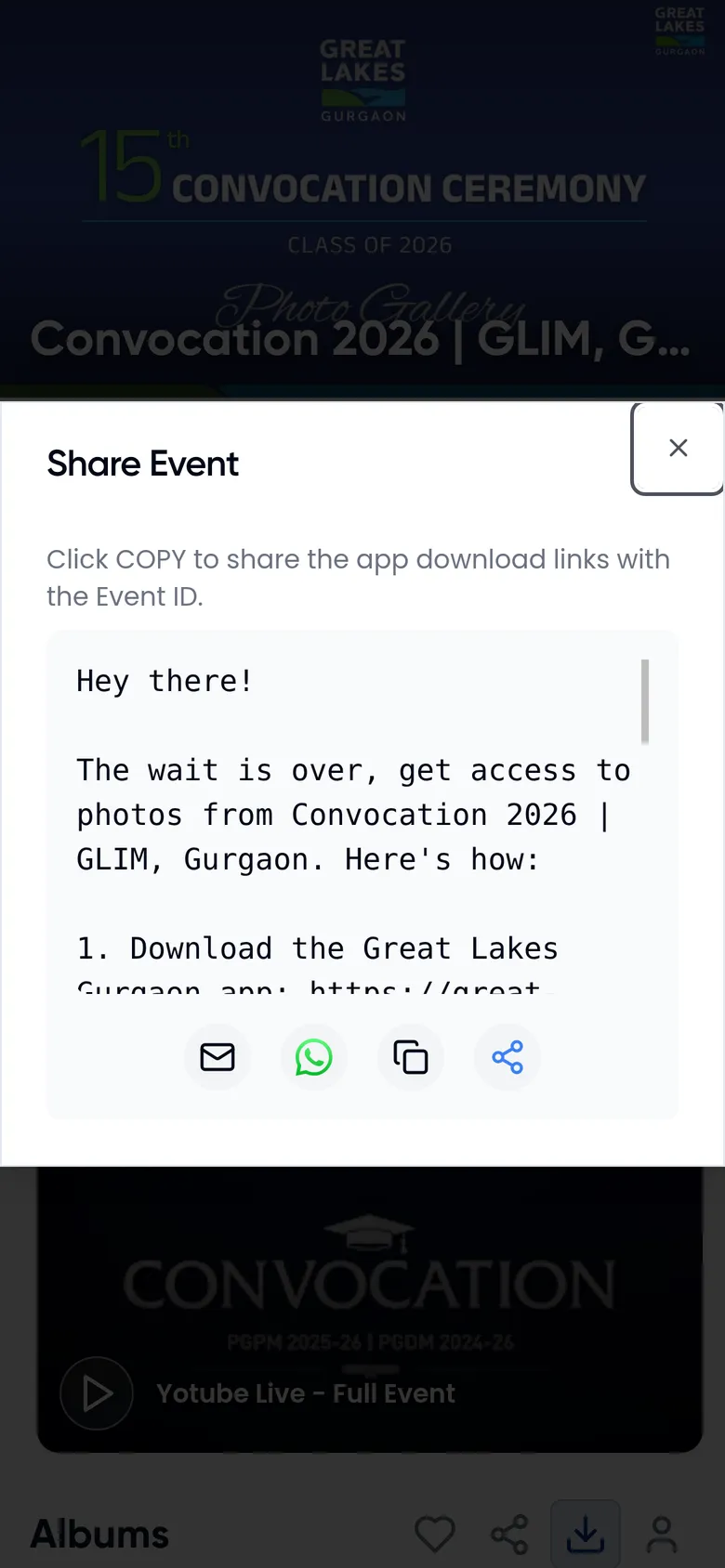
The link opens the same gallery for the person you send it to. If the event is private, they also need the PIN.
Share one photo
- Open the photo full screen.
- Tap the share button at the top. Your phone's share menu opens.
- Pick an app, such as WhatsApp or Messages.
When you are allowed to download the photo, the share menu sends the photo itself. Otherwise it sends a link to the photo with the text Check out this photo. If your browser has no share menu, Kamero copies the link and shows Share link copied to clipboard!, so you can paste it.

For photographers
The download switches (downloads off, originals, downloads without sign-in) and the event PIN are in event settings. The logo on downloads comes from standard watermark or original watermark. Guests need the PIN for Download All, so share it with them (see share event links, QR and PIN).
Frequently asked questions
What is the difference between Download 2K and Download Original?
Download 2K saves a smaller copy that is quick to download and good for phones and social media. Download Original saves the full file the photographer uploaded. You only see Download Original when the photographer uploaded originals and allows guests to download them.
Why is there a logo on my downloaded photo?
The photographer added a watermark to the event. The 2K download carries it. Ask the photographer if you need a copy without it.
I don't have the PIN. Can I still download all the photos?
Not with Download All, which always needs the event PIN. Ask the photographer or organiser for it. You can still download photos one at a time without the PIN.
I asked for the download link but no email came.
It can take up to 30 minutes. Check your spam or promotions folder and make sure you typed the email correctly. If you see a message that a download is already being processed for this event, wait for that email first.
Why can't I find the download button?
The photographer turned off downloads for the event, or for photos found with a selfie. Only the photographer can turn them back on. If the event sells photos, you buy them instead.
Why don't I see Save to Photos?
Save to Photos only shows on an iPhone or iPad. On Android and computers, Download 2K saves the photo to your downloads, and your gallery app picks it up from there.
More For guests tutorials
Try it in your dashboard
Sign in to Kamero and follow along. Questions? Raise a support ticket from the dashboard.