Share an event: message, QR codes, PIN and special links
Every event has a Share window. It holds the invite message you send by WhatsApp or email, QR codes for print, the event PIN, and links that open one album, one person's photos or a VIP view. This guide goes through each tab, then covers the Follow All Events code on your Home page.
Open the Share window
- Click Events in the top menu and open the event.
- Click Share in the event toolbar. On a phone, open the menu button on the event page first, then tap Share.
The window has five tabs: Message, QR Codes, PIN, Advanced Links (called Links on a phone) and VIP Links.
Send the invite message
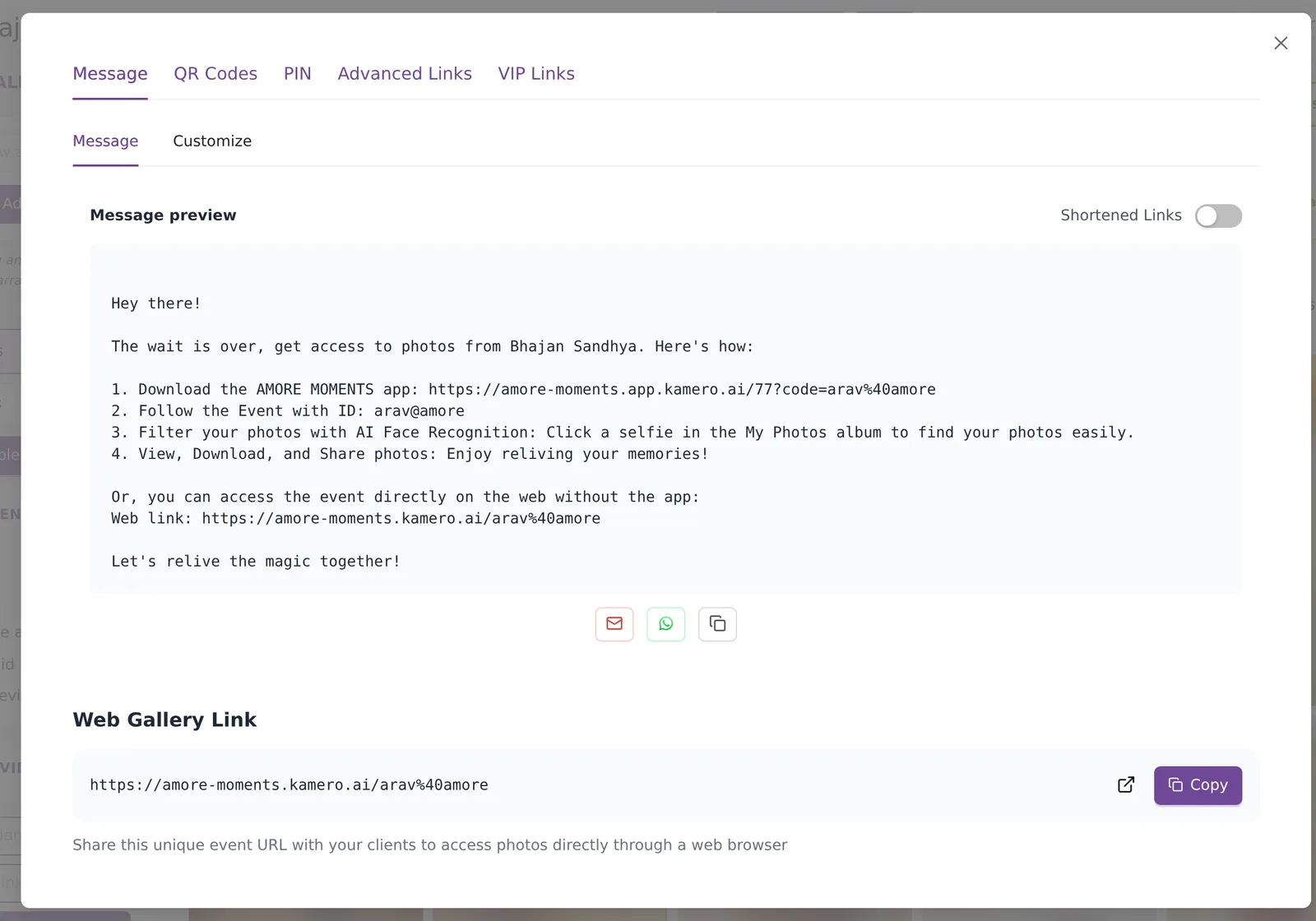
The Message preview shows the text guests receive. It tells them how to get the app, the event ID to follow, how to find their photos with a selfie, and the web link for people who do not want the app. Under the preview are three buttons:
- The envelope opens a new email with the message.
- The WhatsApp button opens WhatsApp with the message ready to send.
- The copy button copies the message, so you can paste it anywhere.
Below that, Web Gallery Link shows the event's web address. Click Copy to copy it, or the arrow icon to open the gallery yourself.
Shortened links
Turn on Shortened Links to replace the long app and web addresses in the message with short ones. Short links are easier to read in a text message.
Write your own reusable message
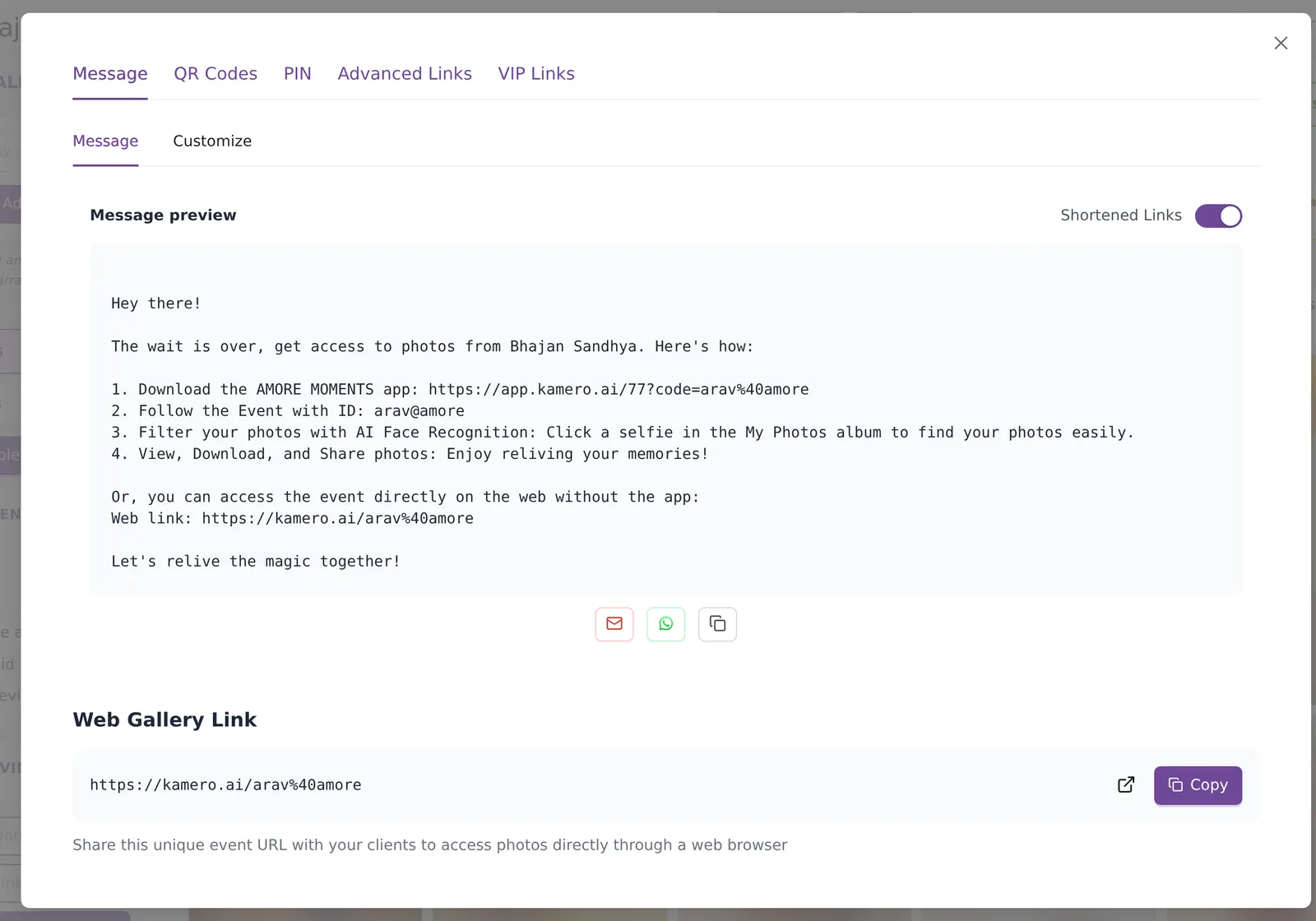
Open the Customize tab under Message to write the text in your own words. As the page says, "Save once and event details update automatically in every event."
- Type your message in Your reusable message. It can be up to 2,000 characters.
- Under Add event detail, click Event name, Event ID, Company name, App link or Web gallery link to insert that detail where your cursor is. It appears in curly brackets, for example {{eventName}}, and is replaced with the real value for each event.
- Include at least the App link or the Web gallery link, so guests can open the event.
- Check the Message preview below, then click Save custom message.
The message is saved for all your events, not only the one you opened. A Default tab then appears next to Customize. Use it to go back to the standard Kamero message.
QR codes and your logo
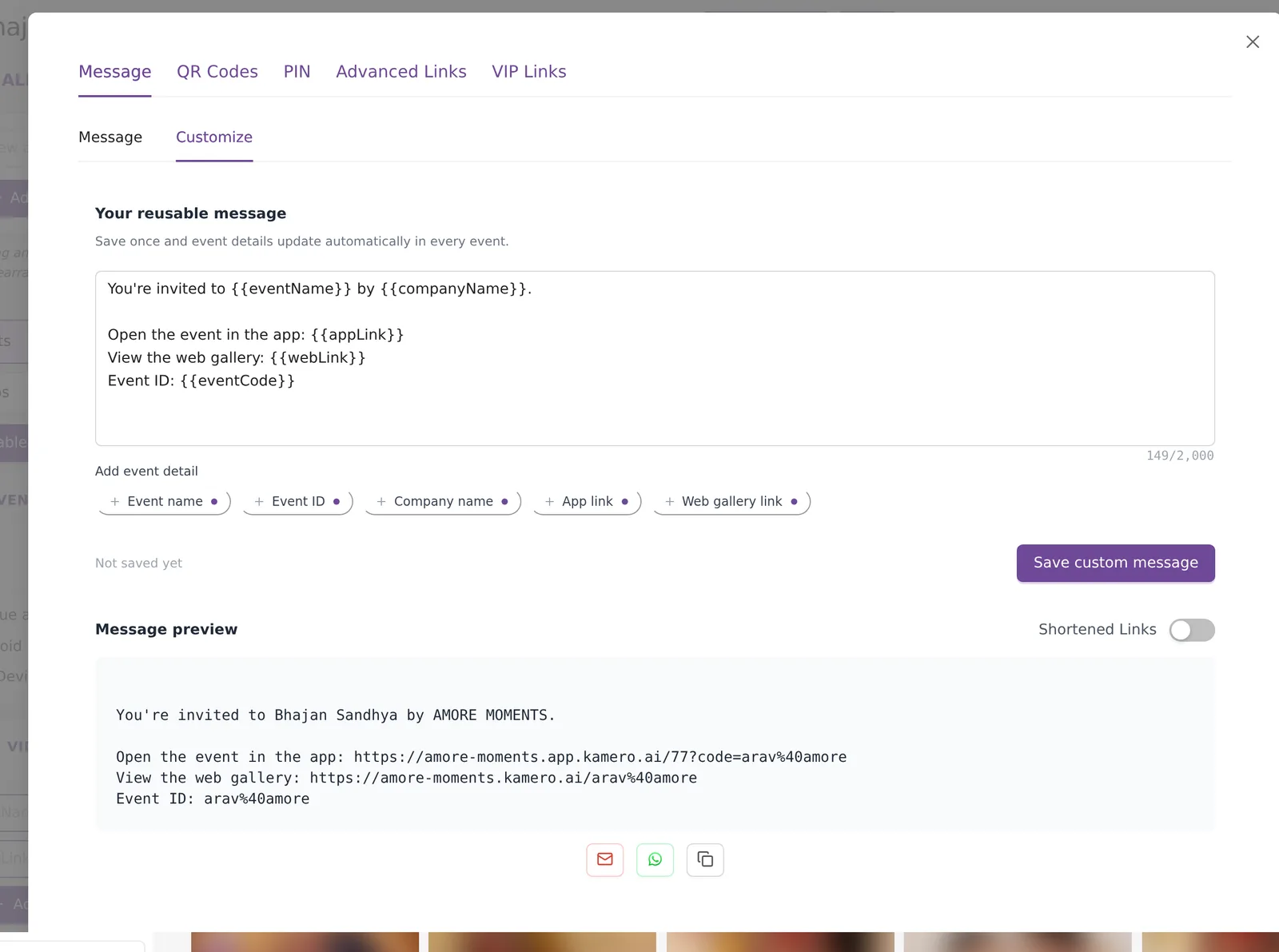
The QR Codes tab has two codes. QR Code for Mobile App opens the event in the app. QR Code for Web Gallery opens it in a phone browser. Use the app code when you want guests to install the app, and the web code when they should see photos straight away.
- Upload Custom Logo: put your logo in the middle of both codes. The image must be 80 KB or less. Use Change to swap it and the bin icon to remove it.
- Style and Corners: pick the dot shape and the corner shape.
- Color and the Logo switch: set the colour of each code and show or hide the logo.
- PNG and SVG: download the code. Use SVG for large prints, because it stays sharp at any size.
These codes belong to one event. If you want one printed code that you can point at a different event later, use a Common QR code.
The event PIN
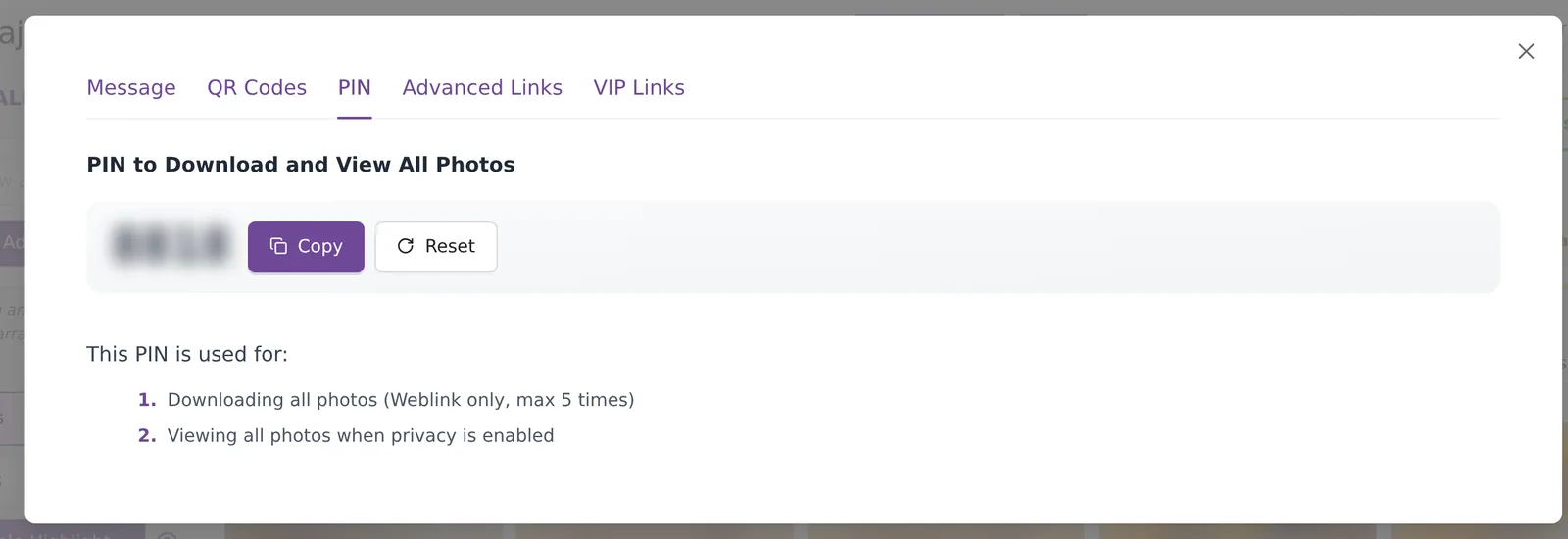
The PIN tab shows the 4-digit PIN to Download and View All Photos with a Copy button. As the tab says, the PIN is used for:
- Downloading all photos from the web gallery. Guests enter it in the Download All Photos window, and this works up to 5 times.
- Viewing all photos when Face-recognition based Privacy is on. Without the PIN, guests see only the photos their selfie finds.
Guests do not need the PIN to open a public event. The link, the QR code or the event ID is enough. Give the PIN only to people who should download everything or see every photo, such as the couple or the client who booked you.
Reset the PIN
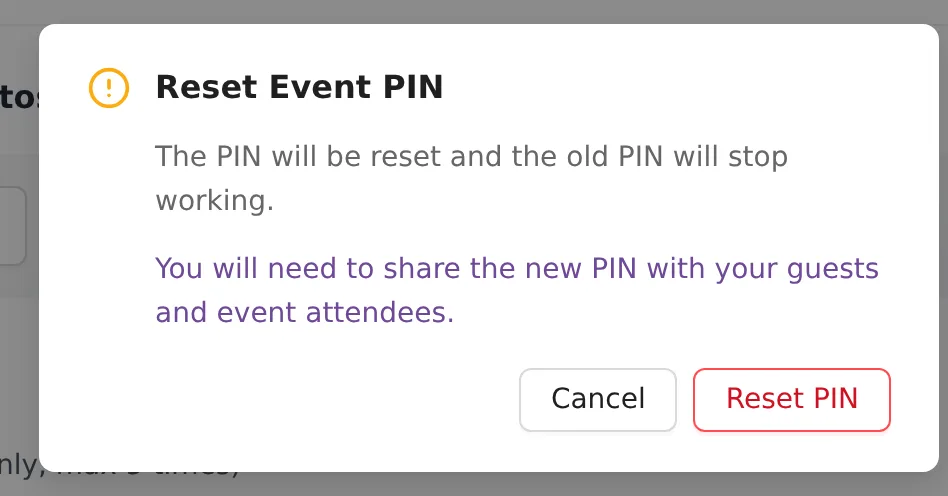
If the PIN reached the wrong people, click Reset and confirm in Reset Event PIN. The old PIN stops working at once. Share the new PIN with the people who should have it, and make any VIP links again. You can also reset it from event settings.
Advanced links
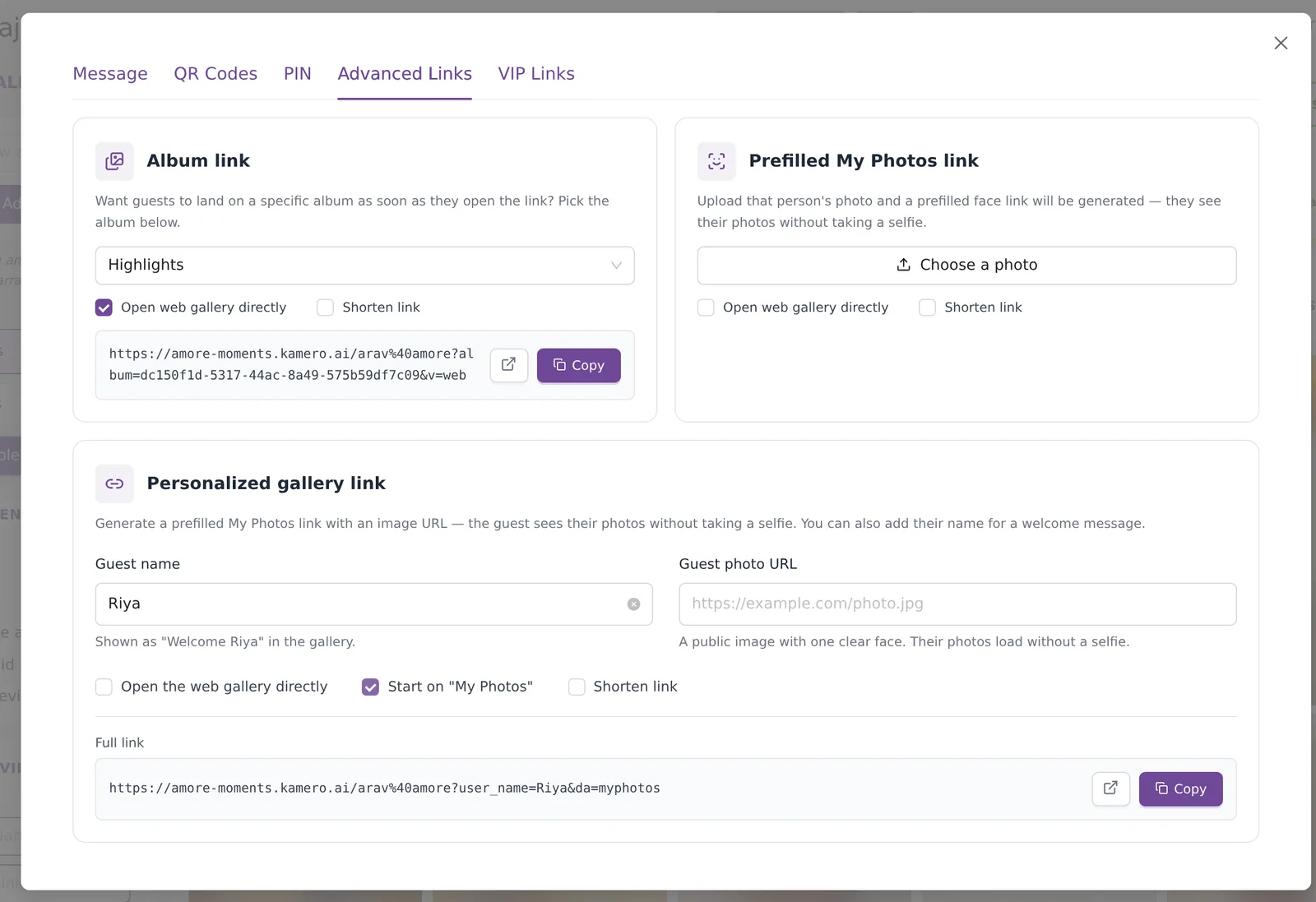
The Advanced Links tab makes links that open a particular part of the event.
Album link
Use this when guests should land on one album, for example the reception photos. Pick the album from the list and click Copy. Tick Open web gallery directly to open the web gallery without the page that asks guests to get the app. Tick Shorten link for a short address.
Prefilled My Photos link
This link opens one person's photos without a selfie. Click Choose a photo and pick a photo of that person with one clear face, up to 10 MB. Kamero makes a link that you can send to them. The same two boxes, Open web gallery directly and Shorten link, are there too.
Personalized gallery link
This does the same as the prefilled link, but uses a photo that is already online. Enter the Guest name to greet them with "Welcome" and their name, and paste a Guest photo URL: "A public image with one clear face. Their photos load without a selfie." Tick Start on "My Photos" to open their photos first. Copy the Full link at the bottom.
VIP links
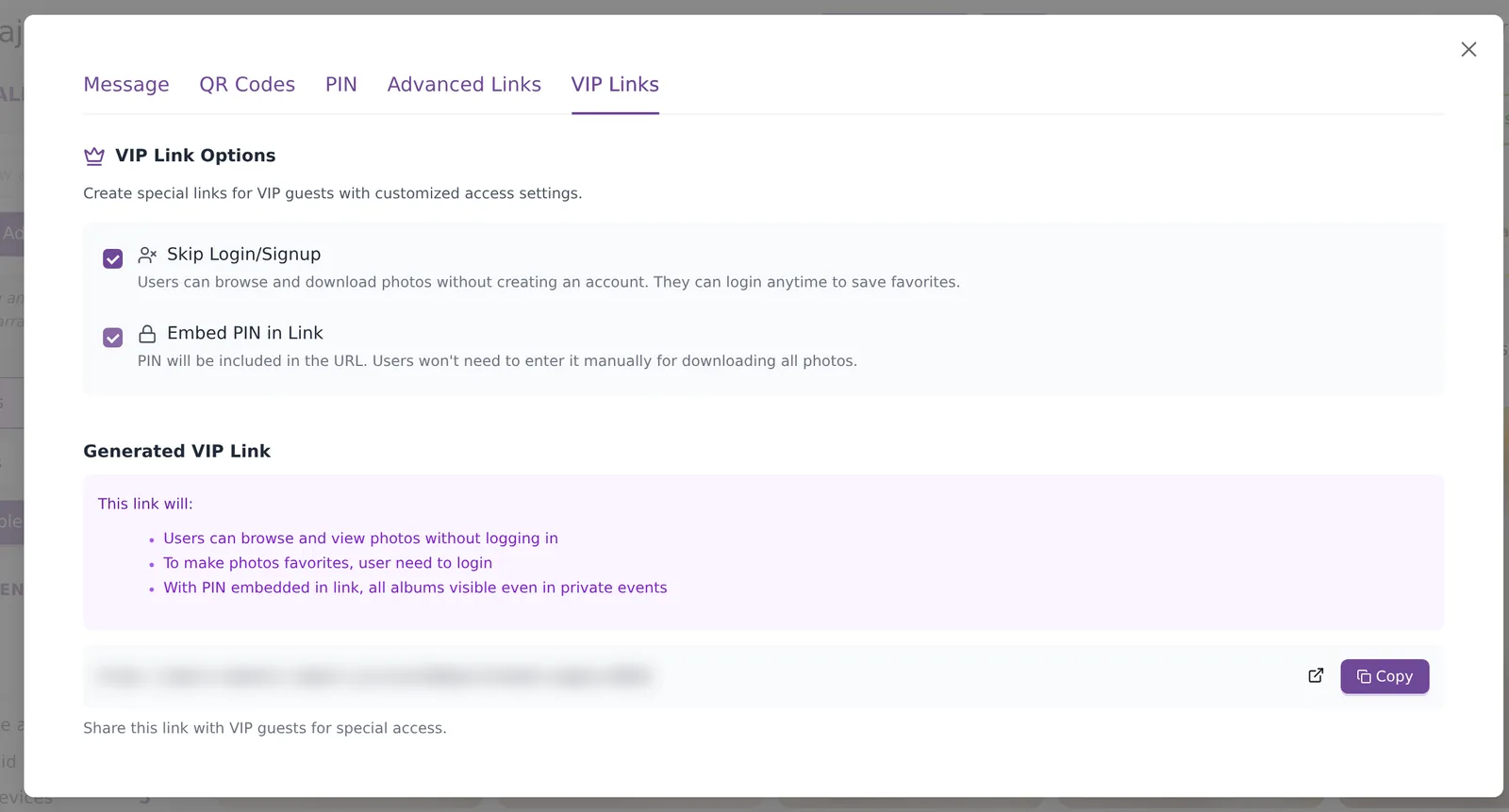
The VIP Links tab makes one link with special access for your most important guests. Tick one or both options:
- Skip Login/Signup: "Users can browse and download photos without creating an account. They can login anytime to save favorites."
- Embed PIN in Link: "PIN will be included in the URL. Users won't need to enter it manually for downloading all photos." With the PIN in the link, VIP guests also see all albums when privacy is on.
The link appears under Generated VIP Link, with a short list of what it will do. Click Copy and send it only to the people it is meant for. Anyone who has a link with the PIN inside can use the PIN.
Which link to give whom
- All guests: the invite message, the web gallery link or a QR code.
- A group that cares about one part of the day: an album link.
- One person who should see their own photos: a prefilled My Photos link or a personalized gallery link.
- The client, couple or family: the PIN, or a VIP link with the PIN embedded.
- Guests who come to many of your events: your Follow All Events code, below.
Follow All Events code
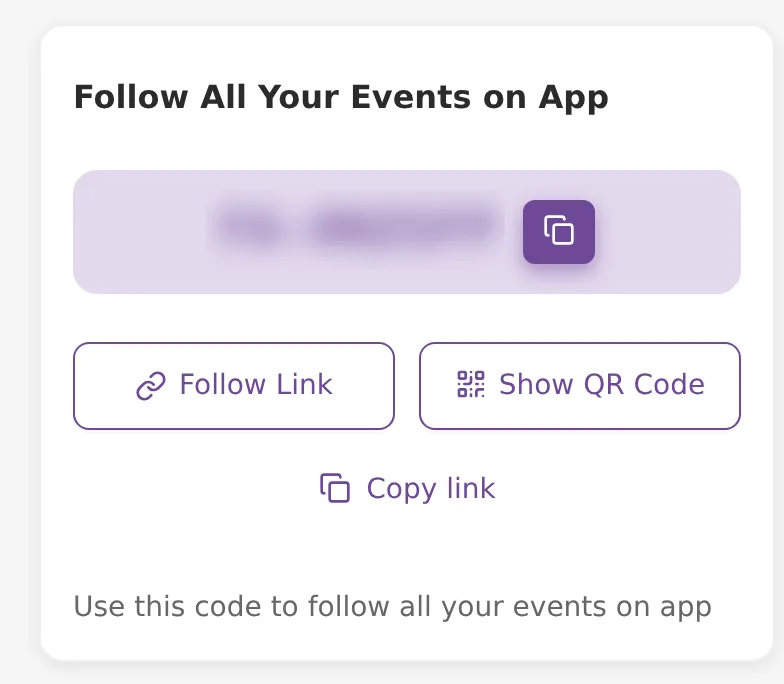
Your Home page has a card called Follow All Your Events on App. It shows a code that starts with FA-. "Use this code to follow all your events on app": a guest who types this code in the Kamero app, or your branded app, follows all your current events at once.
- The copy button next to the code copies it.
- Follow Link opens the follow link and Copy link copies it.
- Show QR Code opens a QR code for the follow link.
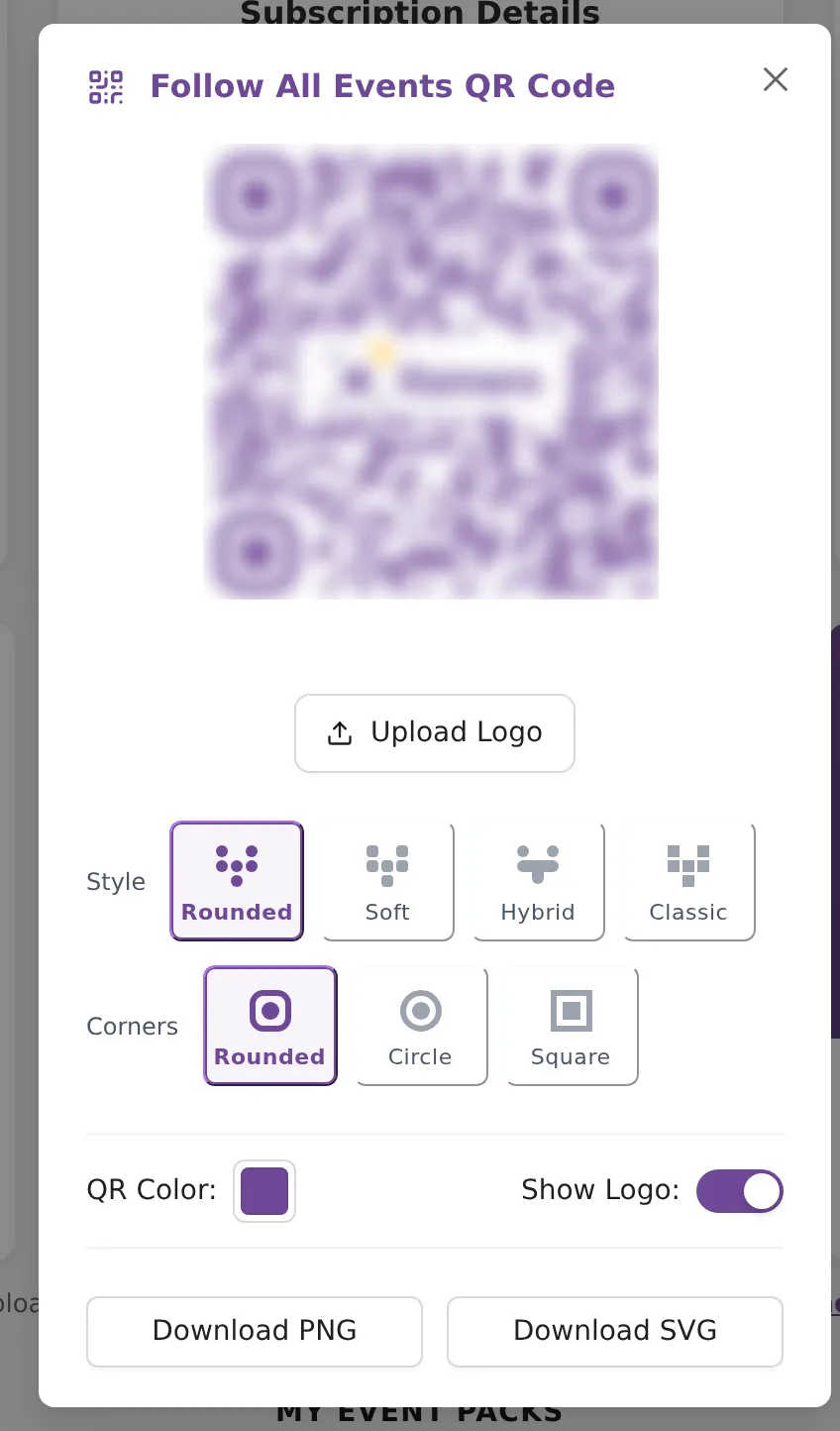
In Follow All Events QR Code you can add a logo with Upload Logo (80 KB or less), pick a style and corners, set the QR Color, turn Show Logo on or off, and save it with Download PNG or Download SVG.
Keep these points in mind when you share it:
- It works only in the app. Opening the follow link in a phone browser sends the guest to the app store.
- Events you create later do not appear on their own. The guest taps refresh on the Events tab in the app, or scans the code again.
- Private events stay private: guests still see only their own photos without the PIN.
The guest side is explained in follow a studio in the app.
Common problems
- A guest says the PIN is wrong: the PIN may have been reset. Copy the current PIN from the PIN tab and send it again.
- The custom message will not save: add the App link or the Web gallery link to it, and keep it under 2,000 characters.
- An old QR code or link stopped working: the event ID was changed. Download the QR codes again and share the new link.
- Guests cannot download all photos: they need the PIN. See how guests download photos.
Frequently asked questions
Do guests need the PIN to open my event?
No. Guests open a public event with the link, the QR code or the event ID. The PIN is only needed to download all photos from the web gallery, and to see every photo when Face-recognition based Privacy is on.
What happens when I reset the PIN?
Kamero makes a new PIN and the old one stops working at once. Links made with Embed PIN in Link carry the old PIN, so make new VIP links and share the new PIN with the people who need it.
Does my custom message change for every event?
Yes. The custom message is saved for all your events. Event details such as the name, ID and links are filled in for each event on its own, so you write the message once.
Why won't my QR logo upload?
The logo must be an image of 80 KB or less. Make the file smaller, for example by saving it as a smaller PNG, and try again.
Can guests follow all my events in a web browser?
No. The Follow All Events code works in the Kamero app or your branded app. Opening the follow link in a phone browser sends the guest to the app store to install the app.
Will guests see events I create after they follow?
Not straight away. New events appear when the guest taps refresh on the Events tab in the app, or scans the follow code again.
More Sharing & website tutorials
Try it in your dashboard
Sign in to Kamero and follow along. Questions? Raise a support ticket from the dashboard.