How to put your website and galleries on your own domain
Every Kamero account gets a free website at yourname.kamero.ai. With the Custom domain package, the same website and all your event galleries open on a domain you own instead, such as yourbrand.com or photos.yourbrand.com. Each gallery opens at your domain followed by its event code, for example https://yourbrand.com/your-event-code.
Set up your website first (see Your website). You also need to own the domain. Kamero does not register domains for you.
Where to find it
In the dashboard, click the Custom Domain icon (a globe) in the top bar. On a phone, tap Custom Domain in the menu.
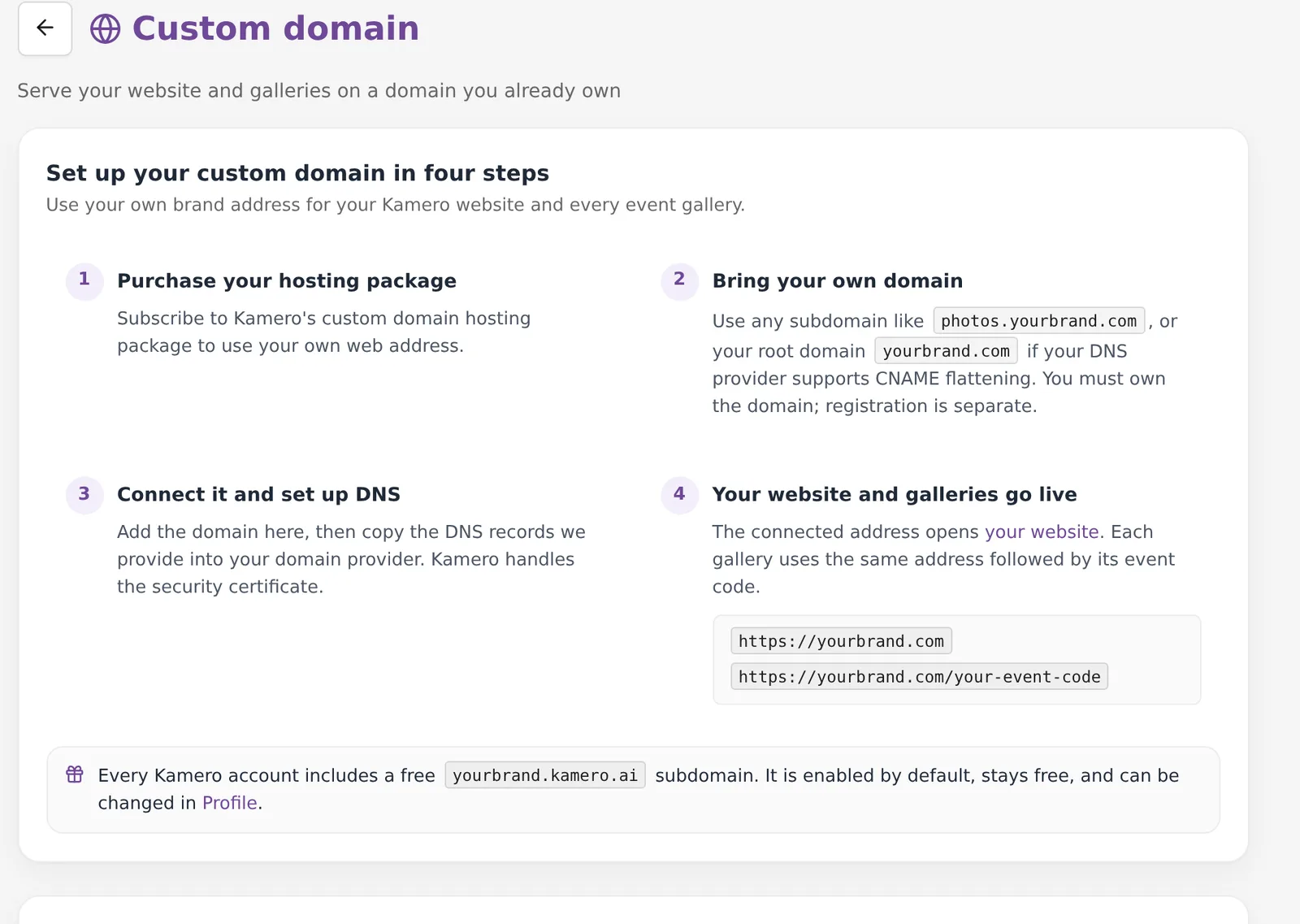
The page lists four steps:
- Buy the custom domain hosting package.
- Bring your own domain. Use a subdomain like
photos.yourbrand.com, or your root domainyourbrand.comif your DNS provider supports CNAME flattening. - Connect it here and add the DNS records Kamero gives you. Kamero handles the SSL certificate.
- Your website and galleries go live on your domain.
Price
The price depends on where you are. Kamero picks the currency from your country, and you can pay monthly or yearly.
- India: ₹799 per month or ₹4,999 per year, plus 18% GST. With GST you pay ₹942.82 a month or ₹5,898.82 a year. You pay through Razorpay.
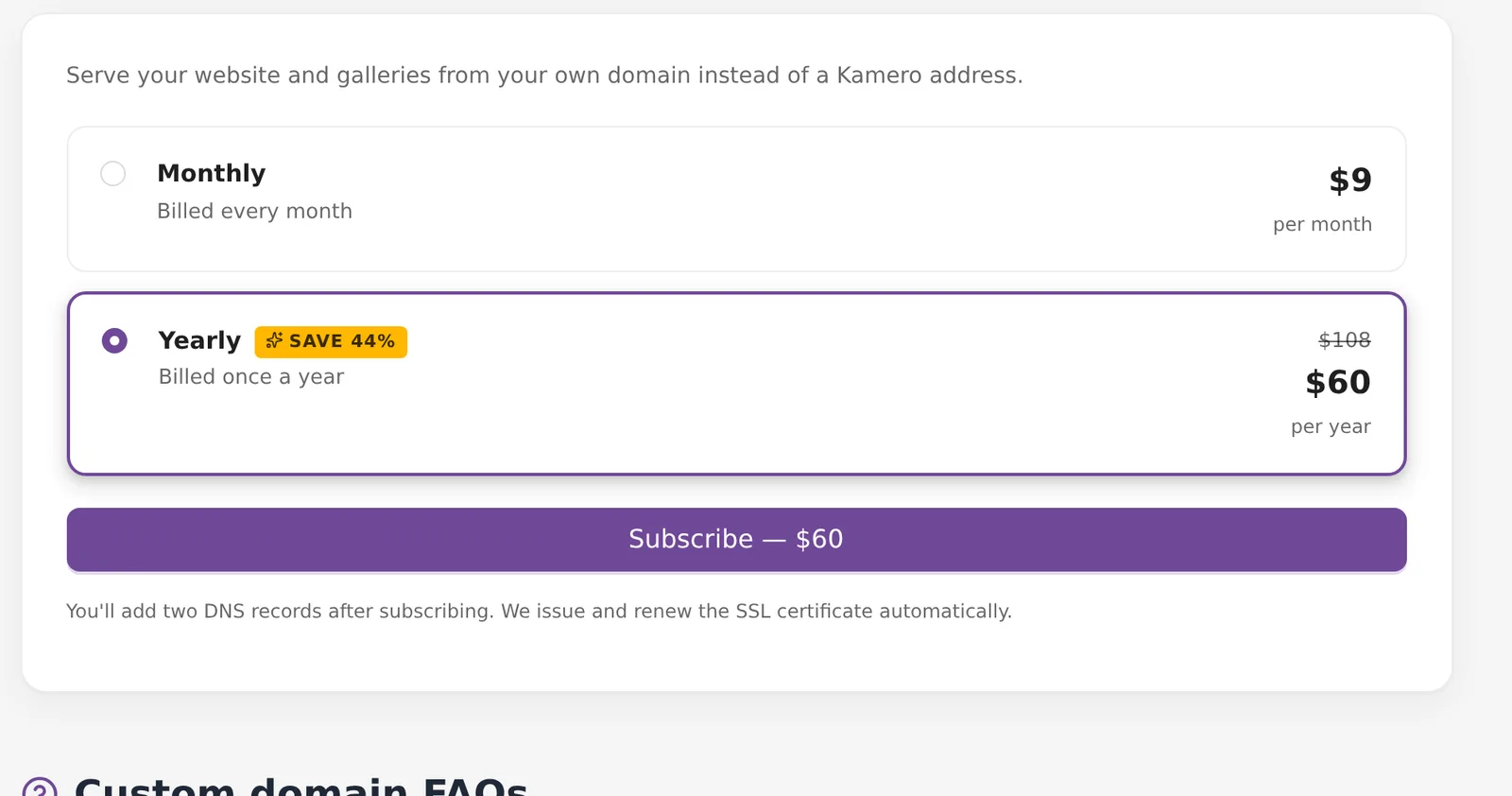
- Outside India: $9 per month or $60 per year, with no GST. You pay through PayPal.
The yearly plan shows a Save badge with how much you save compared with paying monthly for 12 months.
Step 1: subscribe
- Choose Monthly (billed every month) or Yearly (billed once a year).
- Click Subscribe. The button shows the price of the plan you picked, with "+ GST" in India.
- In India, the Razorpay checkout opens on the page. Outside India, you go to PayPal to approve the payment, then come back to Kamero.
- Kamero shows Confirming your payment, then Your custom domain subscription is active.
The package is a subscription with auto-pay, so it renews by itself. There is no one-time payment option. If you need a GST invoice, see Orders and invoices.
Step 2: connect your domain
- In Connect your domain, type the address you want to use, for example
photos.yourbrand.comoryourbrand.com. Leave outhttps://. - Click Connect. You see Domain added. Now add the DNS records below.
You can connect one domain per account. The card shows how many you have used, for example "1 of 1 used".
Step 3: add the DNS records
Sign in where you manage your domain's DNS. This is usually your registrar or Cloudflare. Add each record Kamero shows, in this order:
- TXT record named
_kamero-verify.followed by your domain, with the value shown on the page. It proves you own the domain. Add this first. - CNAME record named
_acme-challenge.followed by your domain. It lets Kamero issue and renew your SSL certificate automatically, so you never have to touch it again. - CNAME record for your domain itself, pointing to
connect.kamero.ai. This sends visitors to your website. For a root domain, your DNS provider must support CNAME flattening for this record.
Copy the exact names and values from the page. Each record shows Not found yet until Kamero can see it. If someone else manages your DNS, use Copy all, Email or Share to send them the full list.
Adding these records does not change your email or any other part of your domain.
Step 4: wait for it to go live
Kamero checks your DNS on its own. You can also click Check again. Most domains go live within a few minutes. DNS changes can take up to an hour. A progress line shows three stages:
- Ownership: Kamero is looking for the TXT record that proves you own the domain.
- Connected: ownership is confirmed and Kamero is waiting for the CNAME record that points to
connect.kamero.ai. - SSL: the domain is connected and the certificate is being issued. This is usually quick.
When all three are done, you see Your domain is live. The page also shows when it last checked.
If you see a message about CAA records, your domain has a CAA record that blocks the certificate provider. Remove that CAA record, or ask whoever manages your DNS to allow it, then click Check again.
Renewal and cancelling
Once you subscribe, the page shows your plan and either Renews automatically on a date or Auto-renew is off with the date your domain stays live until. Click Invoices to see your invoices.
- To cancel: click Cancel subscription, then Switch off. Your domain stays live until the end of the period you paid for. Your website, galleries and
kamero.aiaddress are not affected. - If a renewal payment fails: Kamero shows Payment failed and retries automatically. If your card has changed, subscribe again so your domain does not go offline.
- If the subscription ends: visitors to your domain see Site temporarily unavailable. Your DNS records and certificate stay in place. Click Renew, pay, and the domain serves your site again straight away.
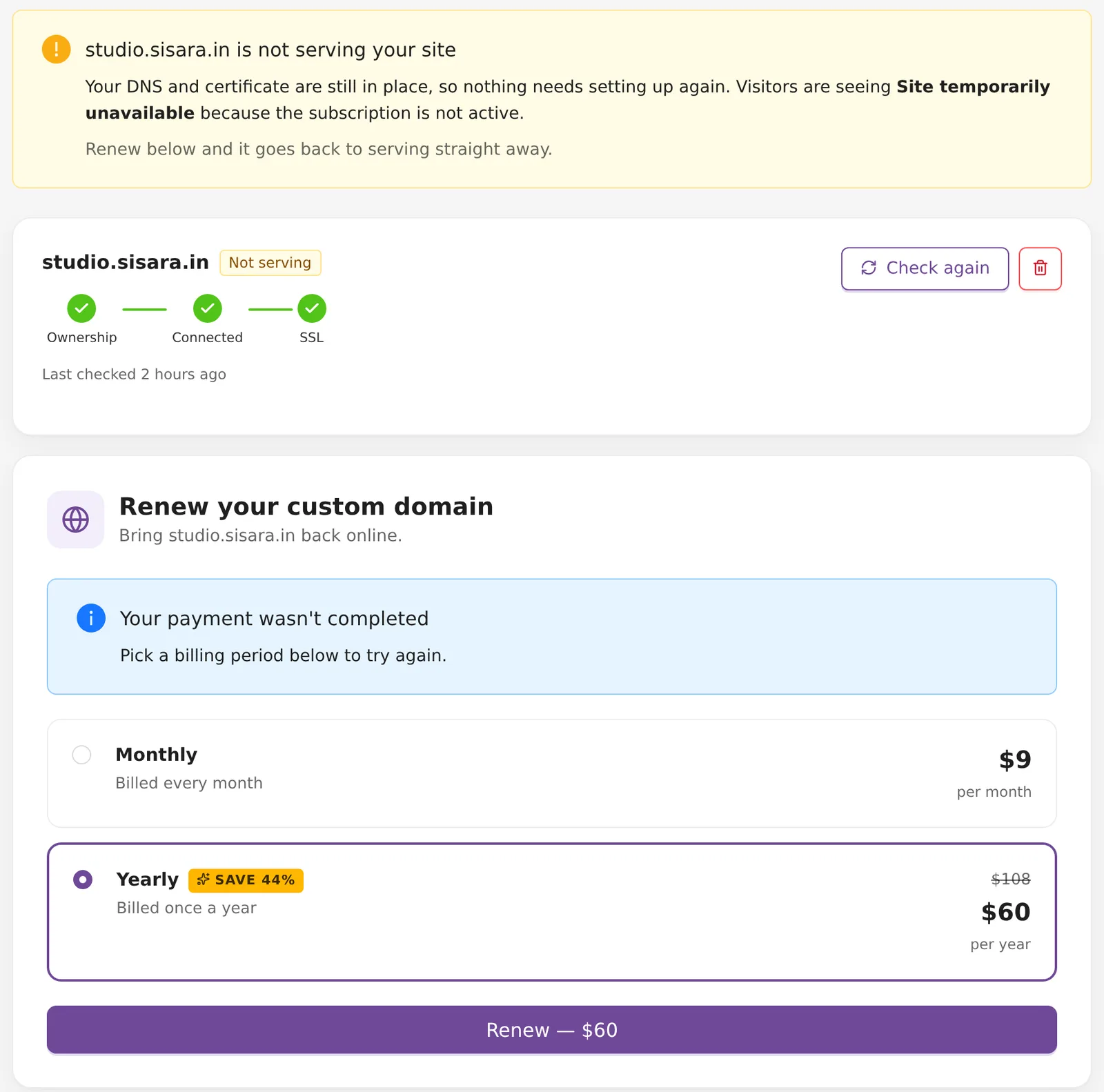
Disconnect a domain
Click the red delete button next to your domain, then Disconnect. The domain stops opening your website and galleries. Your kamero.ai address keeps working. If you connect it again later, you have to verify ownership again.
Your free kamero.ai address
You do not need this package to have a website. Every account includes a free yourname.kamero.ai address. It is on by default, stays free and keeps working alongside a custom domain. To change it, go to Profile (see Profile setup).
Common problems
- My DNS panel will not save a CNAME on the root domain. Your provider does not support CNAME flattening. Move DNS to Cloudflare (free), or connect
www.yourbrand.comand forward the root domain to it at your registrar. - A record still says Not found yet. Check the name and value match the page exactly. Some DNS panels add your domain to the name for you, so
_kamero-verify.yourbrand.combecomes_kamero-verify.yourbrand.com.yourbrand.com. In those panels, type only the part before your domain. - It has been more than an hour. Click Check again. If it still does not go live, open a ticket (see Support tickets) with your domain name.
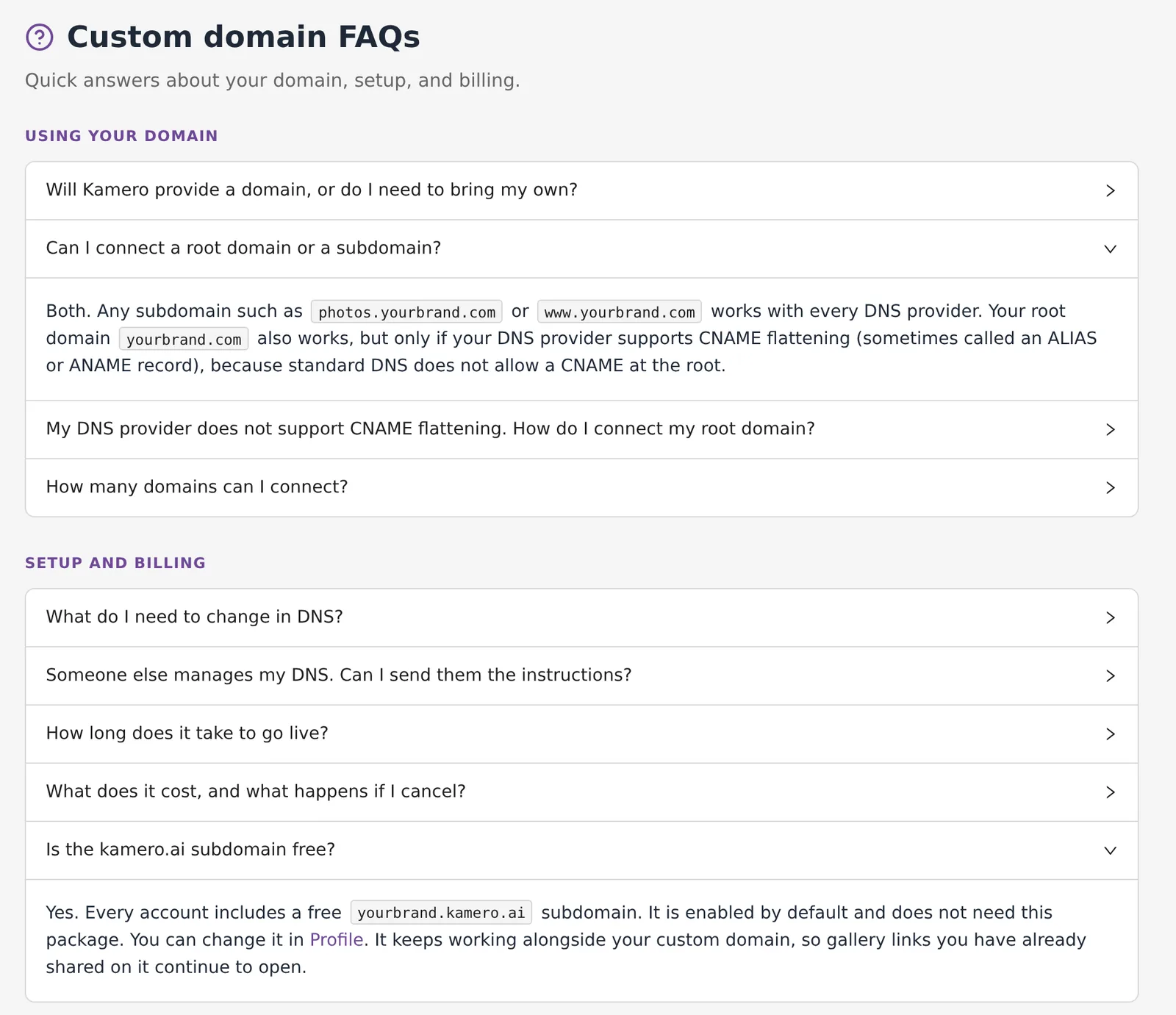
Frequently asked questions
Does Kamero sell me the domain?
No. You buy the domain from any registrar, such as GoDaddy, Namecheap or Cloudflare. The Kamero package is the hosting that serves your website and galleries on it.
Can I use my root domain, like yourbrand.com?
Yes, if your DNS provider supports CNAME flattening (also called an ALIAS or ANAME record). A subdomain such as photos.yourbrand.com or www.yourbrand.com works with every DNS provider.
My DNS provider does not support CNAME flattening. What can I do?
Move your domain's DNS to Cloudflare, which is free and supports it. Or connect www.yourbrand.com instead and set your registrar to forward yourbrand.com to it.
Will changing DNS break my email?
No. You only add a TXT record and two CNAME records for the address you connect. Your email records (MX) stay as they are.
How many domains can I connect?
One per account. If you need more, contact Kamero support.
What happens if I cancel?
Your domain keeps working until the end of the period you paid for, then it stops. Your website, your galleries and your free kamero.ai address keep working.
Do my old kamero.ai links still work?
Yes. Your free yourname.kamero.ai address stays on alongside your custom domain, so links you already shared keep opening.
More Sharing & website tutorials
Try it in your dashboard
Sign in to Kamero and follow along. Questions? Raise a support ticket from the dashboard.