How to raise and track a support ticket
When something in Kamero does not work the way you expect, raise a support ticket from the dashboard. A ticket keeps your description, screenshots and every reply from the team in one place, so nothing gets lost. This guide shows how to raise one, what each status means, how to reply, and the other ways to reach Kamero.
Where to find Support
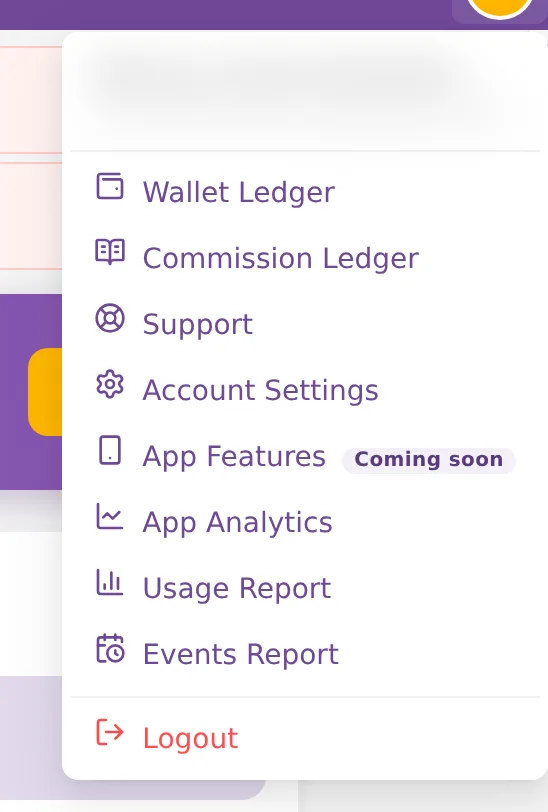
- Click your profile picture at the top right and choose Support.
- Click the yellow lifebuoy icon in the top bar.
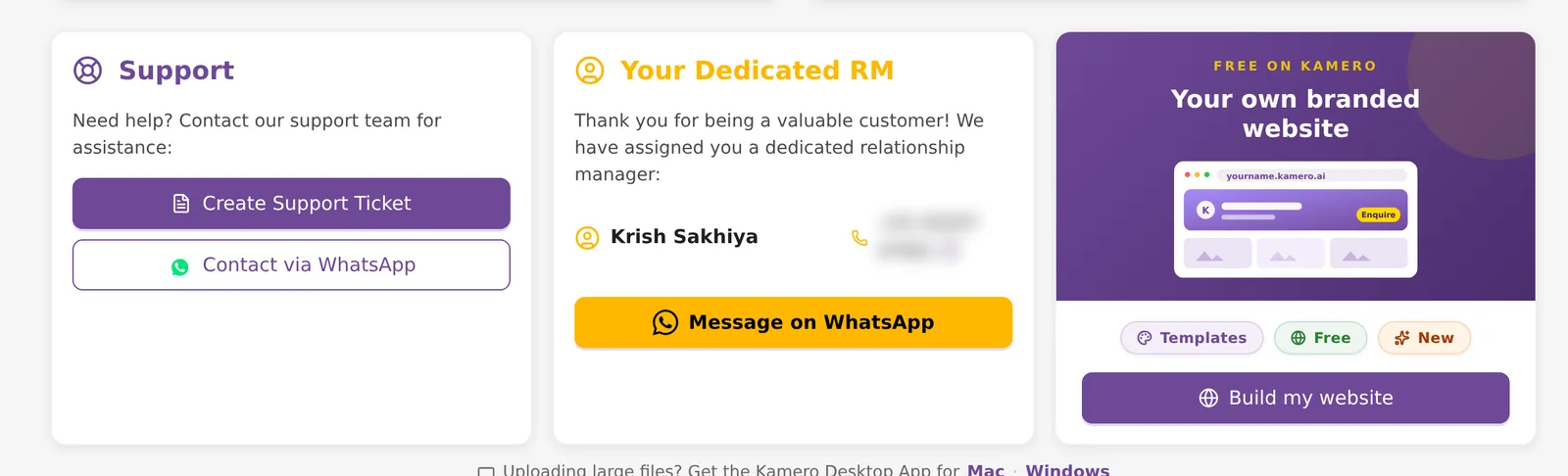
- On Home, click Create Support Ticket on the Support card.
The page is called Support Tickets. It has two tabs: New Ticket and Past Tickets. The number next to Past Tickets is how many tickets you have raised.
Raise a new ticket
Open the New Ticket tab. The form has a left side for what went wrong and a right side for where it happened and how to reach you.
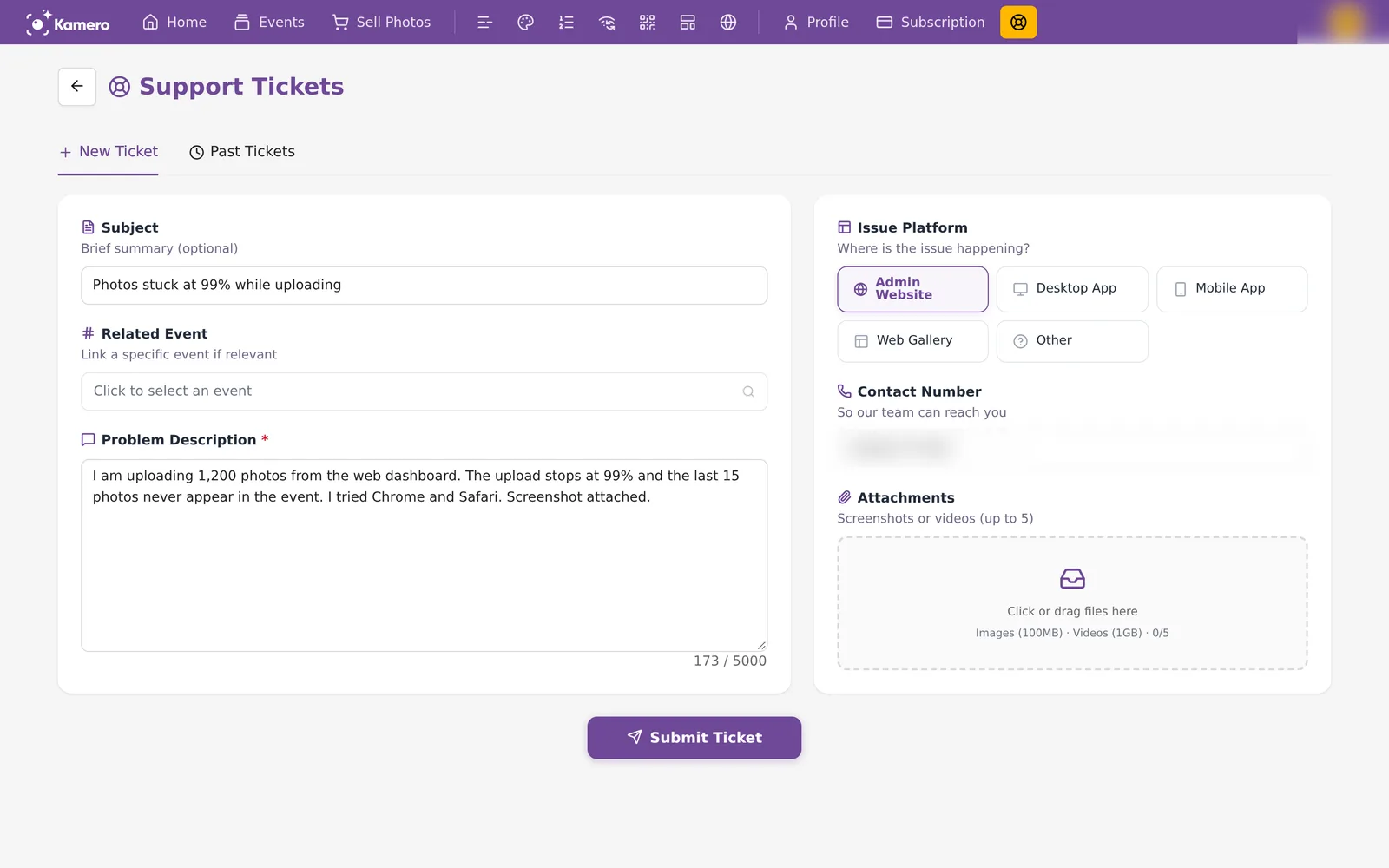
- Subject (optional). A one-line summary, for example "Photos stuck at 99% while uploading".
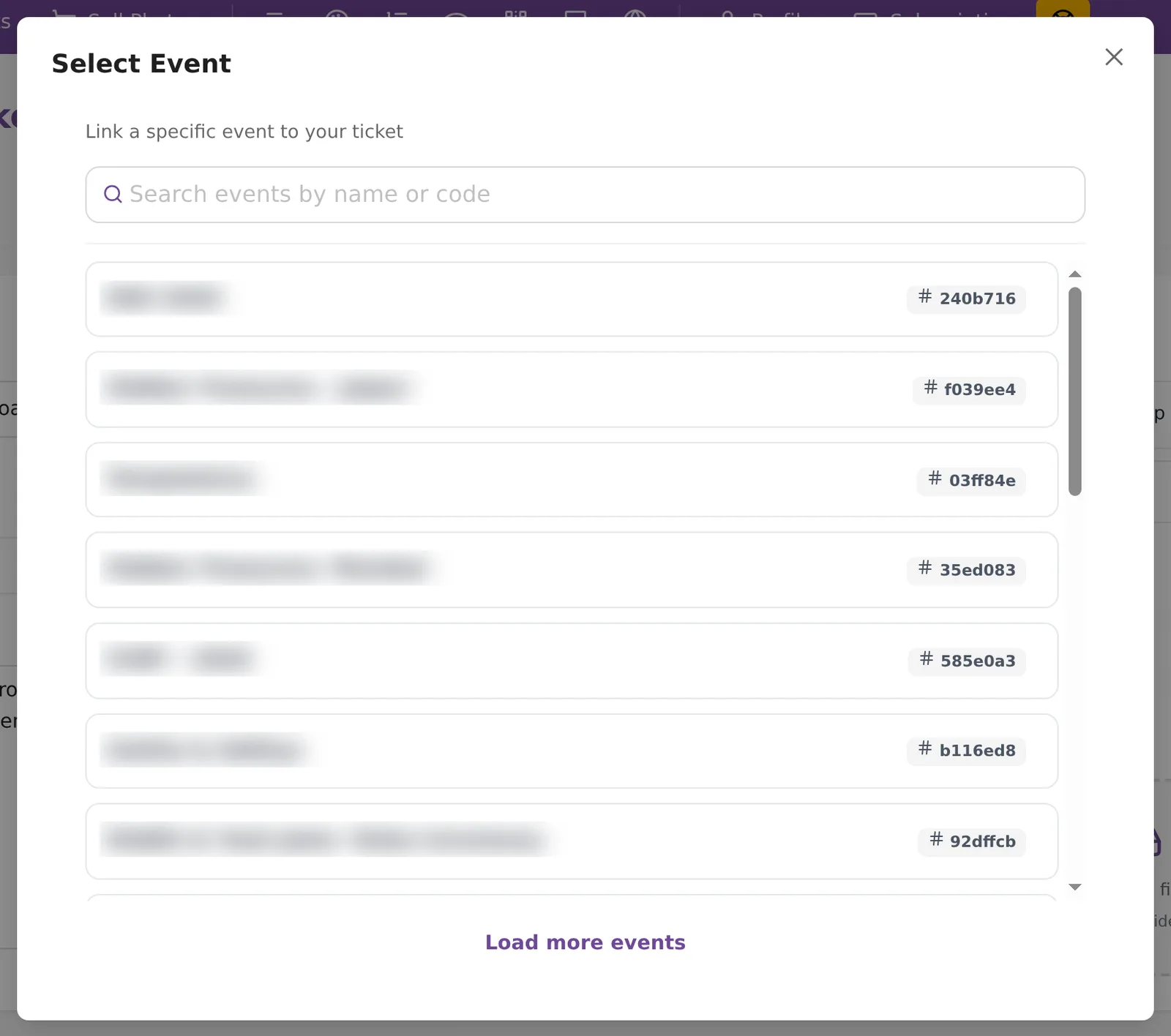
- Related Event (optional). Click Click to select an event to link the event the problem is about. A window opens where you can search your events by name or code. Click an event to pick it. Use Load more events to see older ones.
- Problem Description (required). Say what you did, what you expected and what happened instead. You can write up to 5,000 characters. The counter under the box shows how many you have used.
- Issue Platform (optional). Pick where the problem happens: Admin Website (this dashboard), Desktop App, Mobile App, Web Gallery (the gallery your guests open) or Other. Click the same tile again to clear it.
- Contact Number. The phone number on your account is filled in. Change it if the team should call a different number.
- Attachments (optional). See the next section.
Click Submit Ticket. You see "Support ticket created successfully!" and the page moves to Past Tickets with your new ticket at the top. If you leave the description empty, the form shows "Please describe your problem" and does not submit.
Add screenshots or a screen recording
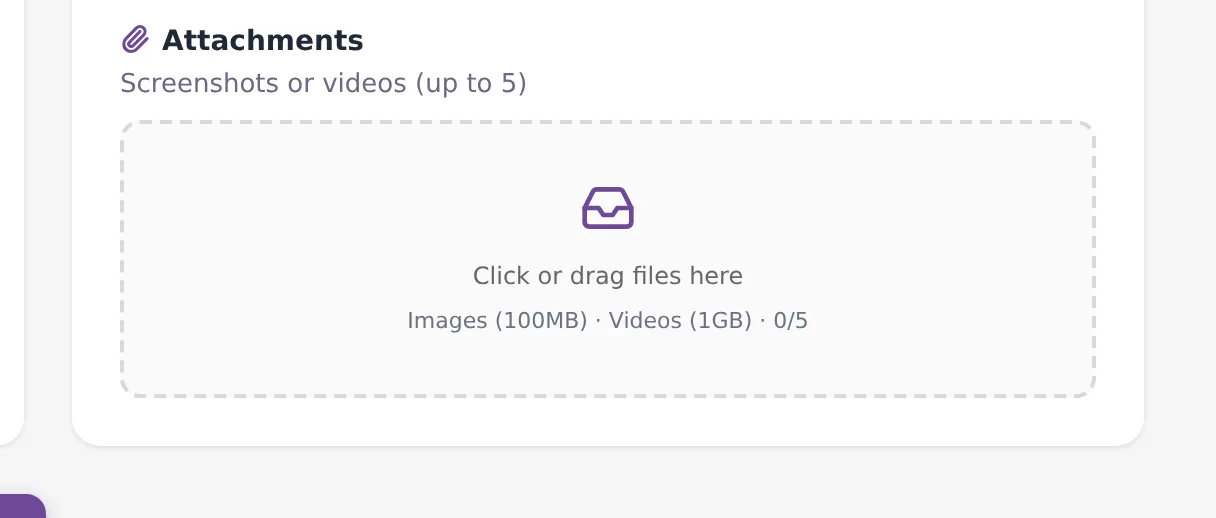
Click the Attachments box or drag files onto it. A screenshot of the error, or a short recording of the steps, usually gets you an answer faster than a long description.
- Up to 5 files per ticket.
- Images up to 100 MB each and videos up to 1 GB each. Other file types are not accepted.
- Files start uploading as soon as you add them. Wait for them to finish before you submit.
- Adding the same file twice shows "This file has already been added."
See your tickets
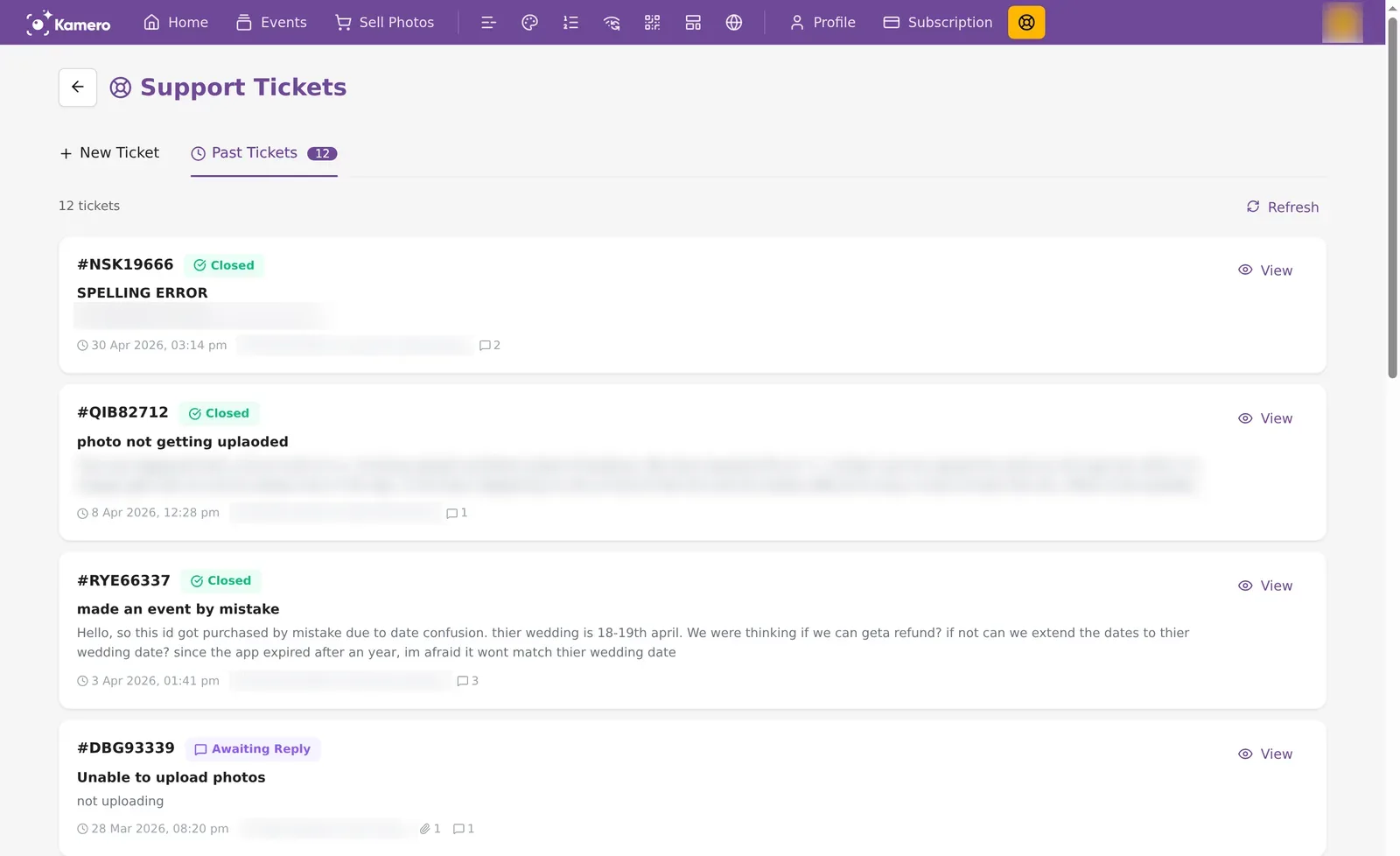
Open Past Tickets to see the tickets you have raised, newest first. Click Refresh to load any new replies. Each card shows:
- The ticket number, for example #ABC12345. Quote it if you contact support another way.
- The status tag.
- The subject and the first two lines of your description.
- The date, the linked event, the number of attachments and the number of replies.
- A View button that opens the full ticket.
What the statuses mean
- Open (blue): the ticket is new and waiting for the team to pick it up.
- In Progress (orange): someone on the team is working on it.
- Awaiting Reply (purple): the team has replied and needs something from you. Open the ticket and answer.
- Closed (green): the team considers the problem solved.
Read and reply to a ticket
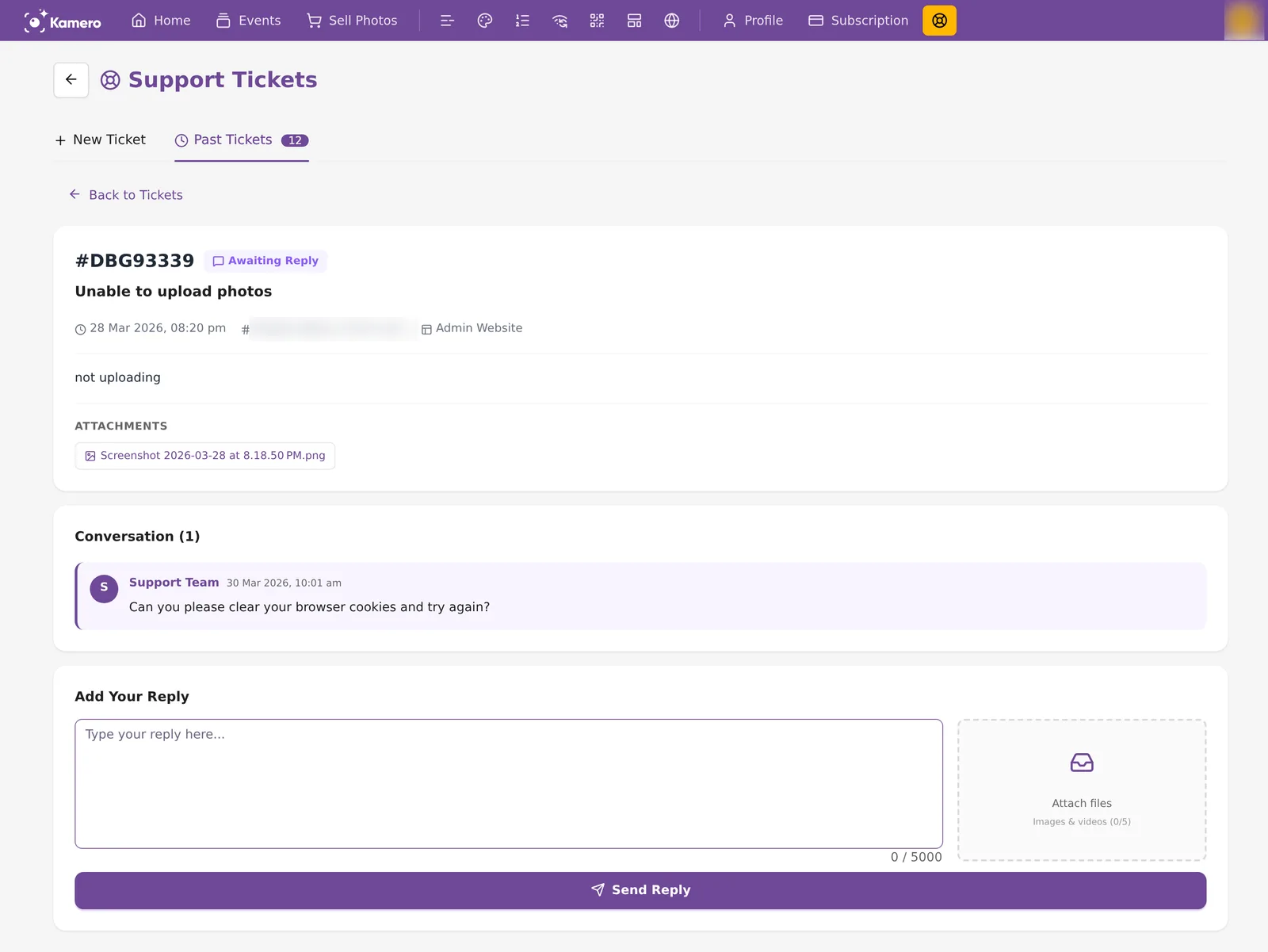
Click View on a ticket. The top shows the ticket number, status, subject, date, linked event, issue platform, your description and any files you attached. Below that, the Conversation lists every message in order. Messages from Kamero are marked Support Team in purple. Yours are marked You in blue.
To reply:
- Type in the Add Your Reply box. You can write up to 5,000 characters.
- To add files, click Attach files. You can add up to 5 images or videos to each reply.
- Click Send Reply. You see "Reply sent!".
A reply needs a message, a file or both. Click Back to Tickets to return to the list.
Reopen a closed ticket
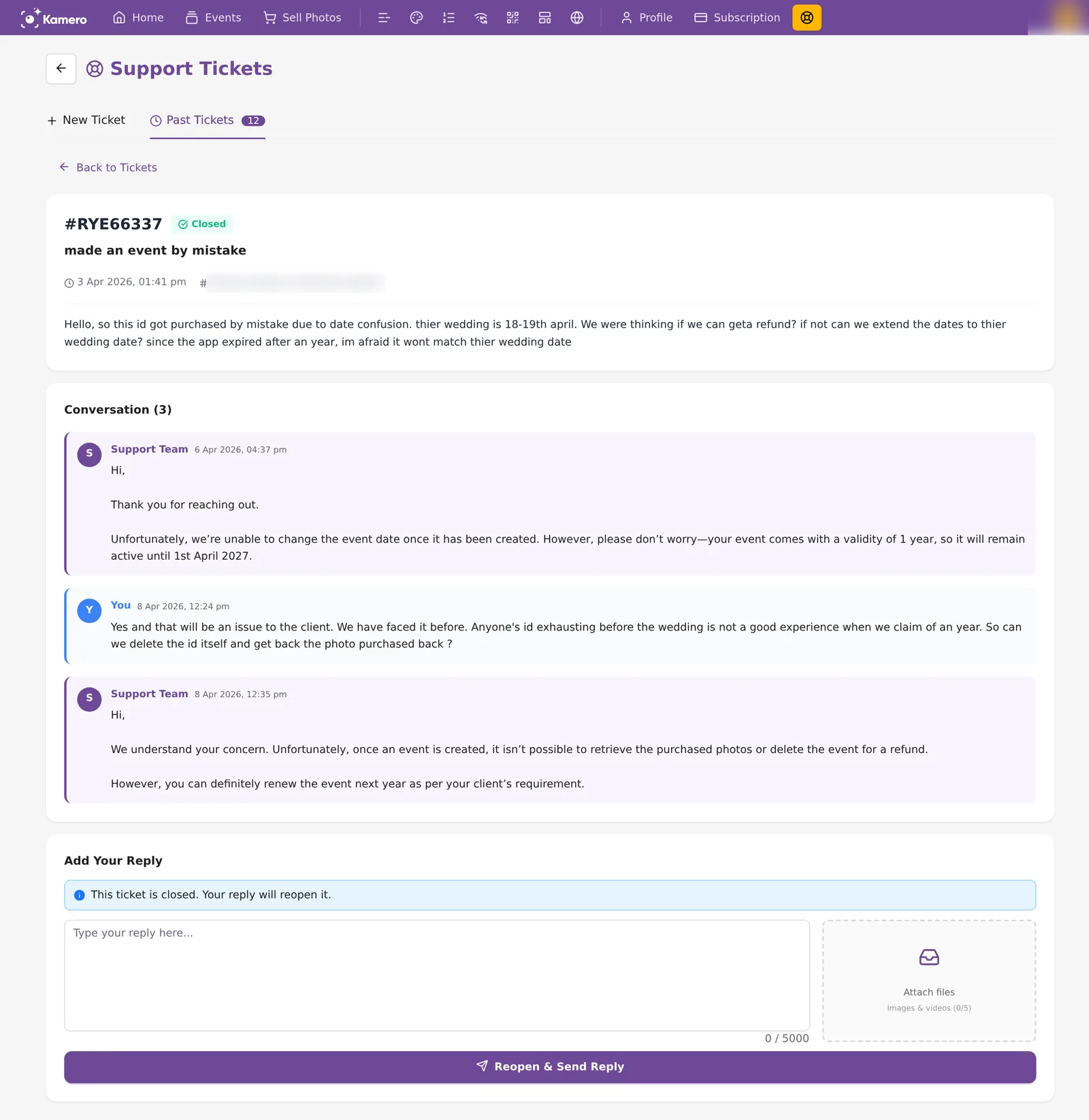
If the problem comes back after a ticket was closed, reply on the same ticket instead of raising a new one. A closed ticket shows "This ticket is closed. Your reply will reopen it." and the button reads Reopen & Send Reply. When you send, you see "Ticket reopened! Reply sent." and the team gets the full history.
Contact support on WhatsApp
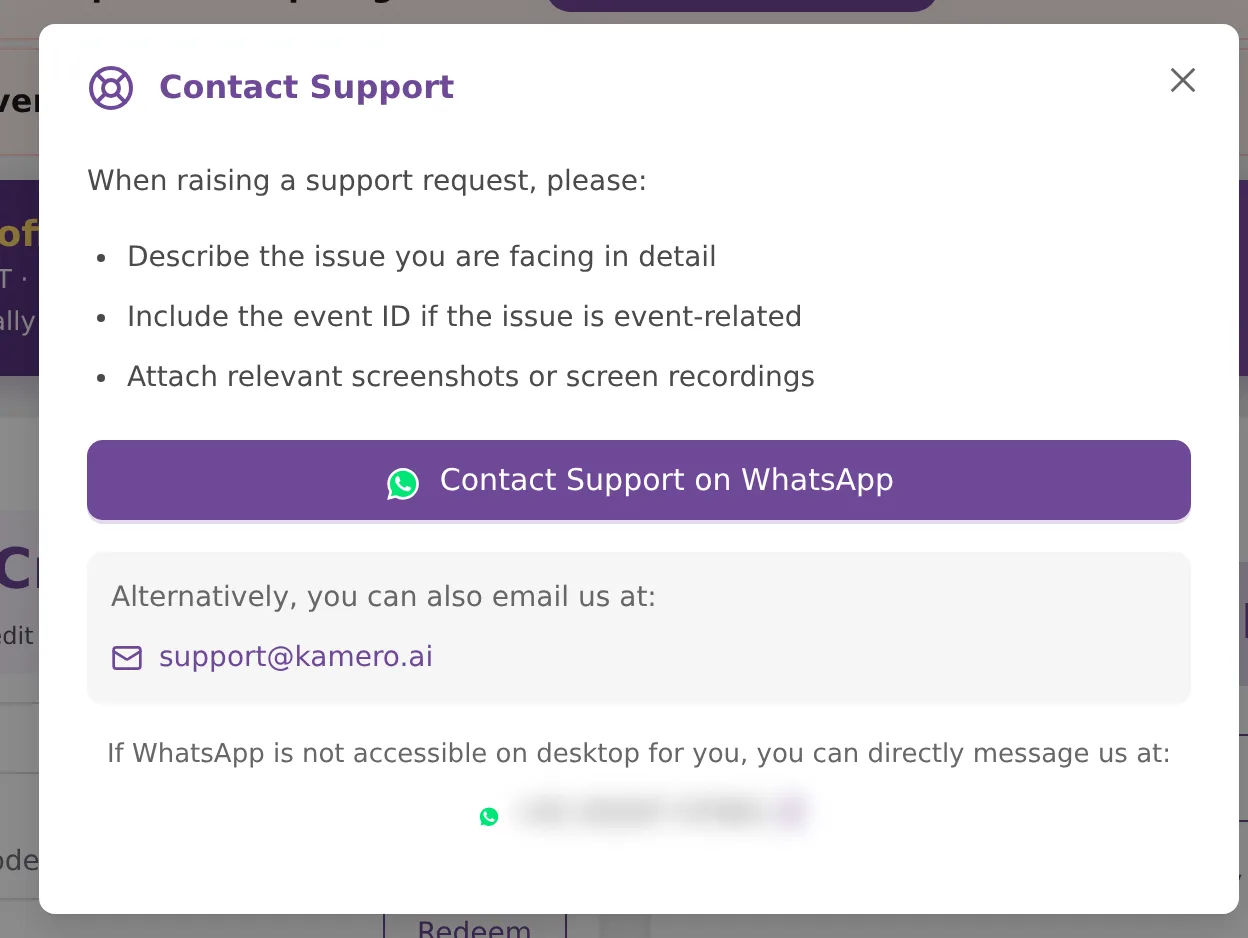
For a quick question, use WhatsApp. On Home, click Contact via WhatsApp on the Support card. A Contact Support window opens with a short reminder of what to include: a clear description, the event ID if the problem is about an event, and screenshots or screen recordings.
- Click Contact Support on WhatsApp. WhatsApp opens with a message that already includes your account email and ID, so the team knows who you are.
- You can also email support@kamero.ai.
- If WhatsApp does not open on your computer, copy the support number at the bottom of the window and message it from your phone.
Your dedicated RM
Whitelabel accounts also get a relationship manager (RM) from the Kamero team. The Your Dedicated RM card on Home shows their name and phone number. Click the copy icon next to the number to copy it, or click Message on WhatsApp to start a chat. Your RM is the person to talk to about your plan, renewals and your account in general. For a bug or a problem with an event, a ticket is still the best route because it keeps the screenshots and the history together.
Accounts that are not on a whitelabel plan see an Important Information card in this spot instead, with a Contact for Subscription button.
If you are new to the dashboard, start with Getting started with the Kamero dashboard. For a payment that went wrong, check the order first in Orders and invoices, then raise a ticket with the order ID.
Frequently asked questions
How do I know when support has replied?
Open Support and go to Past Tickets. A ticket the team has answered and is waiting on you shows the purple Awaiting Reply tag, and its reply count goes up. Click Refresh if the page has been open for a while.
Can I reopen a ticket that was closed?
Yes. Open the closed ticket, type your message and click Reopen & Send Reply. The ticket opens again and the team sees your new message. You do not need to raise a new ticket for the same problem.
What files can I attach?
Images up to 100 MB each and videos up to 1 GB each, with up to 5 files on a ticket and up to 5 on each reply. Other file types are not accepted. A short screen recording of the problem is often the fastest way to explain it.
Do I have to pick an event?
No. Related Event is optional. Link one when the problem is about a specific event, because the team then knows exactly which event to open.
Should I use a ticket or WhatsApp?
Use a ticket when you want a written record, need to attach files, or the problem may take a few replies to sort out. Use WhatsApp for a quick question. Both reach the same support team.
Who is my dedicated RM?
Whitelabel accounts get a relationship manager from the Kamero team. Their name, phone number and a Message on WhatsApp button are on the Your Dedicated RM card on Home. Contact them about your plan, renewals and anything about your account.
More Reports & account tutorials
Try it in your dashboard
Sign in to Kamero and follow along. Questions? Raise a support ticket from the dashboard.