How to use the Events Report
The Events Report lists every event in your account on one page, with its live photo count, plan and expiry date. Use it to see which events are about to expire, find your largest events, or download a list for your records.
How to open the Events Report
- Click your profile picture at the top right of the dashboard.
- Choose Events Report.
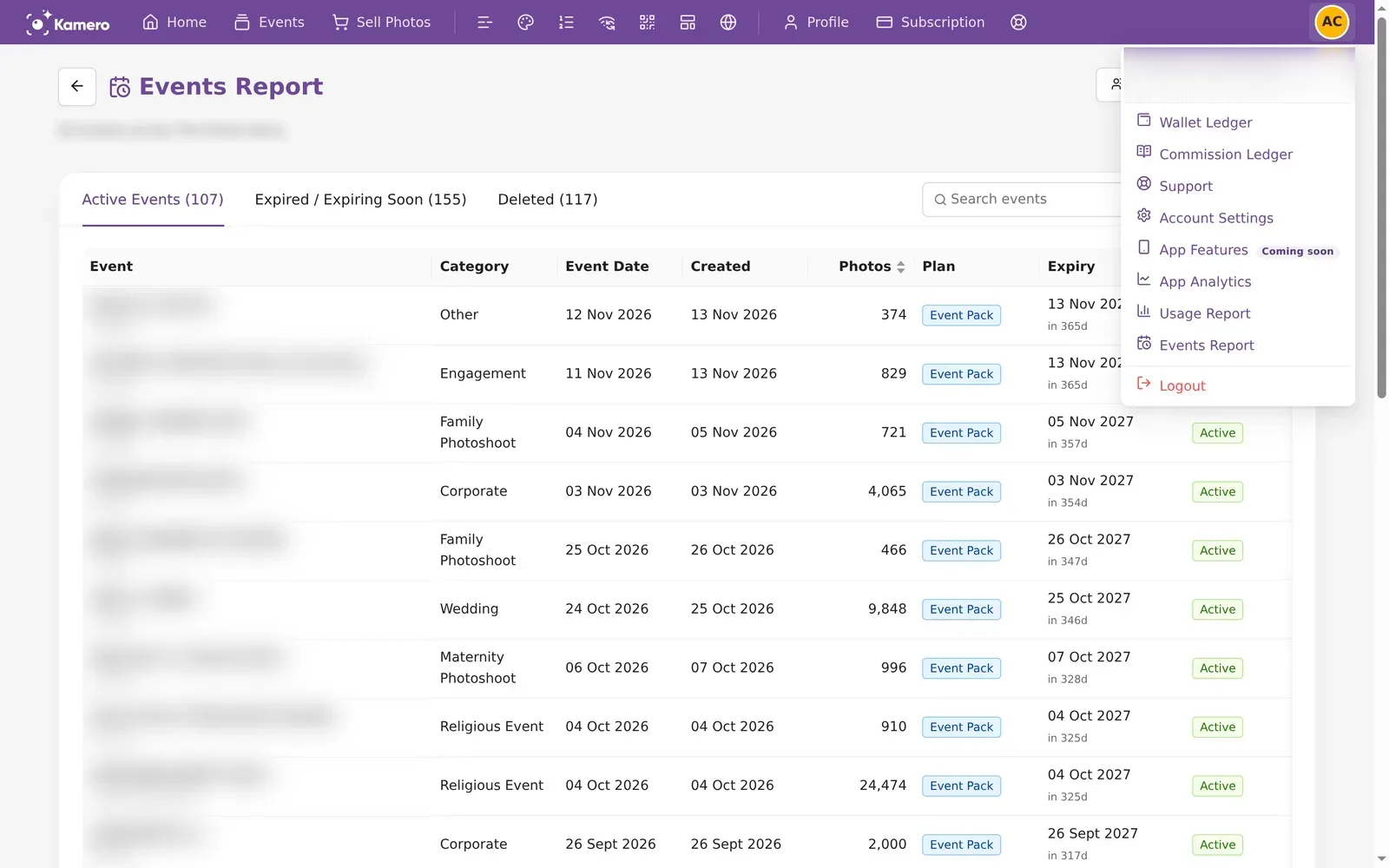
The three tabs
Your events are split into three tabs. Each tab shows how many events it holds.
- Active Events: events that are live and more than 30 days from expiry.
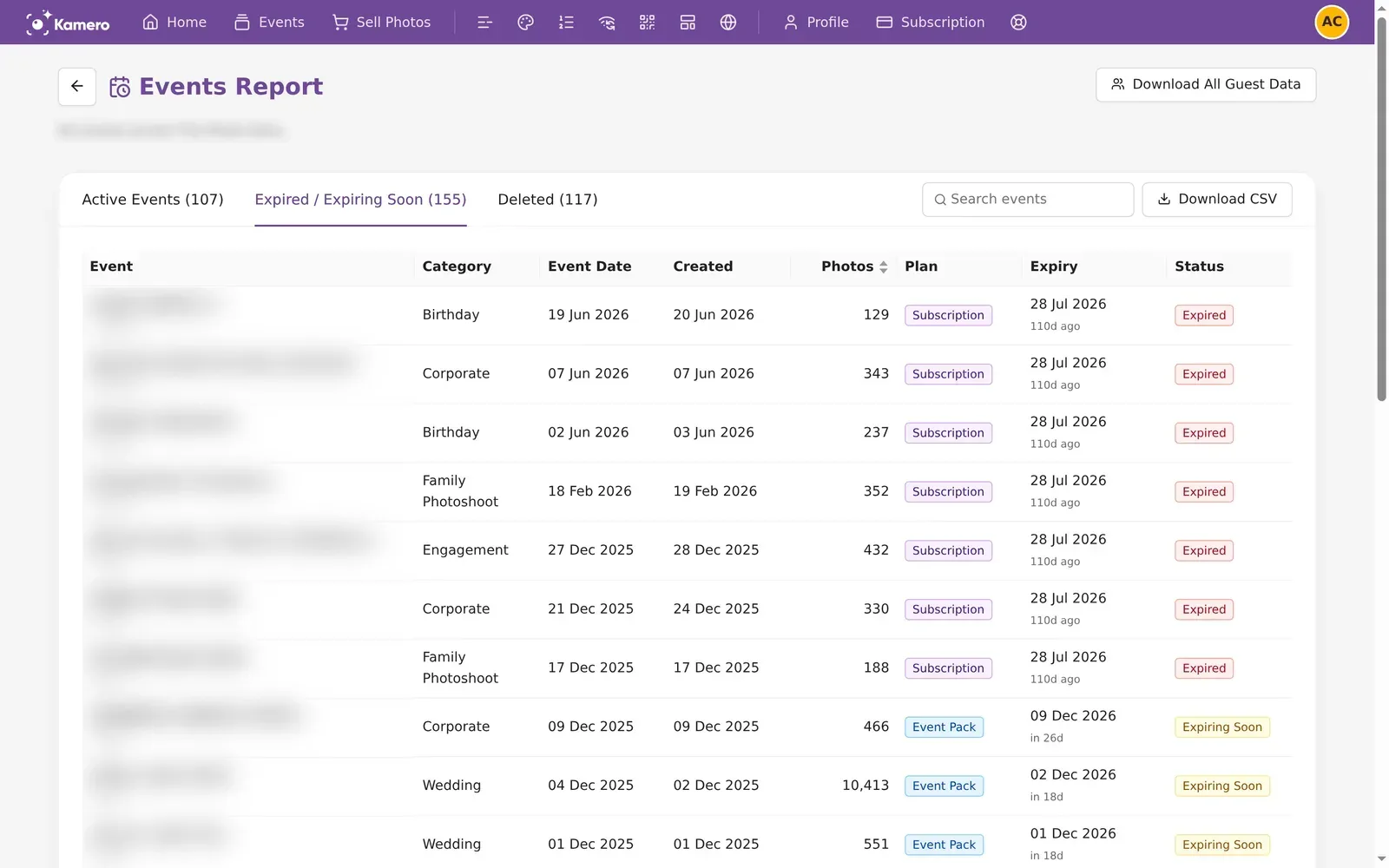
- Expired / Expiring Soon: events that have expired, and events that expire within 30 days.
- Deleted: events you have deleted.
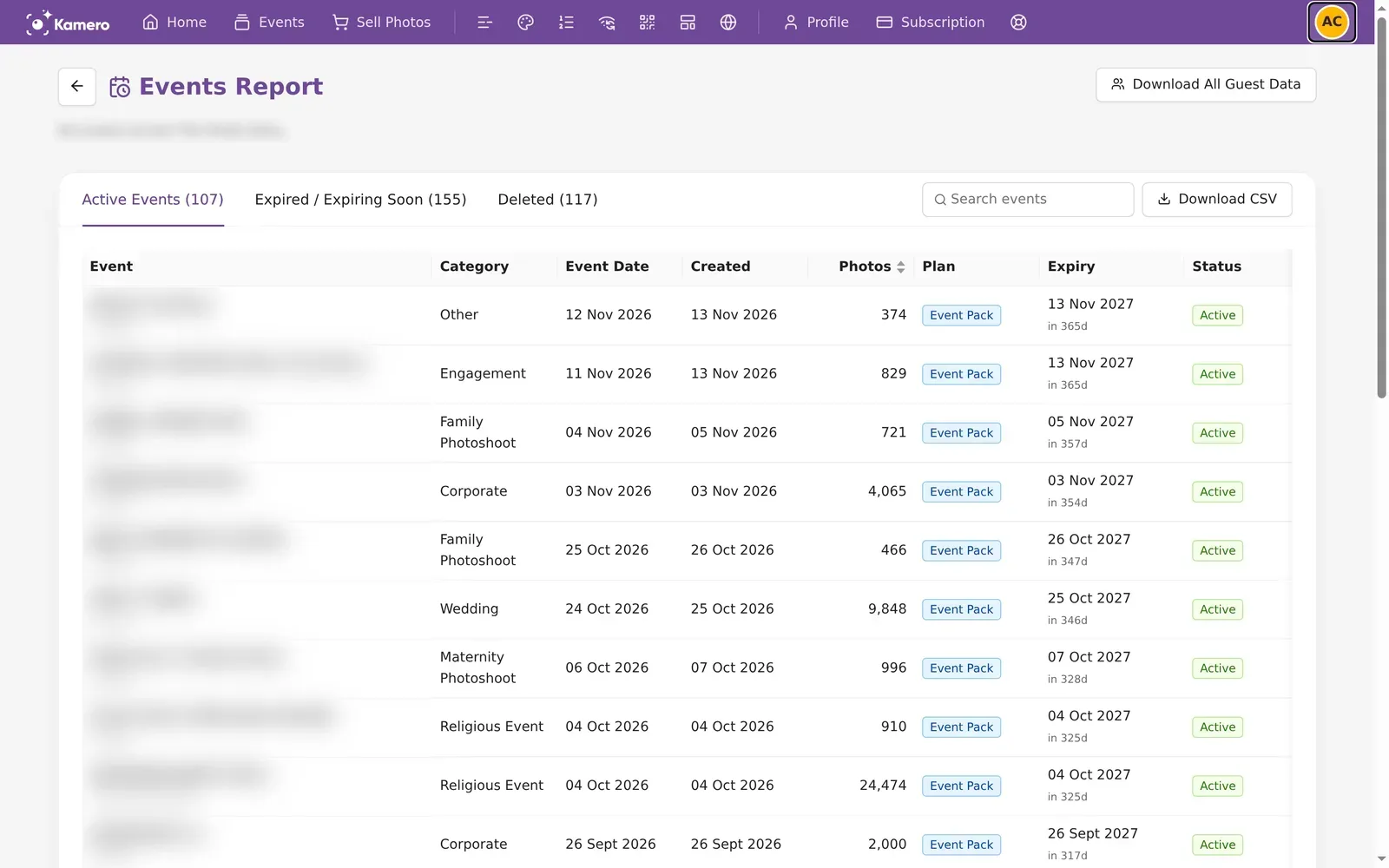
The columns
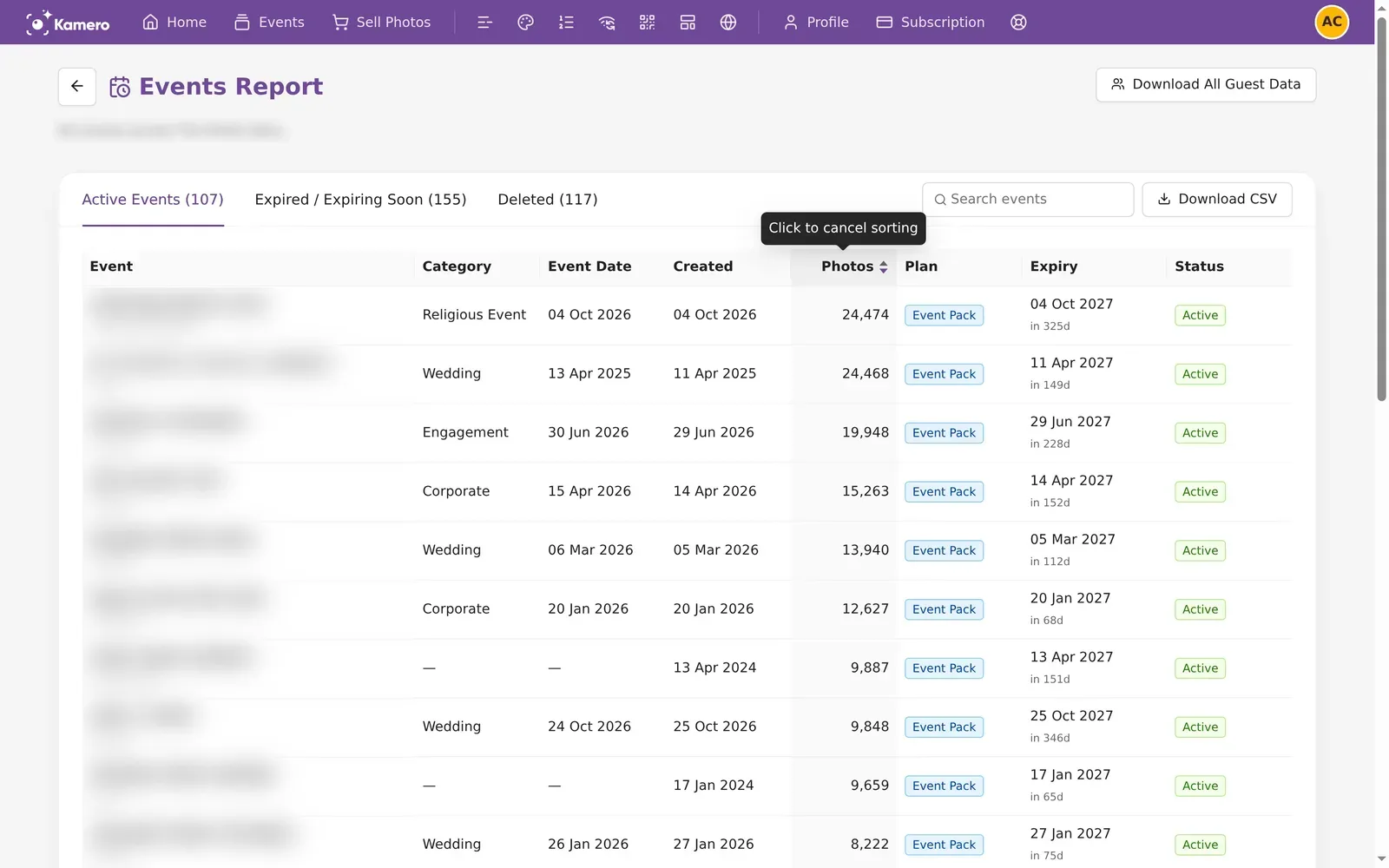
- Event: the event name, with its event code underneath.
- Category: such as Wedding, Birthday or Corporate.
- Event Date: the date of the event itself.
- Created: the day you created the event on Kamero.
- Photos: how many photos the event has right now.
- Plan: Subscription if the event uses your subscription, or Event Pack if you bought it on its own.
- Expiry: the expiry date, with the days left ("in 26d") or the days since it expired ("110d ago").
- Status: Active, Expiring Soon, Expired or Deleted.
A dash means the event has no value for that column. For example, older events created without an event date show a dash under Event Date.
Find events that are expiring
Open the Expired / Expiring Soon tab. Expiring Soon events are still live but have 30 days or less left. Expired events have passed their date. To renew expiring events, see Subscription plans and buying.
Deleted events
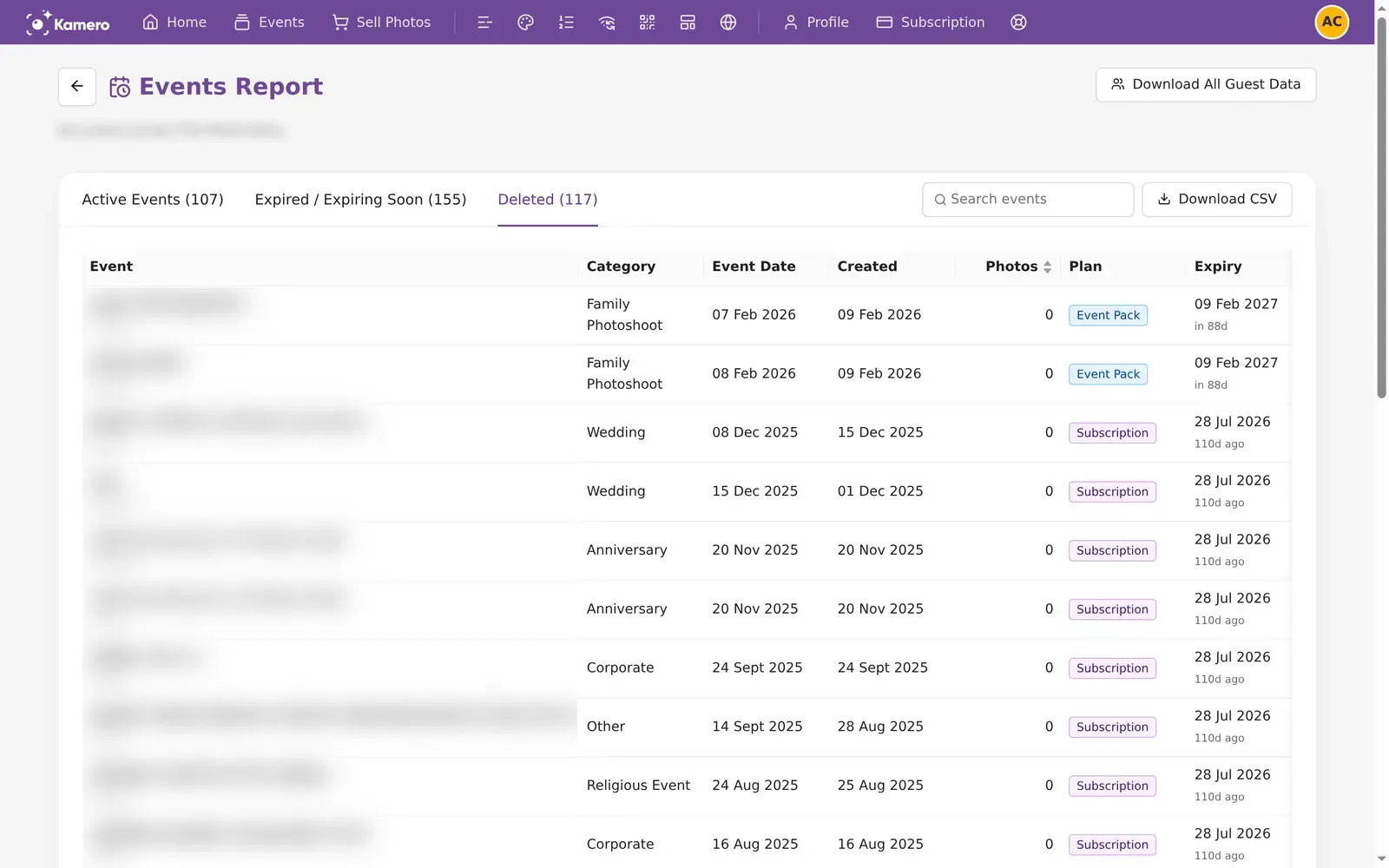
The Deleted tab lists events you deleted. Their photo count is 0, because the photos were removed with the event.
A recently deleted event may show a Recover button. It shows only for Event Pack events created in the last 30 days and deleted in the last 7. Recovering brings back the event so you can use it again, but its albums and photos cannot be recovered.
Sort and search
Click the Photos heading to sort events by photo count, smallest first. Click again for largest first, and a third time to go back to the default order, newest first.
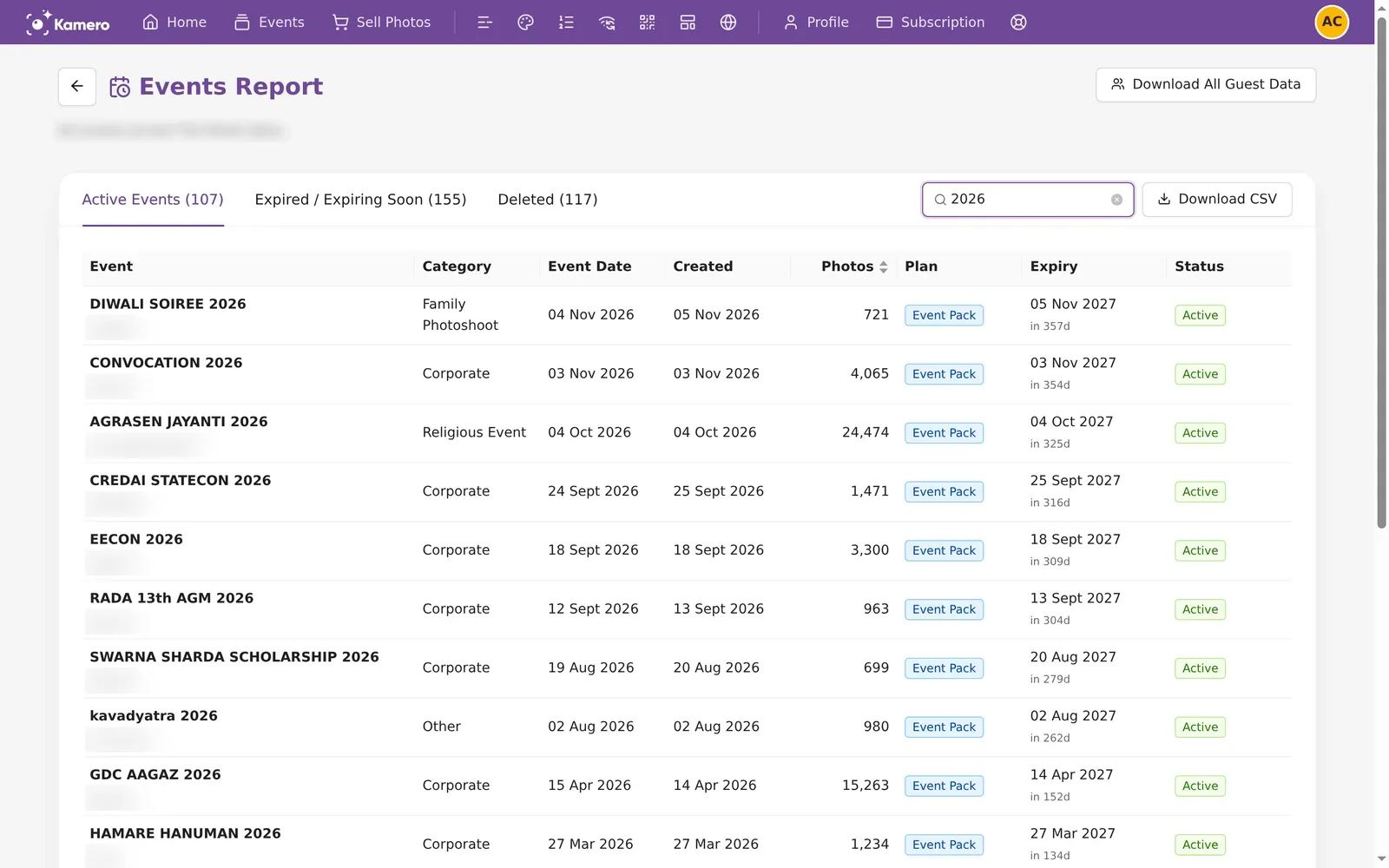
Type in Search events to filter the tab you are on. It matches the event name, event code and category.
Pages
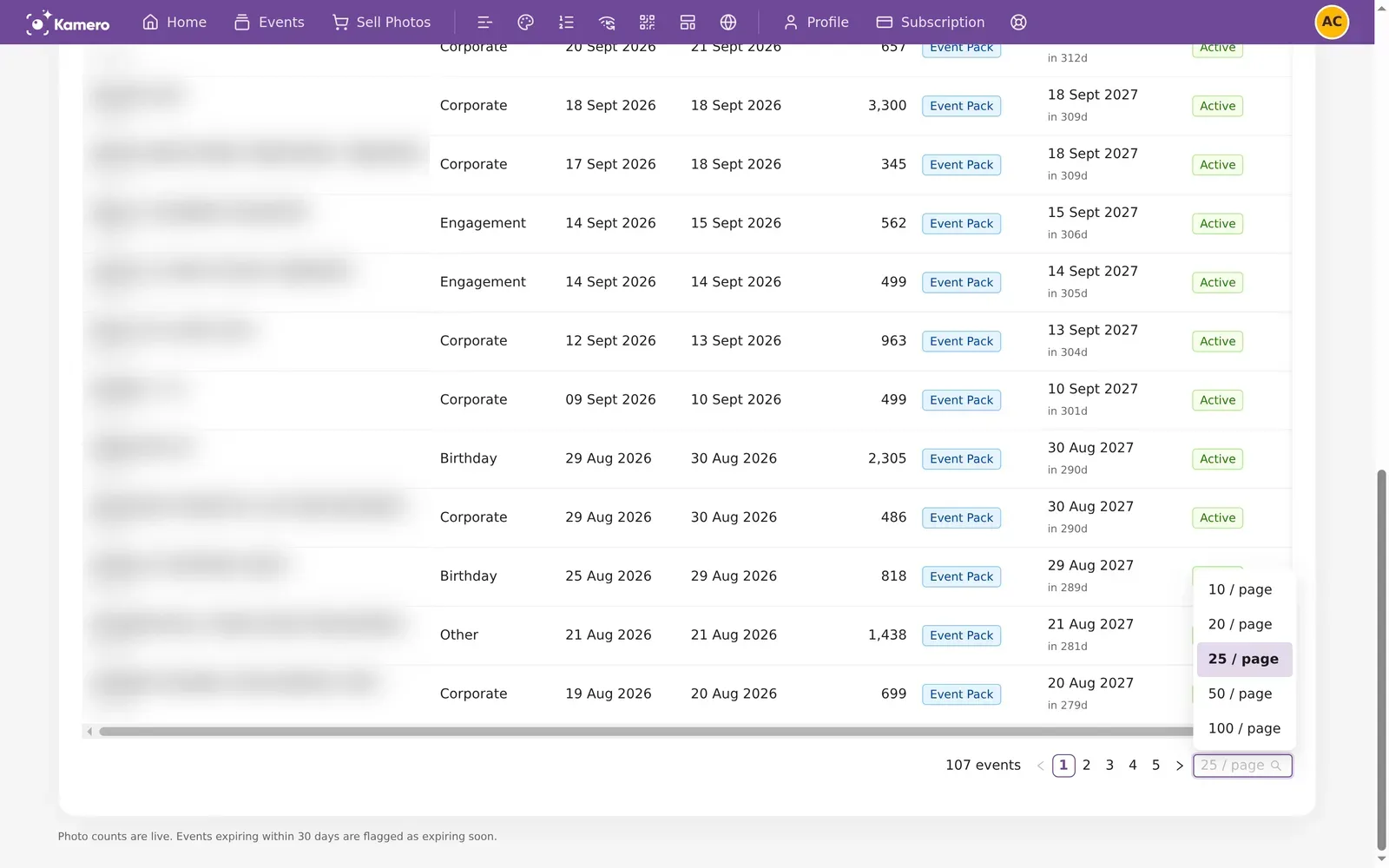
The table shows 25 events per page. The total is shown at the bottom, next to the page numbers. Use the 25 / page menu to show 10, 20, 50 or 100 at a time.
Download CSV
Click Download CSV to download the tab you are on. The file has every event in that tab, even if you typed a search. It has these columns: Event Name, Category, Event Date, Created On, Event Code, Photos, Plan Type, Expiry Date, Days To Expiry and Status.
Download All Guest Data
Download All Guest Data, at the top right, downloads one CSV with the guests of all your events, including deleted ones. Each row has the event name, event code, event status, and the guest's name, email, phone and user type.
A window shows the progress while Kamero collects the data. Keep the browser tab open until the file downloads. If no guest has registered for any of your events yet, no file is made.
On your phone
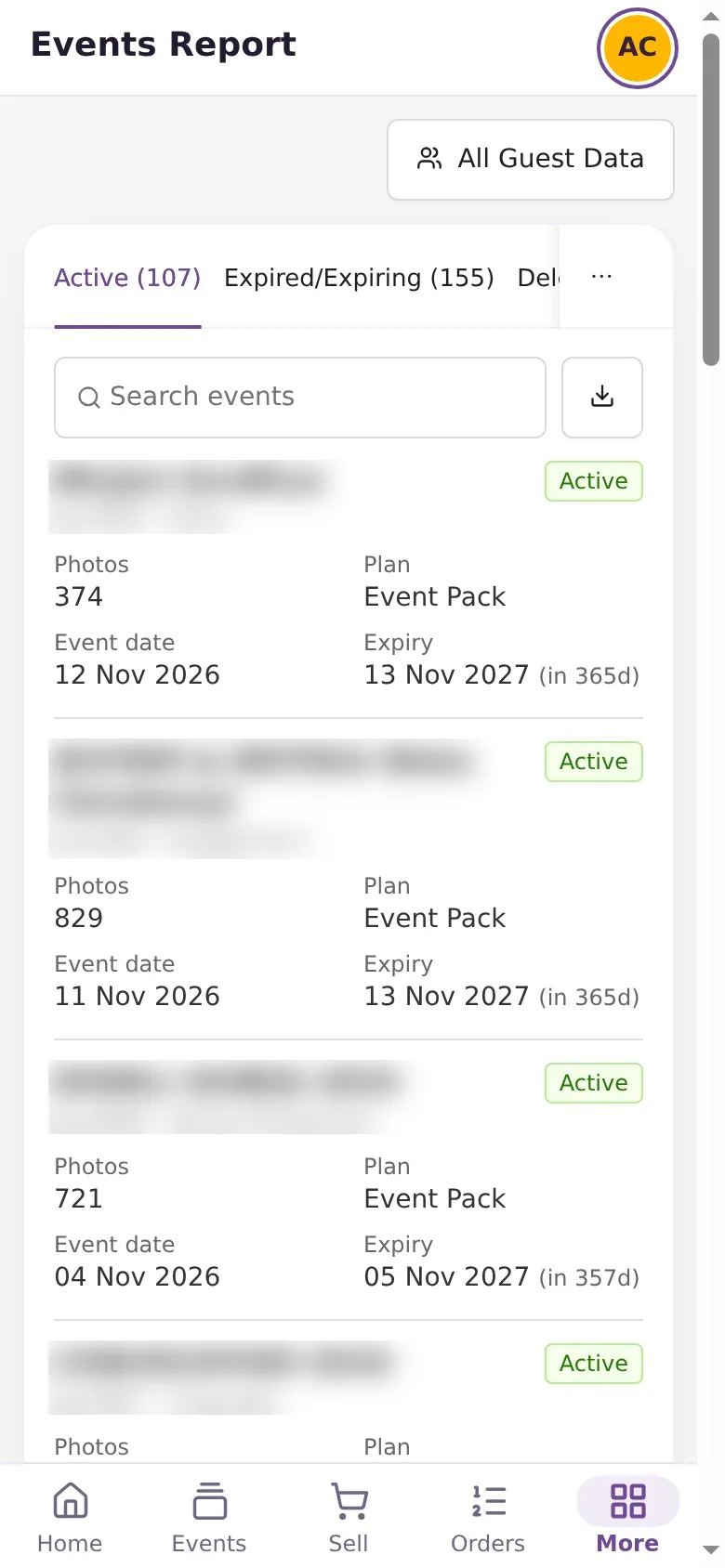
On a phone, each event is a card with its photos, plan, event date and expiry. The download button shows only an icon, and the guest data button reads All Guest Data. The list shows 20 events per page.
For totals across your whole account, such as photos per year and packs bought, see the Usage Report.
Frequently asked questions
Are the photo counts up to date?
Yes. The Events Report counts photos live each time you open it, so it always matches what is in your events right now.
When does an event show as Expiring Soon?
When its expiry date is 30 days away or less. Once the date passes, the status changes to Expired.
Does Download CSV use my search?
No. Download CSV always downloads every event in the tab you are on, even if you typed a search. To get a different list, switch tabs first.
Can I get back a deleted event?
Sometimes. A Recover button shows on the Deleted tab only for Event Pack events created in the last 30 days and deleted in the last 7. Recovering brings back the event, but its albums and photos are gone for good.
Why do some events have no event date or category?
They were created without one, so the report shows a dash in that column. You can set the event date in the event settings.
More Reports & account tutorials
Try it in your dashboard
Sign in to Kamero and follow along. Questions? Raise a support ticket from the dashboard.