How to use Account Settings
Account Settings holds the settings that apply to your whole account rather than to one event: the price your customers pay to renew, who gets enquiry emails, your password, reminder emails and the billing details on your invoices. This guide goes through each card and every option on it.
Open Account Settings
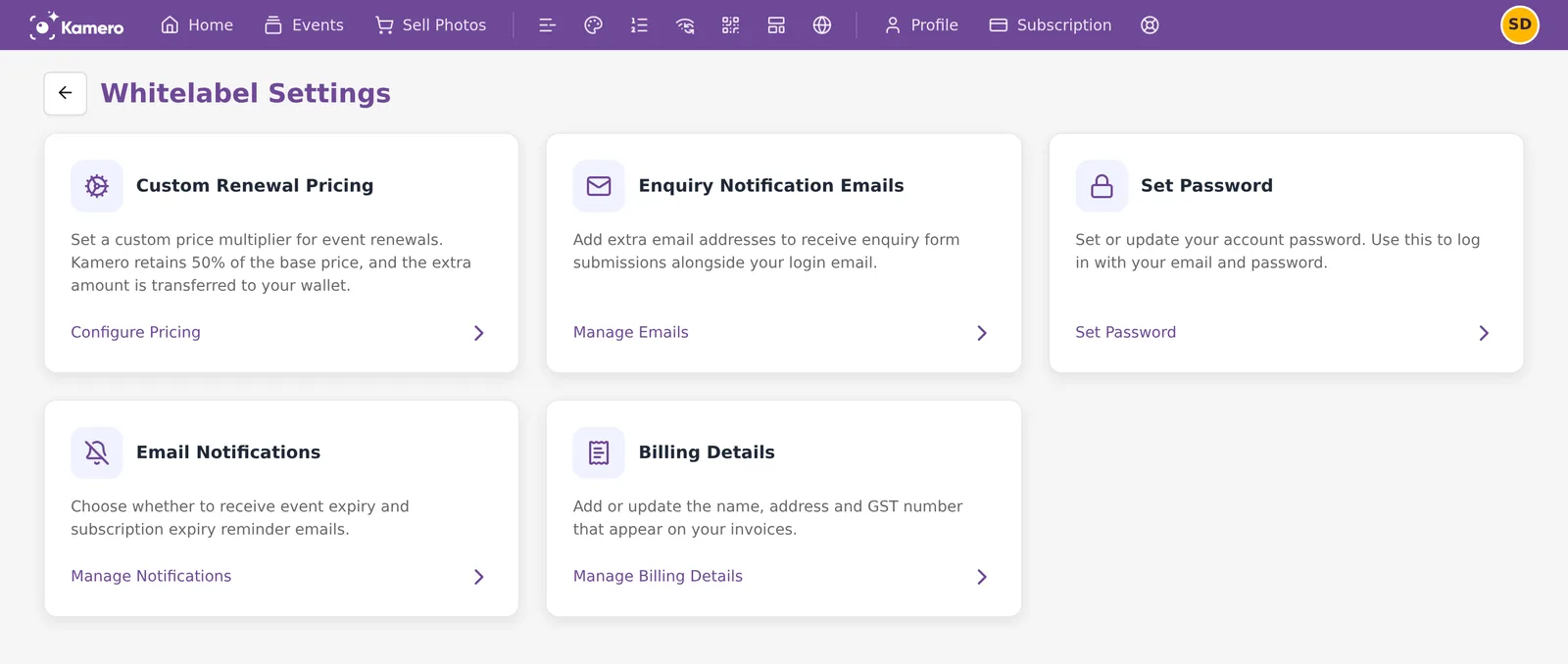
Click your profile picture at the top right and choose Account Settings. The page shows five cards:
- Custom Renewal Pricing, opened with Configure Pricing
- Enquiry Notification Emails, opened with Manage Emails
- Set Password, opened with Set Password
- Email Notifications, opened with Manage Notifications
- Billing Details, opened with Manage Billing Details
Who sees which card
Every account sees all five cards. Only the page title changes. On a whitelabel account the page is called Whitelabel Settings, and the renewal price you set there applies to every event under your whitelabel. On any other account it is called Account Settings. On a phone, each card opens its own page with an Account Settings link at the top to go back.
Custom renewal pricing
When one of your events expires, your customer can renew it from the event's renewal page. Custom renewal pricing lets you charge them more than Kamero's base price and keep the difference. It is a multiplier on the base price, not a fixed price: there is no box to type a rupee amount.
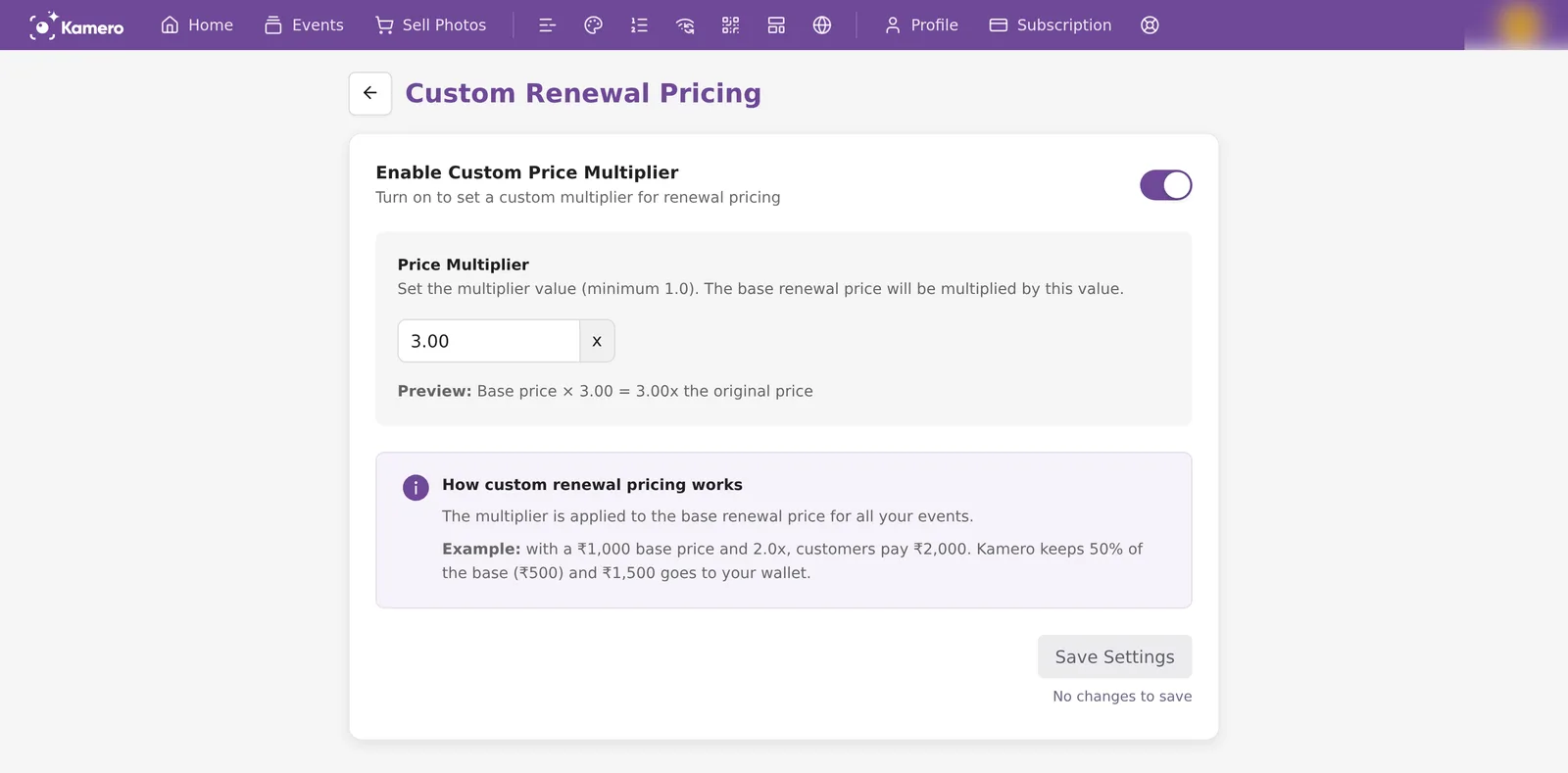
- Turn on Enable Custom Price Multiplier.
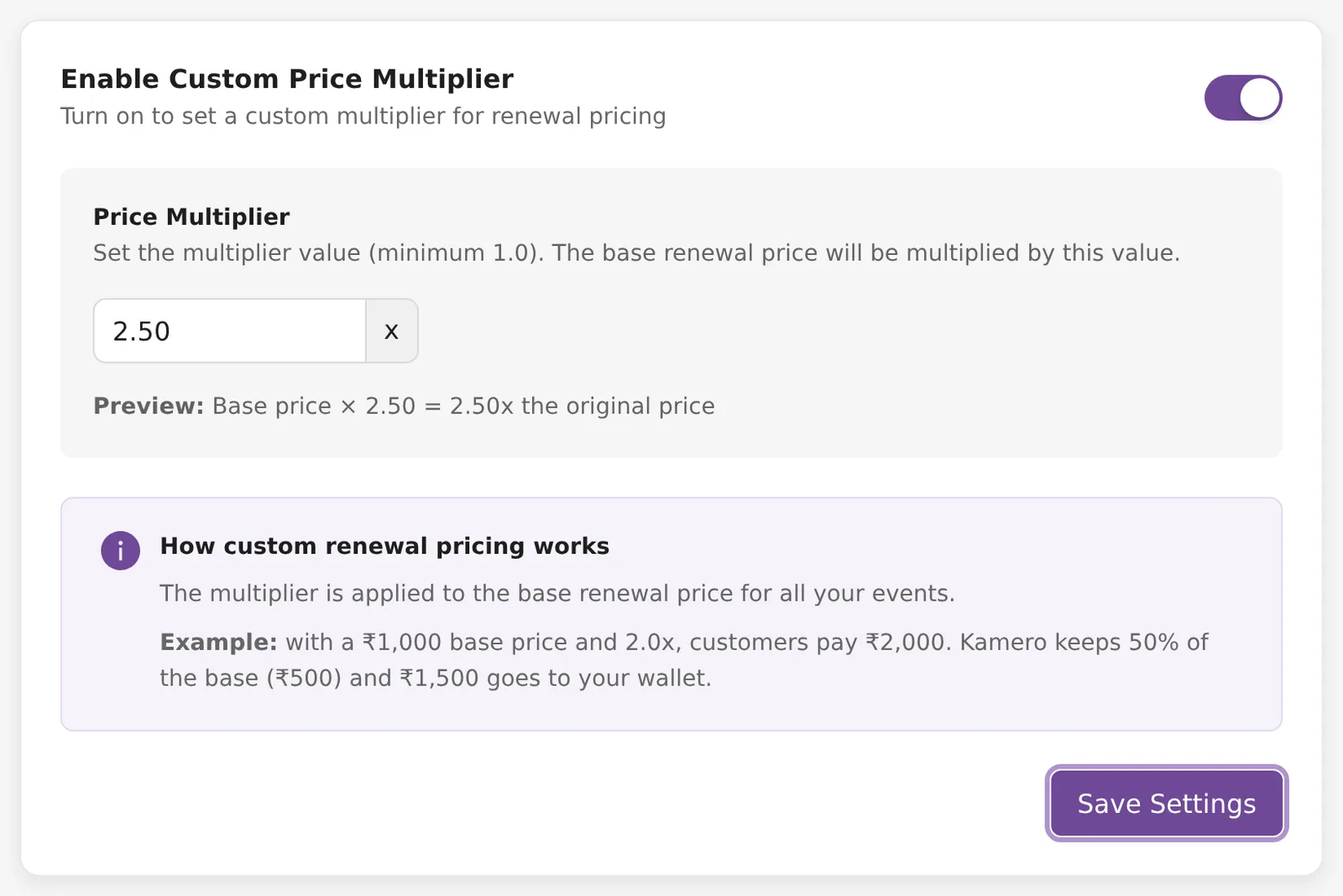
- In Price Multiplier, enter a number from 1.0 to 10.0. It moves in steps of 0.1. The Preview line under the box shows the result, for example "Base price × 2.50 = 2.50x the original price".
- Click Save Settings. The button stays grey and says "No changes to save" until you change something.
How the money is split
Kamero keeps 50% of the base price. Everything above that goes to your wallet. For example, with a ₹1,000 base price and a 2.0x multiplier, your customer pays ₹2,000. Kamero keeps ₹500 and ₹1,500 goes to your wallet. GST at 18% is added on top of the price your customer pays.
- The multiplier applies only to renewals your customers pay for on the public renewal page. When you renew from the dashboard or the photographer app, you pay the base price.
- A renewal through the 50% discount link (the Pass 50% discount to the client/users switch when you share the renewal link) pays no commission, even with a multiplier.
- The face recognition part of the renewal is multiplied too, but you get no commission on it.
Each payment shows up in the Commission ledger.
Turn it off
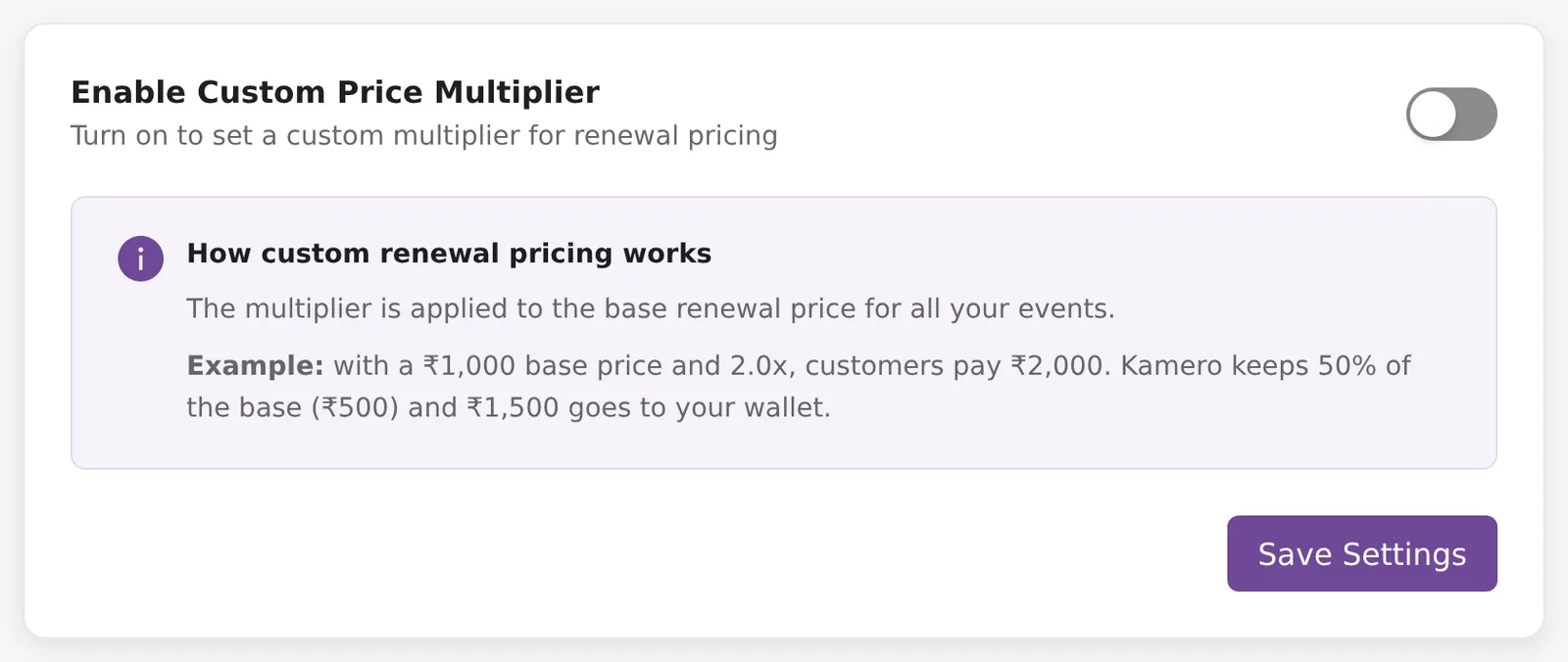
Turn off Enable Custom Price Multiplier and click Save Settings. The multiplier goes back to 1.0, so customers pay the base price.
Enquiry notification emails
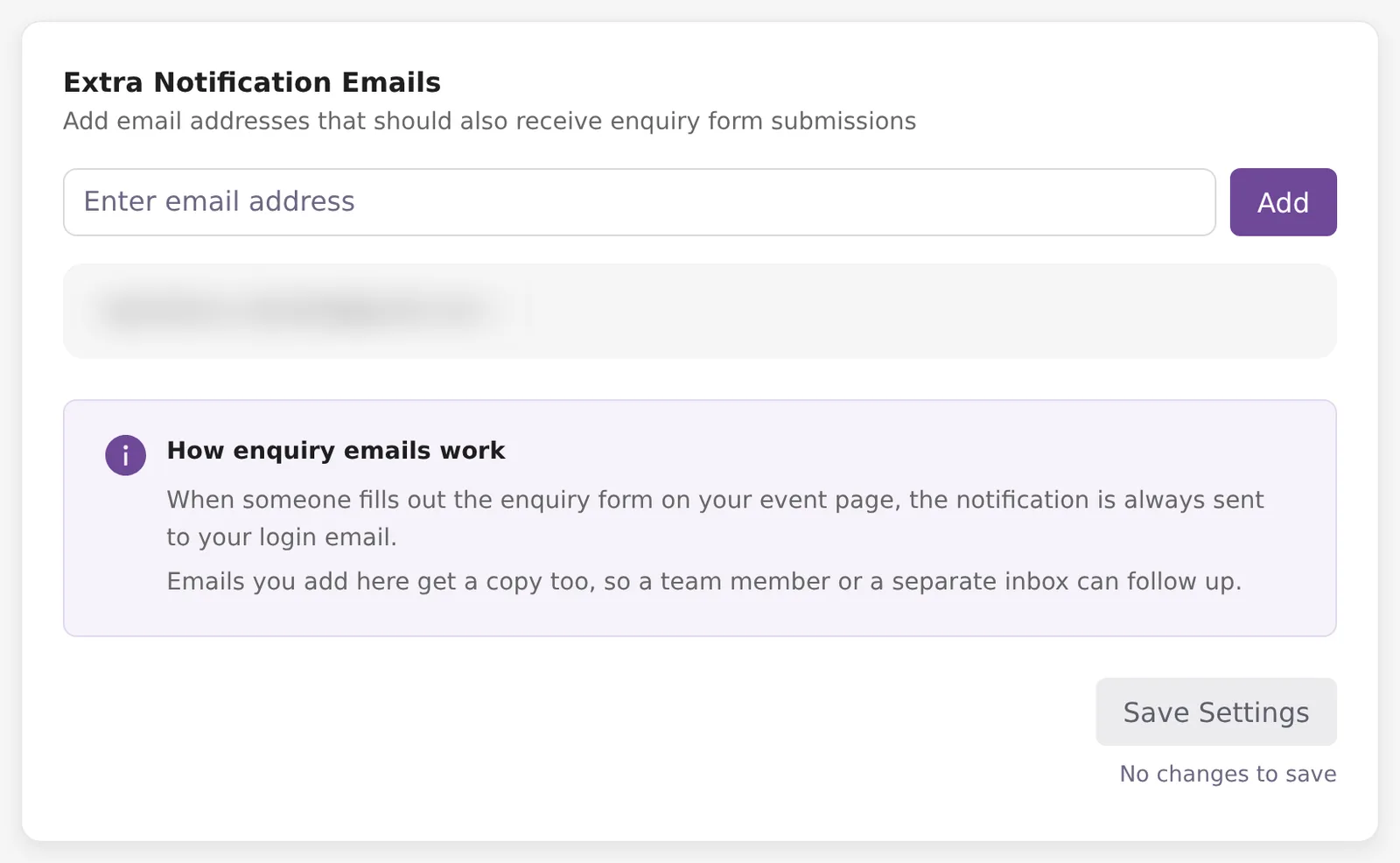
When someone fills in the enquiry form on your event page, Kamero emails your login email. Add more addresses here if a team member or a separate inbox should get a copy.
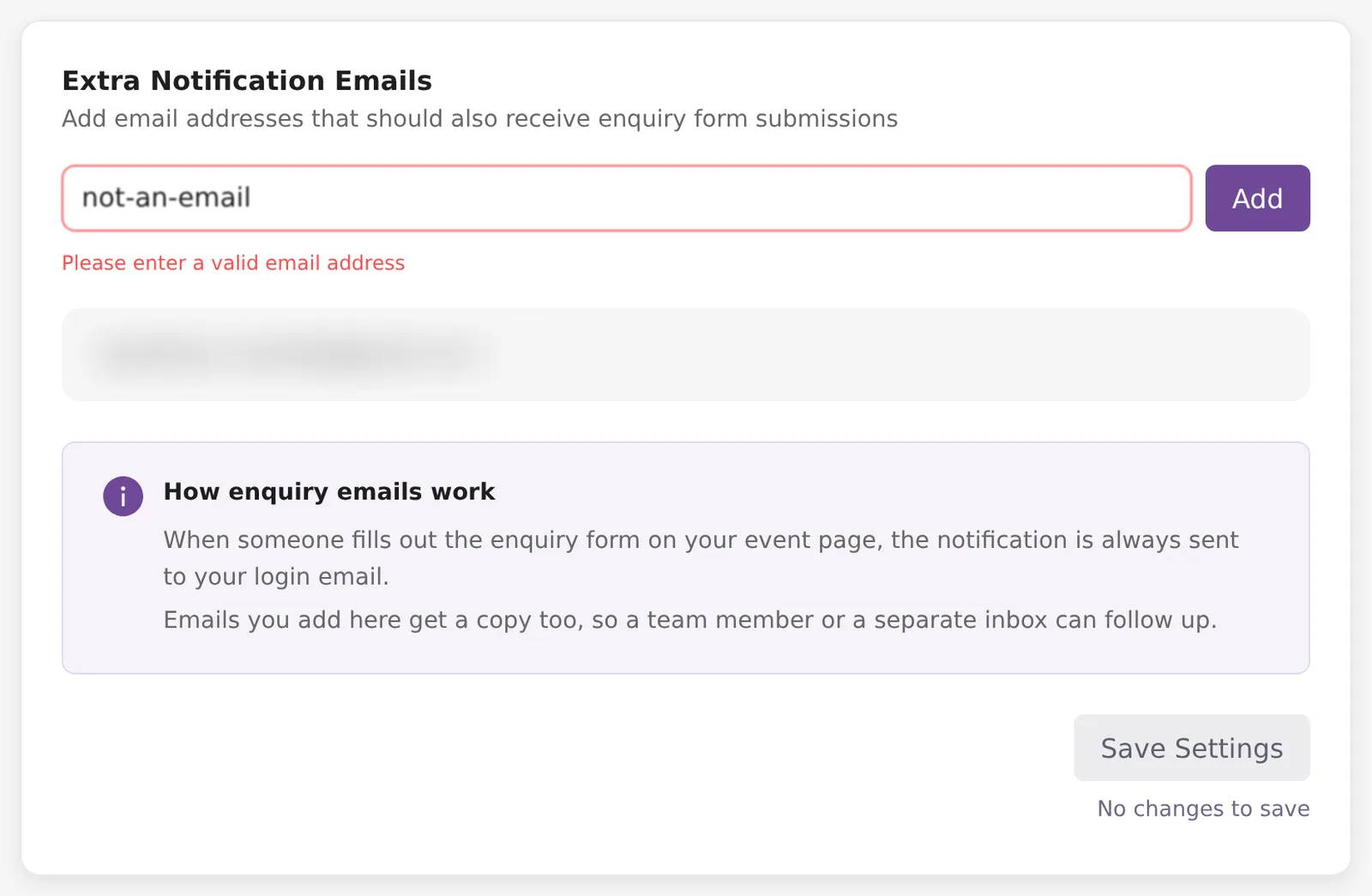
- Type an address in Enter email address.
- Click Add or press Enter. The address appears as a tag under the box. Click the × on a tag to remove it.
- Click Save Settings.
If the address is not valid you see "Please enter a valid email address". If it is already in the list you see "This email is already added". With no extra emails, the page says only your login email gets enquiry notifications.
Set password
Set a password if you want to sign in with your email and a password. If you sign in another way today, that keeps working.
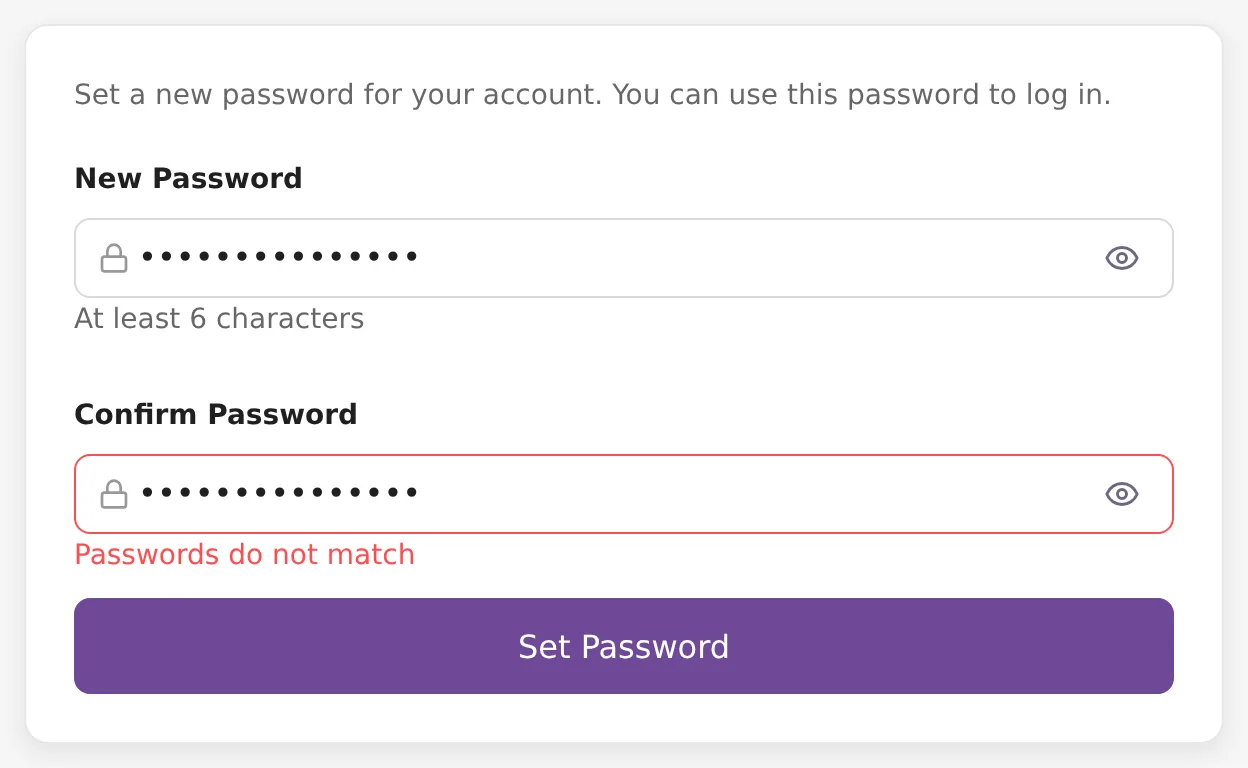
- Enter it in New Password. It must be at least 6 characters.
- Enter it again in Confirm Password. If the two do not match, you see "Passwords do not match".
- Click Set Password.
Click the eye icon in a box to show what you typed. If your account already has a password, Kamero asks you to confirm before replacing it. Click Yes, update password. You see "Password updated successfully".
Email notifications
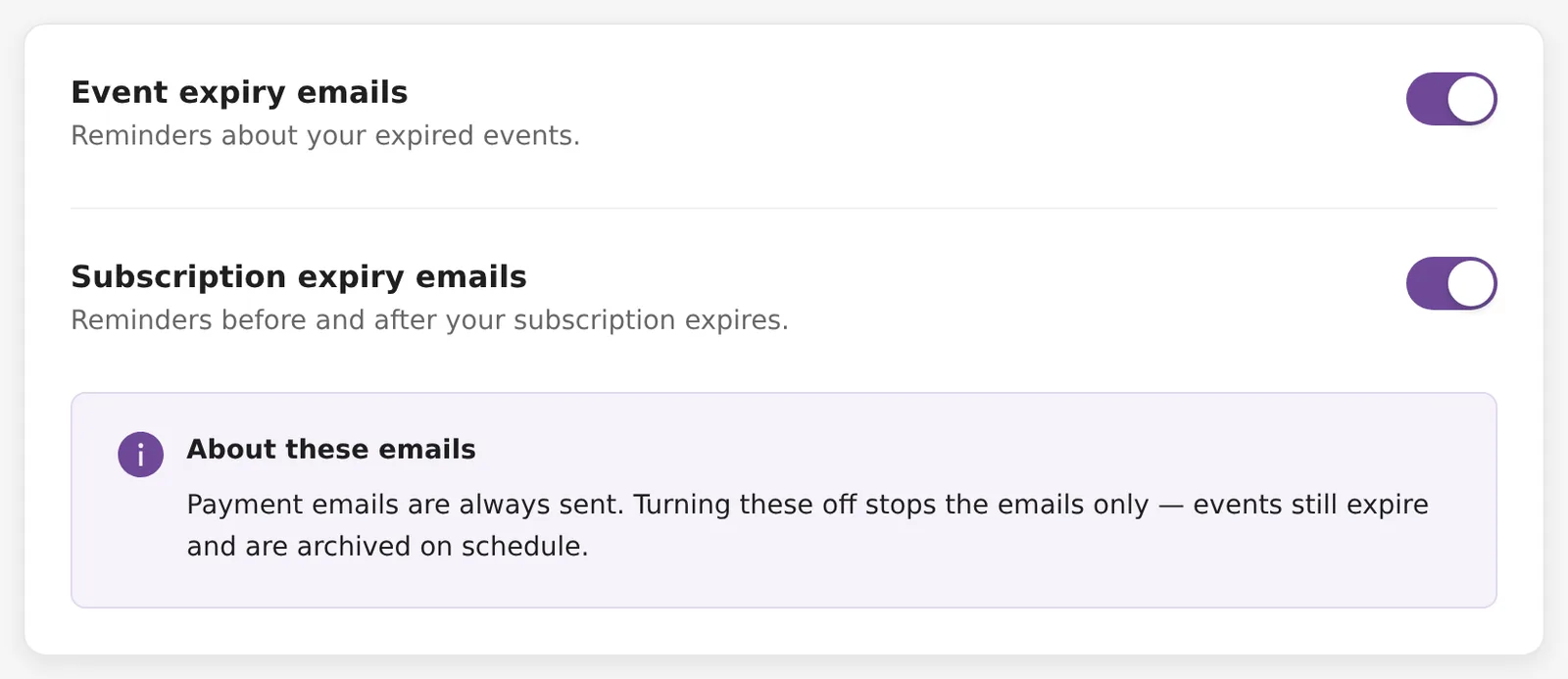
Two switches control the reminder emails Kamero sends you:
- Event expiry emails: reminders about your events after they expire. Turning it off stops them only for you. Hosts of the event and guests who started a renewal still get them.
- Subscription expiry emails: reminders before and after your subscription expires.
Each switch saves as soon as you click it. Turning one off shows "You will no longer receive these emails". Turning it back on shows "You will receive these emails again". Payment emails are always sent. Turning reminders off stops the emails only. Events still expire and are archived on schedule.
If the page shows "Could not load your settings", click Retry.
Billing details
The name, GST number and address here are printed on the invoices for your subscriptions and orders. Add a GST number if you need GST invoices. The page shows your saved Name, GST Number (or "Not provided") and Billing Address.
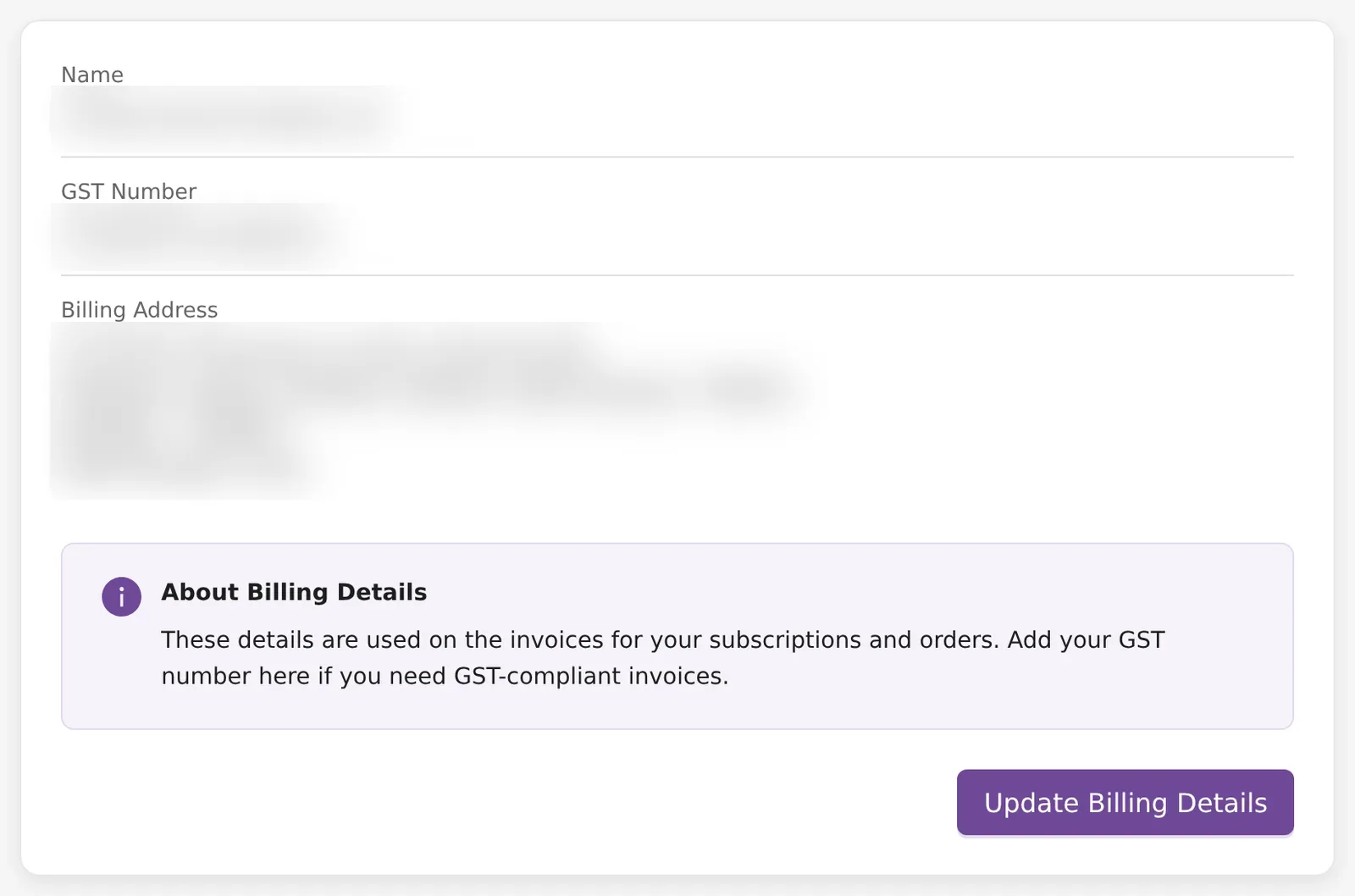
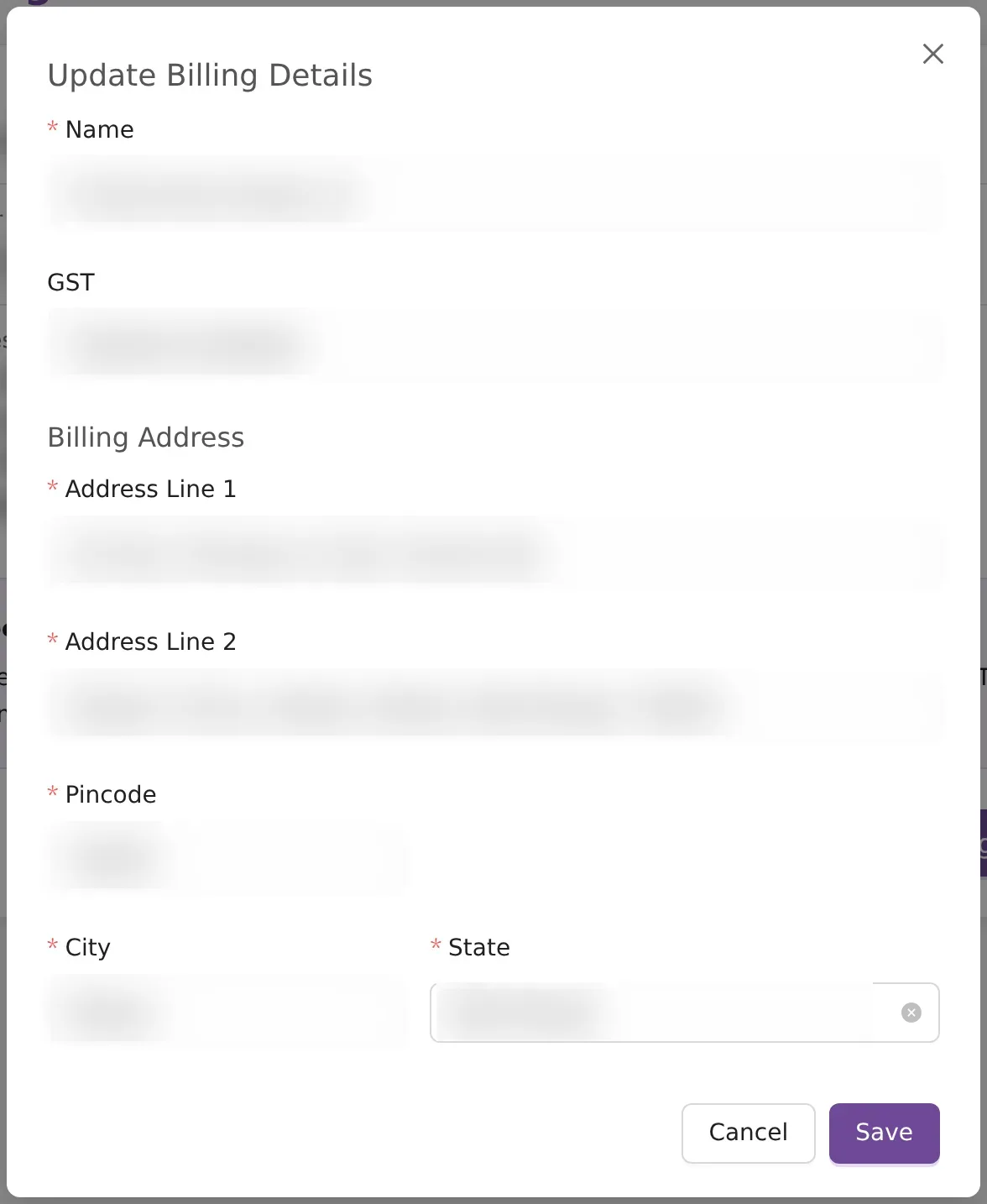
Click Add Billing Details, or Update Billing Details if you have saved them before. Fill in the form:
- Name (required): the business or personal name for the invoice, at least 3 characters.
- GST (optional): your 15-character GSTIN. When it is valid, the state is filled in for you. The state you pick must match the GST number. If it does not, the form shows "GST number belongs to" followed by the right state.
- Address Line 1 and Address Line 2 (both required).
- Pincode (required): 6 digits. City and state are filled in from it.
- City and State. If your state is not in the list, choose Other and type it.
Click Save. The form takes Indian addresses only, and the country is always India. The invoice is made when you pay, from the details saved at that moment, so save them before you pay. New details apply to invoices from then on. If an invoice was made with the wrong details, open a support ticket with the order ID.
To download the invoices these details appear on, see Orders and invoices. For claiming input tax credit, see GST invoice for your business. Credits and renewal earnings are in the Wallet ledger. If something here does not save, raise a support ticket.
Frequently asked questions
Does the renewal multiplier change what I pay to renew an event?
No. The multiplier only applies when your customer renews an event from the public renewal page and pays for it. When you renew an event yourself from the dashboard or the photographer app, you pay the normal base price.
Why did I not get a commission on a renewal?
A renewal paid through the 50% discount link pays no commission, even when you have set a multiplier. The face recognition part of a renewal is multiplied too, but it never shares commission. Check the Commission Ledger to see each renewal and what it paid.
Can I remove my login email from enquiry notifications?
No. Your login email always gets every enquiry. The emails you add on Enquiry Notification Emails get a copy as well.
I already sign in another way. Do I need a password?
No, you can keep signing in the way you do now. Setting a password adds a second way in: your email and that password. It does not stop the other sign-in methods from working.
If I turn off event expiry emails, will my events stay live?
No. The setting stops the reminder emails only. Events still expire and are archived on their normal schedule, so check your expiry dates on the Events page if you turn the emails off.
Will new billing details change my old invoices?
No. Invoices that were already made keep the details they were made with. The new name, address and GST number appear on invoices for payments you make after you save. If an old invoice needs correcting, open a support ticket with the order ID.
More Reports & account tutorials
Try it in your dashboard
Sign in to Kamero and follow along. Questions? Raise a support ticket from the dashboard.