How to set up your studio profile
Your profile is the studio information guests see on every event gallery: your name, logo, contact buttons, a short about text and your social links. This guide goes through each of the six steps and then shows what guests see.
Open your profile
Click Profile in the top menu. The page is called Update Profile. At the top you see which step you are on, how complete your profile is, and a row of buttons, one for each step. Click a step button to jump to it.
On the right, a phone preview shows how your details look on a gallery. It updates as you type.
Every step has two buttons. Save stores the step you are on. Save & Next stores it and opens the next step.
Step 1: Company Info
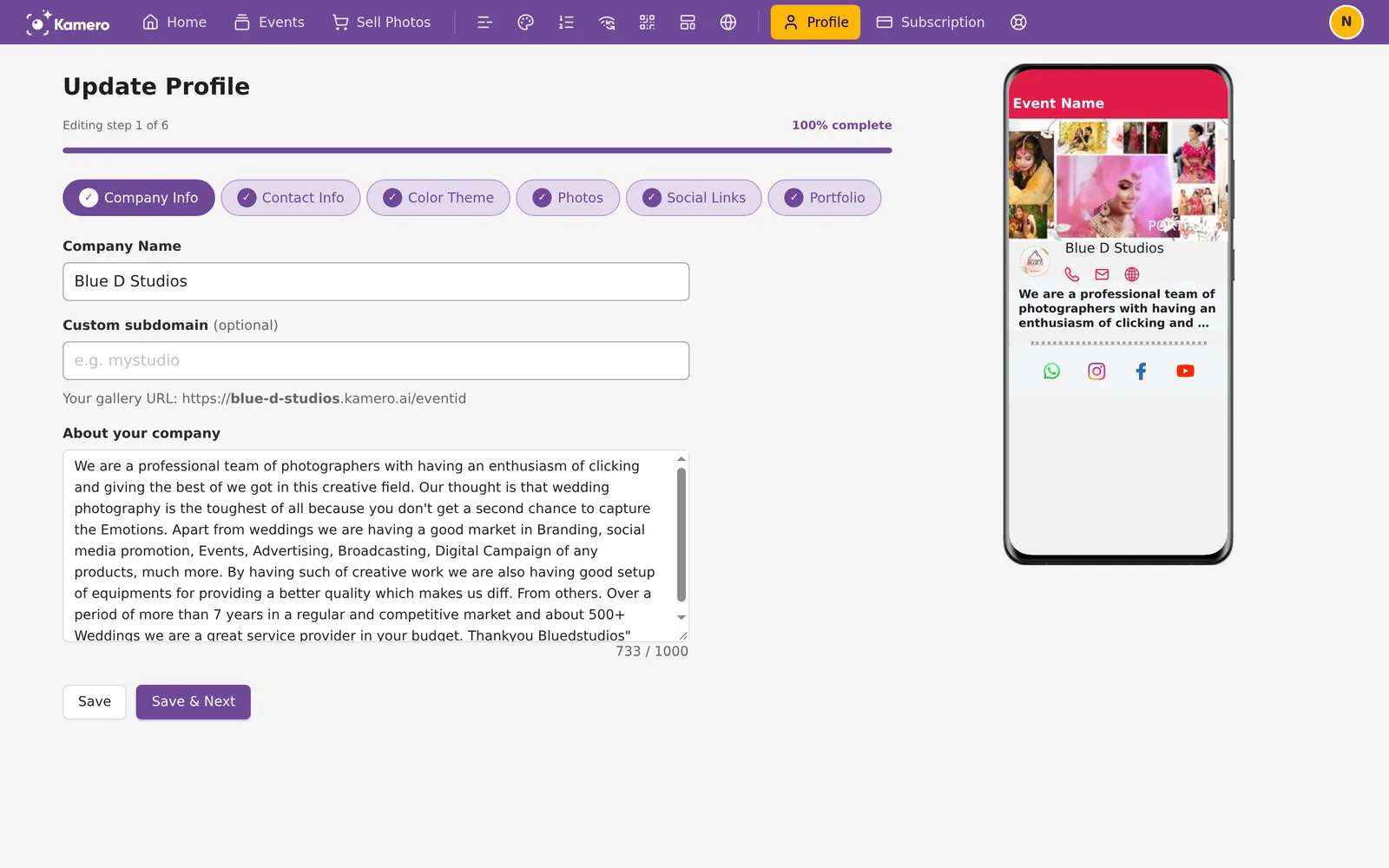
- Company Name is your studio name. Use up to 32 letters, numbers and spaces.
- Custom subdomain is optional. It sets the first part of your gallery address. The line under the field shows the result, for example https://mystudio.kamero.ai/eventid. If you leave it empty, Kamero makes one from your company name.
- About your company is a short description of your studio, up to 1000 characters. A counter under the box shows how many you have used.
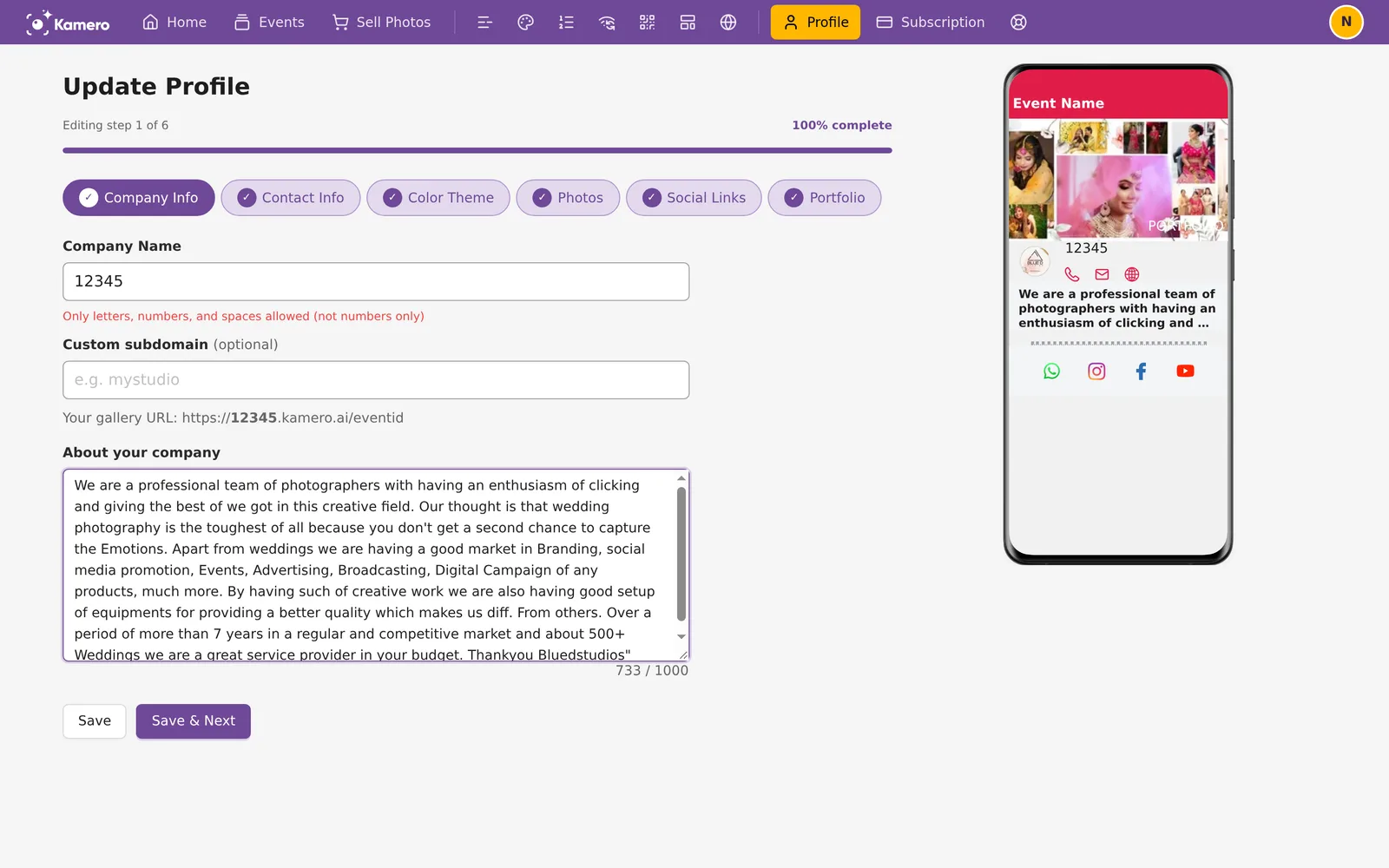
If the name has symbols or is only numbers, a red message appears under the field and the step will not save until you fix it.
Step 2: Contact Info
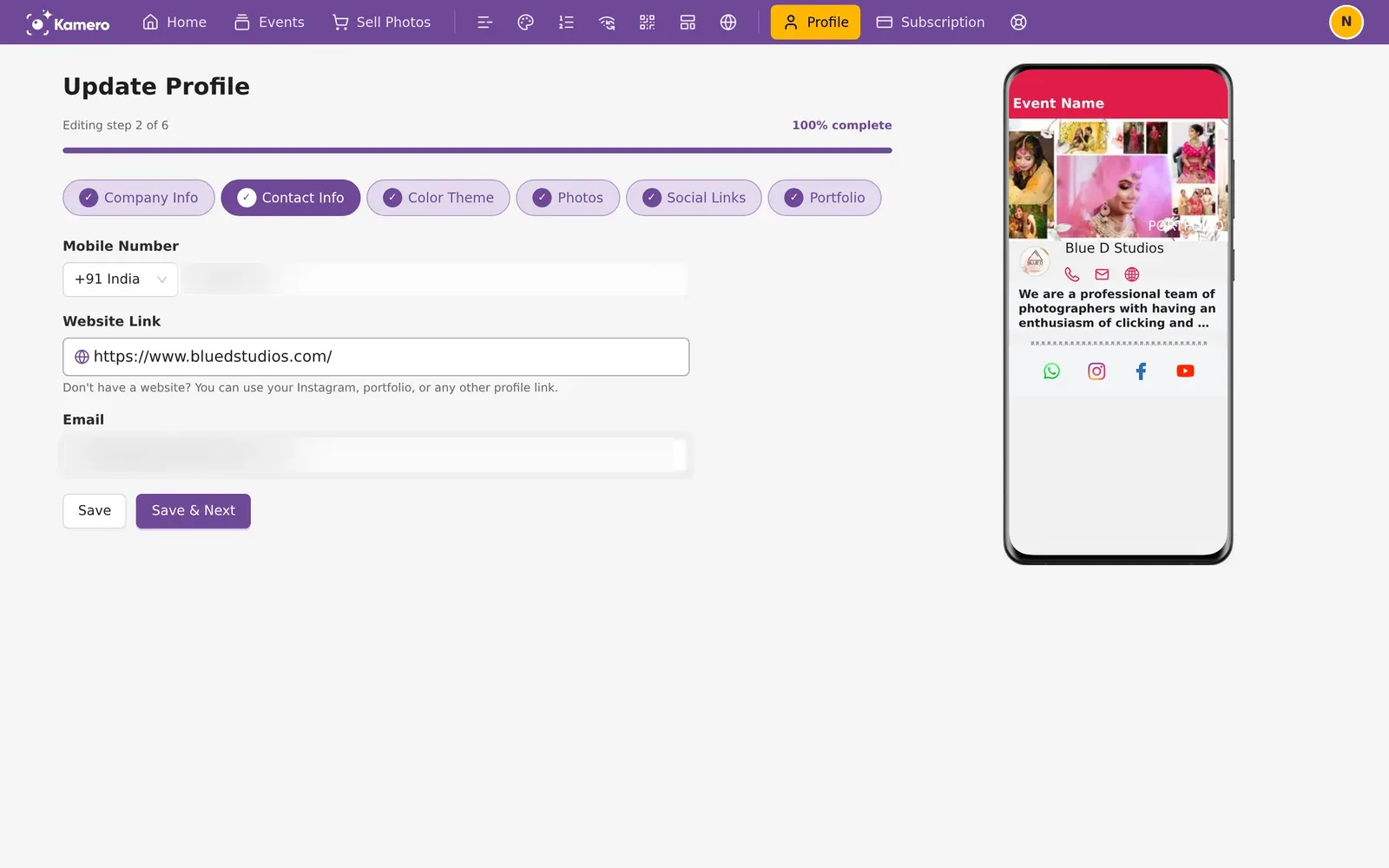
- Mobile Number: pick your country code and enter the number. Guests can call you from the phone button on the gallery.
- Website Link: start it with https://. If you do not have a website, use your Instagram, portfolio or any other profile link.
- Email: guests can write to you from the email button on the gallery.
Step 3: Color Theme
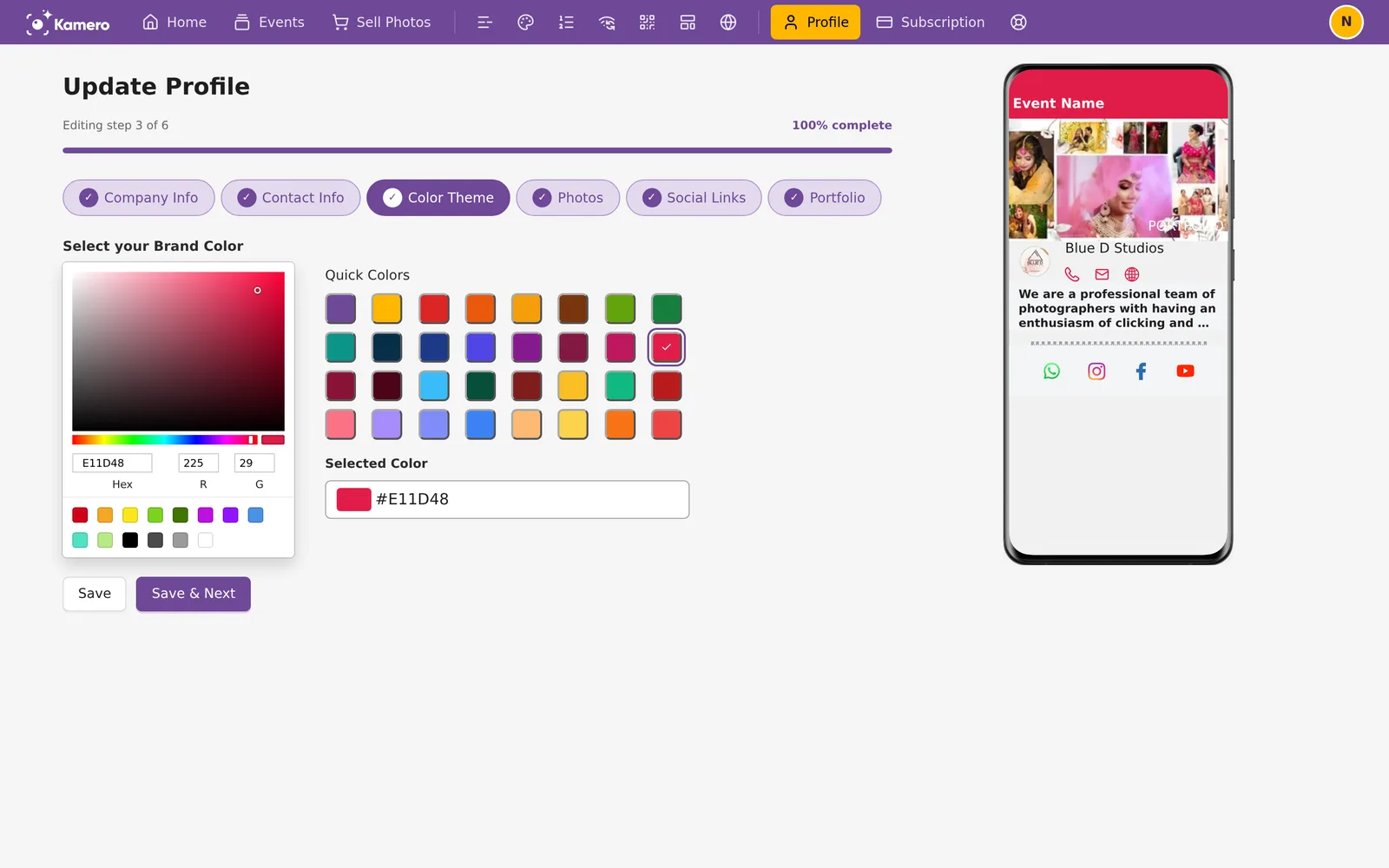
Choose your brand colour. Drag in the colour picker, type a hex code, or click one of the quick colours below it. The chosen colour is shown as a hex code under Selected Color, and the preview on the right changes to match. Guests see this colour on buttons and highlights in your galleries.
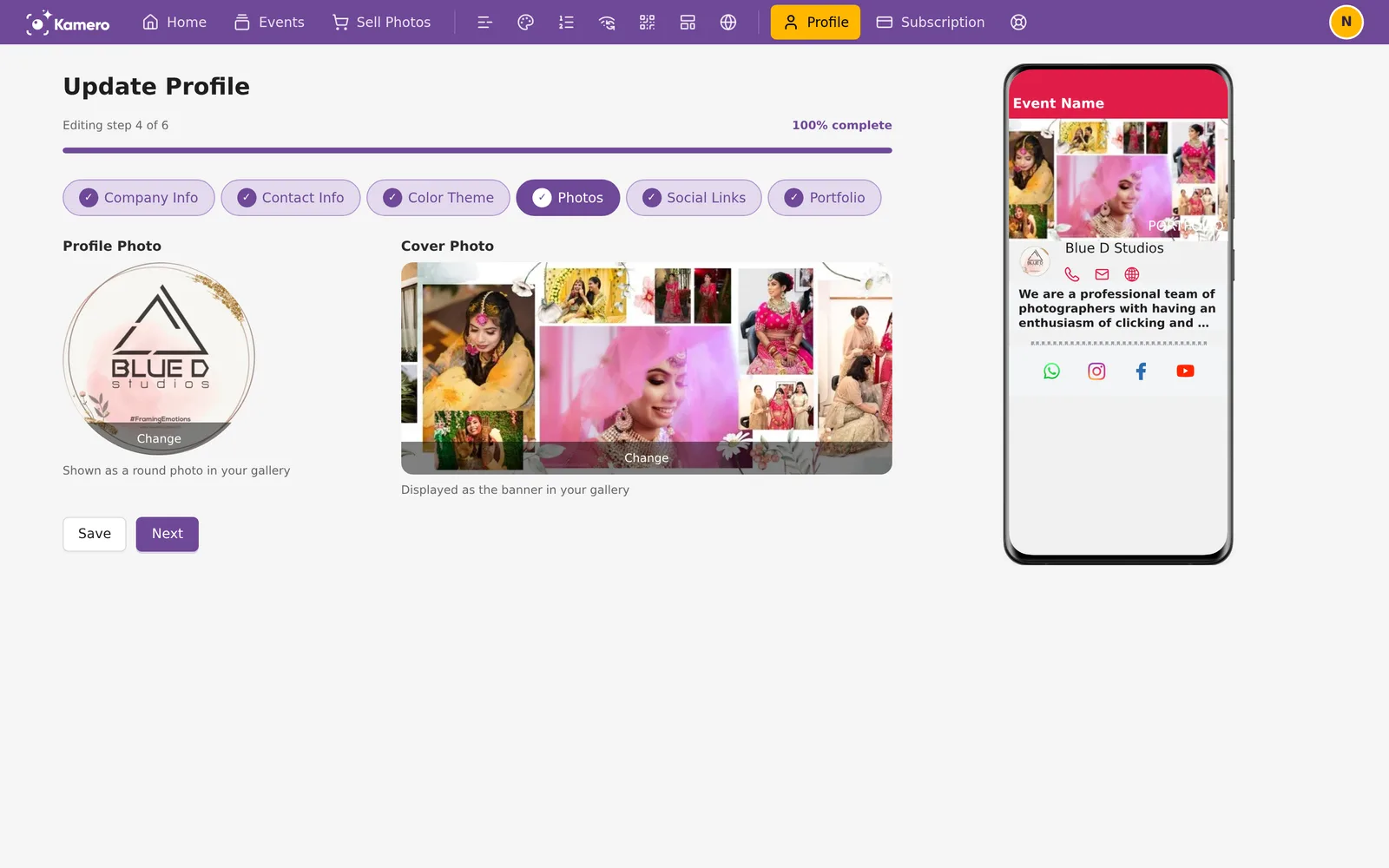
Step 4: Photos
- Profile Photo is your logo. It is shown as a round picture in your gallery, so a square logo with space around it works best.
- Cover Photo is the wide banner in the profile preview.
Hold your mouse over a picture and click Change to upload a new one.
Step 5: Social Links
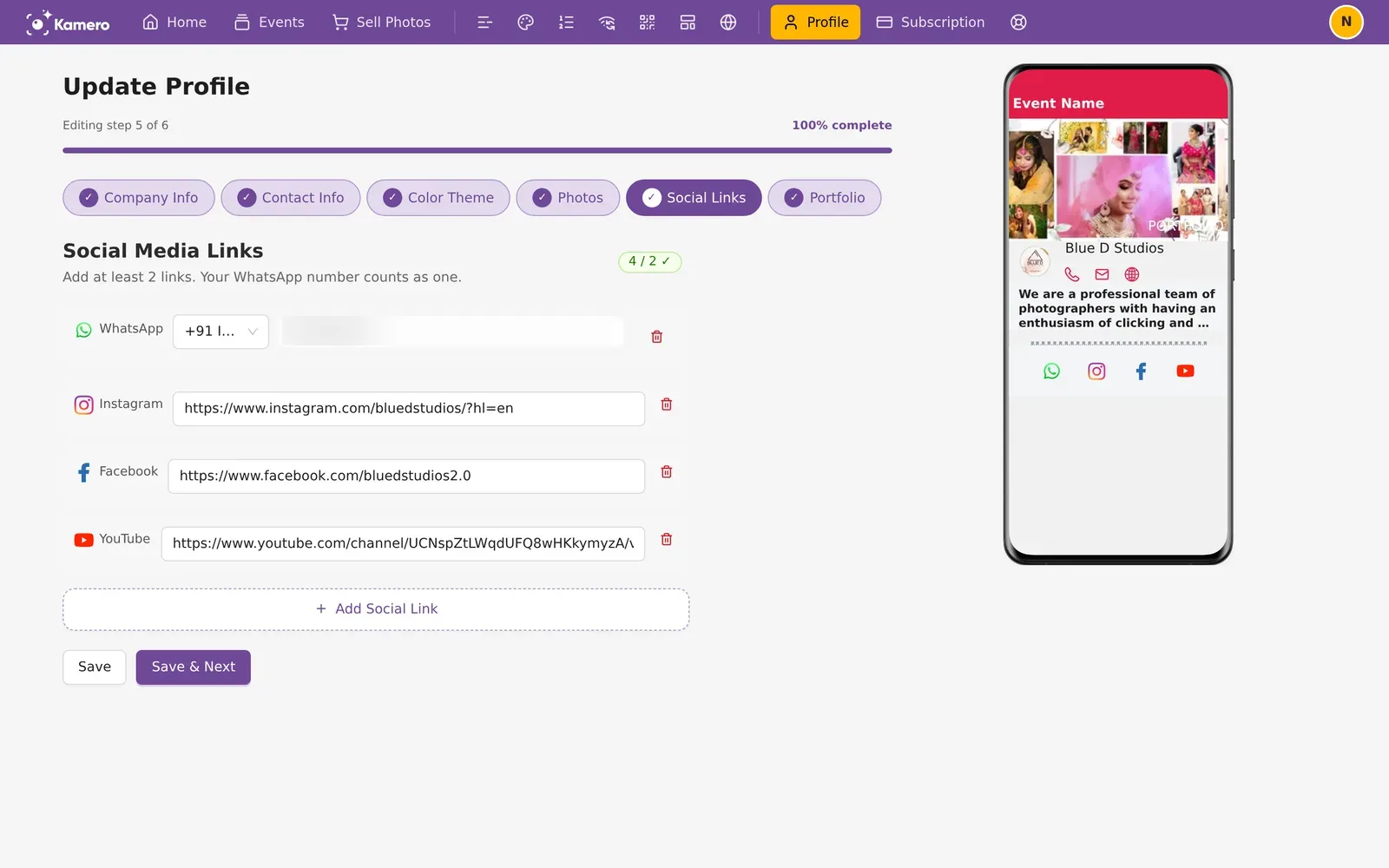
Add at least 2 links. Your WhatsApp number counts as one. The counter at the top right shows how many you have, for example 4 / 2 with a tick when you have enough.
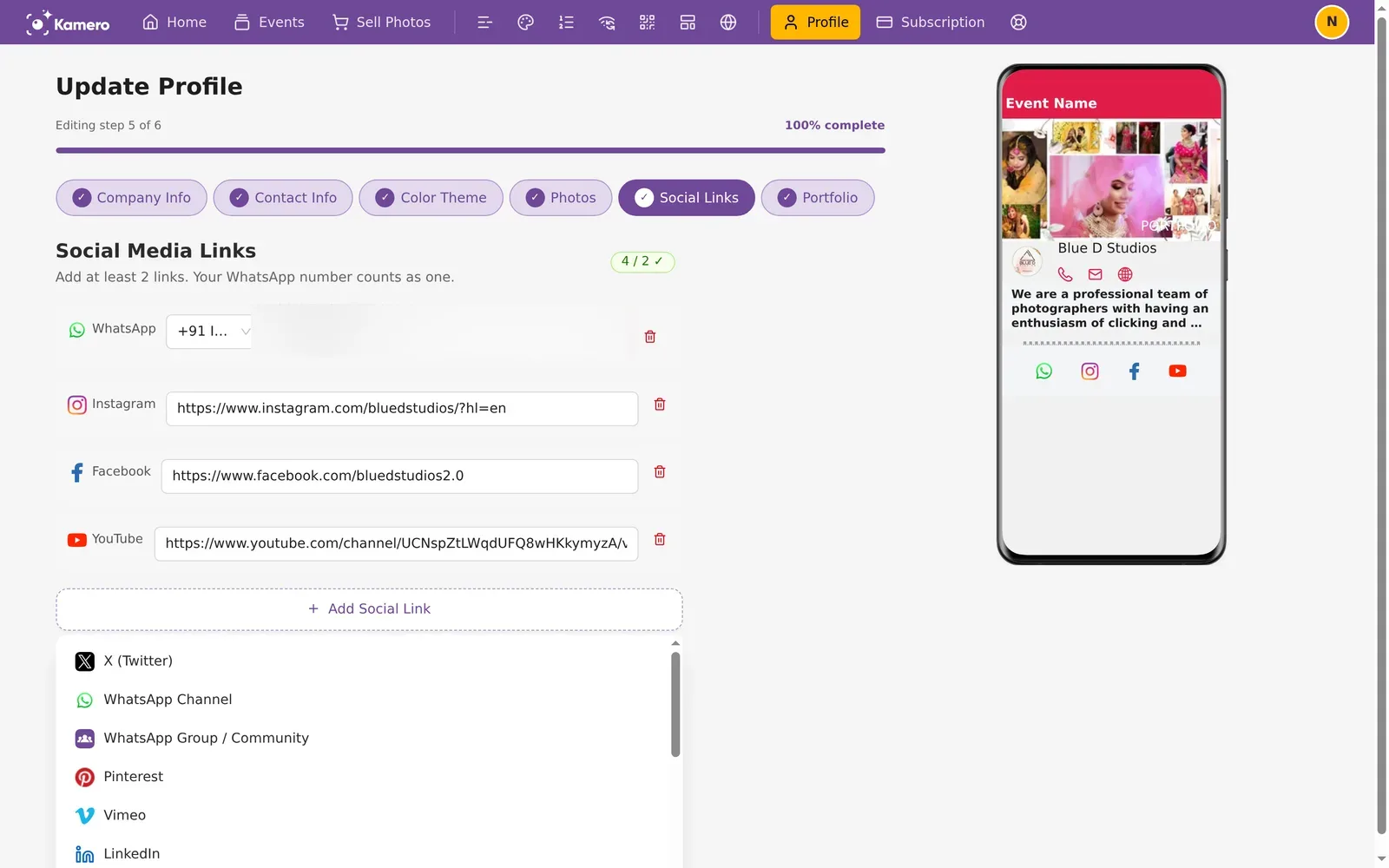
To add a link, click Add Social Link and pick a network from the list, such as X (Twitter), WhatsApp Channel, WhatsApp Group / Community, Pinterest, Vimeo or LinkedIn. Paste the full link into the new row. Click the red bin on a row to remove it.
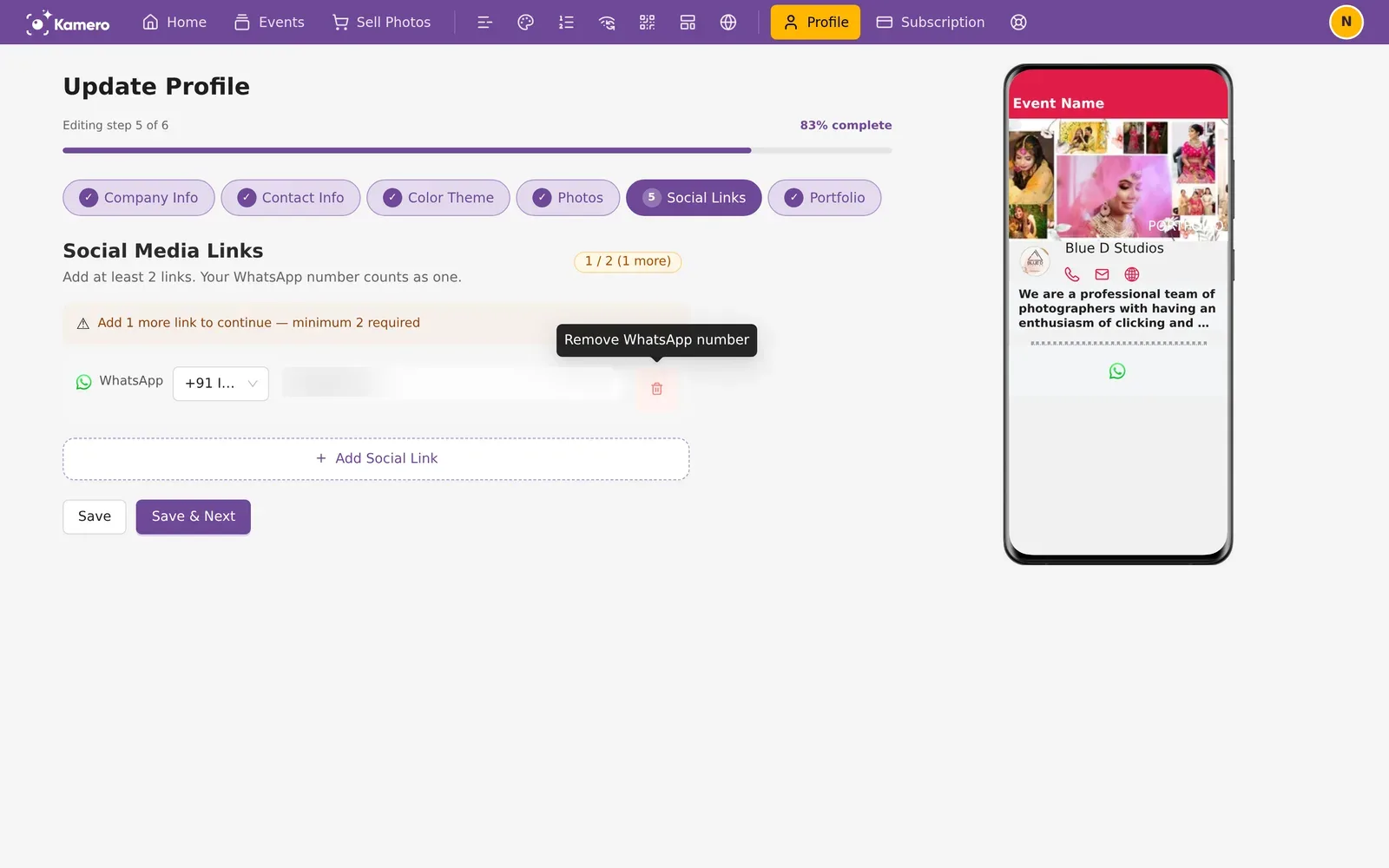
With fewer than 2 links, a yellow warning tells you how many more you need, and you cannot continue.
Step 6: Portfolio
A portfolio event shows your best work to people who are thinking of booking you. Create an event with your best photos, then enter its ID in Event ID. If you do not have one yet, leave the field empty. Click Save. On a new profile the button is Complete Profile.
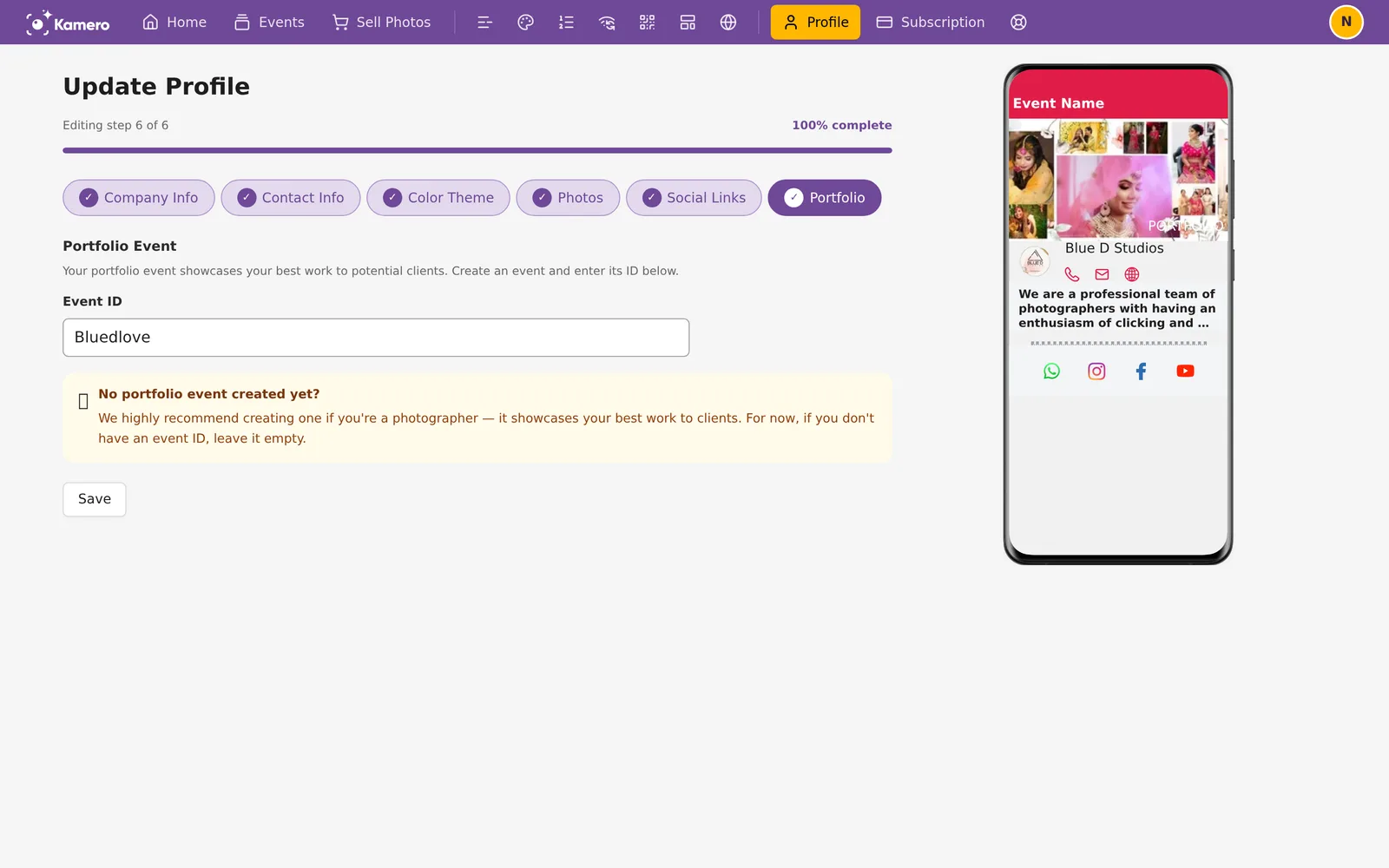
To make the portfolio event, see Create an event. You can find the event ID on its card on the Events page.
What guests see
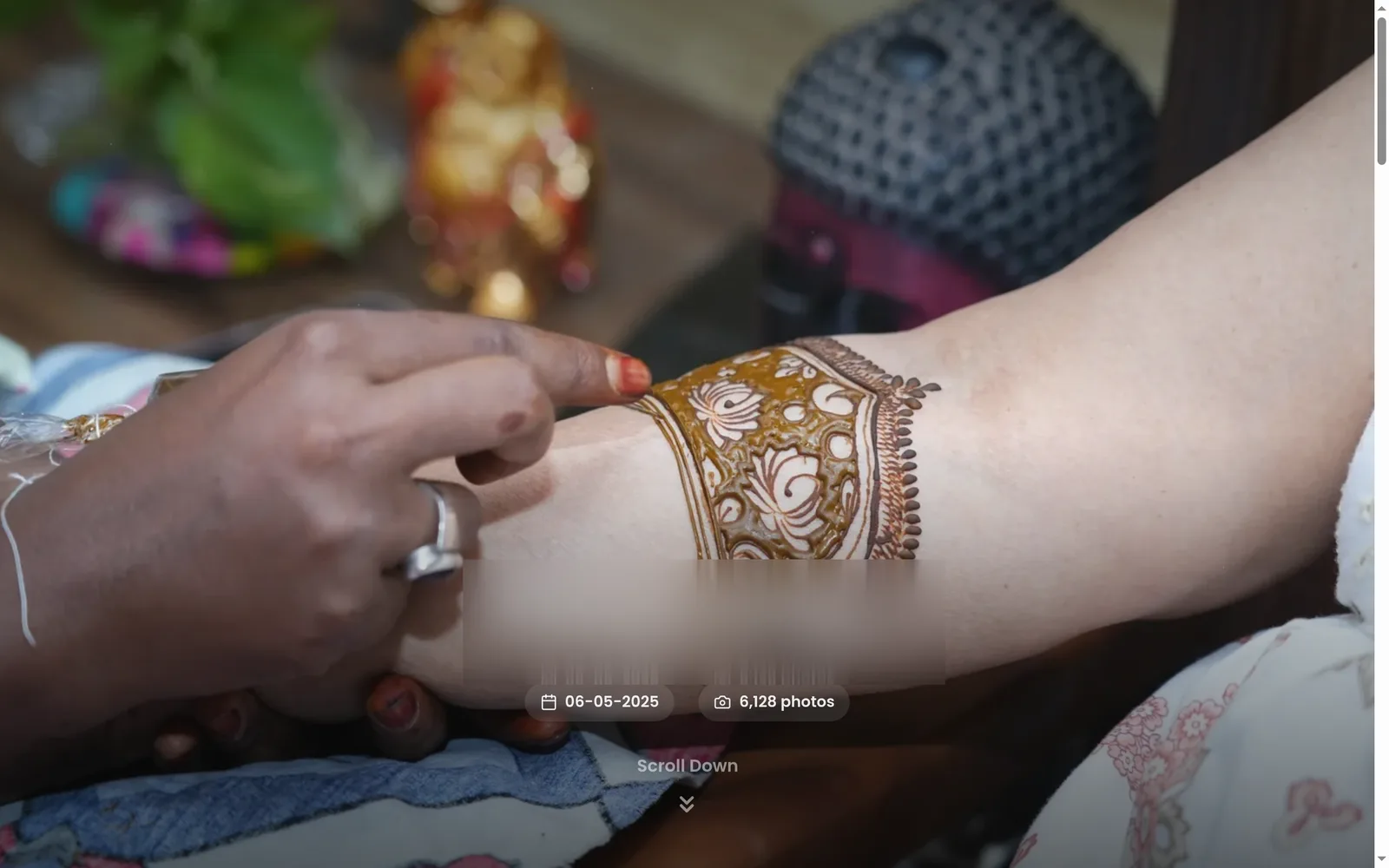
Guests who open one of your galleries first see the event cover with the event name, date and photo count.
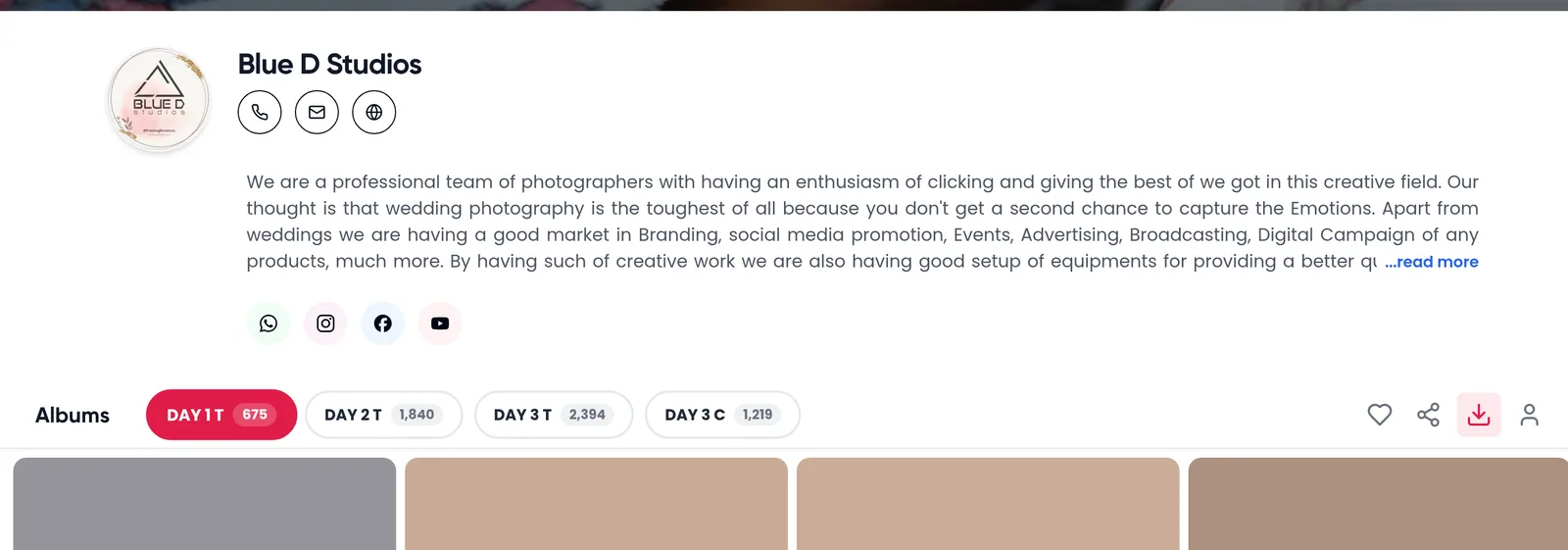
Below the cover is your profile: your logo, studio name, buttons to call, email and visit your website, your about text with a read more link, and an icon for each social link. The albums and photos follow, and the active album uses your brand colour.
To change the look of a single event, such as its cover or colours, see Event branding. To build a studio website from this profile, see Your Website.
Frequently asked questions
Why does Kamero say my company name is not allowed?
The company name can have letters, numbers and spaces, up to 32 characters. It cannot be numbers only. Remove symbols such as & or . and make sure there is at least one letter.
Can I change my gallery subdomain later?
Yes. Open Profile, go to Company Info and change Custom subdomain. The line under the field shows the new gallery address before you save.
Why can I not move past Social Links?
You need at least 2 links. Your WhatsApp number counts as one. The counter at the top right of the step shows how many you have, and a yellow warning tells you how many more you need.
Do I have to fill in the portfolio event?
No. If you do not have a portfolio event yet, leave Event ID empty and save. You can add it later.
Does saving a step lose the other steps?
No. Save stores the step you are on. Save & Next stores it and opens the next step. You can jump to any step with the buttons at the top and come back later.
Where do guests see my profile?
On the gallery of every event you create. Your logo, name, contact buttons, about text and social icons appear below the event cover. Your brand colour is used for buttons and highlights.
More Getting started tutorials
Try it in your dashboard
Sign in to Kamero and follow along. Questions? Raise a support ticket from the dashboard.