How to give one event its own branding
Every event gallery shows your account branding: your company name, logo, brand colour, contact details and social links. Event branding lets you give one event a different look. This is useful when you shoot for an agency or a company and the gallery should carry their name and logo instead of yours.
You set your account branding once in your profile. See how to set up your profile. Event branding uses the same form, but the changes stay with one event.
Where to find event branding
- Open the event from Events.
- Go to the event's Settings. See event settings for the rest of this page.
- Find the Event branding card.
The card shows one of three states.
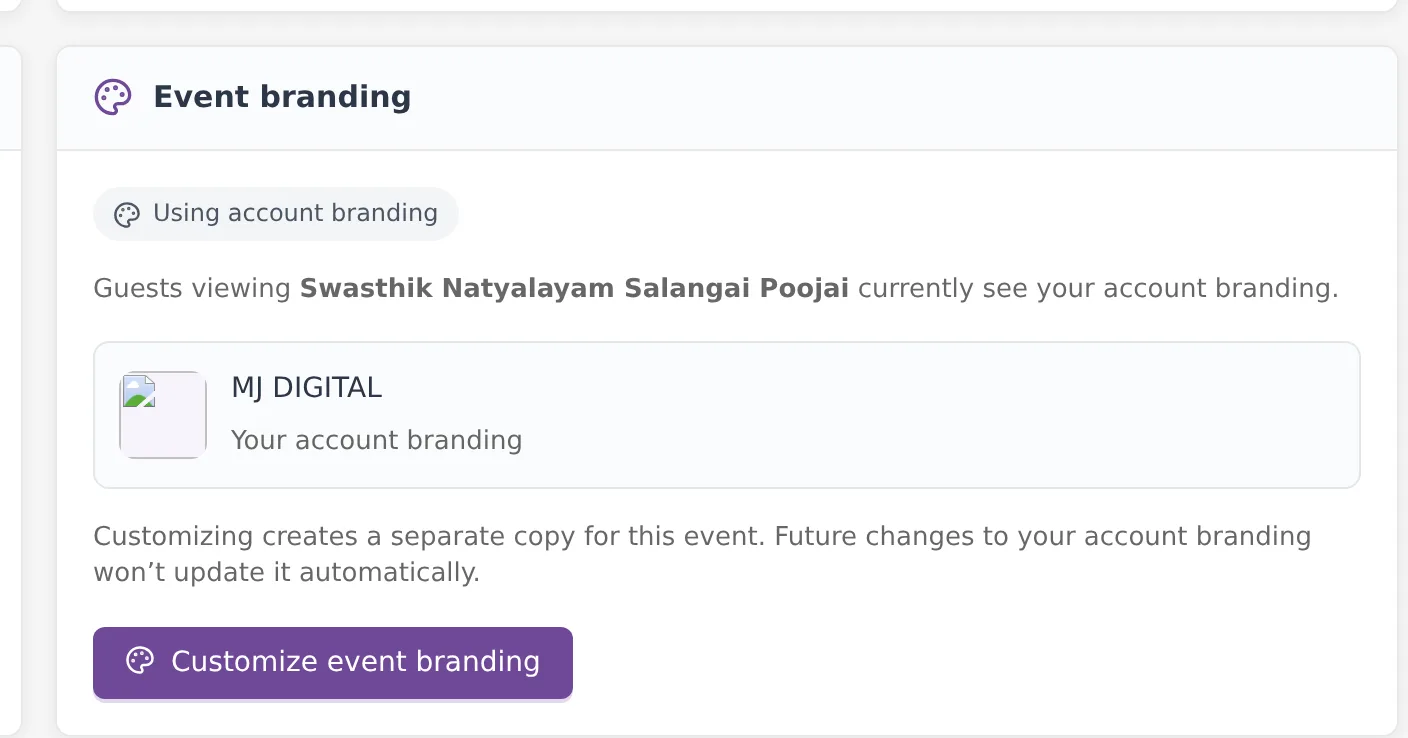
Using account branding
The event shows your account branding. The card says guests currently see your account branding, with a thumbnail of it and a Customize event branding button.
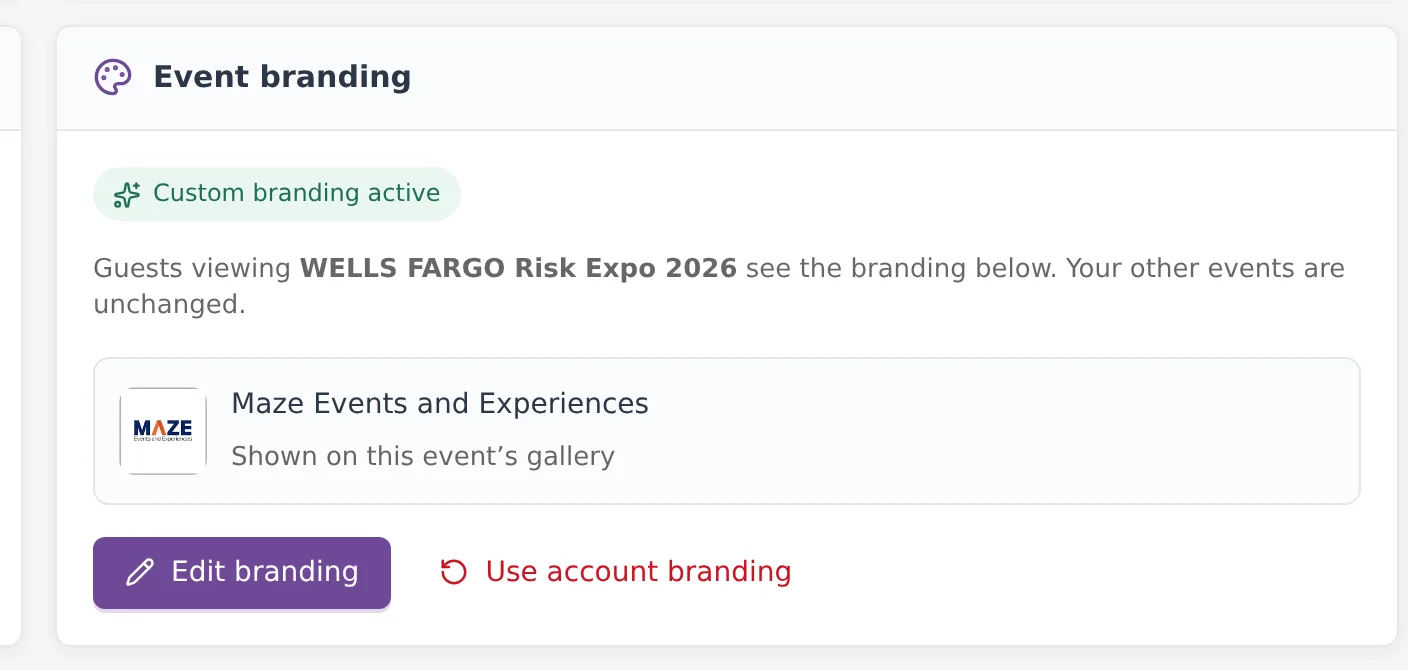
Custom branding active
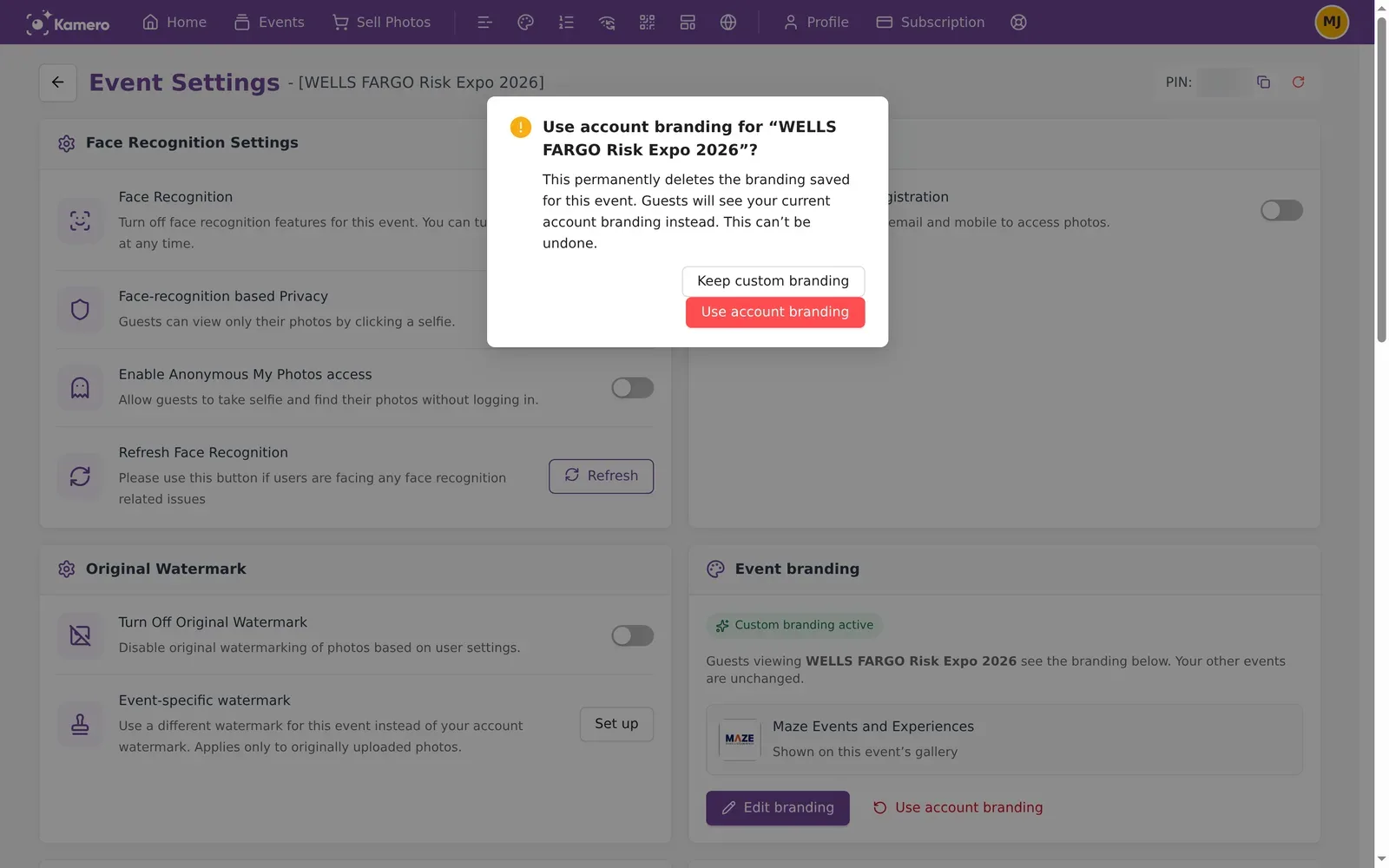
The event has its own branding. The card shows its thumbnail with the caption "Shown on this event's gallery" and two buttons: Edit branding and Use account branding.
Account branding isn't ready
Your account branding has no company name yet. Click Complete account branding, add a company name in your profile, then come back to the event.
Sell Photos events do not show the Event branding card.
Customize branding for one event
- On the event's Settings, click Customize event branding.
- Kamero copies your account branding to the event and shows "Account branding copied. Changes now apply only to" the event.
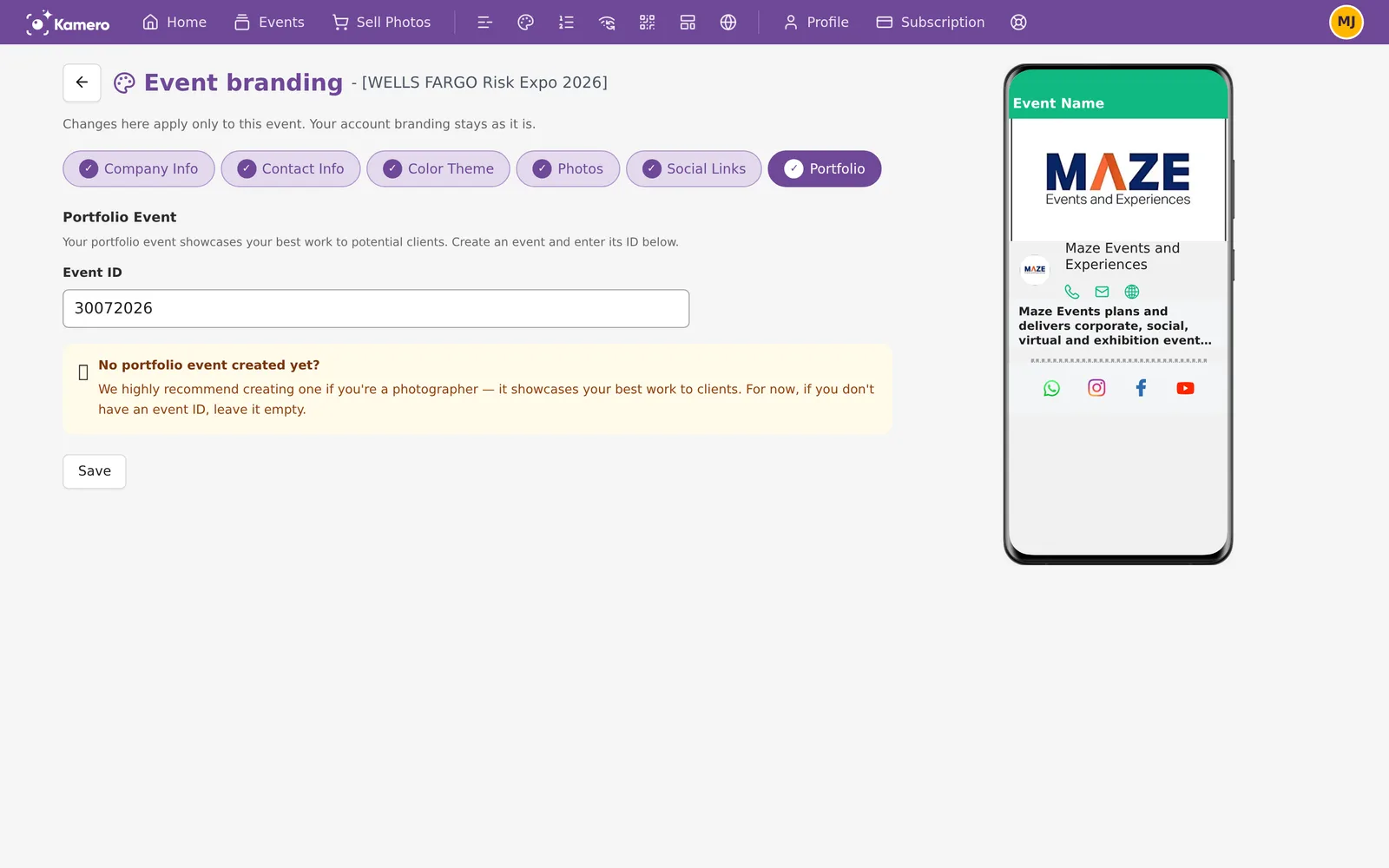
- Click Edit branding to open the editor. Its heading reads "Event branding" followed by the event name, with the note "Changes here apply only to this event. Your account branding stays as it is."
- Work through the steps below. Click Save & Next to save a step and move on, or Save to save and stay.
The copy is separate. If you change your account branding later, this event does not change with it.
A phone preview on the right shows how the gallery will look as you type. On a small screen, tap Preview to open it.
The editor, step by step
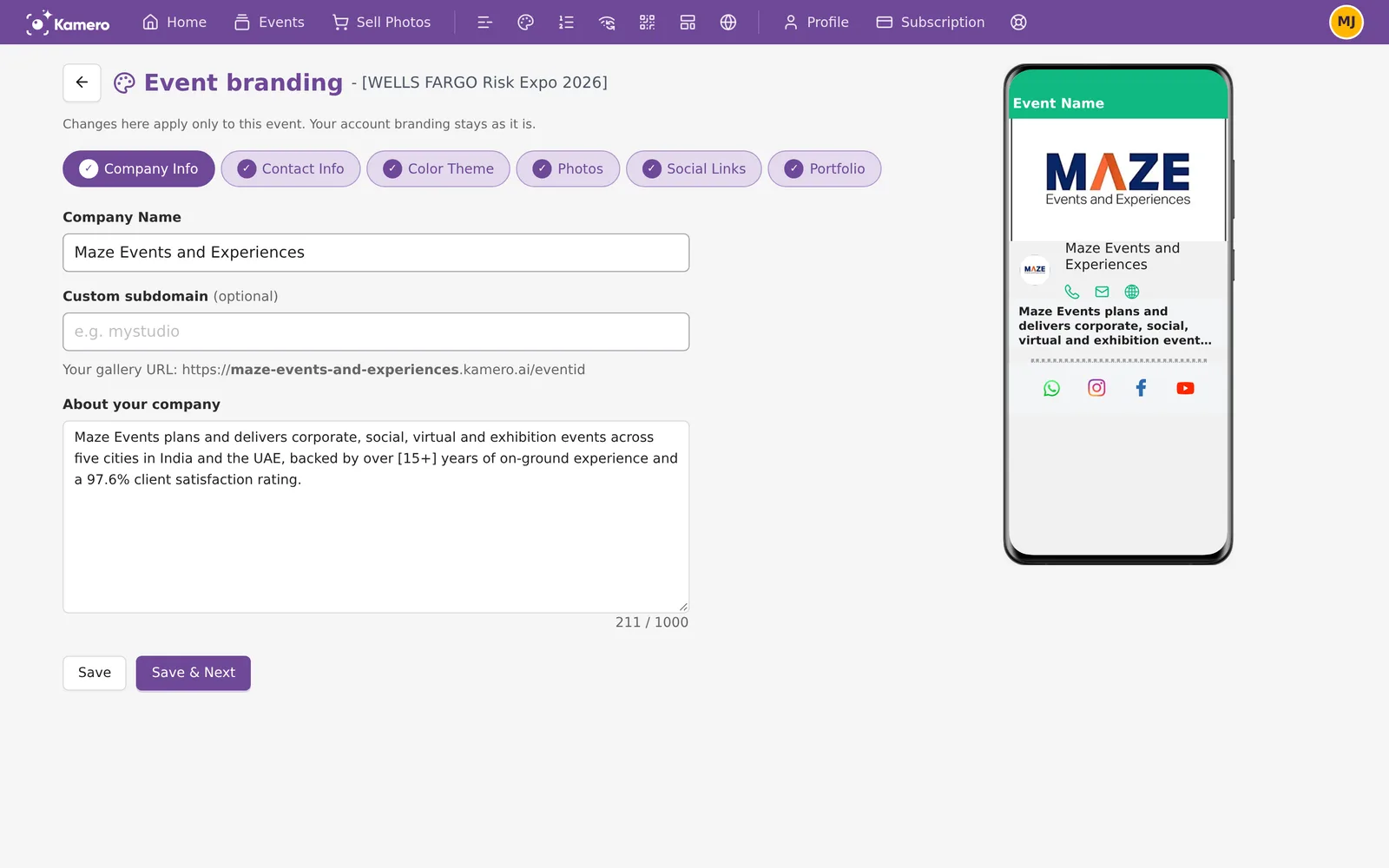
1. Company Info
- Company Name: shown under the logo in the gallery. Up to 32 characters.
- Custom subdomain (optional): up to 63 characters. The form shows the gallery address it gives, in the form https://yourbrand.kamero.ai/eventid.
- About your company: up to 1,000 characters. A counter shows how many you have used. Guests see the start of it with a "read more" link.
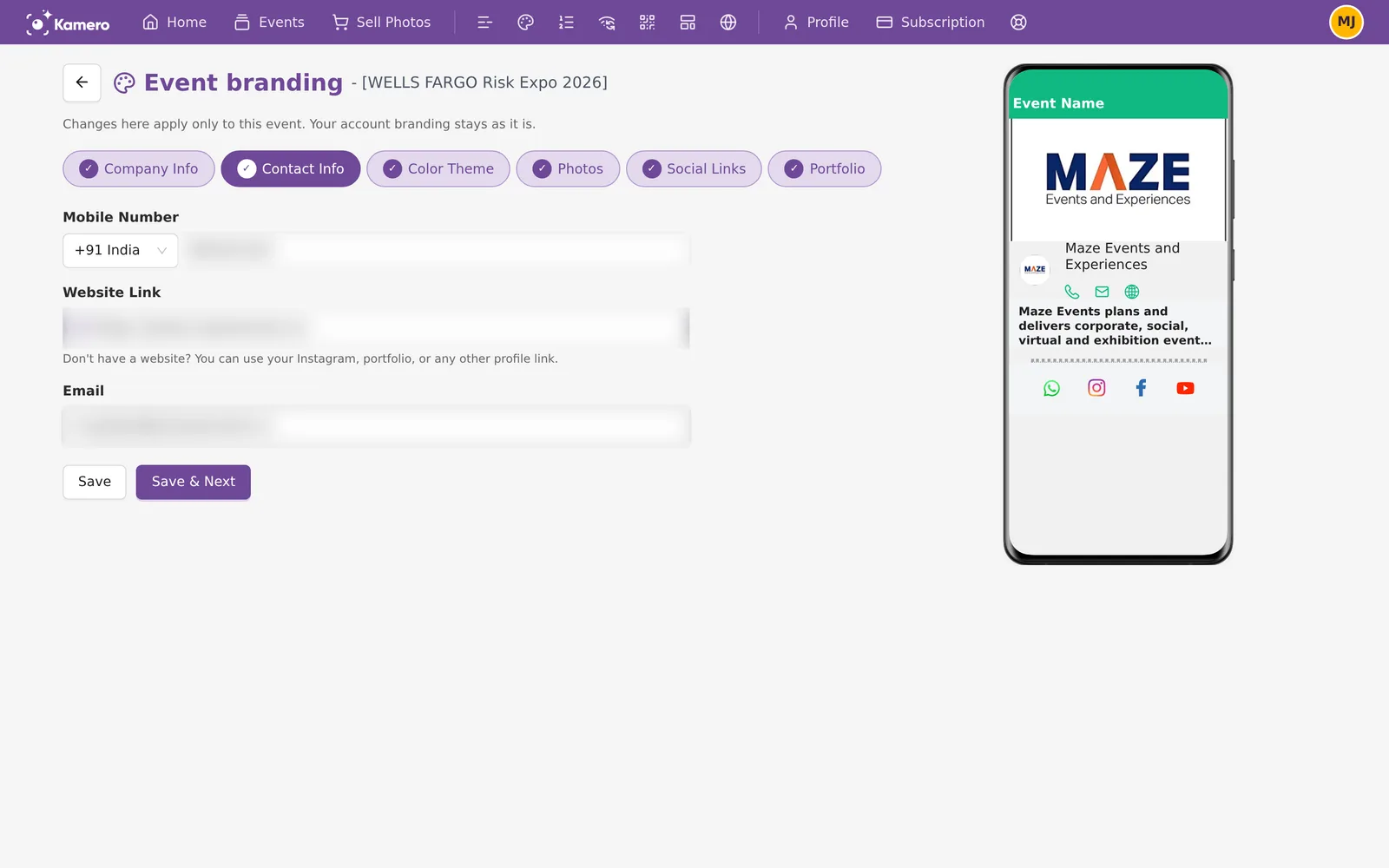
2. Contact Info
- Mobile Number: starts with +91. Pick another country code if needed.
- Website Link: if you have no website, use your Instagram, portfolio or any other profile link.
Guests see these as phone, email and website buttons under the logo.
3. Color Theme
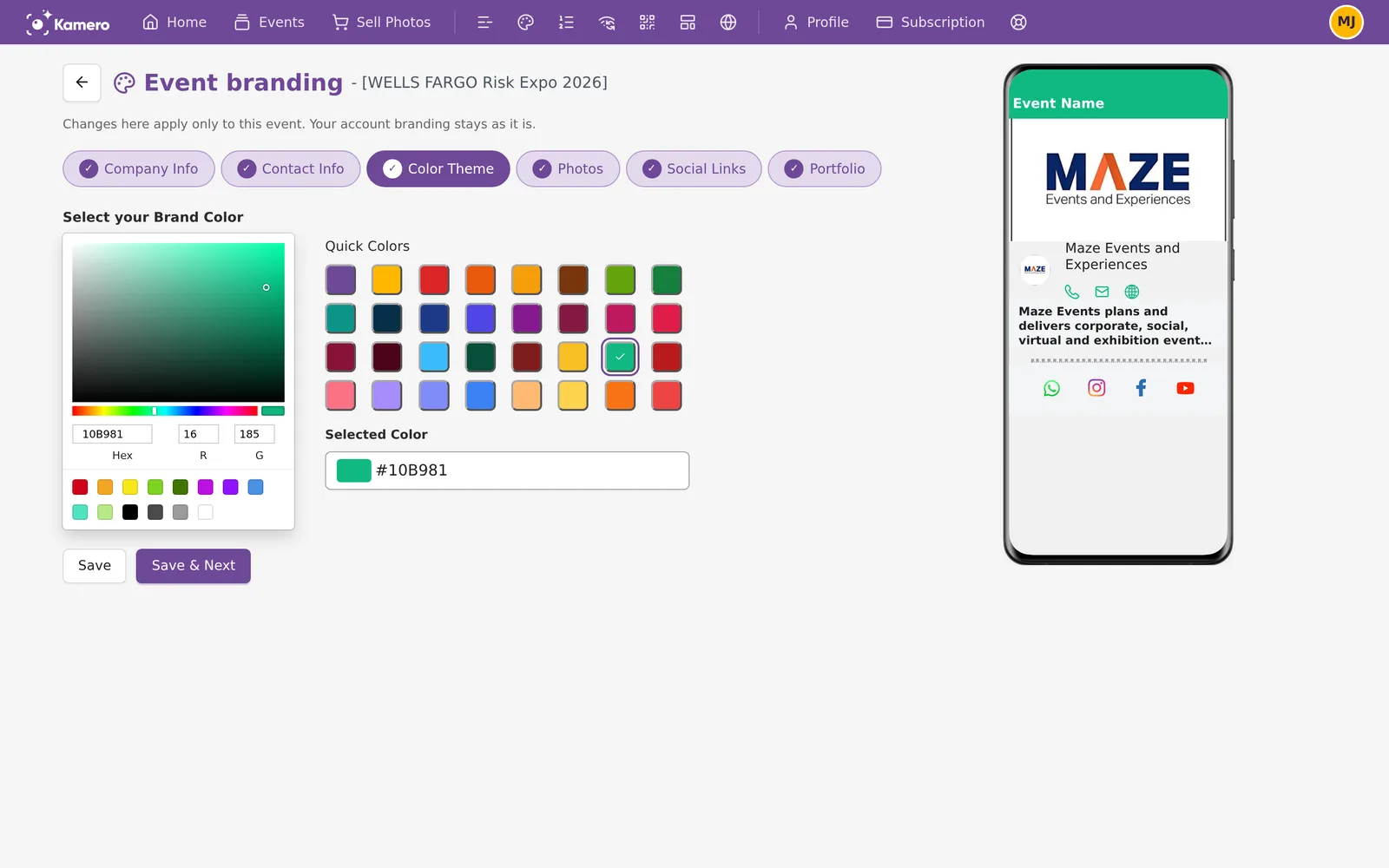
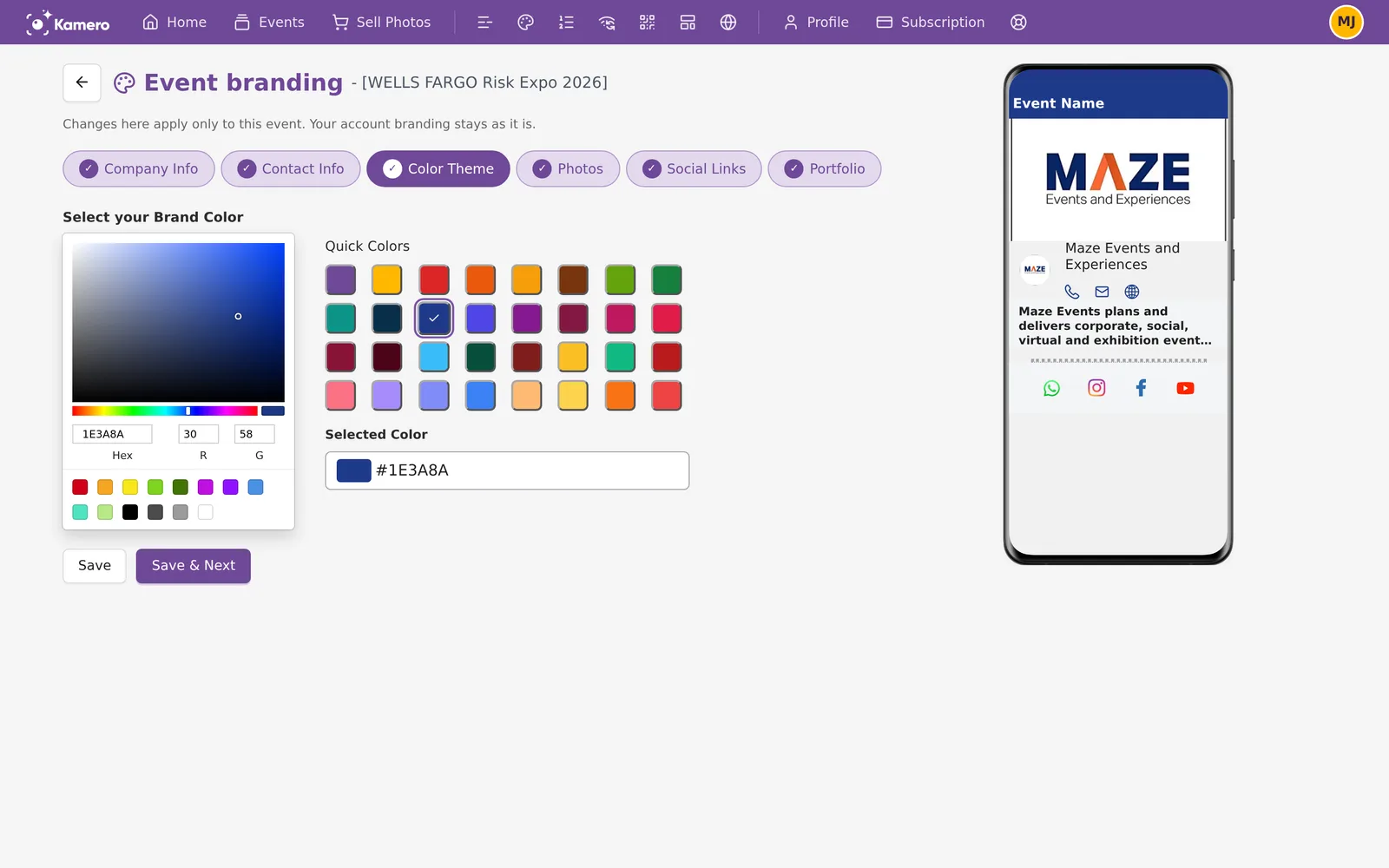
Under Select your Brand Color, pick one of the 32 quick colours or type a hex code in Selected Color, such as #6F4898. A code that is not valid shows "Enter a valid hex color". The brand colour tints the buttons and highlights in the gallery.
4. Photos
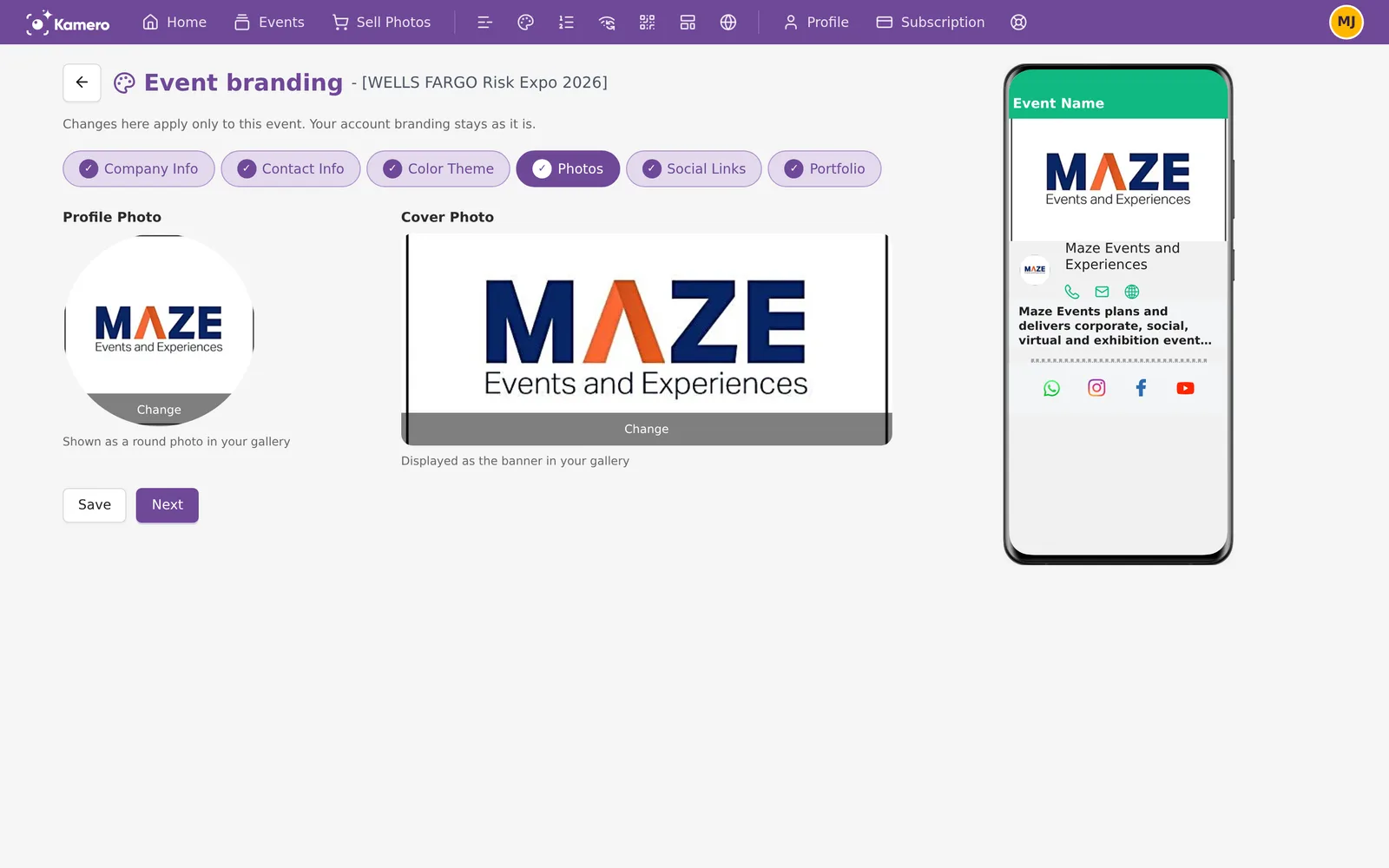
- Profile Photo: 320 × 320 pixels. It shows as a round logo in the gallery.
- Cover Photo: 16:9. It is the banner in the Kamero mobile app.
Both photos are required. Hover over a photo and click Change to replace it. Then click Next.
5. Social Links
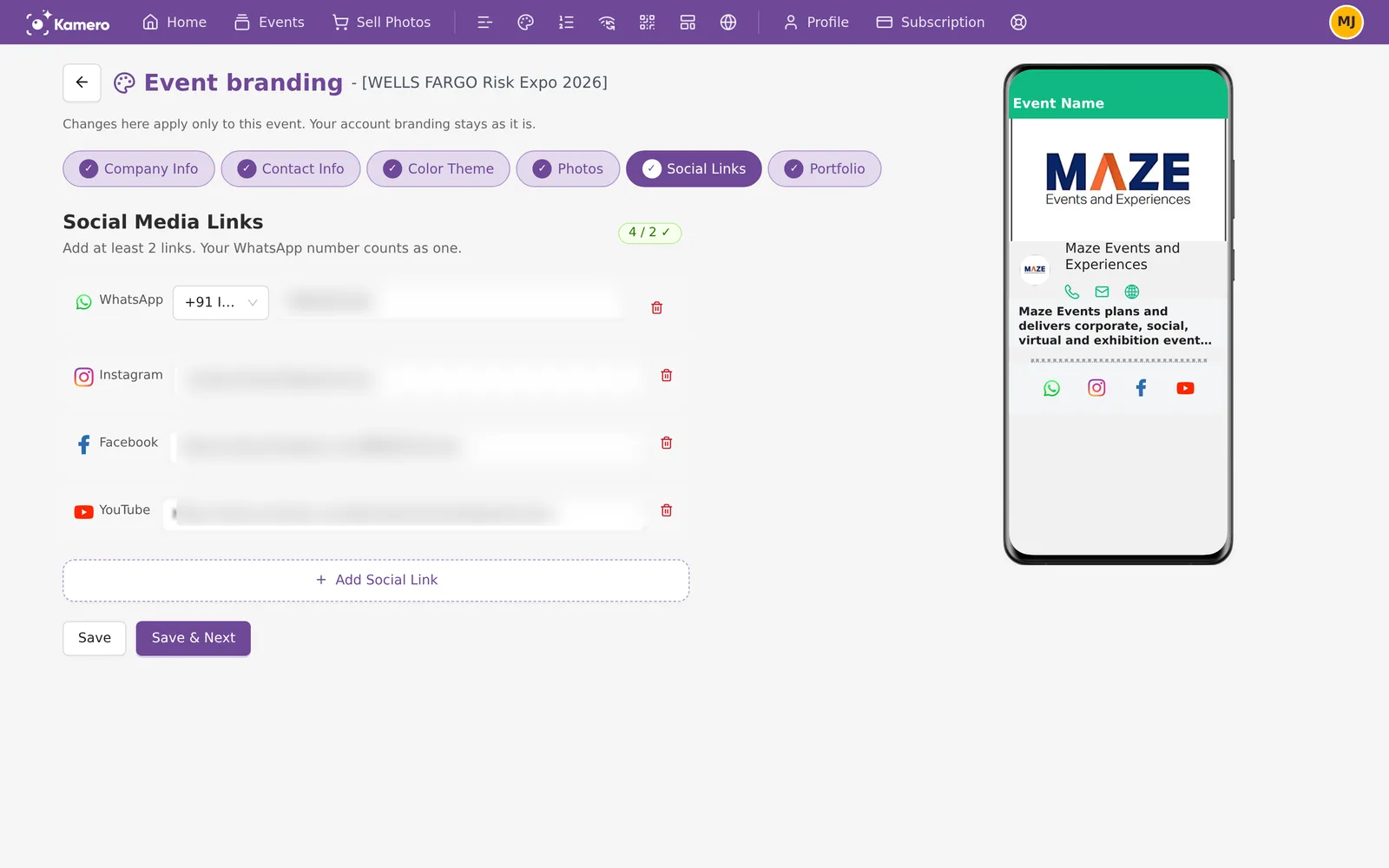
Add at least 2 links. Your WhatsApp number counts as one. A counter shows how many you have, such as "1 / 2". Click + Add Social Link for each one. A WhatsApp number must have 7 to 15 digits.
6. Portfolio (optional)
A portfolio event shows your best work to people who open the gallery. Create a normal event with your best photos, then type its ID in Event ID and click Save. If you have no portfolio event, leave it empty.
Event branding has no font or layout options. Every gallery uses the same fonts and layout.
What guests see
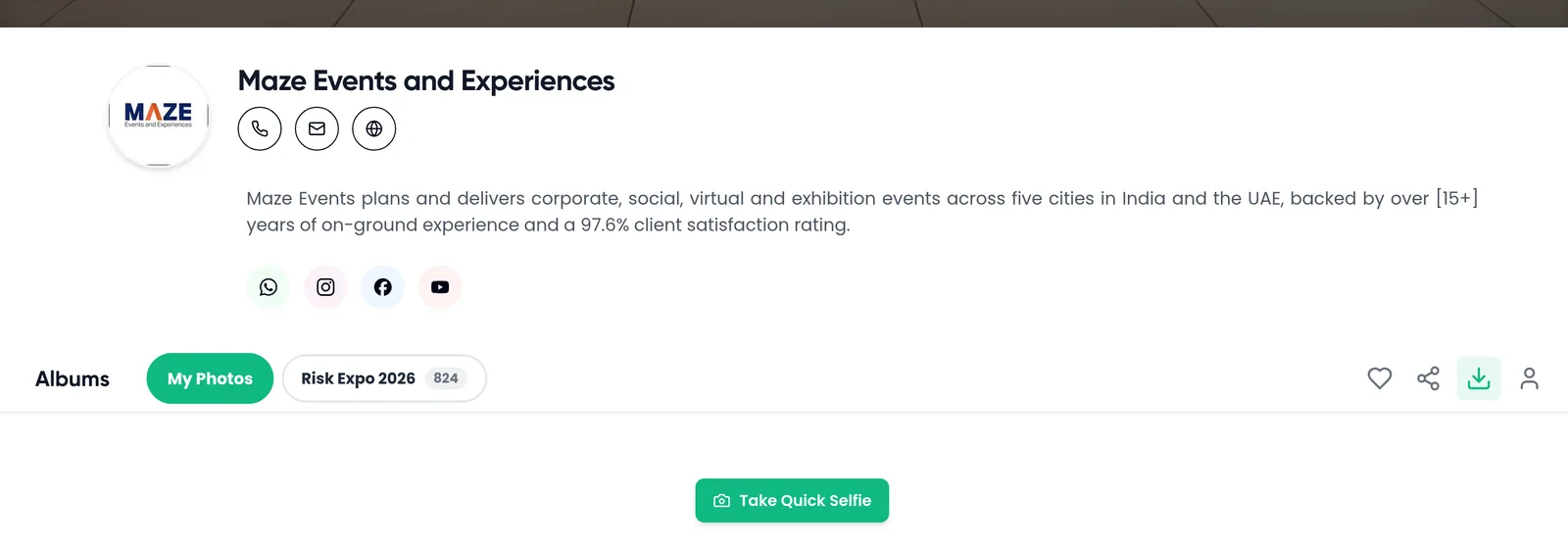
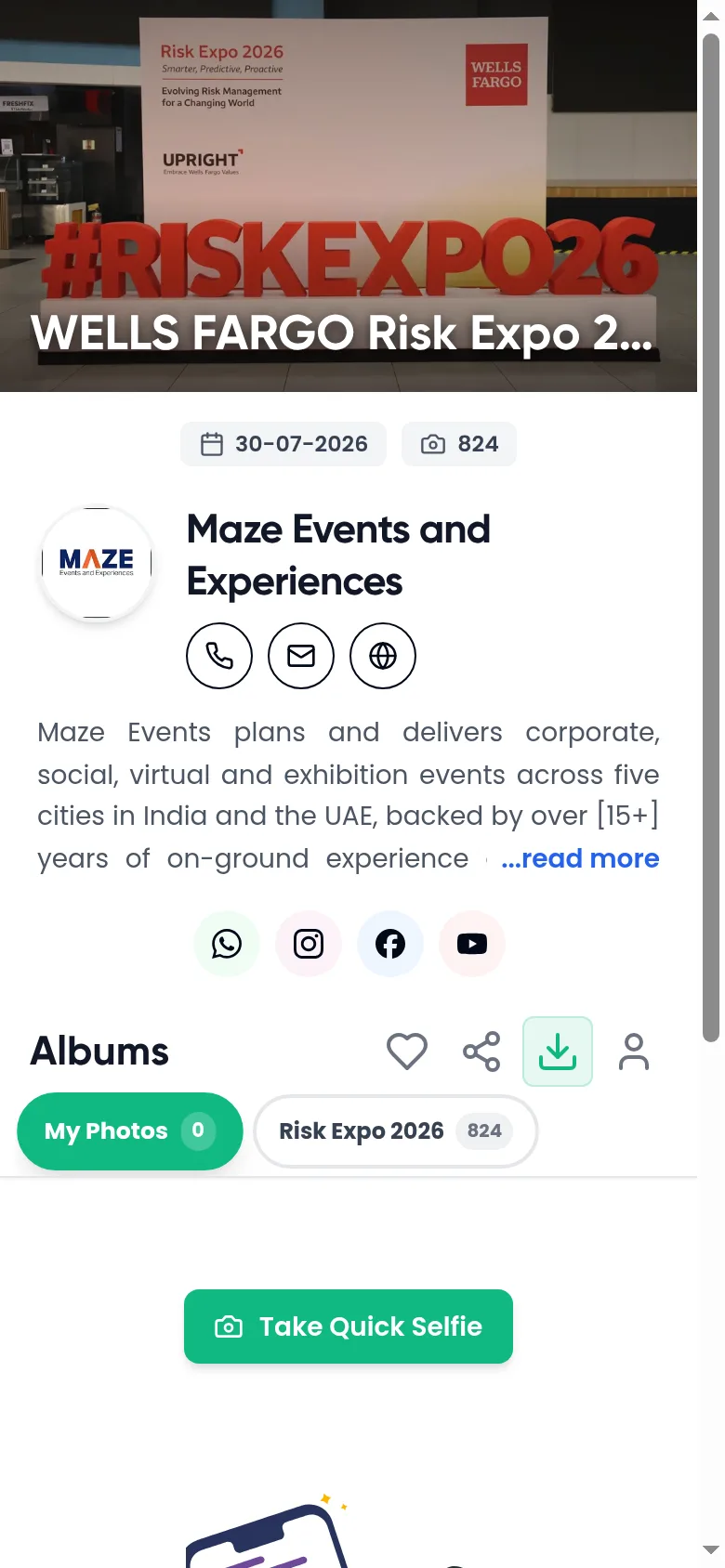
Guests open the gallery at kamero.ai followed by the event code, or from the event's QR code. From top to bottom they see:
- The event's cover photo with the event name, date and photo count.
- The round profile photo and the company name.
- Phone, email and website buttons.
- The about text, with "read more".
- The social link icons.
- The albums, including My Photos, and the Take Quick Selfie button for face search.
The brand colour tints the buttons.
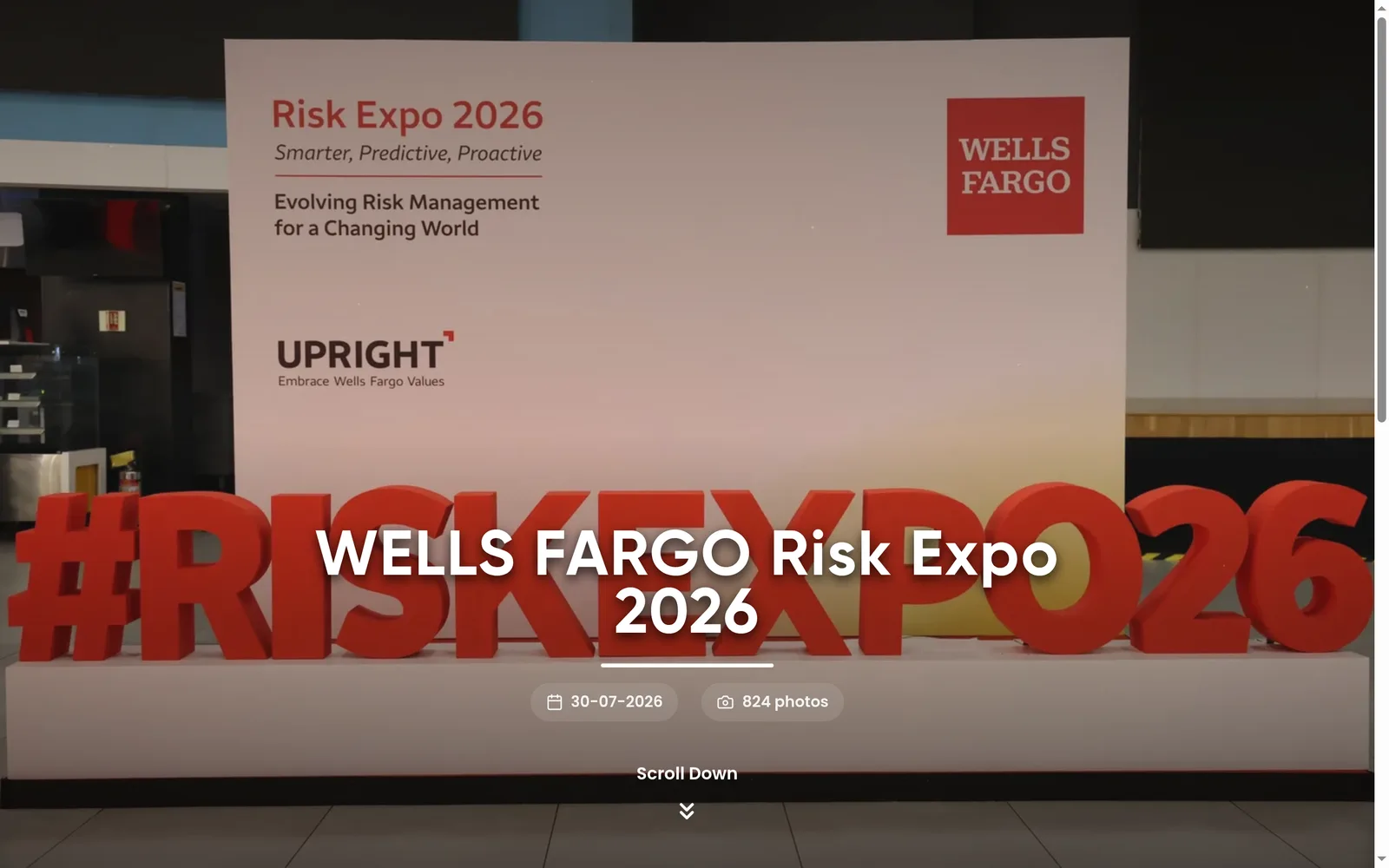
The banner on the web gallery is the event's own cover photo, not the Cover Photo from branding. To change the web banner, open the photo you want on the event page and click Event Cover in the photo viewer. See Organise event albums and photos. The Kamero mobile app shows the branding Cover Photo.
To put your logo on the photos themselves, use a watermark. See standard watermark.
Go back to account branding
- On the event's Settings, click Use account branding.
- Kamero asks you to confirm. The event's own branding is deleted for good, and the event shows your account branding again.
- Click Use account branding to confirm, or Keep custom branding to cancel.
Common problems
- Opening the branding page takes you to Settings: the event has no branding of its own yet. Click Customize event branding first.
- "Couldn't load this event's branding": click Try again, or Back to event settings.
- Social links will not save: add your WhatsApp number and at least 2 links in total.
- Photos step will not save: upload both the profile photo and the cover photo.
Frequently asked questions
Does changing event branding change my other events?
No. Event branding applies only to that one event. Your account branding and every other event stay as they are.
If I update my account branding later, does the event follow?
No. When you customize an event, Kamero makes a separate copy of your account branding for it. Later changes to your account branding do not reach that event. To pick them up, click Use account branding on the event, then customize it again.
Can I choose fonts or a different gallery layout?
No. Event branding covers your company name, about text, contact details, brand colour, profile photo, cover photo, social links and portfolio event. Fonts and the gallery layout are the same for every event.
Why does the web gallery banner show a different cover photo?
The banner at the top of the web gallery shows the event's own cover photo. To change it, open a photo on the event page and click Event Cover in the photo viewer. The Cover Photo in event branding is used by the mobile app.
Why can't I customize branding for an event?
Your account branding needs a company name first. Click Complete account branding on the event's Settings page, add a company name, and come back. Sell Photos events do not have the event branding card.
Can I undo Use account branding?
No. Use account branding deletes the event's own branding for good. You can customize the event again, but it starts from a fresh copy of your account branding.
More Branding & watermarks tutorials
Try it in your dashboard
Sign in to Kamero and follow along. Questions? Raise a support ticket from the dashboard.