How to choose what your branded app shows
If your studio has its own branded mobile app, App Features decides which sections that app shows: lists of your events, your brand profile, services, testimonials, FAQs and ways to contact you. You only turn sections on or off here. The content itself, such as your services and FAQs, is written in Your Site. See Your Website.
App Features is only available to accounts with a branded app.
Where to find App Features
- Click your profile picture at the top right of the dashboard.
- Choose App Features. It sits next to App Analytics and may carry a Coming soon tag.
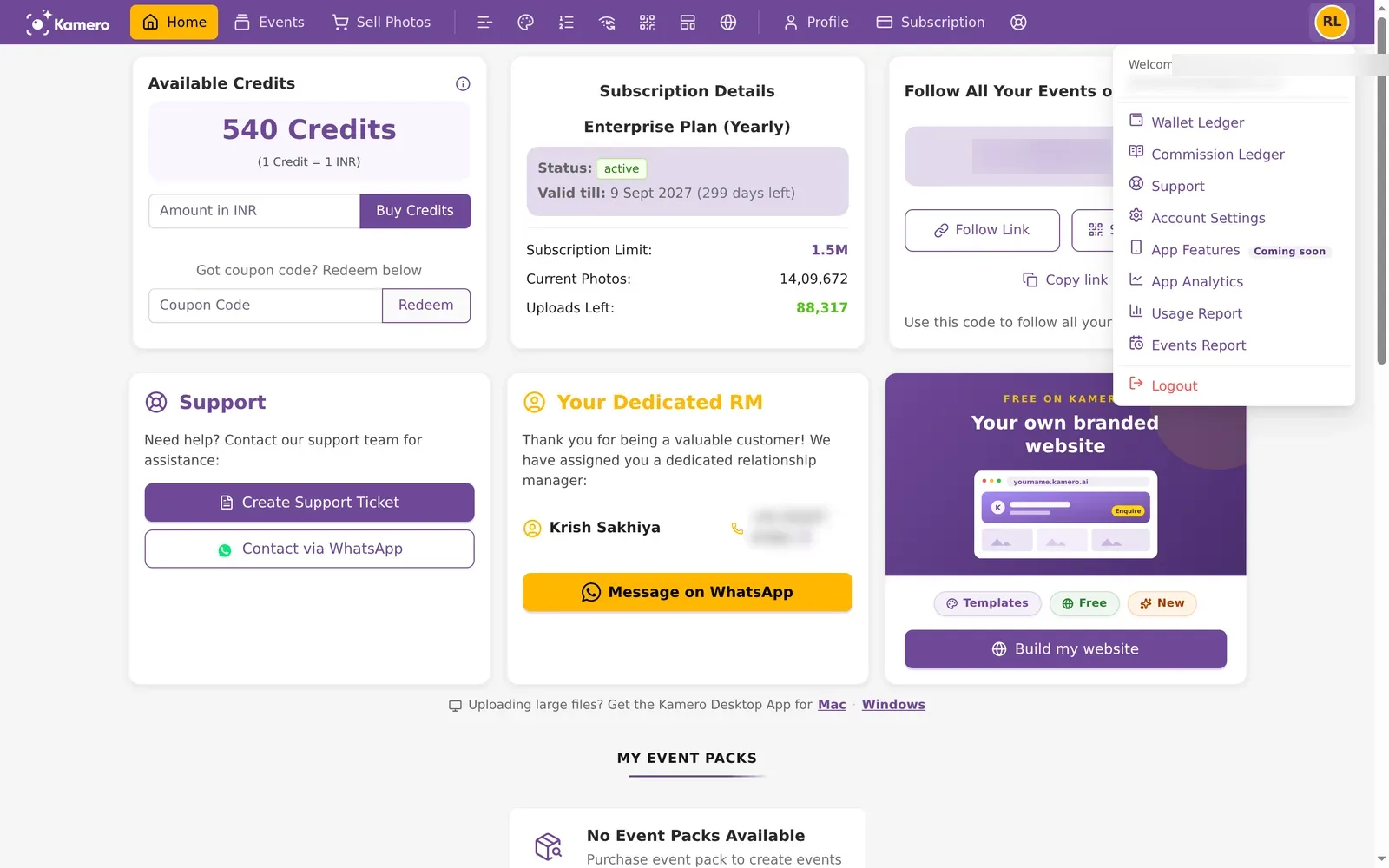
A banner at the top tells you whether the settings are working yet. "These settings are live in your app" means your app follows them now. "Not live yet" means you can set them now and they start working when Kamero switches the feature on.
There is no Save button. Each change saves by itself within a moment. If a save fails, the switch goes back to how it was.
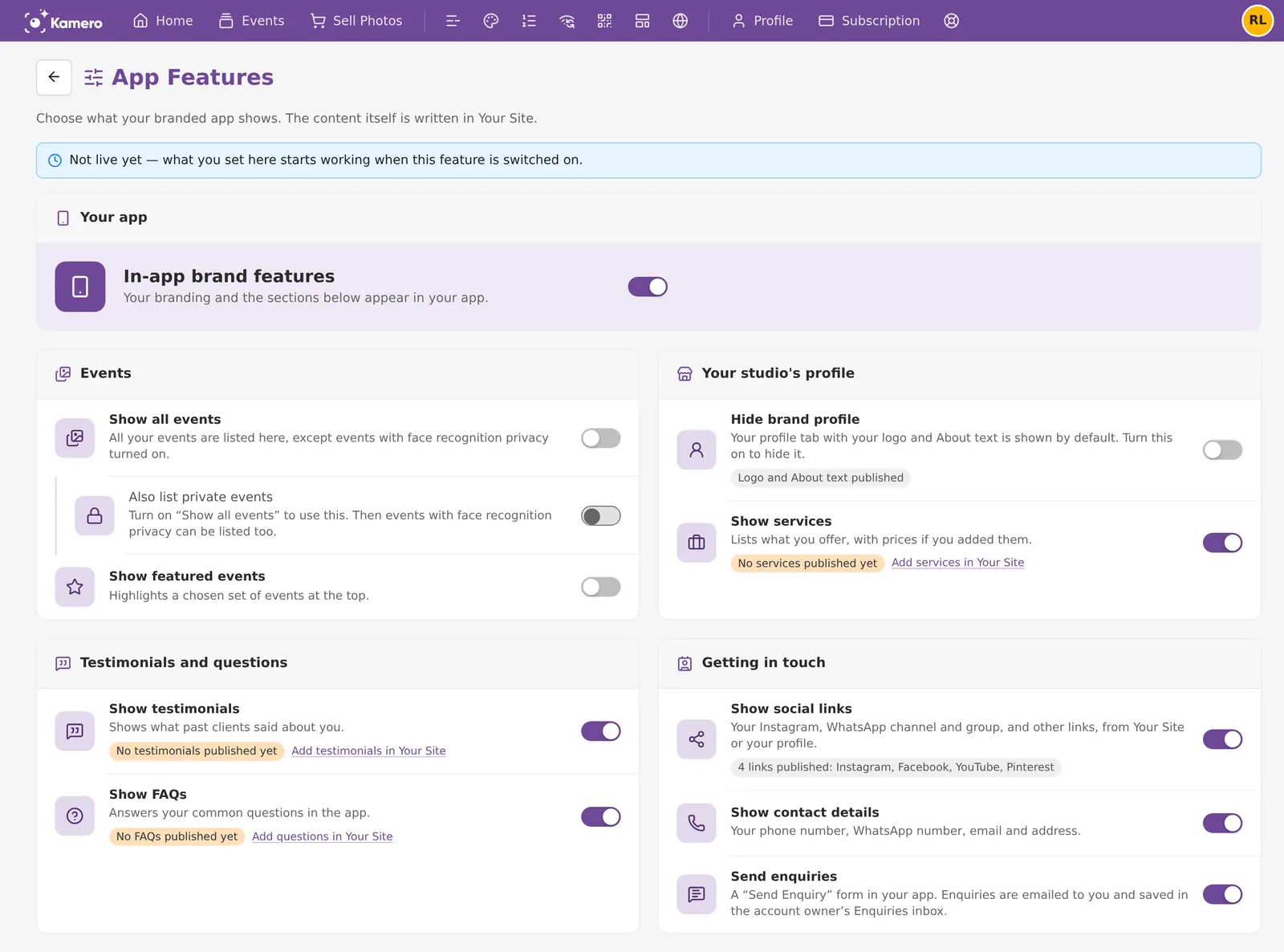
The main switch: In-app brand features
- On: your branding and the sections you turn on below appear in your app.
- Off: your app shows events only, with none of your branding. All the cards below are hidden.
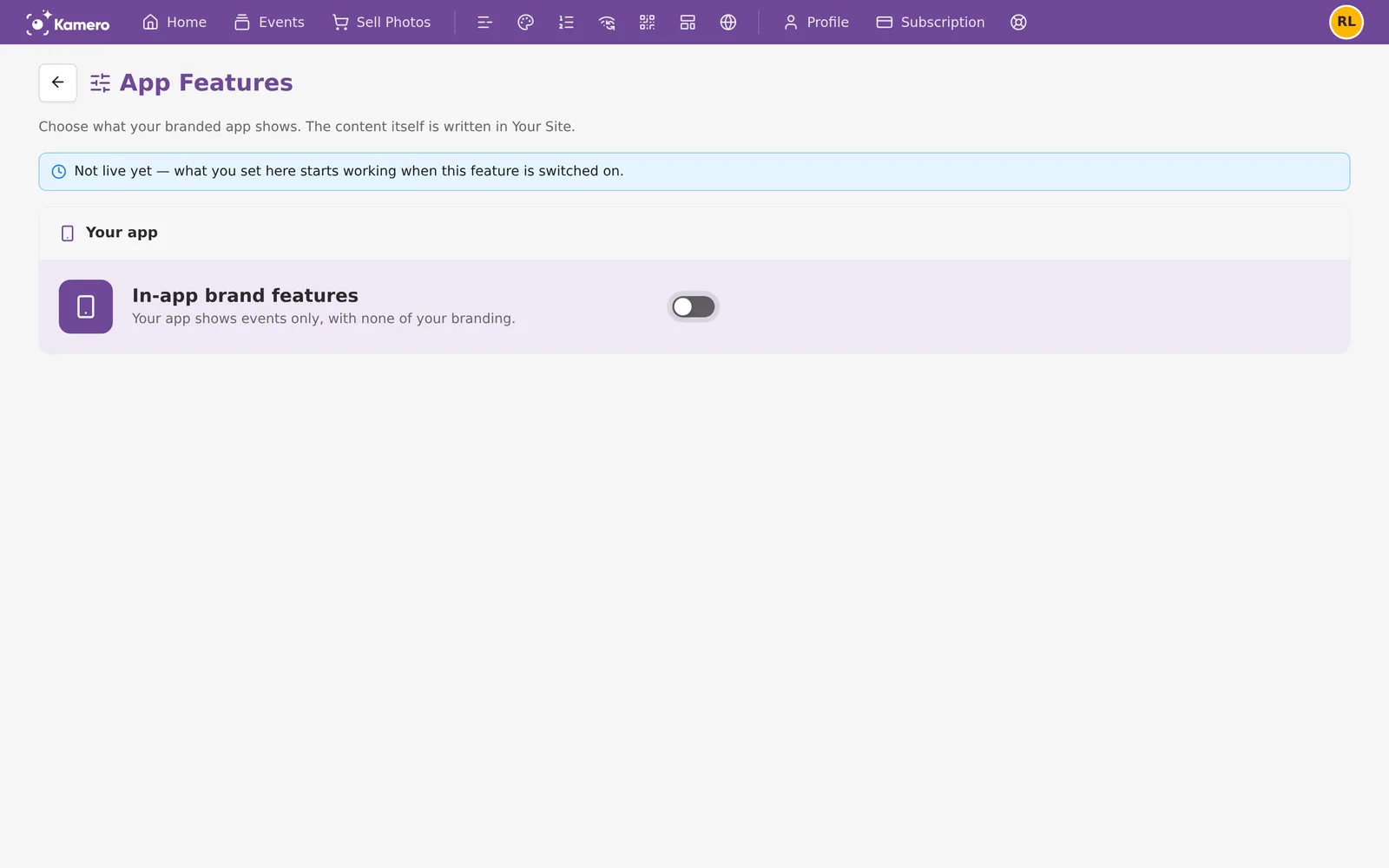
Events
- Show all events: adds an All Events list to your app, with every event except those with face recognition privacy turned on.
- Also list private events: works only when Show all events is on. It adds events with face recognition privacy to the list.
- Show featured events: shows a set of events you choose at the top.
Listing private events
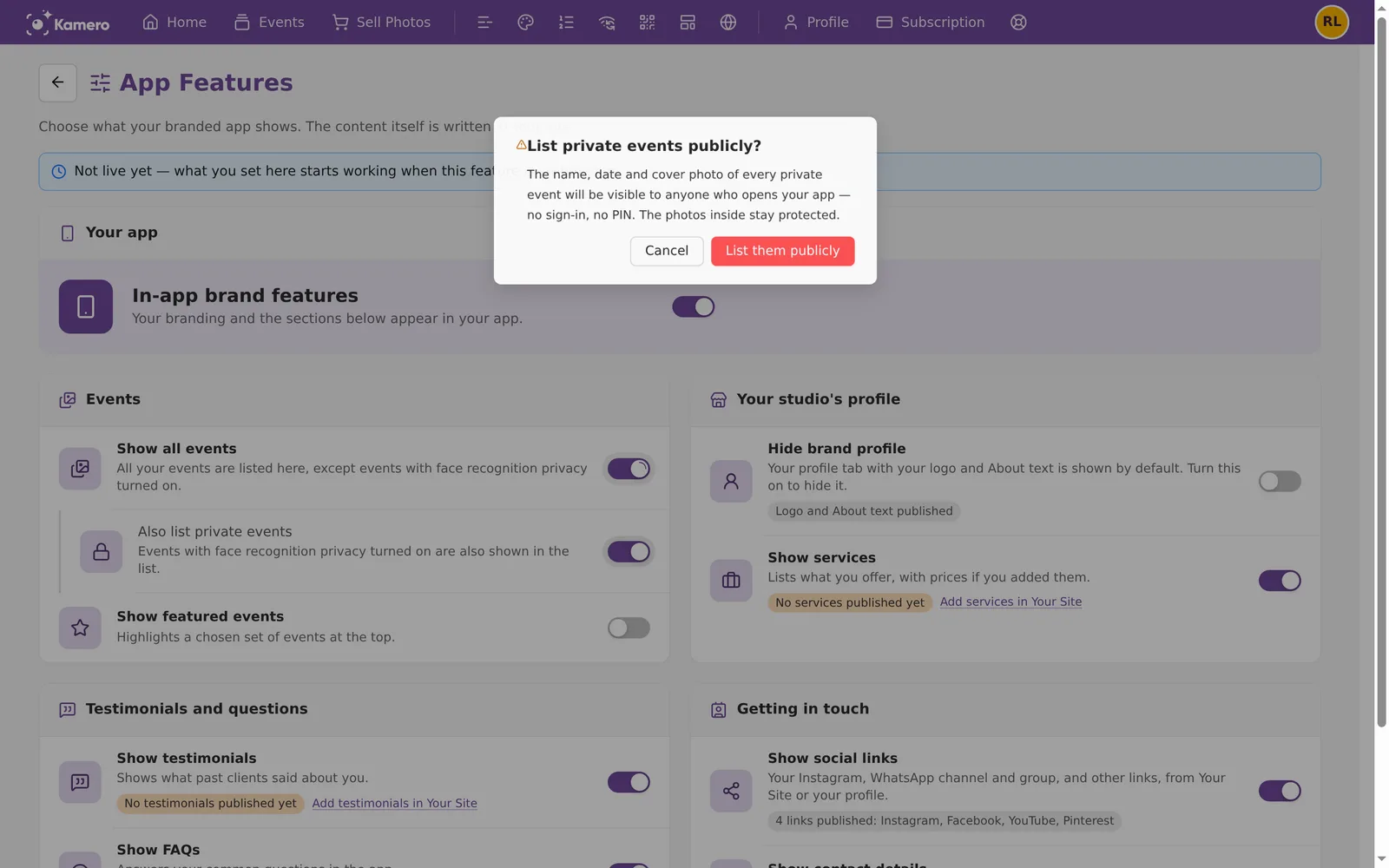
When you turn on Also list private events, Kamero asks "List private events publicly?". The name, date and cover photo of every private event become visible to anyone who opens your app, with no sign-in and no PIN. The photos inside stay protected. Click List them publicly to go ahead, or Cancel.
Choosing featured events
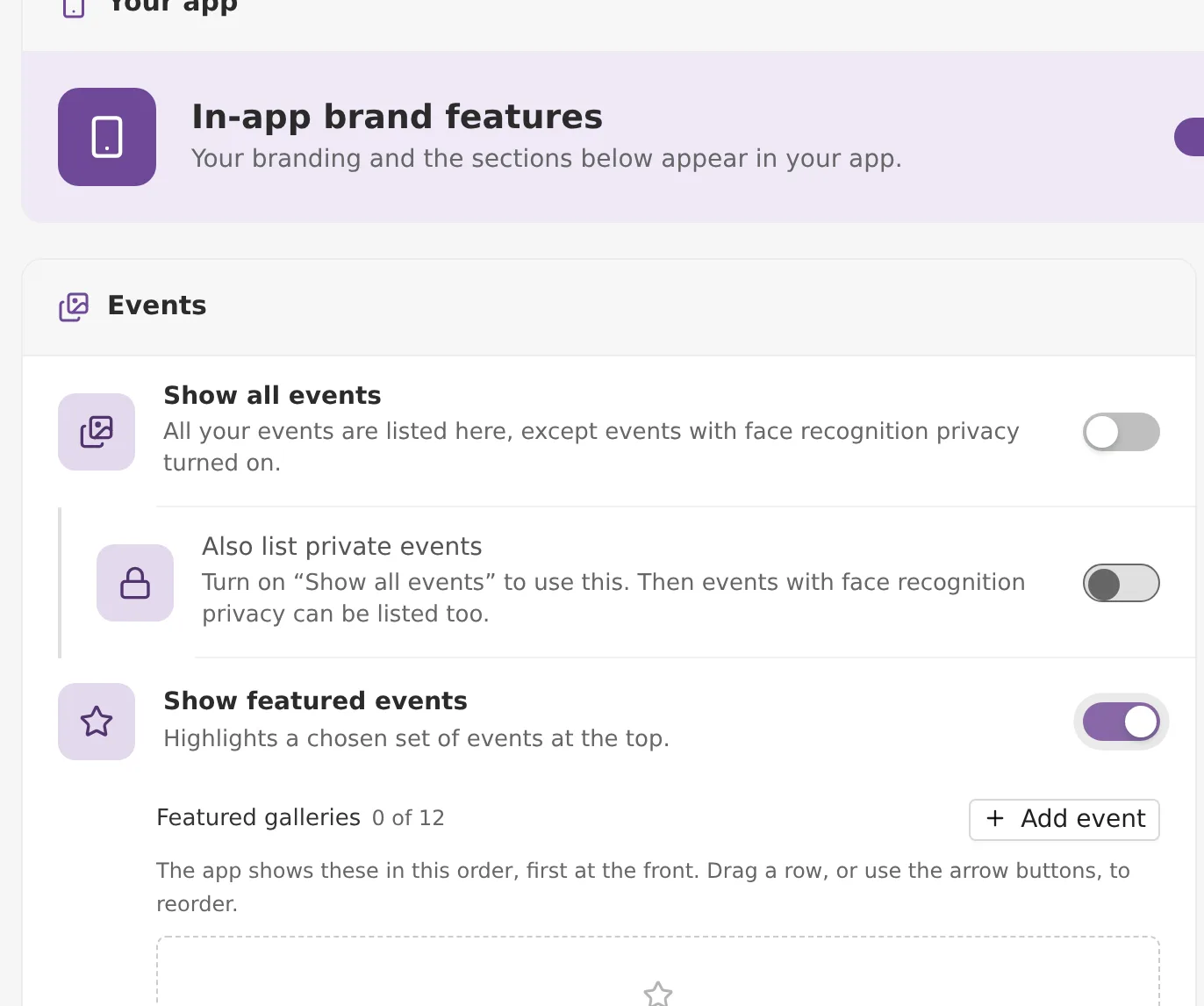
- Turn on Show featured events. The Featured galleries list opens, showing how many you have picked out of 12.
- Click + Add event and search for an event by name.
- Add up to 12 events. The app shows them in this order, first at the front. Drag a row, or use the up and down arrow buttons, to change the order.
Your studio's profile
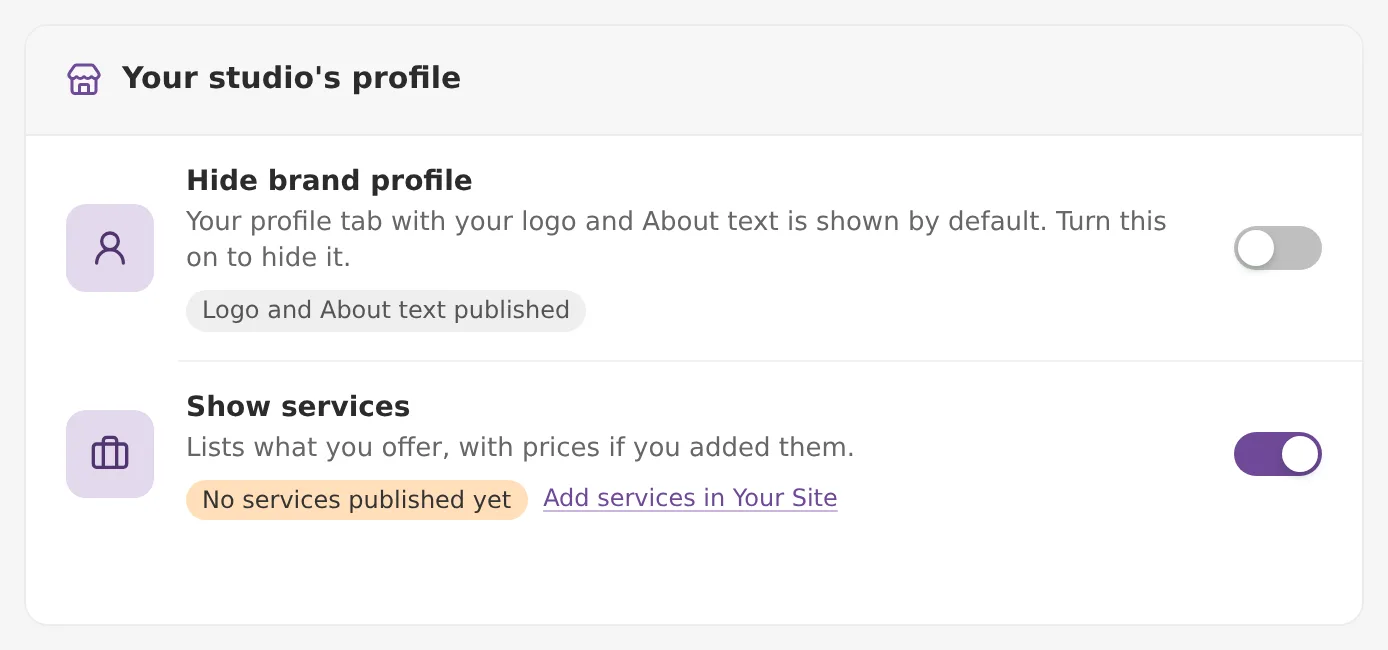
- Hide brand profile: this switch works the other way round. Leave it off to show your logo and about text in an About tab in the app. Turn it on to hide them. The chip under it says whether your logo and about text are published.
- Show services: lists the services from Your Site. If none are published, the chip says so and links to Add services in Your Site.
Testimonials and questions
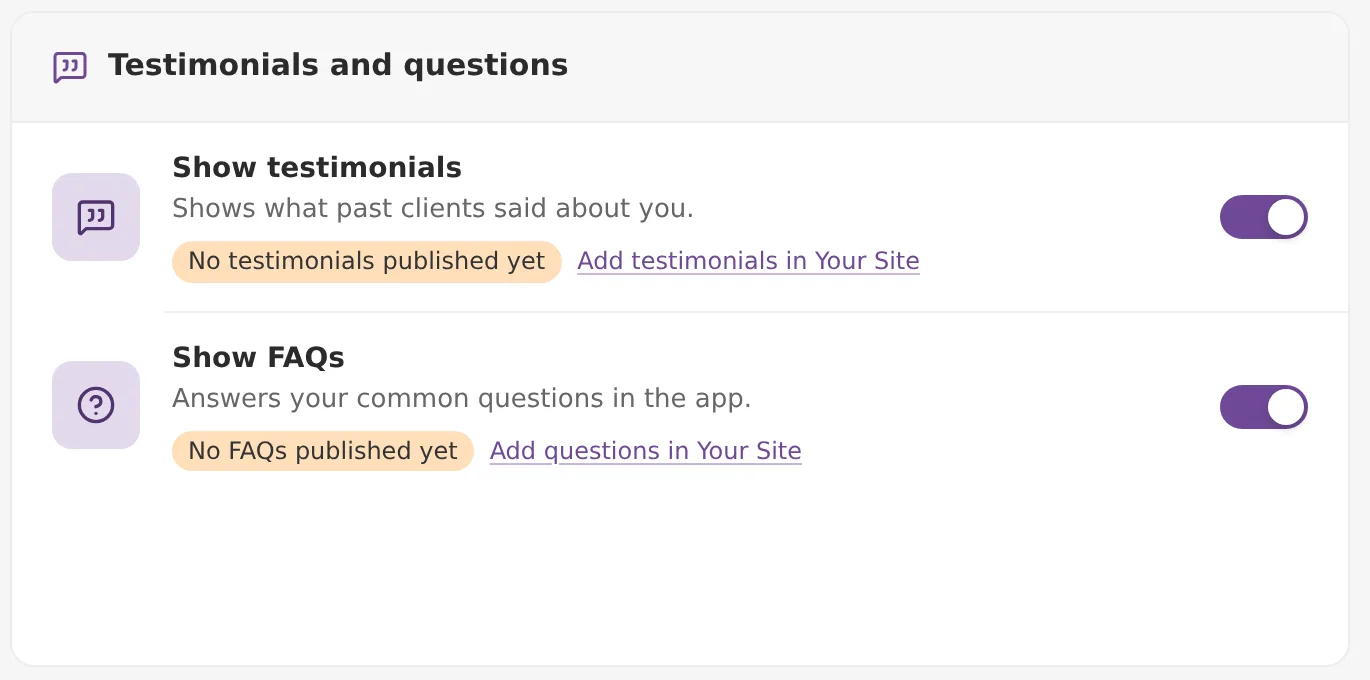
- Show testimonials: shows client reviews from Your Site. Add them with Add testimonials in Your Site.
- Show FAQs: shows your questions and answers from Your Site. Add them with Add questions in Your Site.
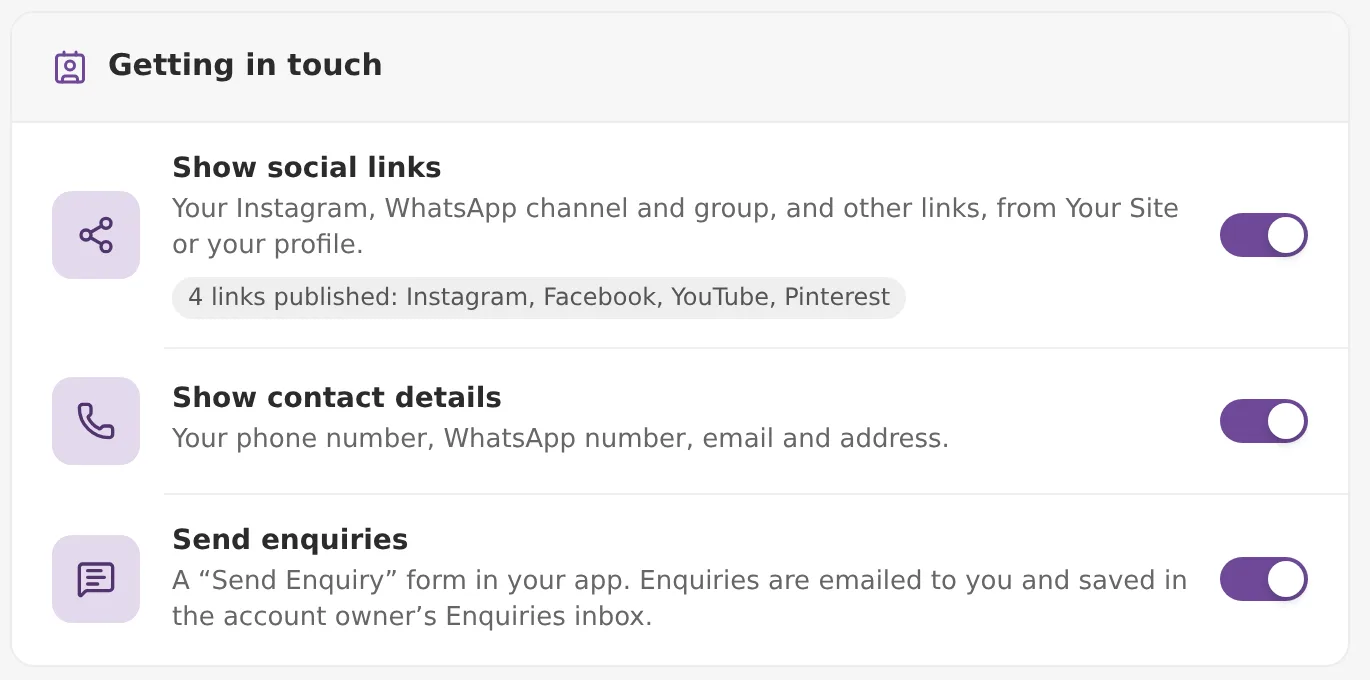
Getting in touch
- Show social links: shows your social links. The chip lists how many are published and which ones, such as Instagram or YouTube.
- Show contact details: shows your phone number, WhatsApp number, email and address.
- Send enquiries: adds a Send Enquiry form to your app. Enquiries are emailed to you and saved in the account owner's Enquiries inbox.
What your app shows
Each section appears in the app only when its switch is on and Your Site has published content for it. A switch that is on with nothing published shows nothing. If no section has content, the About tab says no brand details have been added yet.
To see how people use your app, read app analytics.
Common problems
- A card says nothing is published: the content is only in a draft. Publish Your Site.
- Also list private events is greyed out: turn on Show all events first.
- "You can view these settings but not change them": your role is read-only. Ask the account owner.
- A switch flipped back by itself: the save failed. Check your connection and try again.
Frequently asked questions
Why don't I see App Features in my menu?
App Features is only for accounts with their own branded mobile app. Other accounts do not have it.
Is there a Save button?
No. Each switch saves on its own within a moment of you changing it. If a save fails, the switch flips back to how it was.
Why does a card say nothing is published when I have added content?
The counts come from the published version of Your Site. Content in an unpublished draft counts as nothing. Publish Your Site, then reopen App Features.
Can guests see the photos in private events if I list them?
No. Listing private events shows only their name, date and cover photo. The photos inside stay protected by face recognition privacy.
How many featured events can I pick?
Up to 12. You choose the order they appear in.
What does the banner Not live yet mean?
Kamero has not switched the feature on for apps yet. You can set your switches now, and they start working in your app when the feature goes live.
Why can't I change any switch?
Your role on the account lets you view these settings but not change them. Ask the account owner to change them.
More Branding & watermarks tutorials
Try it in your dashboard
Sign in to Kamero and follow along. Questions? Raise a support ticket from the dashboard.