How to buy photos from an event gallery
Some photographers sell their event photos on Kamero. Say your college convocation or a school Sports Day was shot this way. You open the event link, find the photos you are in, and pay for the ones you want. After you pay, you download them in full quality, without the watermark.
For downloading and finding your orders later, see Your photo orders and downloads.
Open the event and find your photos
Open the link or QR code the photographer or organiser shared. A gallery with photos for sale shows a Find your photos card with the price per photo.
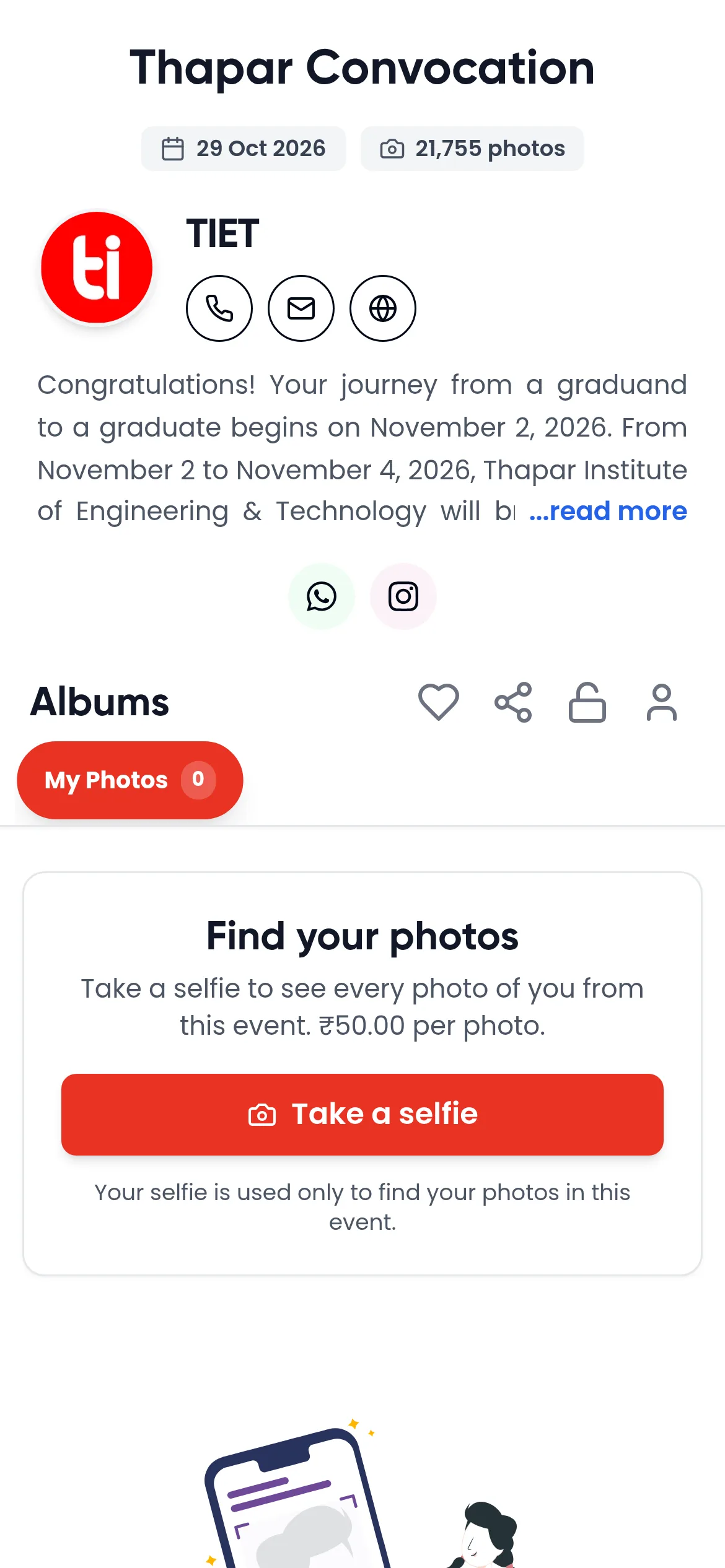
There are two ways to find your photos:
- Take a selfie. Tap Take a selfie. Kamero shows every photo you appear in under My Photos. You don't need to sign in for this. Your selfie is used only to find your photos in this event. For tips, see Find your photos with a selfie.
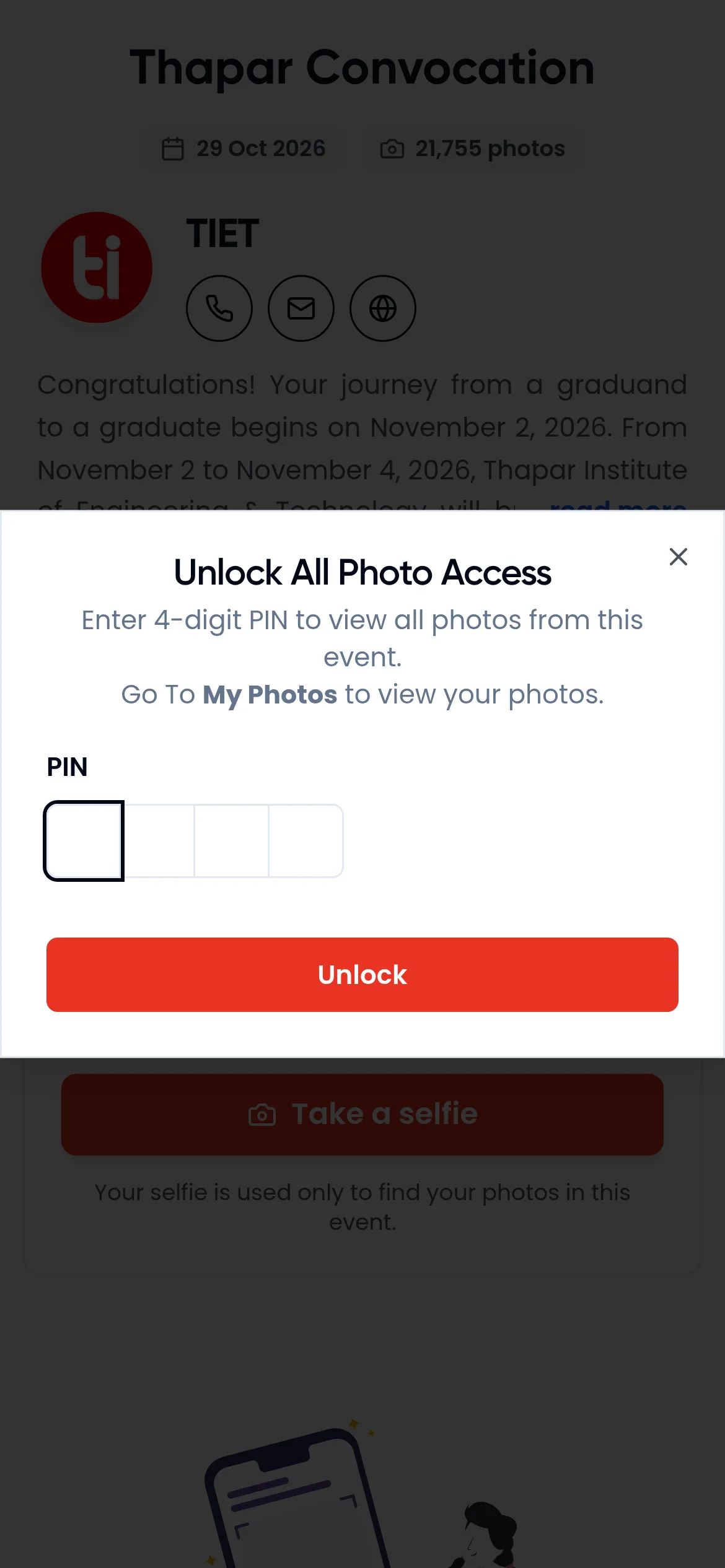
- Browse the albums. Tap an album tab and scroll. Some events lock the albums. You then see a lock icon, and tapping it asks for a 4-digit PIN. If you don't have the PIN, use the selfie. It still shows all your own photos.
Add photos to your cart
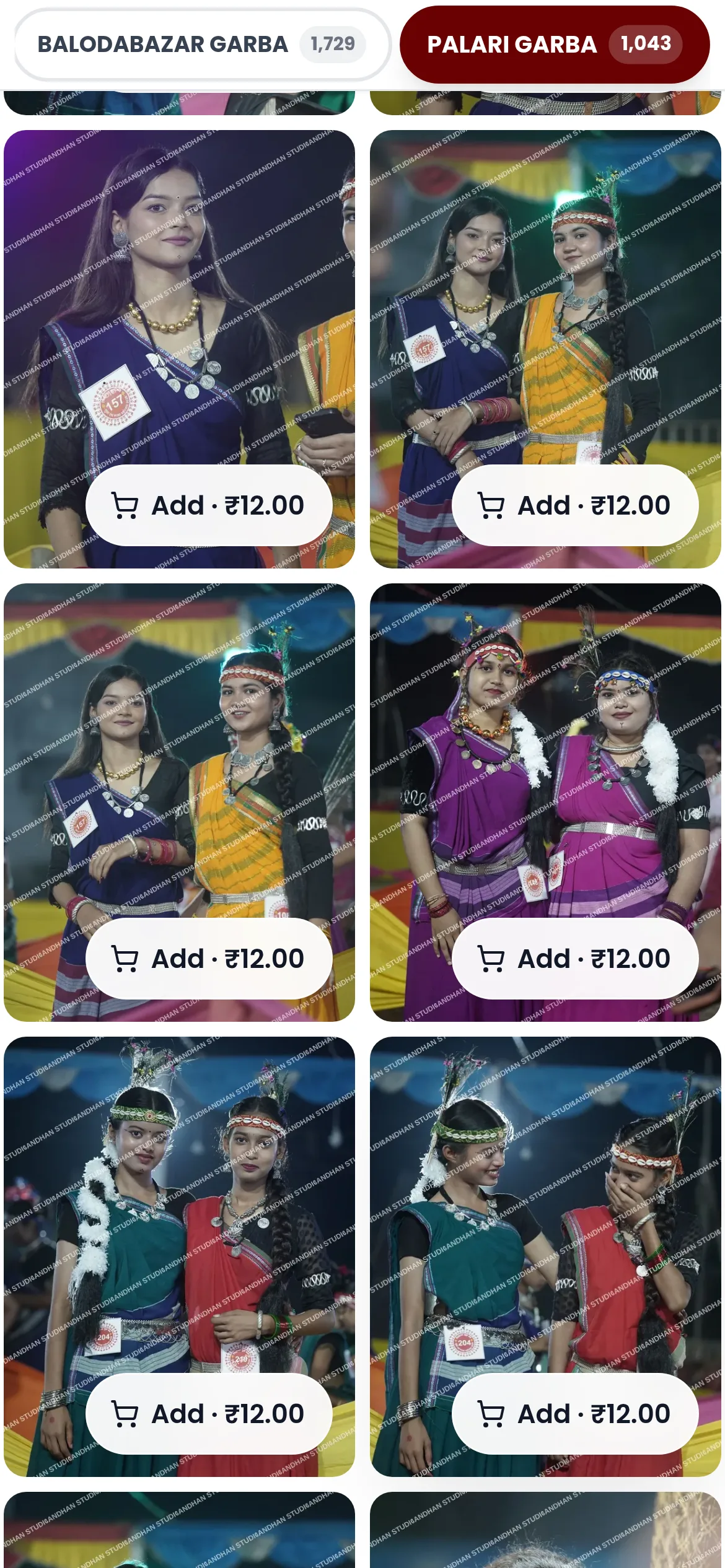
Each photo has a button with its price, for example Add · ₹12.00. Tap it to add the photo to your cart. The button turns green and reads Added. To take a photo out, tap Added again.
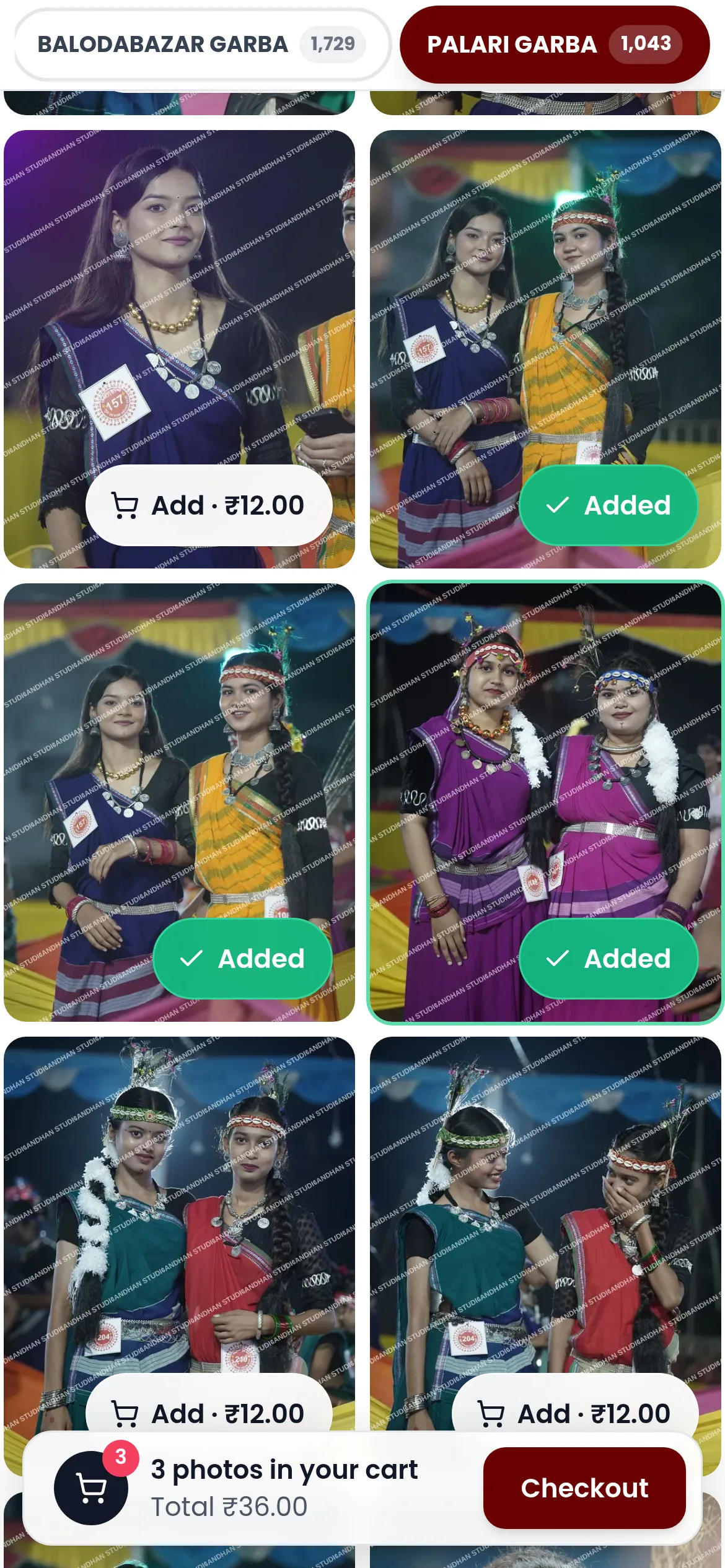
Once you add a photo, a bar appears at the bottom with the number of photos, the total and a Checkout button.
Look closer before you buy
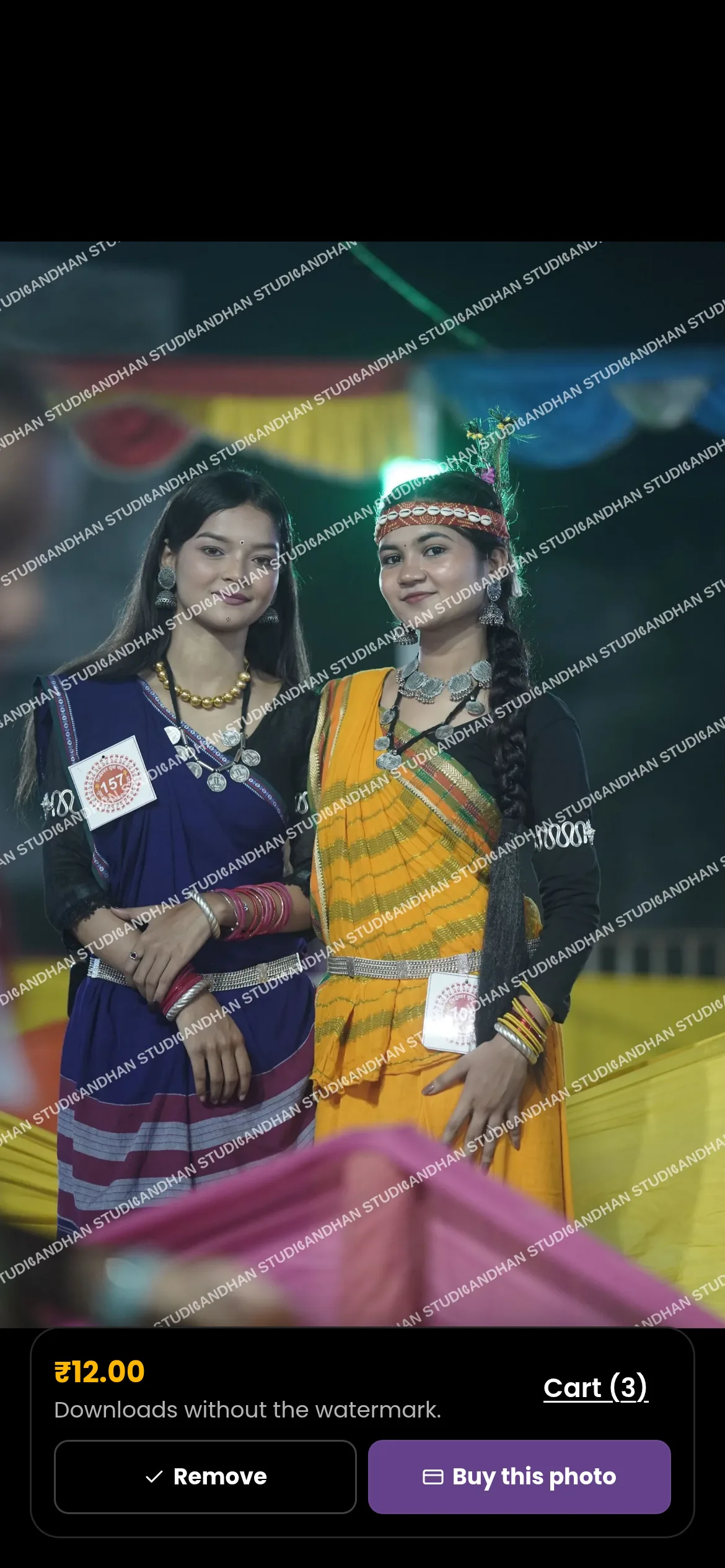
Tap a photo to open it full screen. Below it you see the price, the line "Downloads without the watermark.", a button to add or remove it, Buy this photo, and Cart with the number of photos in it. Buy this photo pays for just that photo straight away.
Buy all your photos at one price
The photographer may offer bundles. You see them only if they are turned on for the event.
- All My Photos. After a selfie, a card on your My Photos page offers every photo you appear in, for example "Buy all 12 of your photos · ₹800.00". If that costs less than buying them one by one, it says how much you save. Tap Buy all 12 photos.
- All event photos. A window shows the Total Photos and the Price for the whole event.
- Volume discount. Some events take a percentage off when you buy enough photos. The cart tells you, for example "Add 2 more for 10% off!", and shows a Discount line once you qualify.
On events priced in rupees, bundles are paid on the PhonePe payment page. On events in other currencies, you pay the photographer directly, the same as for single photos.
Check your cart
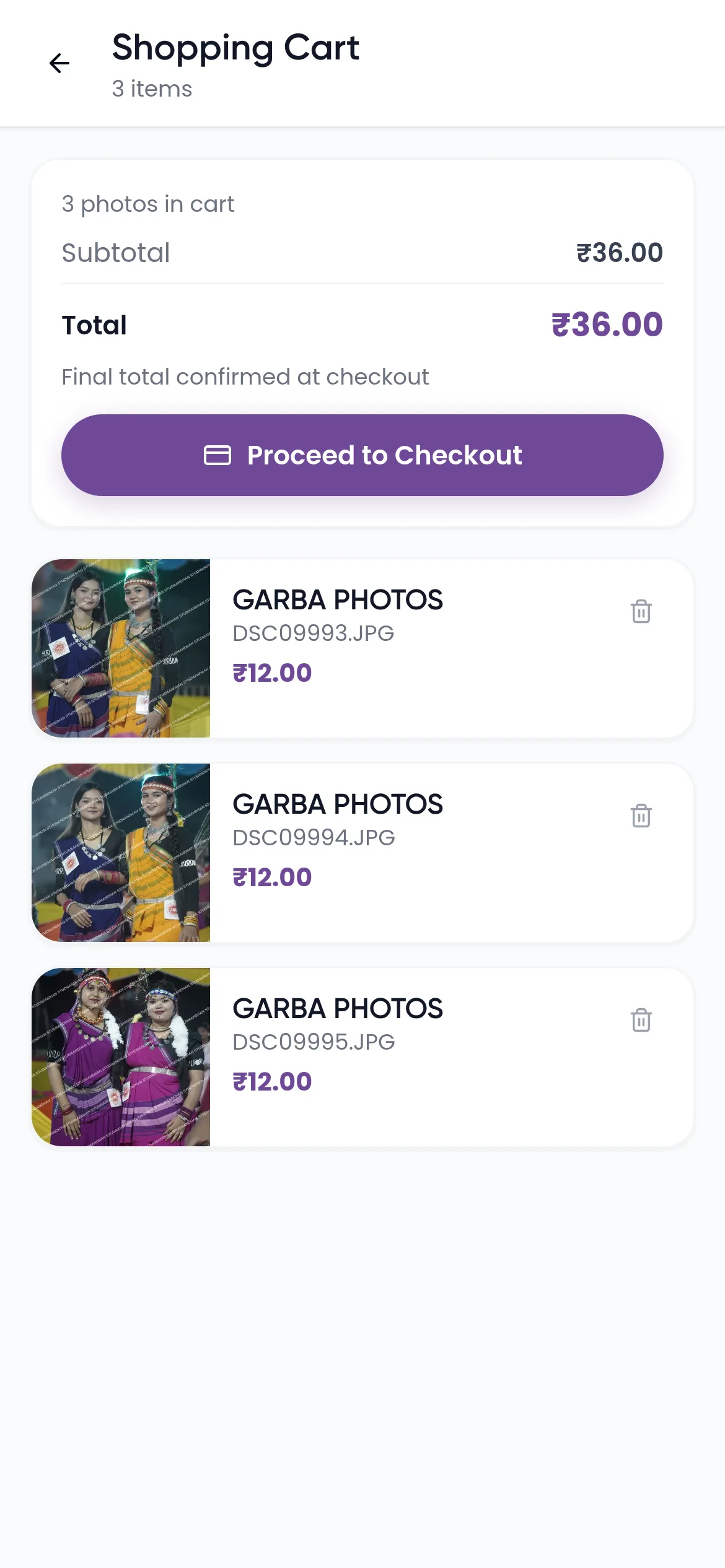
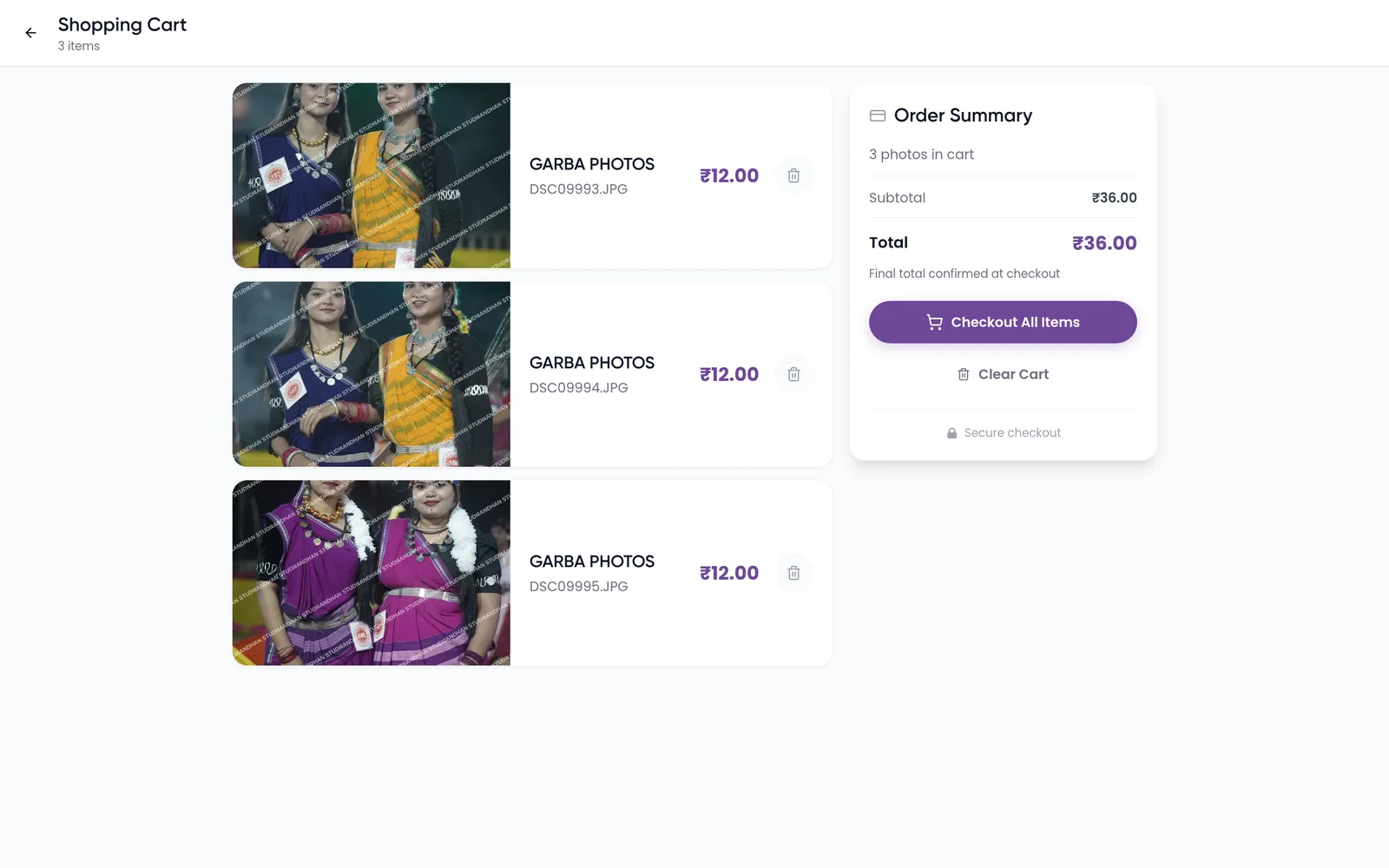
Tap Checkout on the bar, or Cart in the full-screen view. The Shopping Cart lists each photo with its price and a bin icon to remove it. The Order Summary shows the Subtotal, any Discount, GST when it applies, and the Total. The final total is confirmed at checkout.
On a computer, the summary sits beside the photos, with Checkout All Items and Clear Cart.
Before you pay, check these points:
- One checkout covers one photographer and one currency. If your cart mixes them, pay for each event separately.
- Photos you already bought are refused at checkout. Find them in your orders instead.
- If you see "A payment for some of these photos is still open. Check My Orders before paying again.", an earlier payment may still be going through. Check your orders before you pay again.
Sign in to pay
Tap Proceed to Checkout (on a computer, Checkout All Items). If you are not signed in, a sheet opens: Sign in to finish your purchase. Your photos and receipt go to the account you sign in with.
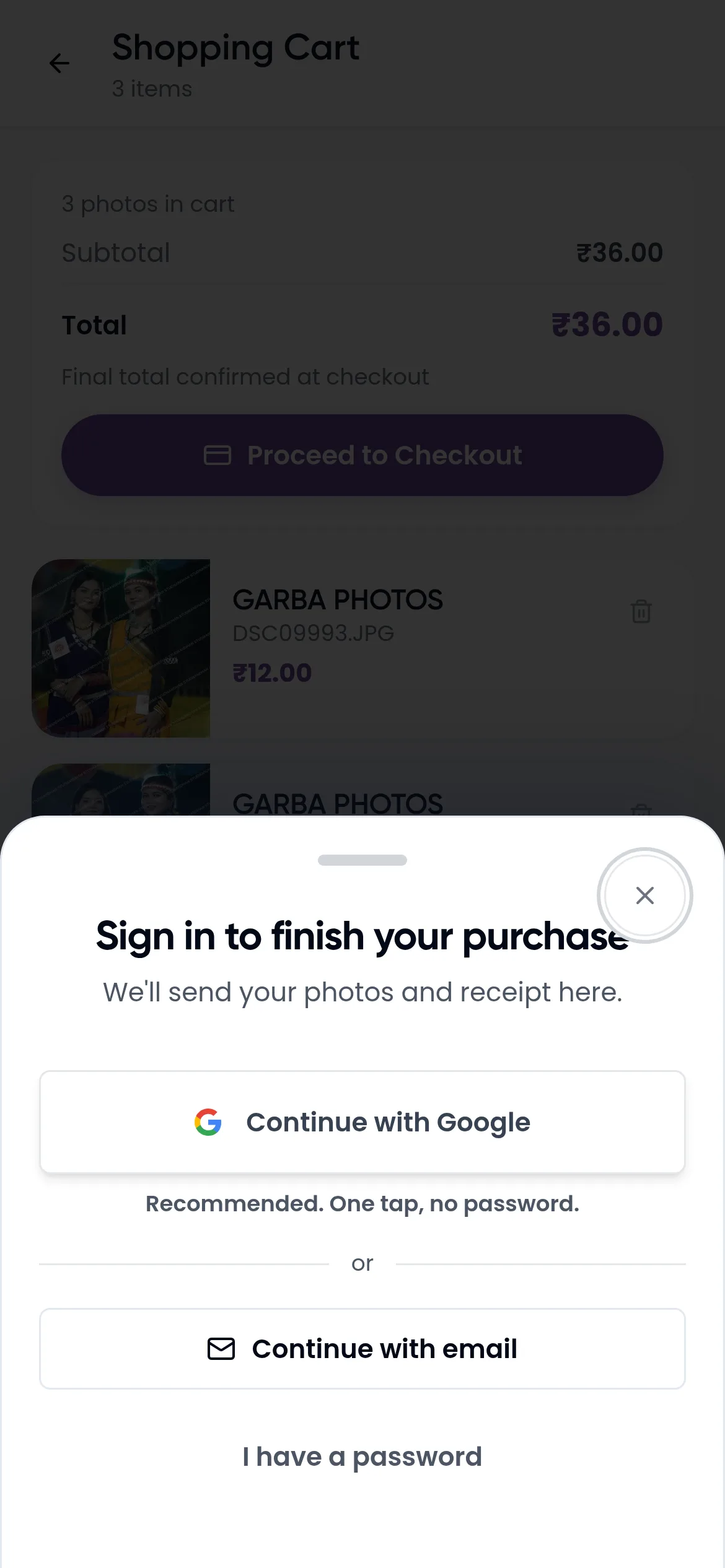
- Tap Continue with Google and pick your Google account. Or tap Continue with email.
- For email, type your email address and tap Email me a code.
- Open the email from Kamero, type the 6-digit code, and tap Continue to payment. If the email doesn't arrive, tap Resend code or check your spam folder.
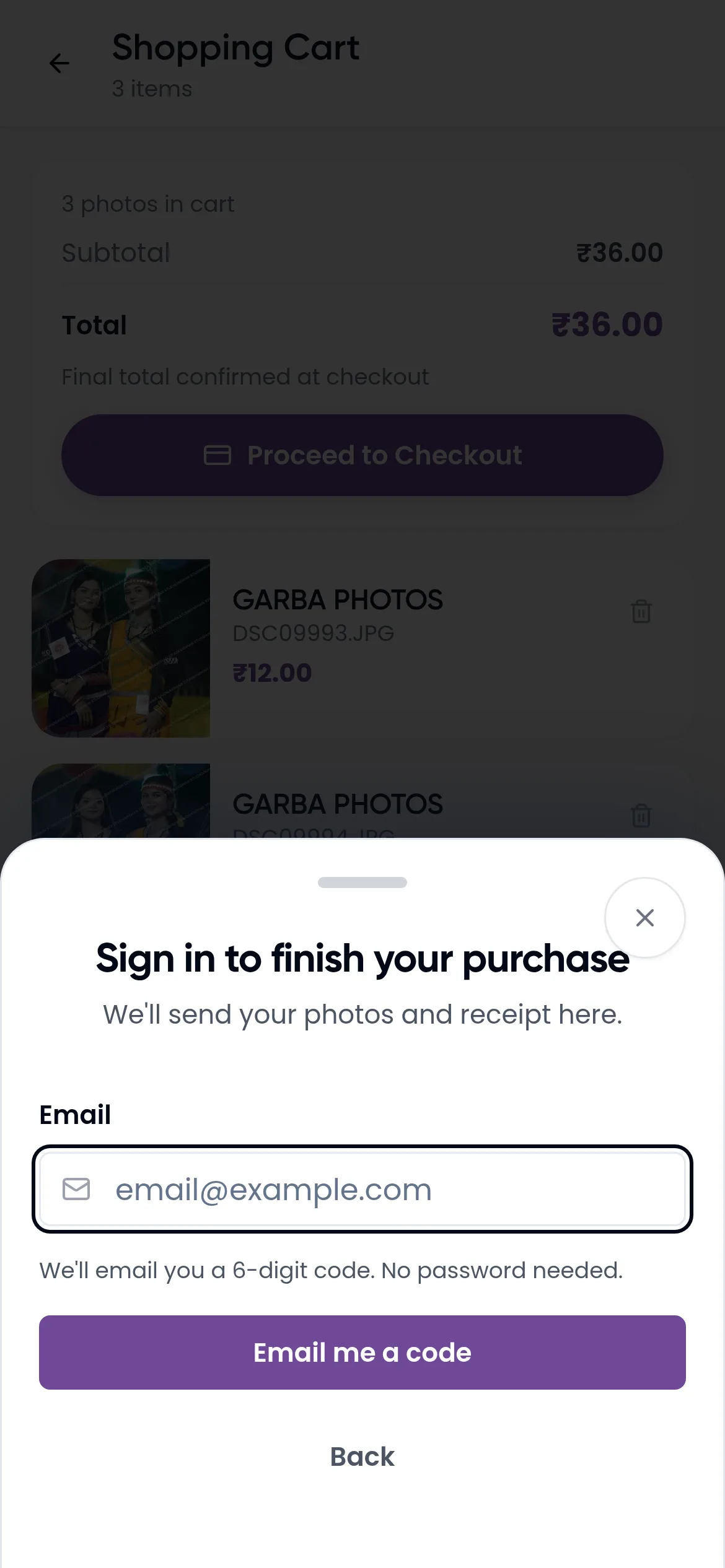
You don't need a password or a phone number. If you already have a Kamero password, tap I have a password. After you sign in, checkout carries on by itself. For more on signing in, see Sign in and your profile.
Pay for your photos
How you pay depends on the event's currency and on what you buy.
Events in rupees: cart and Buy this photo
A Razorpay payment window opens on the same page. Pay with UPI, card, net banking or another option it offers. While it is open, the button reads Complete payment in the window. After you pay, it reads Confirming your payment… and then takes you to your order. If you close the window without paying, your cart stays as it was.
Bundles
On an event priced in rupees, tapping a bundle button takes you to the PhonePe payment page. After you pay, you come back to your order on Kamero. On an event in another currency, the bundle button opens your order's payment page instead: pay the photographer as described in the next section, and your photos unlock once they confirm the payment.
After a successful payment, you get an email with the subject "Order successful: your 3 photos are ready to download". Tap View your order in it to download them.
Events in other currencies: pay the photographer directly
For events priced in another currency, such as US dollars, you pay the photographer yourself, not Kamero. The full-screen view says "Paid directly to the photographer." and the cart says "Payment goes directly to the photographer". Before checkout you see a note that you'll pay the photographer directly and get their payment details and a reference code.
- Tap checkout, or Buy this photo and then Continue. Sign in as above.
- The How to pay page opens. It shows the Amount to pay and Your payment reference. Tap the copy icon next to the reference.
- Pay using one of the photographer's options: a QR code, Open payment link, or Bank transfer details. Include the reference with your payment so they can match it to your order.
- Optional: in the box that asks you to help the photographer find your payment, tap Upload payment screenshot (JPEG, PNG or WebP up to 5MB) or type the Transaction ID. Sending proof isn't a payment. It only helps them find it faster.
- Tap Go to my order. The order shows Pay photographer until you pay, then Photographer checking. When the photographer confirms the money arrived, you get an email and your photos unlock.
Keep these in mind:
- The page shows a date to pay by. An unpaid order closes after 14 days.
- If you change your mind before paying, tap Cancel order and confirm. Nothing is charged. Once you have sent proof, ask the photographer instead.
- Any invoice, receipt or refund comes from the photographer, not Kamero. The photographer also sees your contact details, so they can identify your payment.
If a payment fails or is still pending
- Confirming your payment. This usually takes under a minute, and the order page updates by itself. If it takes longer, wait a minute and tap Check status. Don't pay twice.
- Payment didn't go through. Your photos weren't released. If you weren't charged, tap Back to cart and try again. For a PhonePe payment, tap Check payment again first, in case it went through late.
- Money left your account but the order failed. For bundles, the money is returned automatically within 5 to 7 working days. For anything else, email support@kamero.ai with your order number.
Each order shows its status in your orders list. See Your photo orders and downloads.
Frequently asked questions
Do I need an account to buy photos?
You don't need to sign up first. You can take a selfie, browse and fill your cart without signing in. You sign in only when you pay, with Google or a 6-digit code sent to your email. There is no password to create.
Why do the photos have a watermark?
The gallery shows previews with the photographer's watermark. The photos you buy download in full quality, without the watermark.
Can I buy photos from two events in one go?
Your cart can hold photos from more than one event, but each checkout must be for one photographer and one currency. If your cart mixes them, check out each event separately.
How long does my cart keep photos?
Before you sign in, the cart is saved in your browser, and each photo stays for 7 days. There is no limit on how many photos you add.
Can I pay with PayPal?
No. Events priced in rupees are paid through Razorpay, or PhonePe for bundles. For events in other currencies, you pay the photographer directly using the details they give.
Can I get a refund?
All photo sales are final once an order is completed. If you were charged twice for the same photos, email support@kamero.ai with your order number. For direct payments, any refund is between you and the photographer.
More For guests tutorials
Try it in your dashboard
Sign in to Kamero and follow along. Questions? Raise a support ticket from the dashboard.