Your photo orders and downloads
After you buy photos from an event gallery, they wait for you in your orders. This page shows how to find an order, read its status, and save the photos to your phone or computer. To buy photos first, see How to buy photos from an event gallery.
Sign in to see your orders
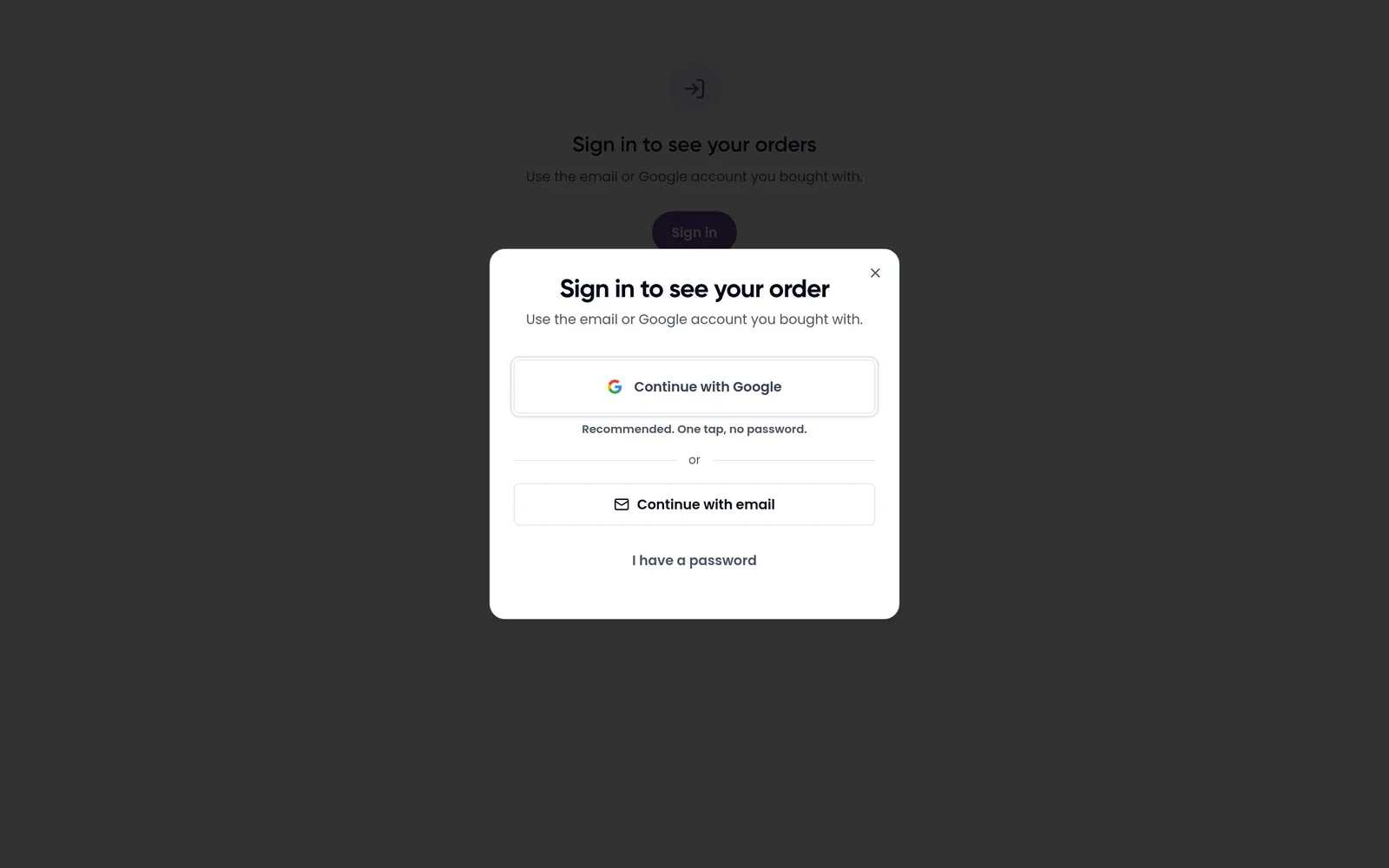
Orders belong to the account you signed in with at checkout. Sign in with the same Google account or email. If you open your orders while signed out, you see Sign in to see your orders and a sheet with the same sign-in options as checkout.
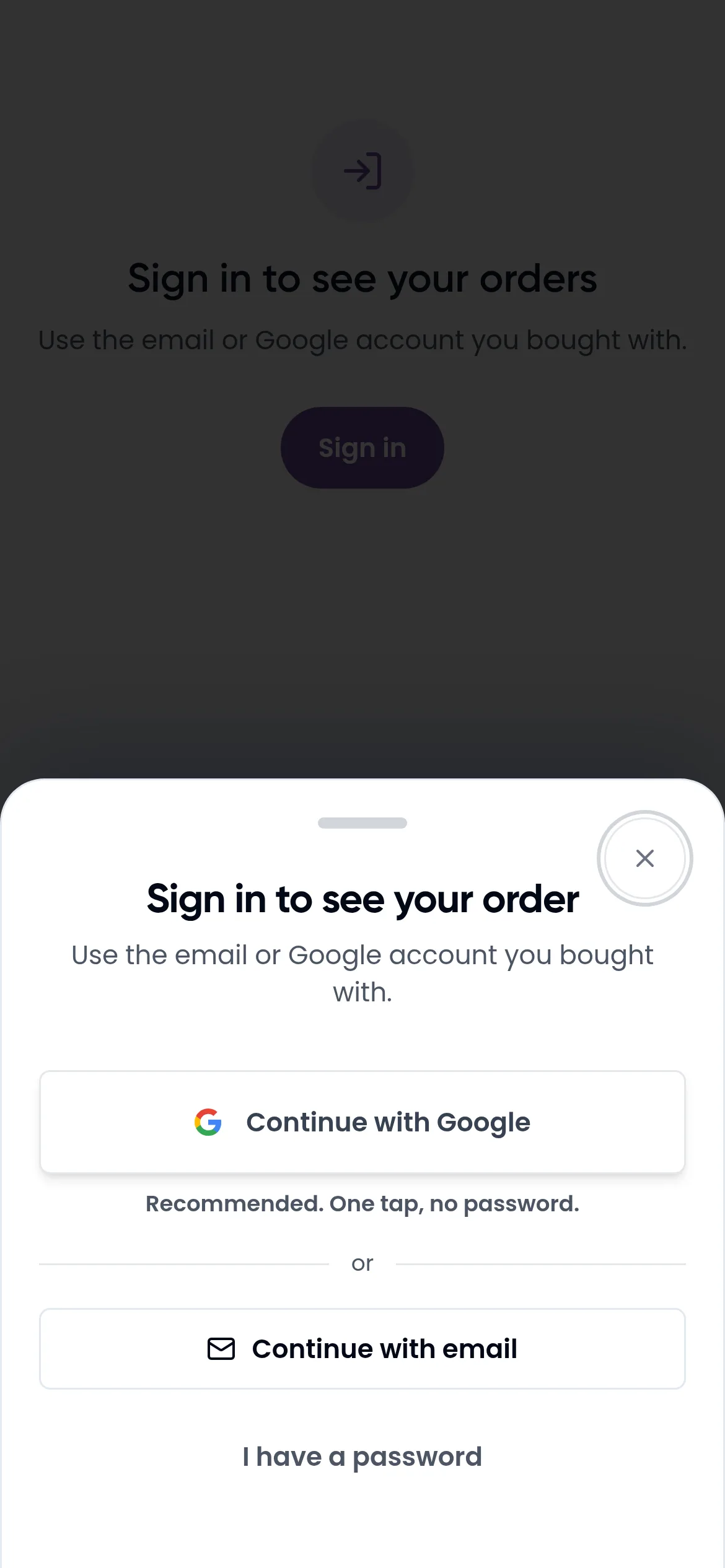
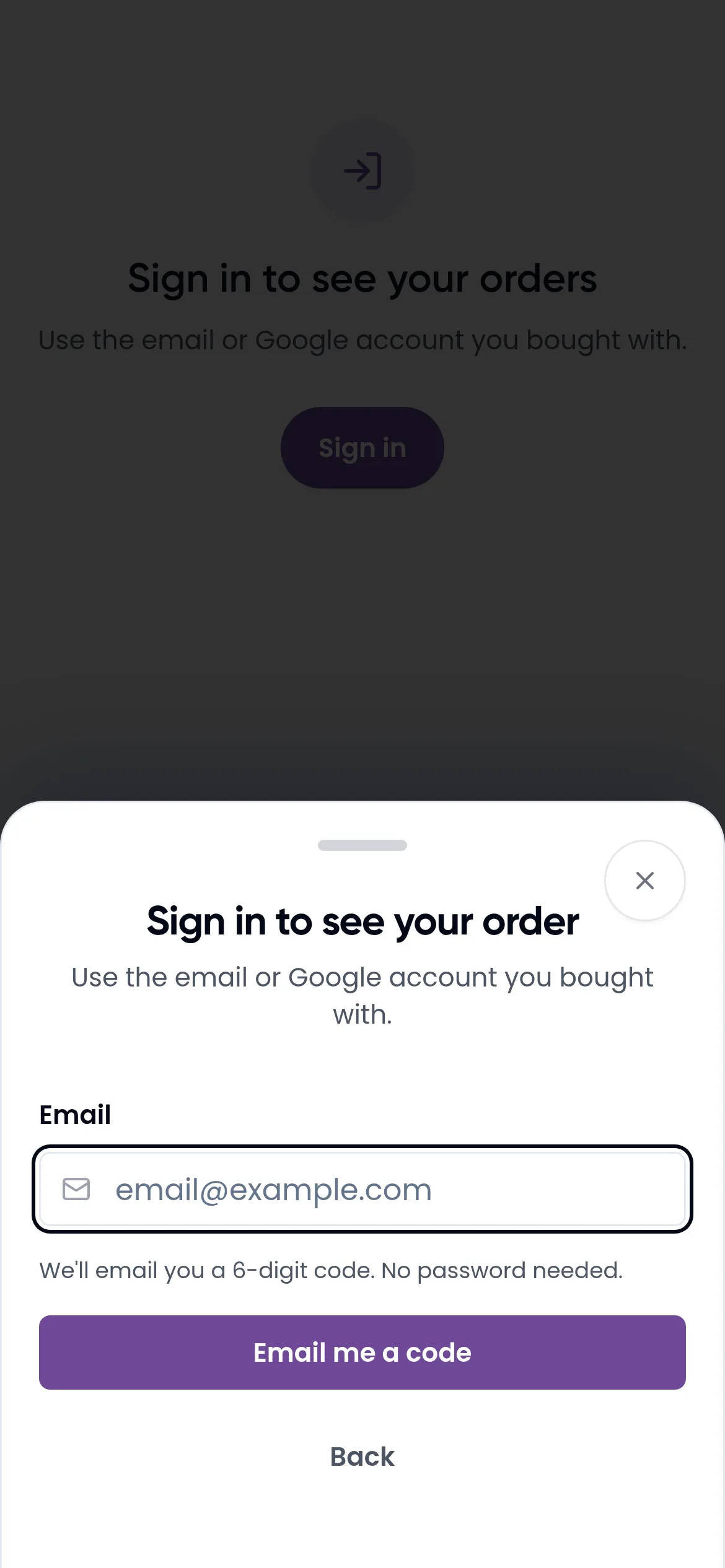
Tap Continue with email, type your email, tap Email me a code, and enter the 6-digit code from the email. Or tap Continue with Google.
Where to find your orders
Once you are signed in, there are three ways in:
- Your account menu. Tap your profile picture at the top right, then Orders.
- The event gallery. In a gallery with photos for sale, tap Orders at the top. This opens Orders for this event. Tap See all orders to see orders from every event, or Back to event to return to the gallery.
- The order email. After you pay, Kamero emails you. Tap View your order in that email.
Your orders list
Your orders shows your 50 most recent orders, newest first, with a line such as "3 orders, 2 completed". Tap Refresh to update the list. Each order shows the event name, the amount, the date, a short order number such as #E4046BCD, a status, and how many photos it has. Bundles show All your photos or All event photos.
Each order has a button for the next step:
- View photos: the order is paid and ready to download.
- Check status: the payment is still being confirmed.
- Check payment: a PhonePe payment failed recently. Check it once more in case it went through.
- Try again: the payment failed. This takes you back to your cart.
- Pay now: you still need to pay the photographer directly.
If you haven't bought anything yet, you see No orders yet and a Browse photos button.
What each status means
- Completed: paid. Your photos are ready.
- Payment pending: Kamero is still confirming the payment. Don't pay again.
- Payment failed: the payment didn't go through, and the photos weren't released.
- Cancelled: the order was cancelled before payment.
- Refunded: the money went back to you, so the photos can't be downloaded.
- Pay photographer: a direct-pay order waiting for your payment.
- Photographer checking: you paid directly and the photographer is checking for the money.
Open an order
Tap an order to open it. The top banner tells you where it stands, for example:
- Your photos are ready: "Payment received. Download your photos below."
- Confirming your payment: this usually takes under a minute, and the page updates by itself. If it still says this after a minute, tap Check status.
- Payment didn't go through: tap Back to cart to try again. If money left your account, email support@kamero.ai with the order number before you pay again.
Below the photos, Order summary lists the number of photos, the total, when you placed the order, when it completed, how you paid (for example UPI or Card), and the payment provider. Tap Payment references to see the full order ID and transaction ID, which support may ask for. Under Documents, tap Invoice or Receipt to download them. They can take a few seconds to open. If you paid the photographer directly, any invoice or receipt comes from them.
Download your photos
On a completed order, the heading reads Your photos, with the note "Downloads are full quality, without watermark." Each photo has two buttons:
- Download saves the full-resolution photo.
- View opens it in a new tab.
You can download a photo as many times as you want. Each tap makes a fresh link that works for 1 hour, so come back to the order page any time rather than saving the link.
On an iPhone or iPad
- Tap Download. The share sheet opens.
- Tap Save Image. The photo goes to your Photos app.
On older iOS versions, the photo opens in a new tab instead. Press and hold it, then save it to Photos. If saving fails, tap View, then press and hold the photo to save it.
On Android or a computer
Tap Download. A message shows the progress, such as "Downloading… 42%", and the photo lands in your Downloads folder.
Bundles: Download all
A bundle order (All My Photos or All event photos) lists its photos 20 at a time, each with its own download icon. To get everything at once, use the Download all card, for example "Download all 142 photos". It saves one ZIP file named after the event. Keep the page open until it finishes. Photos bought one by one through the cart have no ZIP, so download them one at a time.
When a download is blocked
- "This order was not found in your account." You are signed in with a different account. Sign out and sign in with the account that bought it.
- "Your payment is still being confirmed." Wait a minute and try again.
- "The photographer hasn't confirmed your payment yet." For direct-pay orders, the photos unlock once the photographer confirms the money arrived.
- "This order was not paid, so its photos can't be downloaded." The payment failed or the order was cancelled. Buy the photos again from the gallery.
- Refunded orders show Refunded photos, and those photos can't be downloaded.
- "The file for this photo is not available yet. Please contact support." The photographer may have removed the photo. Email support@kamero.ai with your order number.
Refunds
There is no refund button. All photo sales are final once an order is completed. If you were charged twice for the same photos, or money left your account for a failed order, email support@kamero.ai with the order number. A failed bundle payment is returned to you automatically within 5 to 7 working days. If you paid the photographer directly, ask them about any refund.
For downloading photos from galleries that aren't for sale, see Download and share photos.
Frequently asked questions
How many times can I download a photo I bought?
As many times as you like. Open the order and tap Download again. Each tap makes a new link that works for 1 hour.
I paid but I can't see my order. What do I do?
Sign in with the same Google account or email you used at checkout. Orders belong to that account. If you still can't see it, email support@kamero.ai with the payment details from your bank or UPI app.
Do the photos I download have a watermark?
No. Bought photos download in full quality, without the watermark shown in the gallery.
Did I get the photos on WhatsApp or in the email?
No. The email has a View your order button. The photos themselves are downloaded from the order page.
Can I cancel an order and get my money back?
All photo sales are final once an order is completed. If you were charged twice for the same photos, email support@kamero.ai with both order numbers. For orders paid directly to the photographer, ask the photographer.
How long will my photos stay available?
Your order has no expiry date of its own. But if the photographer deletes a photo or the event, it can no longer be downloaded, so save your photos soon after you buy them.
More For guests tutorials
Try it in your dashboard
Sign in to Kamero and follow along. Questions? Raise a support ticket from the dashboard.