How to find your photos with a selfie in the Kamero app
Photographers: send this page to your guests.
An event can have hundreds or thousands of photos. Instead of scrolling through them all, take a selfie and the app shows only the photos you are in. It works in private events too, without the PIN.
Open My Photos
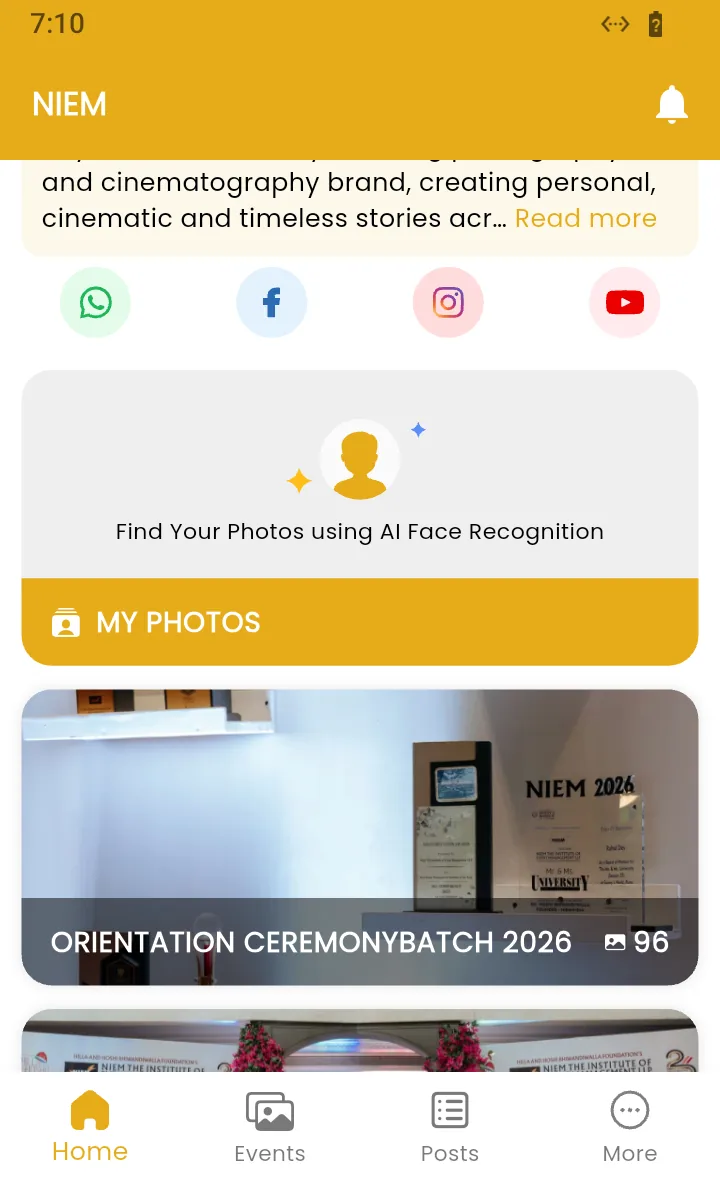
On the Home tab of the event, scroll to Find Your Photos using AI Face Recognition and tap MY PHOTOS.
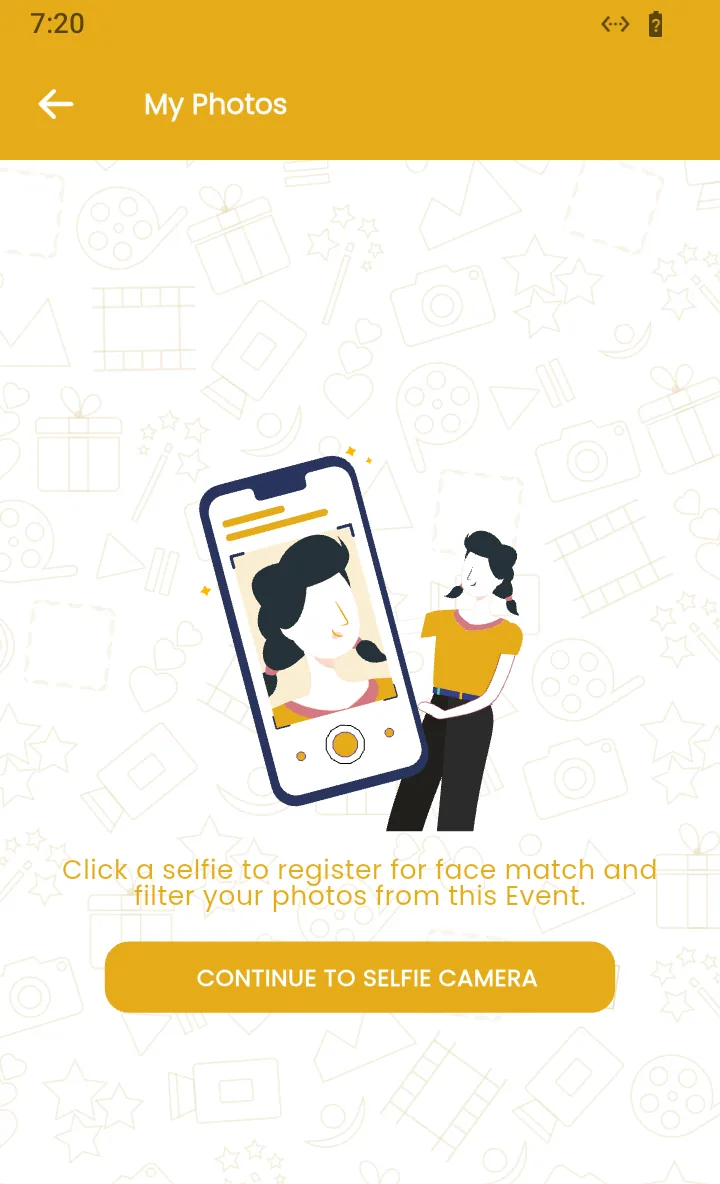
The next screen says Click a selfie to register for face match and filter your photos from this Event. Tap CONTINUE TO SELFIE CAMERA.
If the event needs an account for selfie search, the app asks you to sign in first. See signing in to the app.
Take the selfie
- Allow the app to use your camera when your phone asks.
- Hold the phone at eye level and look at the camera. Use good light, and take off sunglasses or a mask.
- Tap CAPTURE SELFIE. If you are not happy with it, tap Retake Selfie.
When you are signed in, the app may use your phone's own camera instead. Take the photo there and confirm it. The app then shows Selfie uploaded successfully.
See your photos
The app searches the event and opens My Photos with every photo it found you in. You can view, favourite, download and share them like any other photo. See browsing and saving photos.
If something goes wrong, the app tells you what happened:
- No Face Detected or Face search failed: the selfie was not clear enough. Tap TAKE YOUR SELFIE AGAIN in better light. You can also tap Contact Support to reach the team on WhatsApp or email.
- We could not find any of your photos.: the photos you are in may not be uploaded yet. Check again later.
- Face search has ended for this event.: face recognition has expired for this event. You can still browse the albums yourself.
Clear your face data and start again
If the results look wrong, for example after a poor selfie, clear the saved selfie and take a new one:
- On the My Photos screen, tap TroubleShoot at the top right.
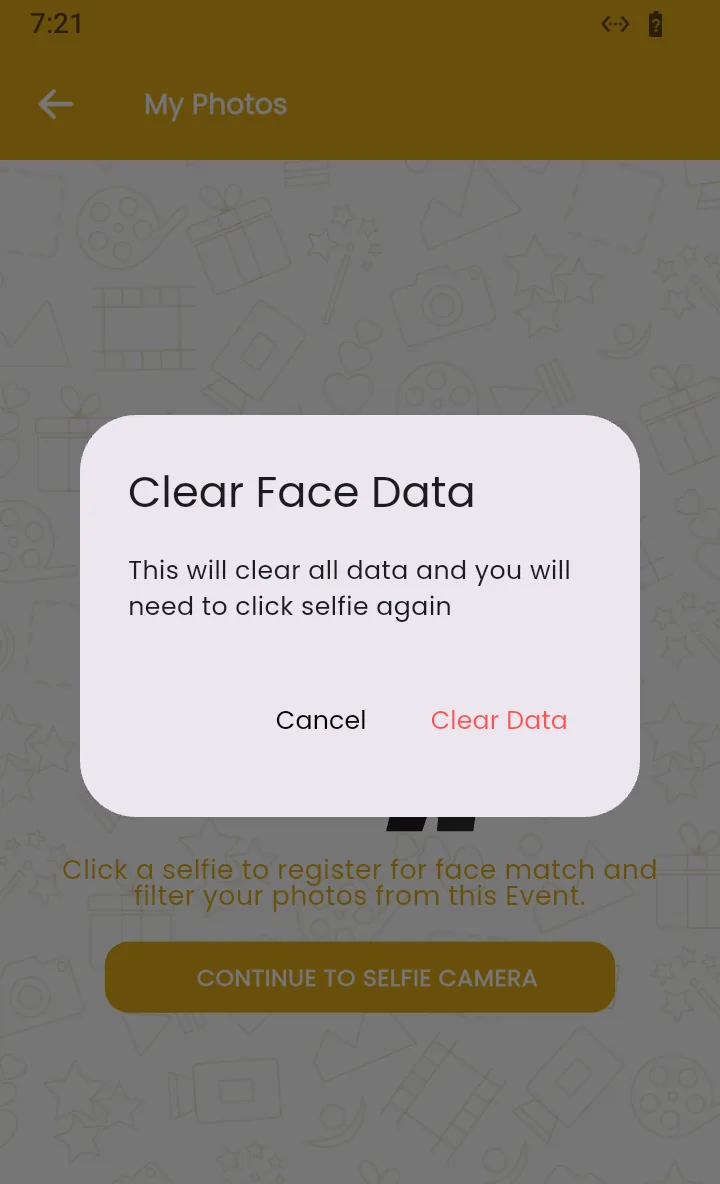
- The app asks Clear Face Data: This will clear all data and you will need to click selfie again. Tap Clear Data.
- Open My Photos again and take a new selfie.
Signed-in guests can also manage their saved selfies from their profile, under My Selfies. To do the same on a computer, see finding your photos with a selfie on the website.
Frequently asked questions
Do I need to sign in to use My Photos?
It depends on the event. Many events let you search with a selfie without an account. If the event needs one, the app asks you to sign in first.
Why did the app find none of my photos?
The photographer may not have uploaded the photos you are in yet, so check again later. If the photos are there, retake your selfie in good light, facing the camera, without sunglasses or a mask.
Can I see my photos in a private event without the PIN?
Yes. My Photos works without the PIN. You see only the photos you are in, not the whole event.
The app says Face search has ended for this event. What does that mean?
Face recognition for this event has expired. You can still open the albums and look for your photos yourself. The photographer can extend face recognition.
Can I use my selfie on the website too?
Yes, when you sign in with the same account in the app and on the website. The selfies you saved show in both. See finding your photos with a selfie on the website.
More Kamero app tutorials
Try it in your dashboard
Sign in to Kamero and follow along. Questions? Raise a support ticket from the dashboard.