How to switch events and read posts in the Kamero app
Photographers: send this page to your guests.
The Kamero app can hold many events, for example a wedding, a school sports day and a graduation. The Events tab is where you add events and move between them. The Posts tab shows news from the studio.
The Events tab
Tap Events at the bottom of the app. The screen is called Switch Event and has three parts.
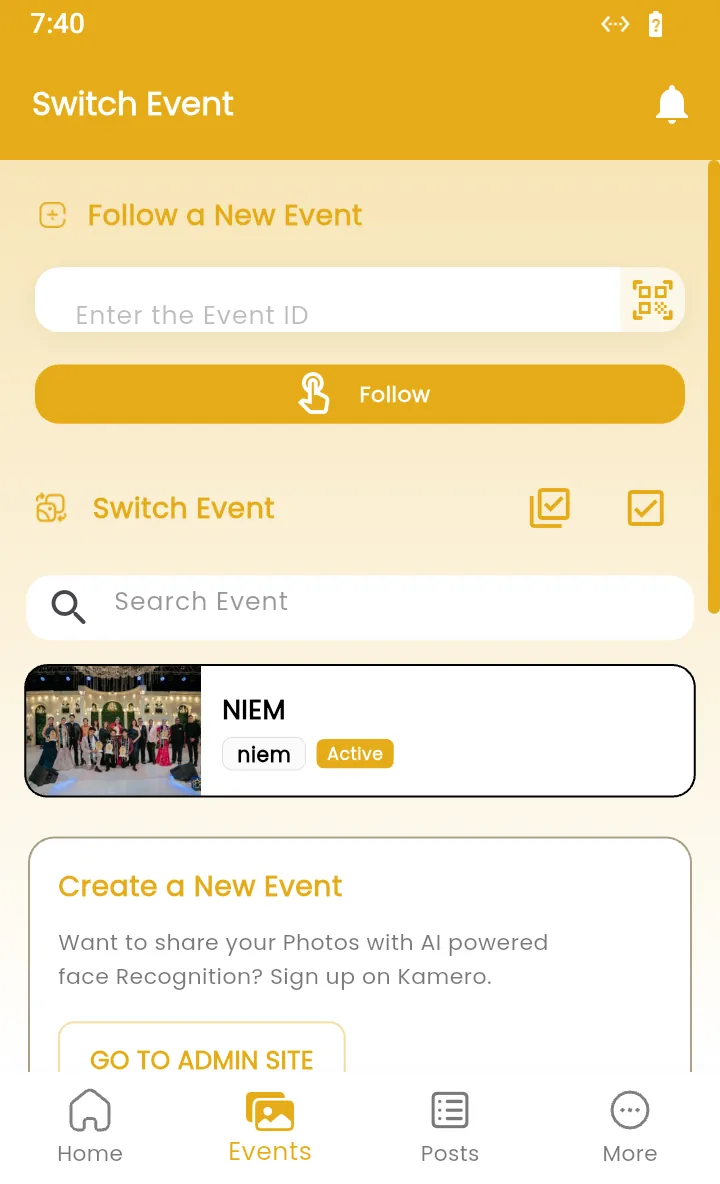
Follow a new event
Type the event ID in Enter the Event ID and tap Follow, or tap the scanner icon to scan the event's QR code. The new event is added to your list and opens. A code that starts with FA- adds all of a studio's events. See following all of a studio's events.
Switch to another event
Under Switch Event, tap any event in the list to open it on the Home tab. Each card shows the event's cover, name and event ID. Use Search Event to find one by name when the list is long.
Unfollow events
- One event: swipe its card to the left and tap Unfollow.
- Several events: tap the checkbox icon next to Switch Event, tick the events, and tap Unfollow. The icon beside it selects every event in the list.
The app asks Are you sure you want to Unfollow this Event. before it removes anything. Unfollowing only removes the event from your app. The photos stay online, and you can follow the event again with its ID.
Create a New Event
This card is for photographers. GO TO ADMIN SITE opens the Kamero dashboard in your browser, where photographers create and manage events. See getting started with the dashboard.
Posts from the studio
The Posts tab shows announcements from the studio, newest first. Each post has a title, the date and time, and some text. Many have a Checkout link that opens a page with more details, such as an offer or a new feature.
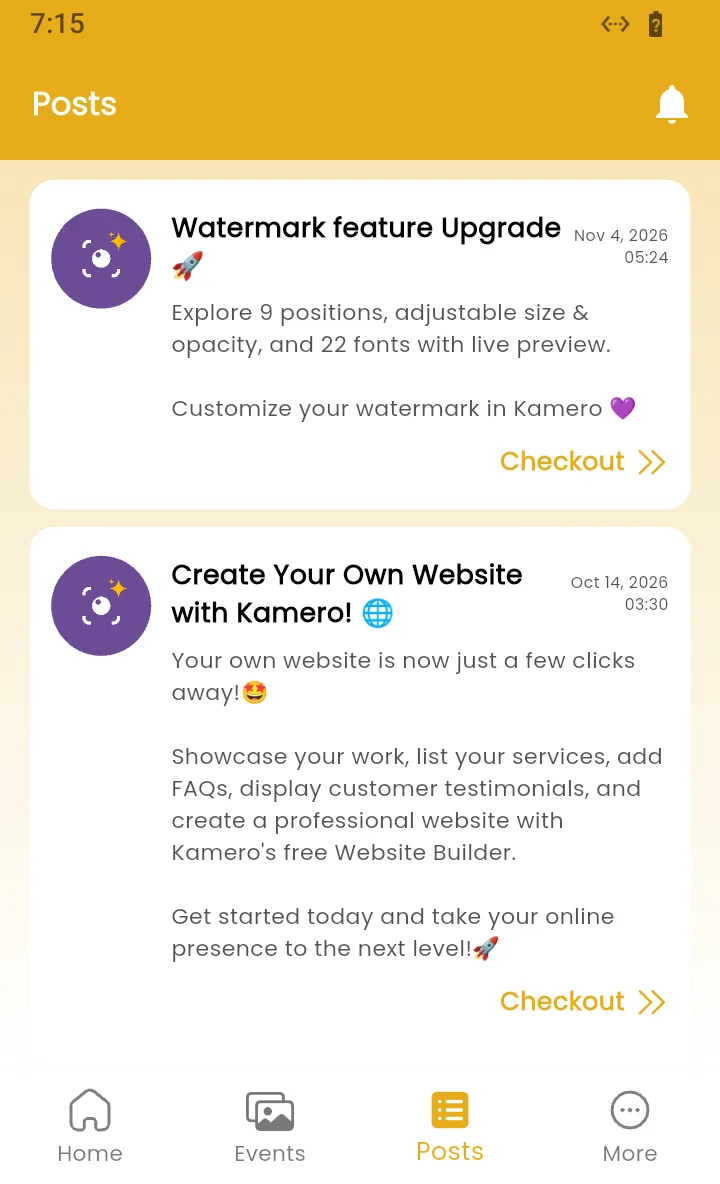
Posts show only in the app. Photographers can read how to write them in posts and announcements.
Notifications
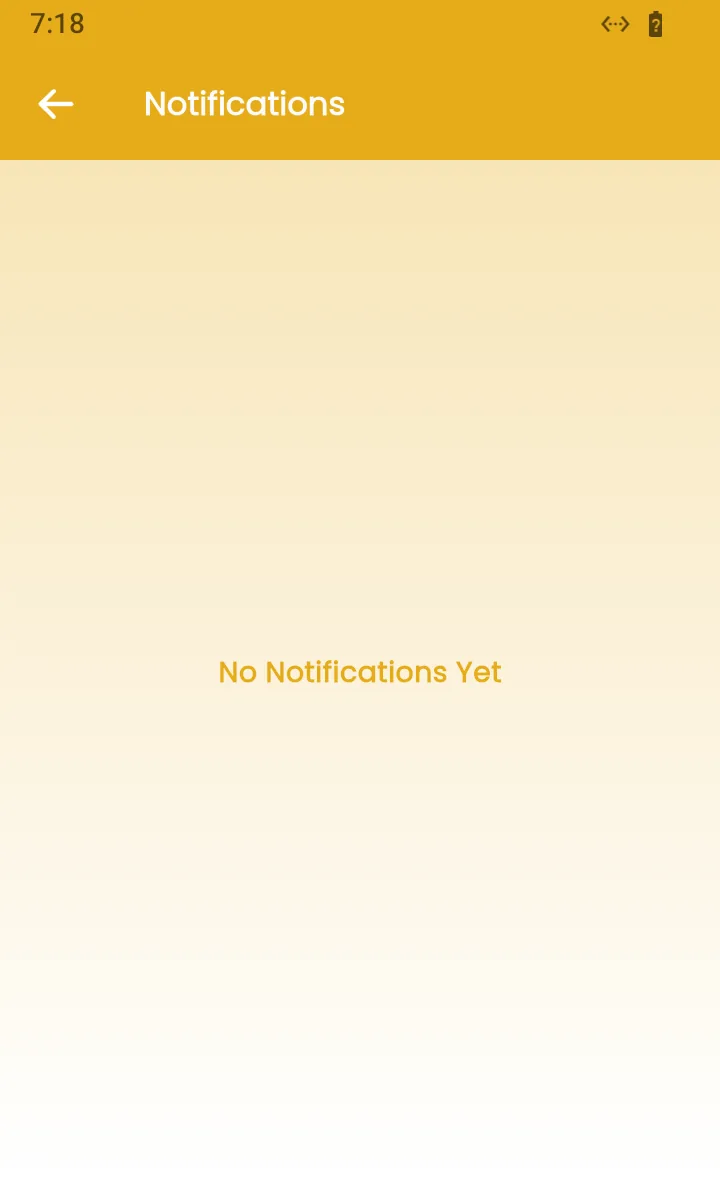
Tap the bell icon at the top right of the Home, Events or Posts tab to see your notifications. Until there are any, the screen says No Notifications Yet.
To stop notifications for one event, turn on Mute Event on the More tab. See the More tab.
Frequently asked questions
How many events can I follow?
There is no limit. Every event you follow shows in the Events tab, and you can search the list by name.
Do posts show on the website too?
No. Posts show only in the app, in the Posts tab.
I am not getting notifications for an event. Why?
Check that the event is not muted on the More tab, and that your phone allows notifications for the Kamero app in its settings.
Can I remove several events at once?
Yes. In the Events tab, tap the checkbox icon, tick the events, and tap Unfollow. The app asks you to confirm first.
More Kamero app tutorials
Try it in your dashboard
Sign in to Kamero and follow along. Questions? Raise a support ticket from the dashboard.