Everything on the Kamero app's More tab
Photographers: send this page to your guests.
Tap More at the bottom of the Kamero app. The More Options screen has your account and the settings for the event you have open.
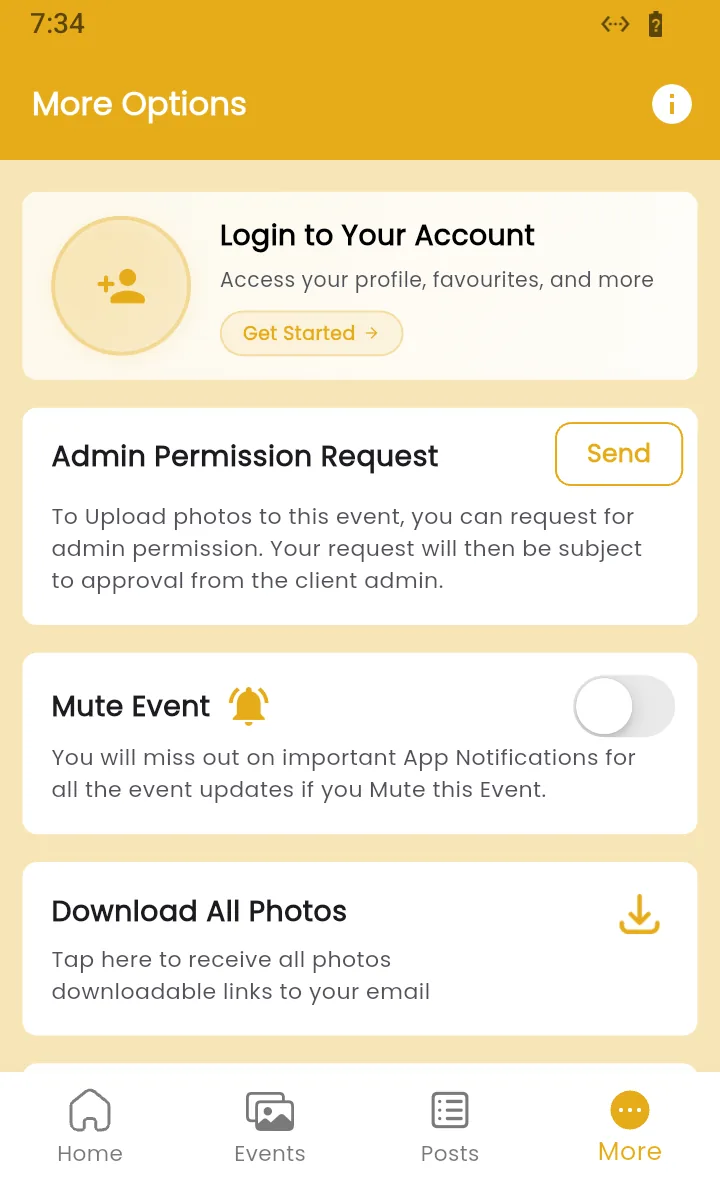
Your account
If you are not signed in, the first card says Login to Your Account. Tap Get Started to sign in or create an account. Once you are signed in, the card shows your name and opens your profile, where you can edit your details and see your selfies. See signing in to the app.
Admin Permission Request
Use this if you want to add your own photos to the event, for example as the family of the couple or a teacher at a school event. Tap Send. If the app does not know you yet, it asks for your name and email first.
The request goes to the event's owner, who approves or rejects it. While it waits, the button shows Sent. Photographers can read how to handle these in event admin requests.
Mute Event
Turn this on to stop app notifications for this event. You keep the event and its photos. Turn it off again to get notifications back.
Download All Photos
Use this to get every photo in the event, instead of saving them one by one. The app emails you a download link.
- Tap Download All Photos.
- In GET DOWNLOAD LINK, type your email and the event's 4-digit PIN. If you already unlocked the event with its PIN, it is filled in.
- Tap Send Link.
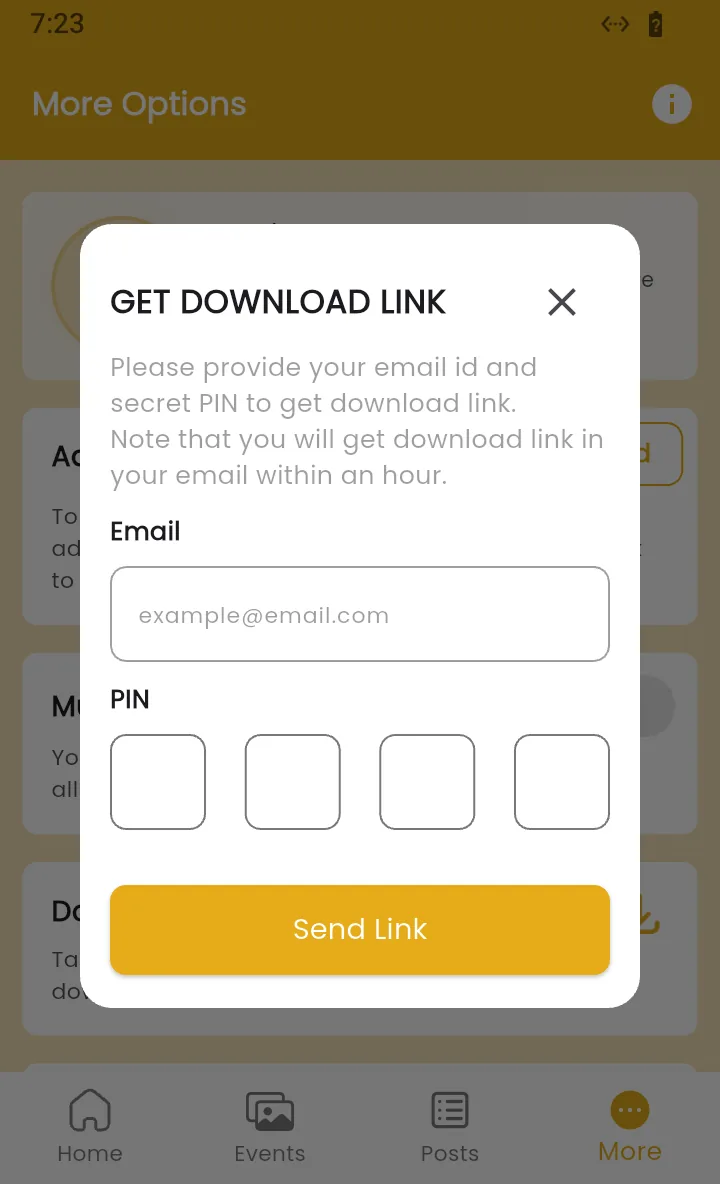
The app confirms that the link will reach you within an hour. The link works for 24 hours, so download the photos as soon as the email arrives. If you get an error, check the PIN with your photographer. If a download is already being prepared for you, wait for that email.
This option is missing when the photographer has turned downloads off. For a few photos, see saving photos from an album.
Unfollow Event
Scroll down to Unfollow Event to remove this event from your app. The app asks Are you sure you want to Unfollow this Event. Tap OK to remove it, or CANCEL to keep it.
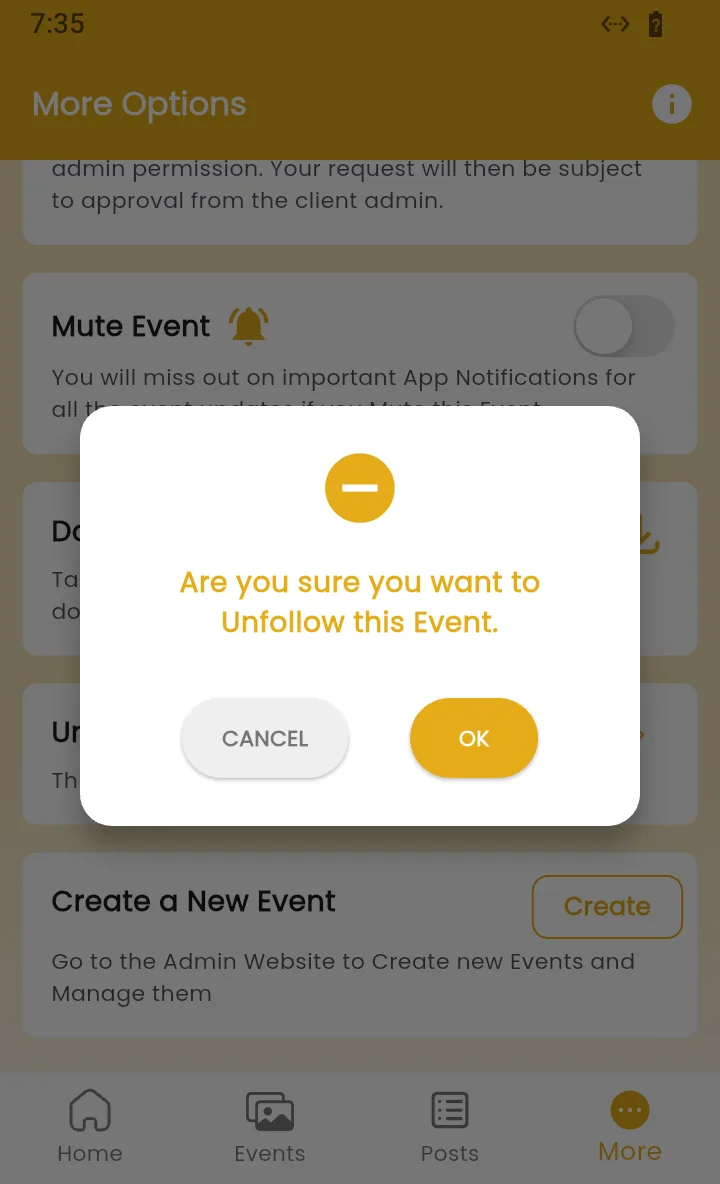
If you follow other events, the app opens the Events tab so you can pick one. If it was your only event, the app goes back to the first screen, where you can enter a new event ID.
Create a New Event
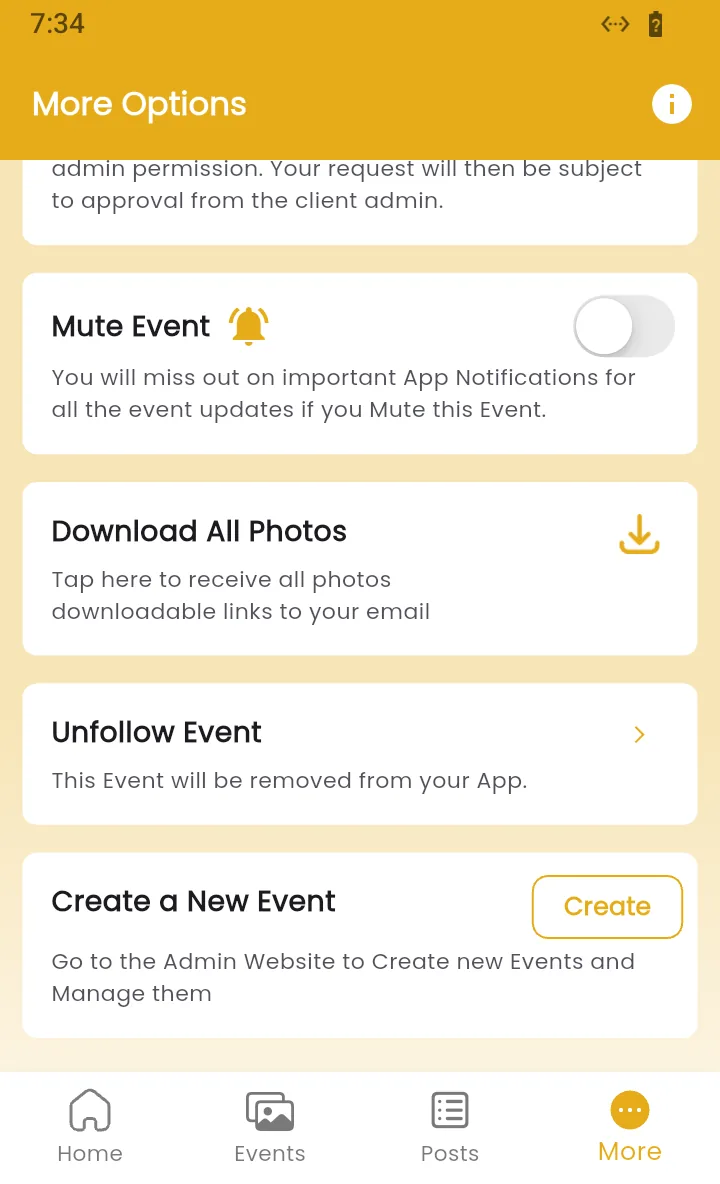
The last card is for photographers. Create opens the Kamero dashboard in your browser. Some branded apps don't show it.
App settings
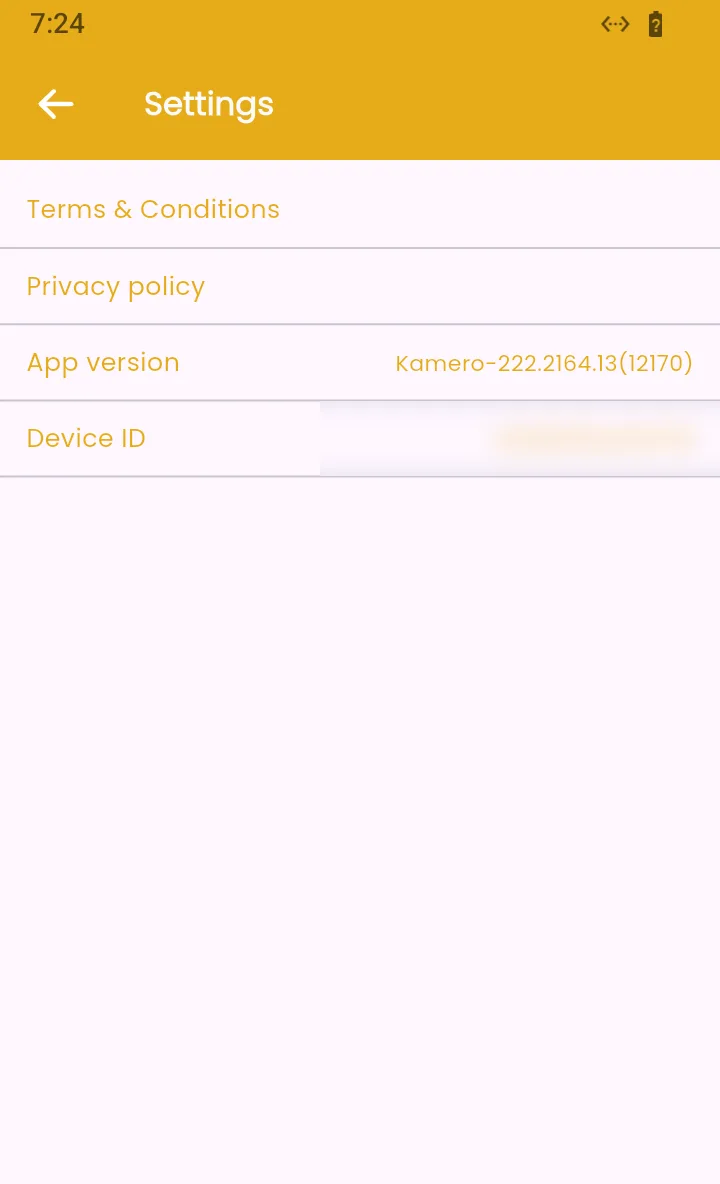
Tap the i icon at the top right of the More tab. The Settings screen has the Terms & Conditions, the Privacy policy, the App version and your Device ID. Tap the app version or device ID to copy it, which helps when you contact support.
When you are signed in, the More tab also has Logout.
Frequently asked questions
Which PIN does Download All Photos ask for?
The event's 4-digit PIN, the same one that unlocks a private event. If you already entered it in the app, it is filled in for you. Ask your photographer if you don't have it.
How long is the download link valid?
24 hours from when you receive it. The email arrives within an hour of your request, so download the photos as soon as it comes.
I asked for admin permission. When can I upload?
When the event's owner approves your request. Until then the button shows Sent. Once approved, you can upload photos to the event from the app.
Does unfollowing delete the event's photos?
No. Unfollow only removes the event from your app. The photos stay online, and you can follow the event again with its event ID.
Why is Download All Photos missing?
The photographer has turned off downloads for this event.
More Kamero app tutorials
Try it in your dashboard
Sign in to Kamero and follow along. Questions? Raise a support ticket from the dashboard.