Event Admin Requests: Let a Guest Upload and Delete Photos in the App
Sometimes another person needs to add photos to your event: a second shooter, an assistant, or the family member who took photos on their phone. In the Kamero app, anyone who has opened the event can ask to become an event admin. You approve or reject the request in your dashboard. An approved admin can then upload and delete photos in that event from the app.
What an event admin can do
- Upload photos into the event's albums from the Kamero app, from their phone's gallery.
- Delete photos in the event, from the album view and the full-screen view in the app.
Approval is for one event only. It is tied to the email the person sent the request with and to their device. An admin cannot open your dashboard, change event settings or see your other events.
How a guest asks
- The guest opens your event in the Kamero app.
- They go to the More screen.
- Under Admin Permission Request they see: "To Upload photos to this event, you can request for admin permission. Your request will then be subject to approval from the client admin."
- They tap Send. If the app does not know their email and name yet, it asks for them first. The button then changes to Sent.
Ask the person to tell you when they have sent it, because the dashboard does not show a count of new requests.
Approve or reject a request
- Sign in to your Kamero dashboard, click Events and open the event.
- Click Admin Request in the top bar.
- The Admin Request dialog lists everyone who asked, with their User Name and Email.
- For a new request, click Approve or Reject. The message "Status Changed Successfully" shows and the row changes to Approved (green) or Rejected (red).
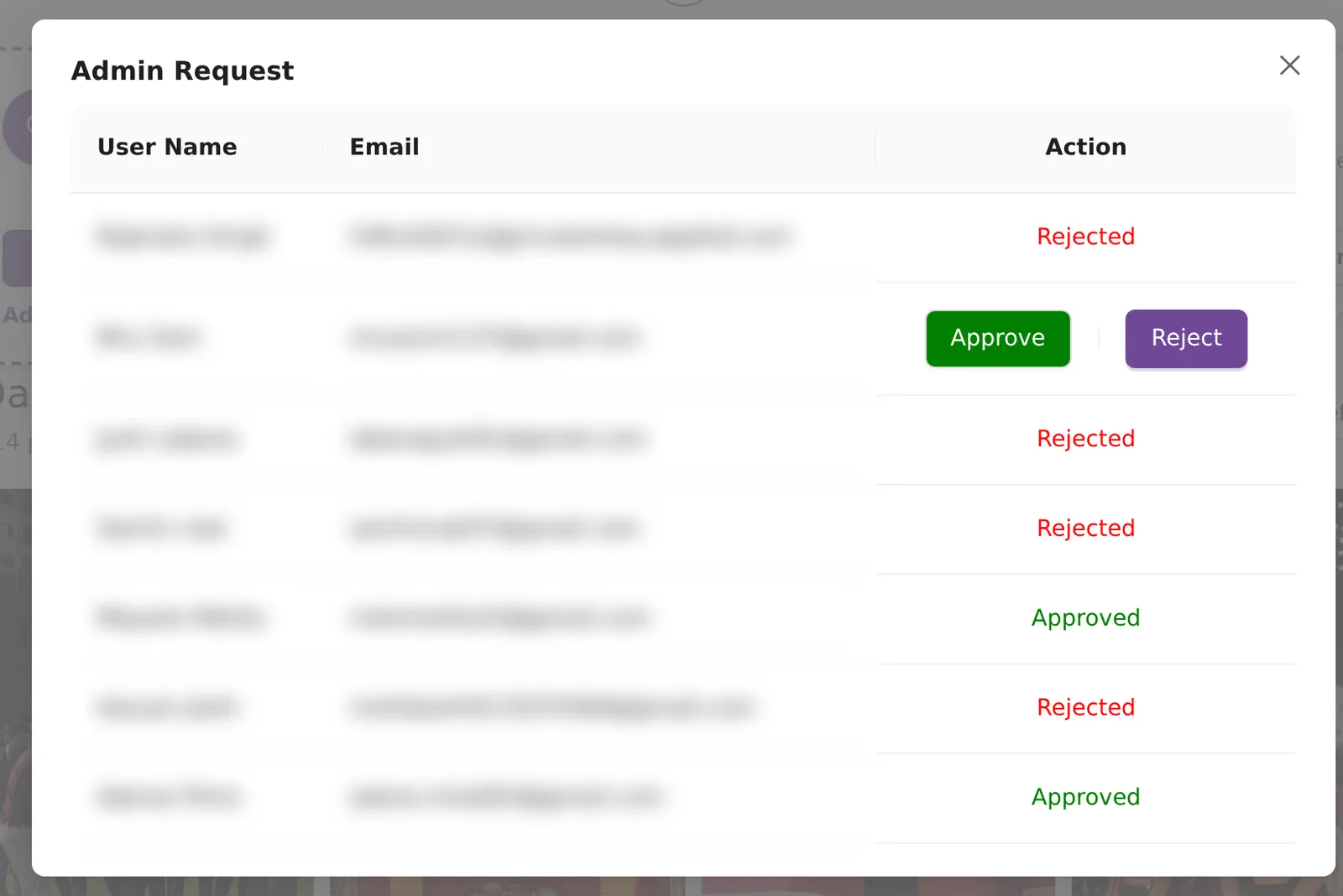
If nobody has asked yet, the dialog says No admin requests.
On a phone
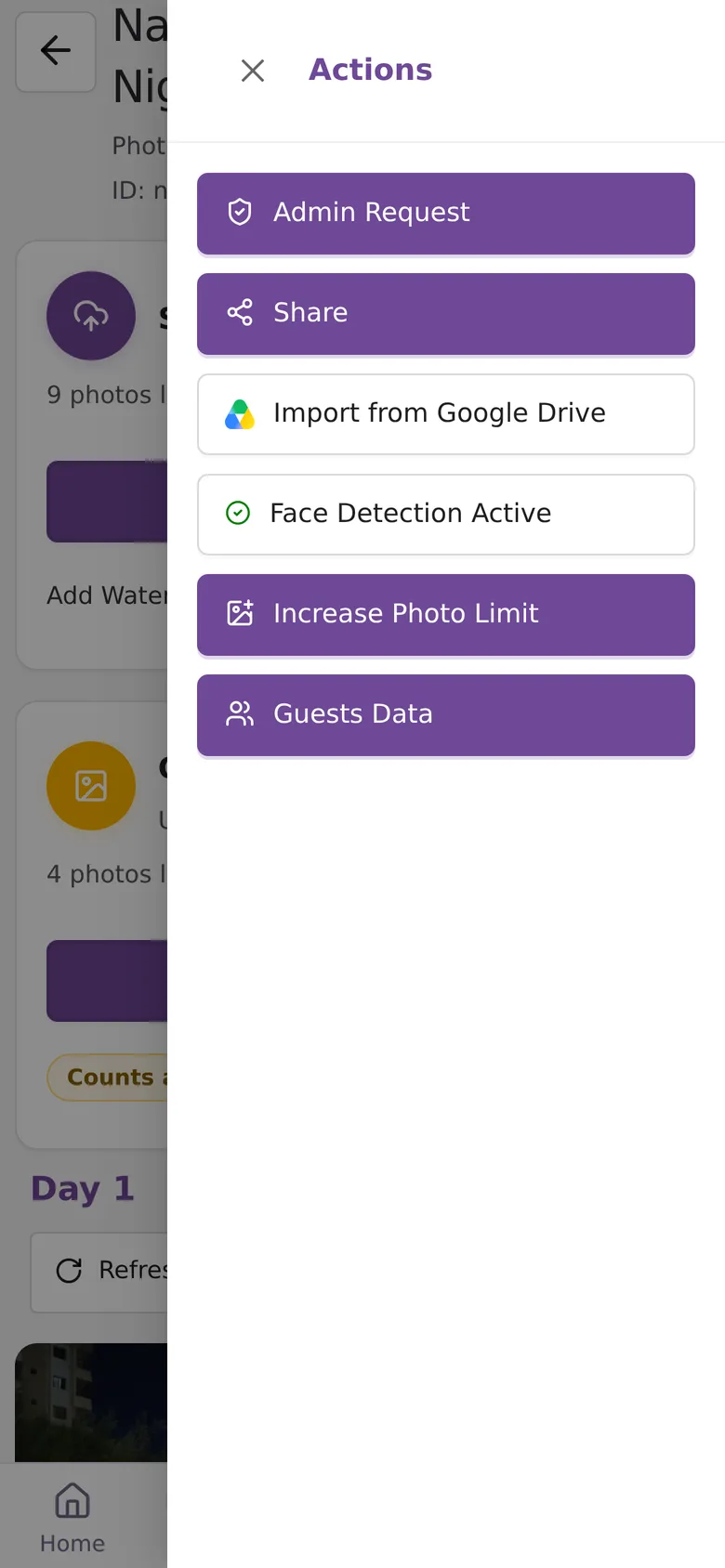
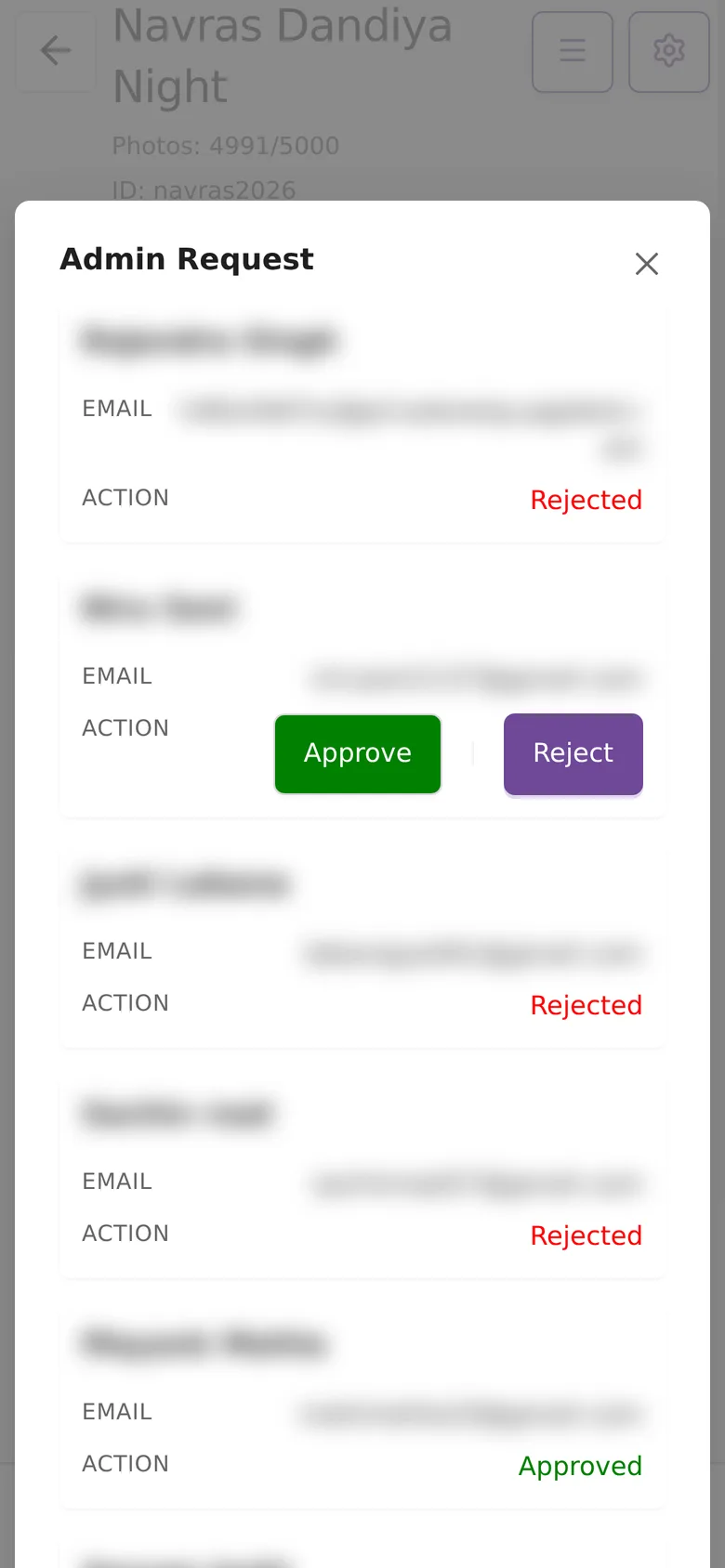
Open the event, tap the menu button next to the settings gear, and tap Admin Request in the Actions drawer. Each request shows as a card with the email and the Approve and Reject buttons.
What changes in the app
Once you approve, the person sees an UPLOAD button in the event's albums and a delete icon in the album and full-screen views of the app. Their photos go into the album they have open when they tap UPLOAD. If you reject the request, nothing changes for them.
To check or tidy what they uploaded, open the album in the dashboard. See organise an event: albums and photos.
Remove an admin
The dashboard cannot remove an admin. Once a row says Approved or Rejected, the Admin Request dialog has no button to change it. To take admin access away, raise a ticket with the event ID and the person's email. See support tickets.
Admins are not event hosts
Event hosts are a different feature. You add hosts yourself on the event's Settings page. Hosts get the renewal reminder emails and can always open the event, but they do not get upload or delete. See Event Hosts in event settings.
Frequently asked questions
Who should I approve as an event admin?
Only people you trust with your photos, such as a second shooter, an assistant or the client's coordinator. An approved admin can upload photos and delete photos in the event from the app.
How do I know a new request has come in?
Open the event and click Admin Request. New requests show Approve and Reject buttons. The button itself does not show a count, so check it when someone tells you they have sent a request.
Can I remove an admin after approving them?
Not from the dashboard. Approved and rejected rows cannot be changed in the Admin Request dialog. Raise a support ticket with the event ID and the person's email, and Kamero support will help.
Does an approved admin get into my dashboard?
No. Admin access works only in the Kamero app, and only for that one event. It does not give access to your dashboard, your other events, your settings or your payments.
Is an event admin the same as an event host?
No. Hosts are added by you on the event's Settings page. They get renewal reminder emails and can always open the event, but they cannot upload or delete photos. Admins ask for access in the app and can upload and delete.
More Events tutorials
Try it in your dashboard
Sign in to Kamero and follow along. Questions? Raise a support ticket from the dashboard.