Kam-Sync: Send Photos From Your Camera Straight to Kamero
Kam-Sync sends photos from your camera to a Kamero event while you shoot. The camera connects to Kamero over FTP using its own Wi-Fi or network port, and each photo lands in the album you chose shortly after you take it. You don't need a laptop, a card reader or a phone app at the event.
You create a Kam-Sync account in the dashboard, type its login into the camera once, and pick the event and album it sends to. This guide covers each step, the camera settings for Sony, Canon, Nikon and Fujifilm, the limits, and what to do when photos don't arrive.
What you need
- A camera with built-in FTP transfer, either through Wi-Fi, a network port or a wireless grip. Most recent pro bodies from Sony, Canon, Nikon and Fujifilm have it.
- An internet connection the camera can join, such as venue Wi-Fi or your phone's hotspot.
- A Kamero event to send photos to. See how to create an event if you don't have one yet.
Kam-Sync is included in your Kamero account. There is no add-on to buy. Photos it uploads count against the event's photo limit, the same as photos you upload from the dashboard.
Open Kam-Sync
- Sign in to your Kamero dashboard.
- Click the Kam-Sync icon in the top menu. It is the Wi-Fi symbol with a lightning bolt. The page opens at
login.kamero.ai/kam-sync.
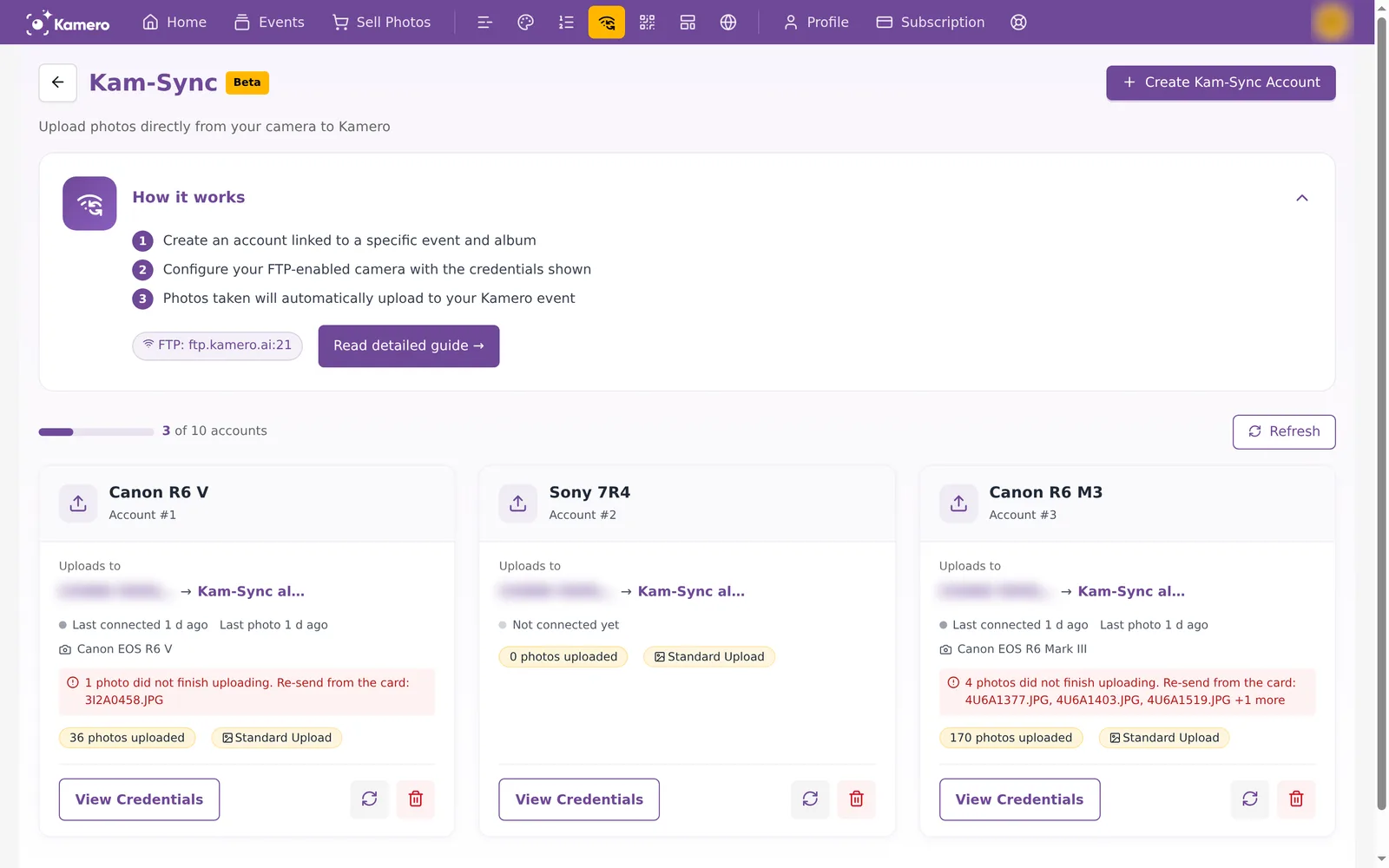
The How it works panel at the top shows the server address, ftp.kamero.ai:21, and a Read detailed guide → button that opens the full list of supported cameras. Below it you see how many accounts you have used, for example 3 of 10 accounts, and a card for each camera. The cards update on their own every minute. Click Refresh to update them now.
Create a Kam-Sync account
Create one account for each camera. If a second shooter joins you, give them their own account so you can see which camera sent what.
- Click Create Kam-Sync Account at the top right.
- In Account Name, type a name that tells you which camera this is, for example Sony A7 IV - Second shooter. It can be up to 50 characters.
- In Event, pick the event the photos should go to.
- In Album, pick where in that event the photos land (see below).
- In Upload Type, pick Standard or Original (see below).
- Click Create Account.
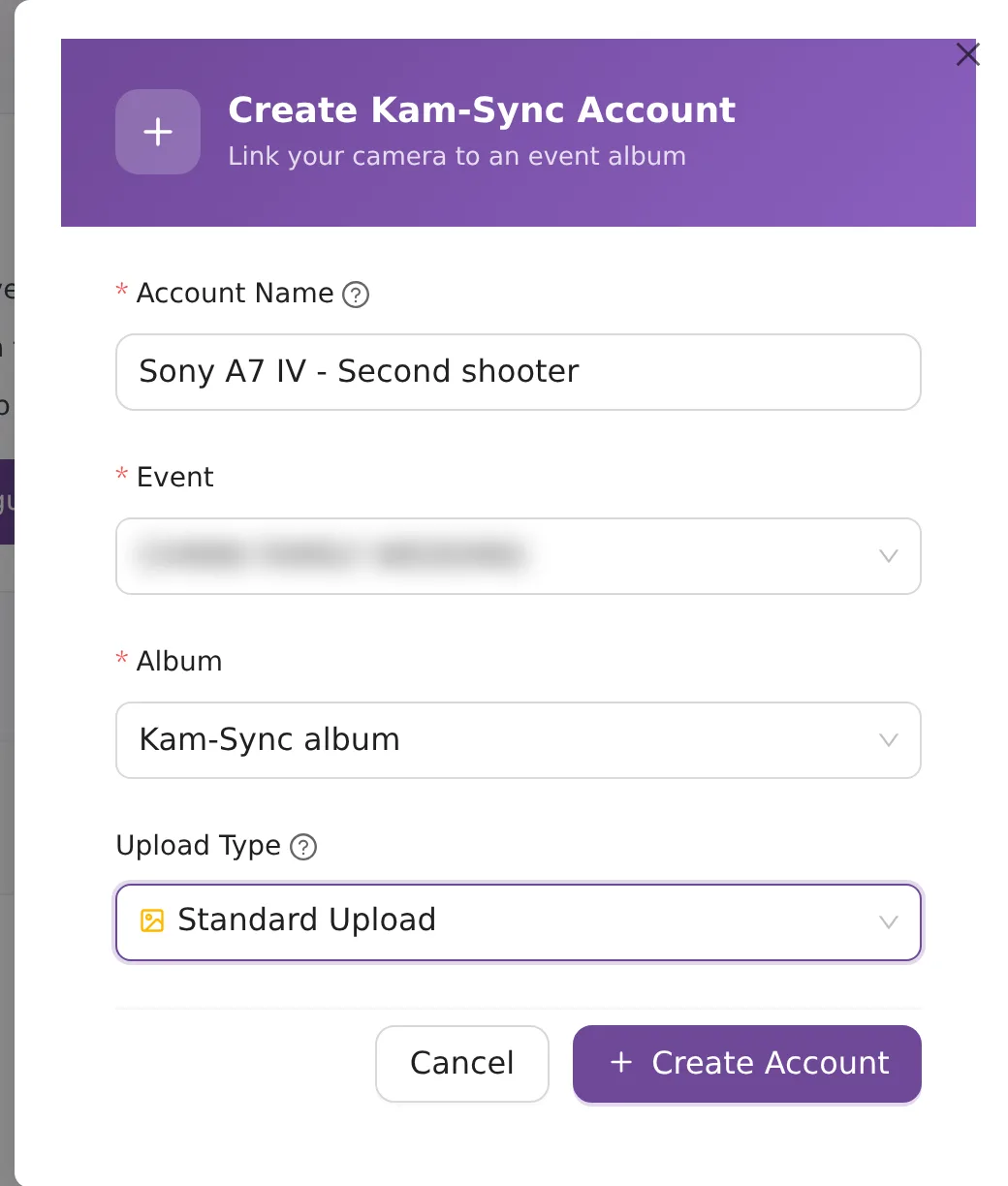
Choose an album
The album list shows the event's albums with one extra choice at the top:
- Kam-Sync album, marked Review first. Guests can't see this album. Use it when you want to check photos before you share them, then move the good ones into a normal album.
- Any other album. Photos go straight into it, and guests see them as soon as they are processed.
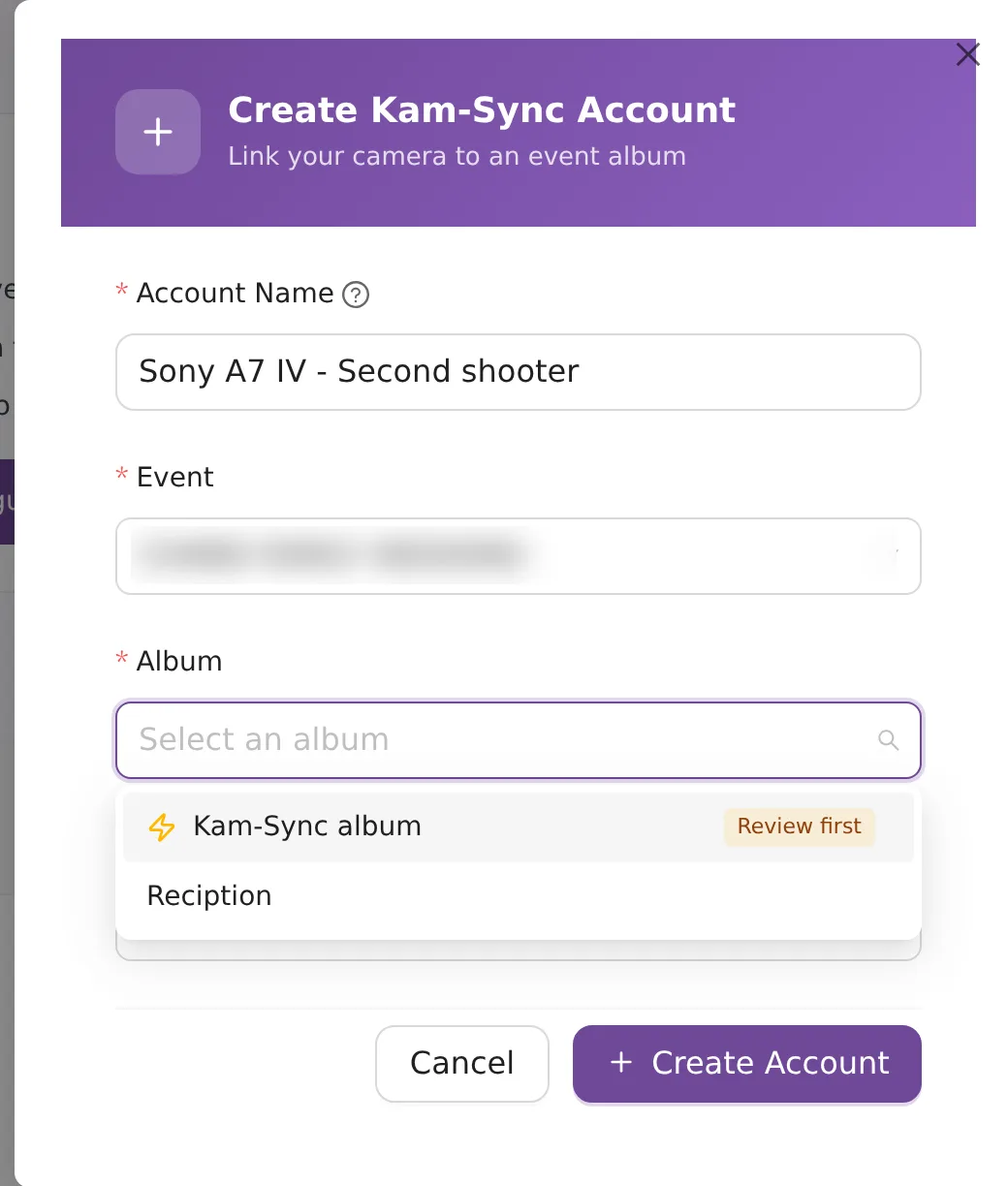
In the event's album list, the Kam-Sync album has a lightning icon. It has no edit or delete buttons because Kamero manages it for you.
Choose an upload type
- Standard Upload counts 1 photo per upload against the event's photo limit.
- Original Upload counts 2 photos per upload and keeps the original file as well.
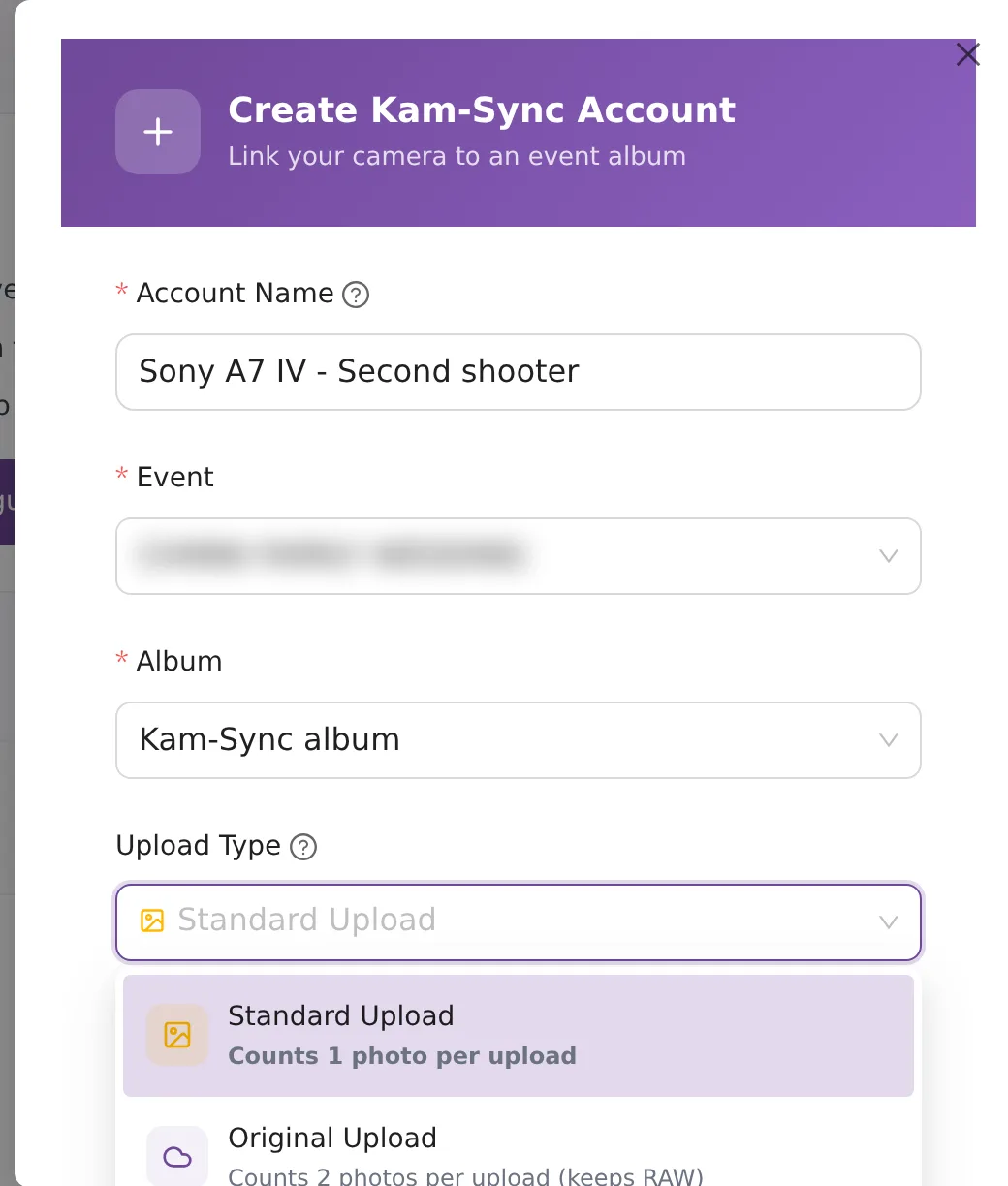
Standard is the right choice for most live events. For more on the two types, see uploading photos from the dashboard.
Find the login details
After you create the account, its details open. You can open them again at any time with View Credentials on the account card.
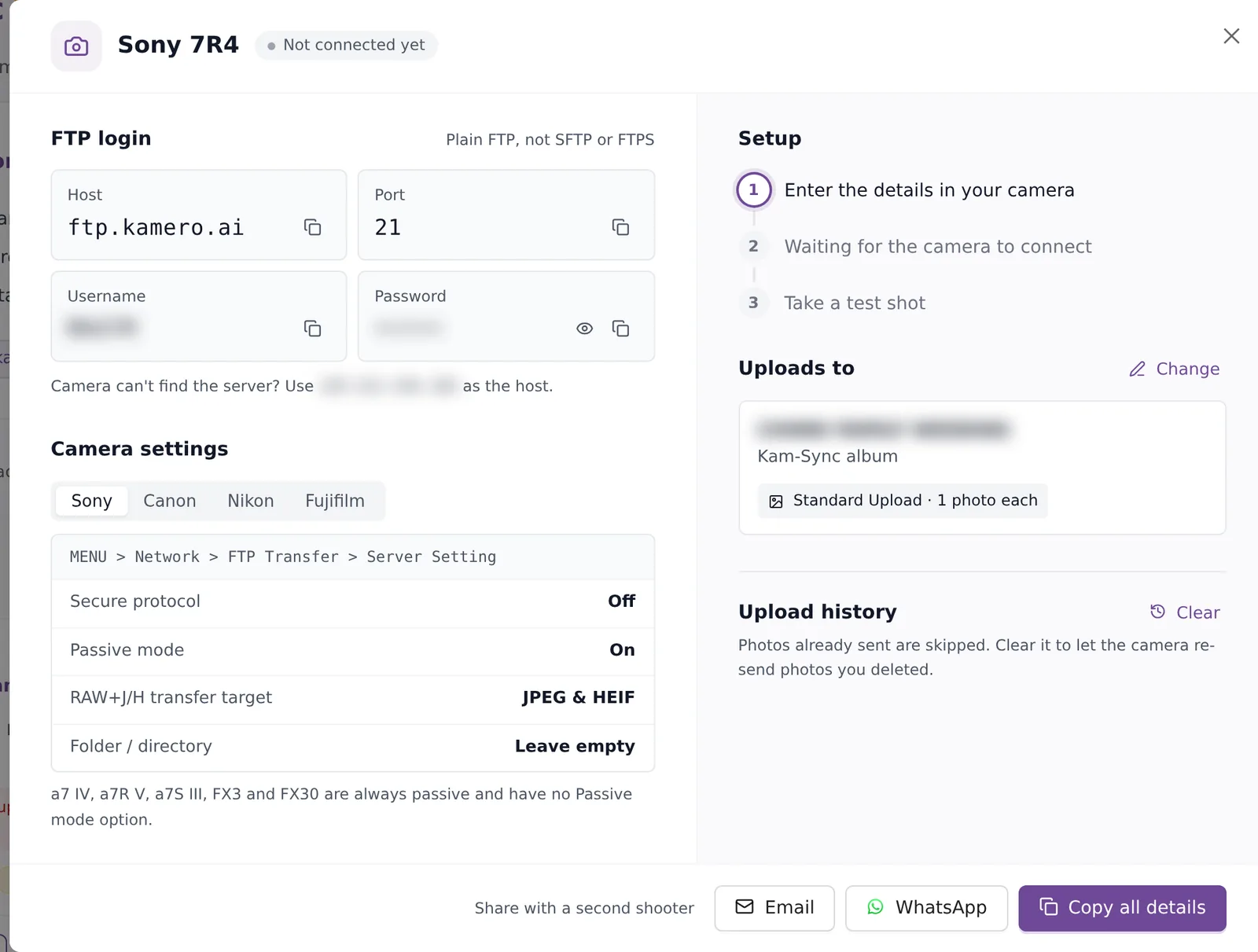
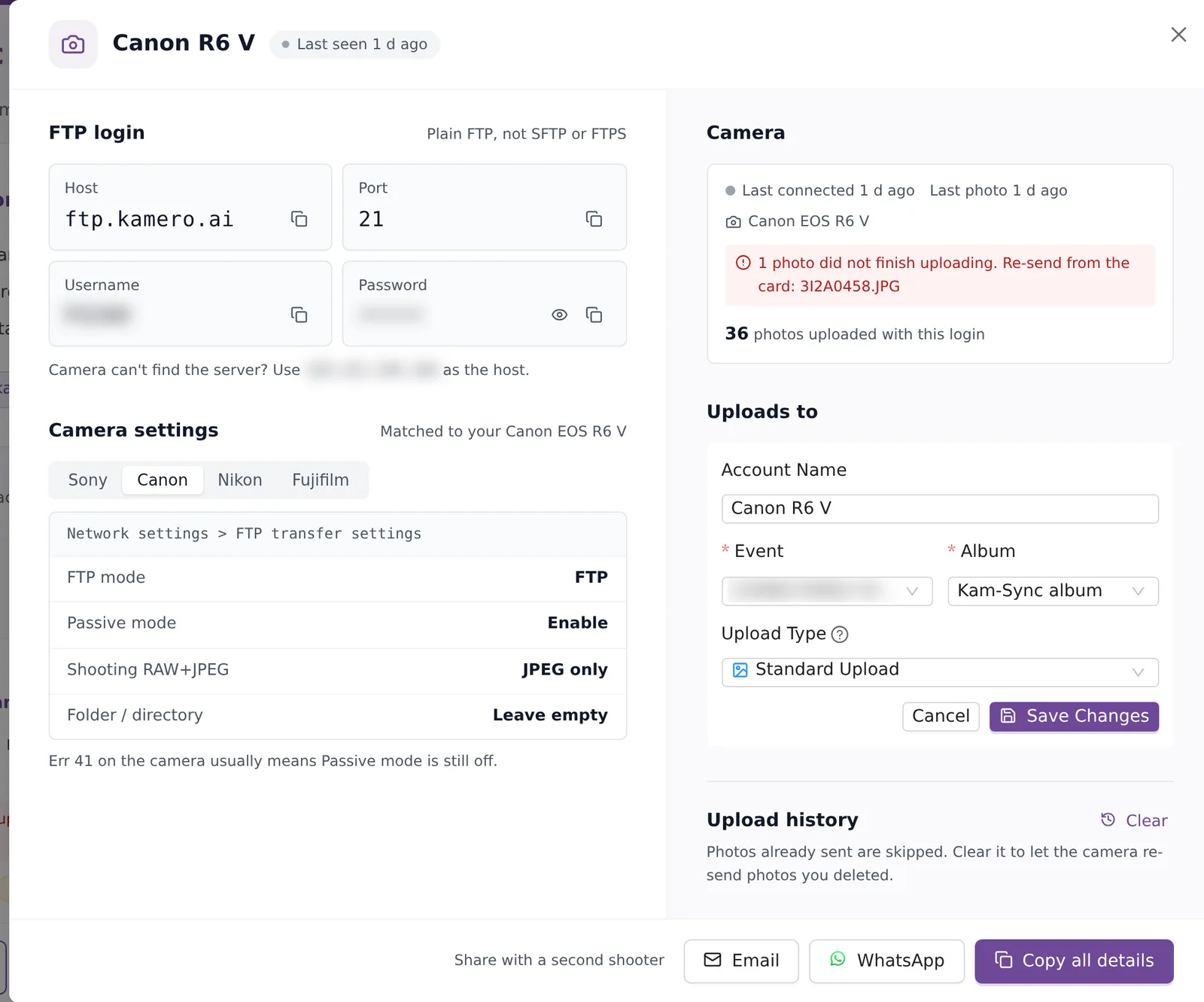
The FTP login box has the four values you type into the camera:
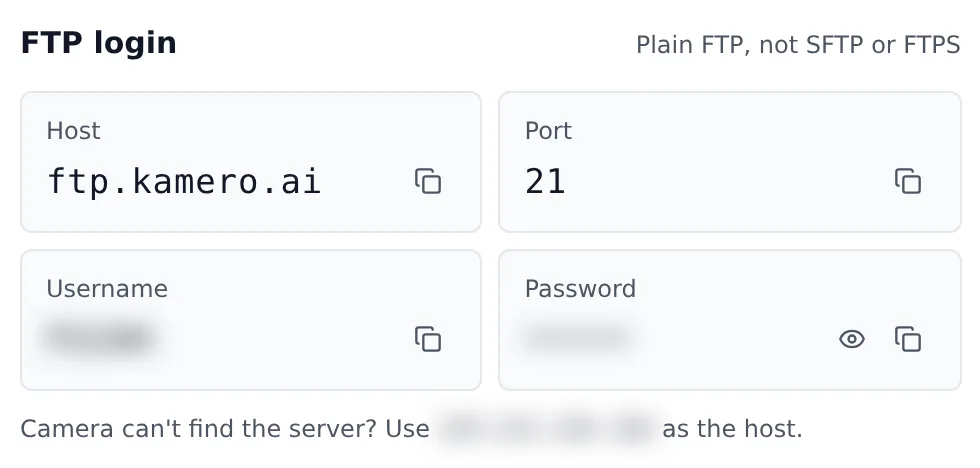
- Host:
ftp.kamero.ai - Port:
21 - Username: 5 characters, made for this account.
- Password: 5 digits. Click the eye icon to see it.
The connection is plain FTP, not SFTP or FTPS. If the camera can't find the server by name, use the IP address shown under the login box as the host instead.
To give the details to a second shooter, use the buttons at the bottom: Email, WhatsApp or Copy all details.
Set up your camera
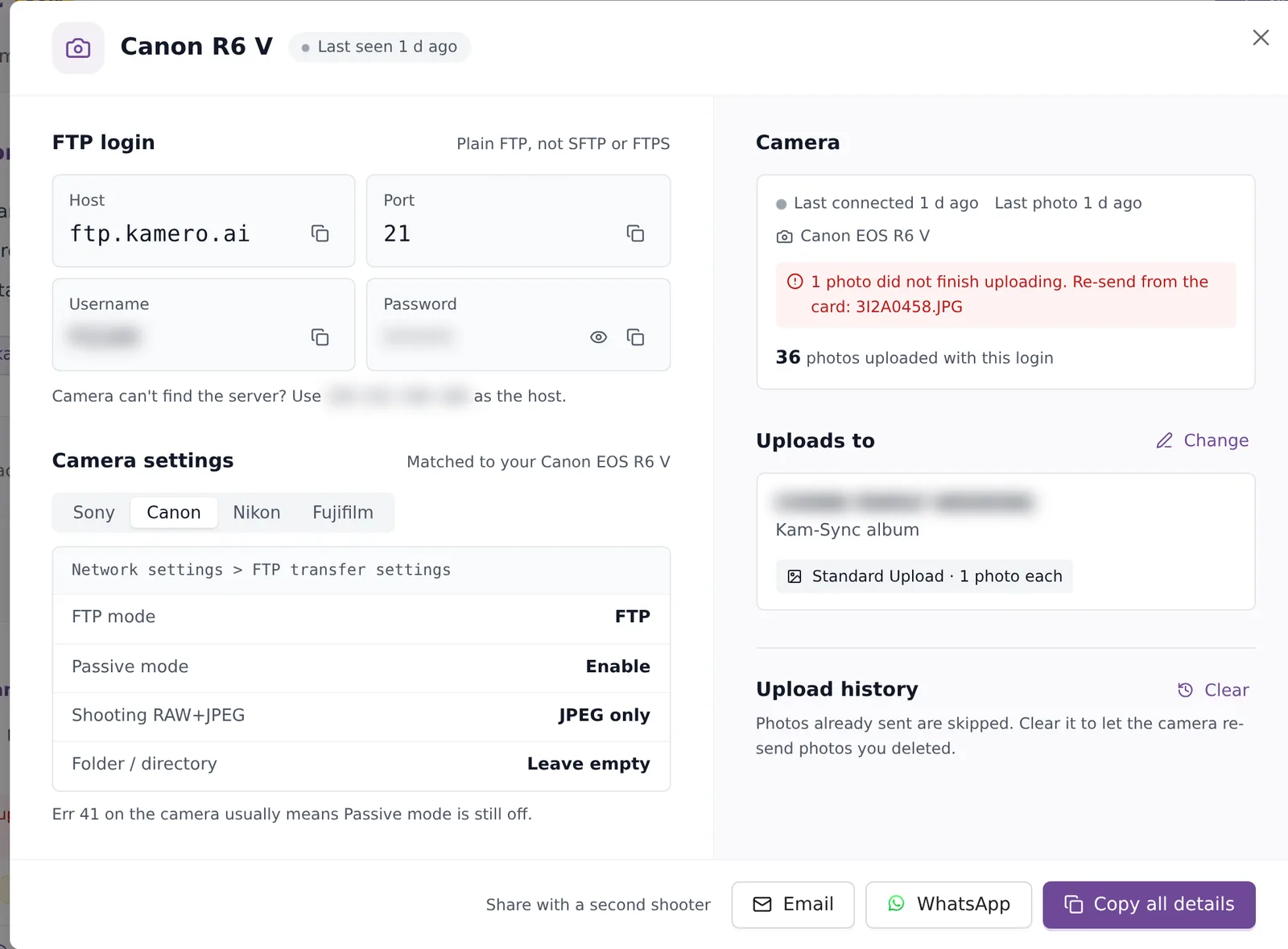
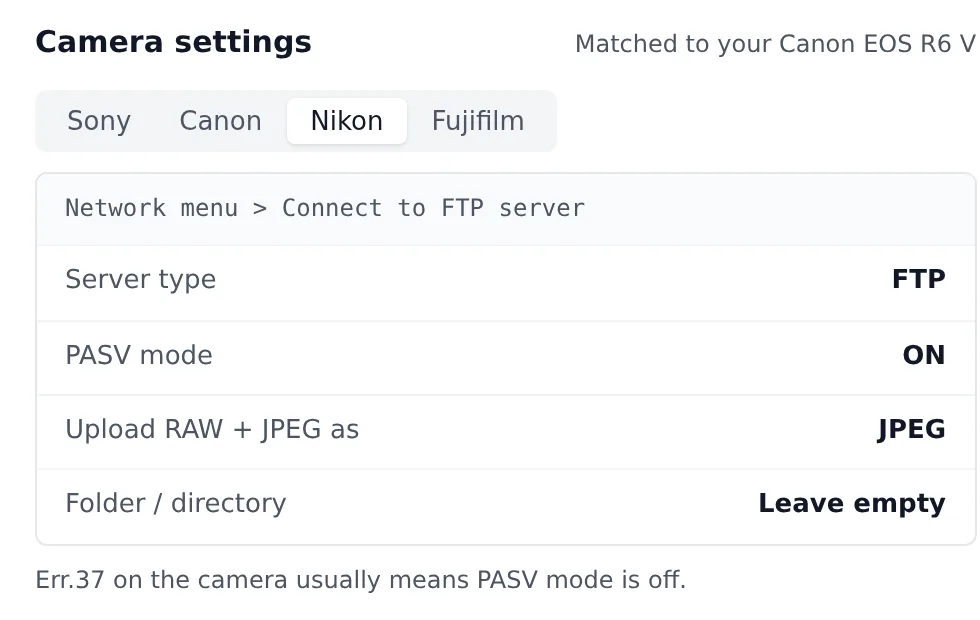
The Camera settings box has a tab for each brand: Sony, Canon, Nikon and Fujifilm. Once the camera has connected, Kamero picks the right tab for you and shows a line such as Matched to your Canon EOS R6 V. The grey bar at the top of each tab is the menu path on the camera. For every brand, leave the Folder / directory field empty.
Sony
Go to MENU > Network > FTP Transfer > Server Setting.
- Secure protocol: Off
- Passive mode: On. The a7 IV, a7R V, a7S III, FX3 and FX30 always use passive mode and don't show this option.
- RAW+J/H transfer target: JPEG & HEIF
Canon
Go to Network settings > FTP transfer settings.
- FTP mode: FTP
- Passive mode: Enable
- Shooting RAW+JPEG: JPEG only
Nikon
Go to Network menu > Connect to FTP server.
- Server type: FTP
- PASV mode: ON
- Upload RAW + JPEG as: JPEG
Fujifilm
Go to Network/USB setting > FTP.
- FTP server type: FTP
- PASV mode: Enable
- File type: JPEG
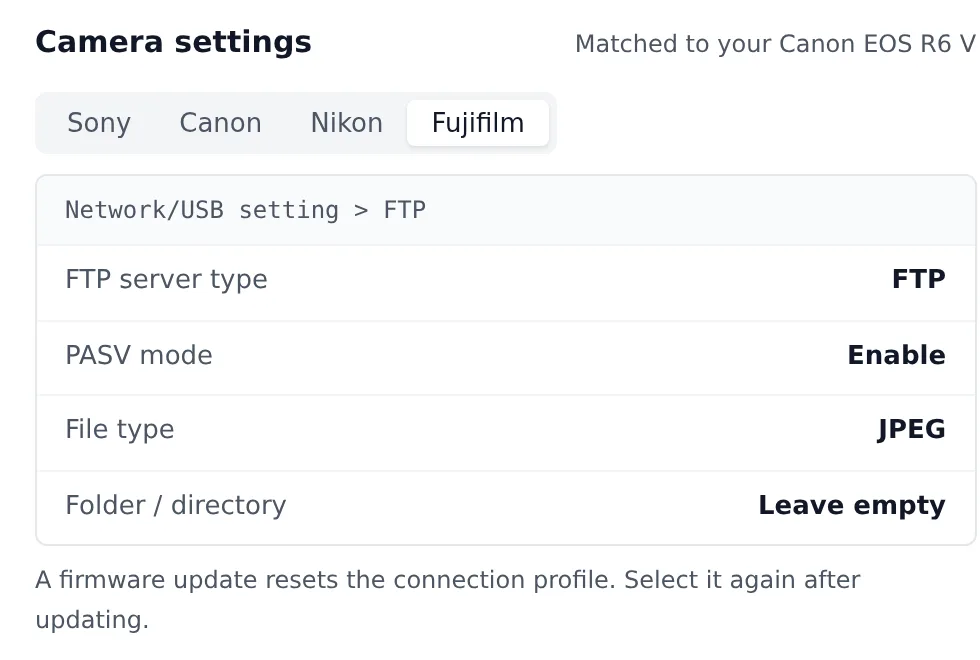
A Fujifilm firmware update resets the connection profile. Select it again after you update.
Supported models include the Canon EOS R1, R3, R5, R5 Mark II, R6, R6 Mark II, R6 Mark III and 1D X Mark III; the Nikon Z9, Z8, Z6III, Zf and D6, plus the Z6II, Z7II and D850 with a WT-7; the Sony Alpha 1, Alpha 1 II, 9 III, 7 IV, 7R V, 7S III, 7C II, FX3 and FX30; and the Fujifilm GFX100 II, GFX100S II and X-H2 or X-H2S with the FT-XH grip. Read detailed guide → on the Kam-Sync page has the full list.
Send a test shot
Do this before the event starts, on the same network you will use at the venue. The Setup steps on the right of the details screen move forward as Kamero hears from the camera:
- Enter the details in your camera.
- Waiting for the camera to connect. This step completes when the camera logs in.
- Take a test shot. The screen shows Waiting for the first photo until one arrives.
Once the first photo arrives, the steps are replaced by a Camera box. It shows when the camera last connected, when the last photo came in, the camera model, and how many photos this login has uploaded. The label next to the account name tells you the state at a glance:
- Connected now: the camera is online.
- Last seen with a time: the camera connected before but isn't online now.
- Not connected yet: the camera has never logged in with these details.
- Connected · needs a fix: the camera is online but something is stopping photos. A red tip explains what to change.
How photos arrive
- Each photo goes into the album you picked as soon as the camera sends it and Kamero has processed it.
- Kam-Sync takes JPEG and HEIF photos up to 100 MB each. RAW files are refused and videos are skipped.
- Folders on the camera card don't become albums. Everything from one account goes to one album.
- Kam-Sync remembers what each camera has sent, so re-sending a whole card only adds the photos that are missing.
- When the event reaches its photo limit, new photos are refused. Raise the limit with more photos for the event or a bigger plan from subscription plans.
If a photo starts but doesn't finish, the account card shows a red tip such as 1 photo did not finish uploading. Re-send from the card, with the file names. Re-send those files from the camera.
Change the event or album
You can point an existing account at a new event without touching the camera. This is useful when you use the same camera at a new event every weekend.
- Click View Credentials on the account card.
- Next to Uploads to, click Change.
- Edit the Account Name, Event, Album or Upload Type.
- Click Save Changes.
Let the camera re-send deleted photos
Kam-Sync skips photos a camera has already sent, even if you deleted them from the album later. To bring them back:
- Open the account with View Credentials.
- Under Upload history, click Clear.
- Click Clear history to confirm.
- Wait about a minute, then re-send the photos from the camera.
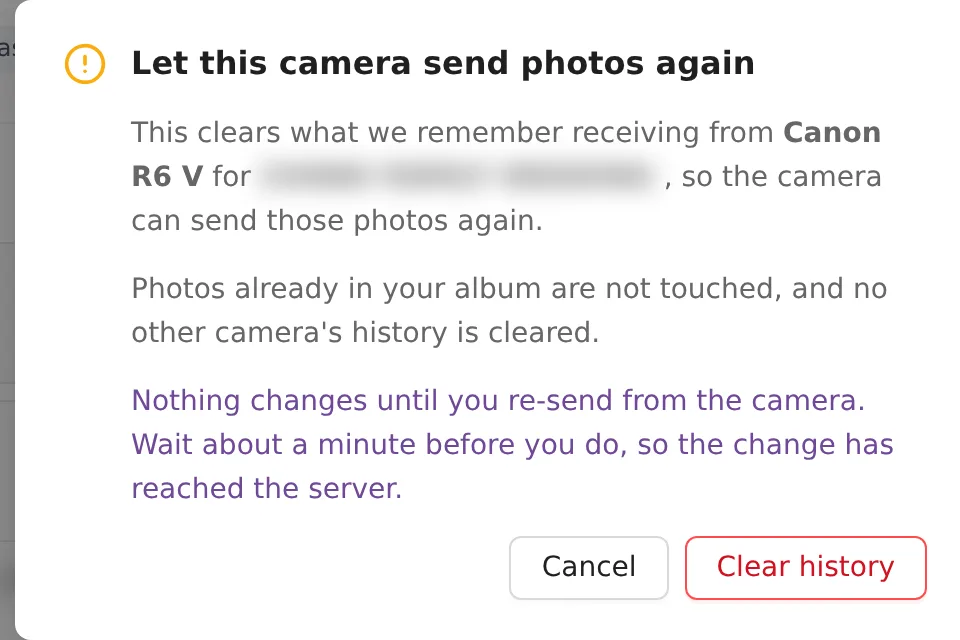
Photos already in your album stay where they are, and other cameras keep their history. Nothing is uploaded until you re-send from the camera.
New password or delete an account
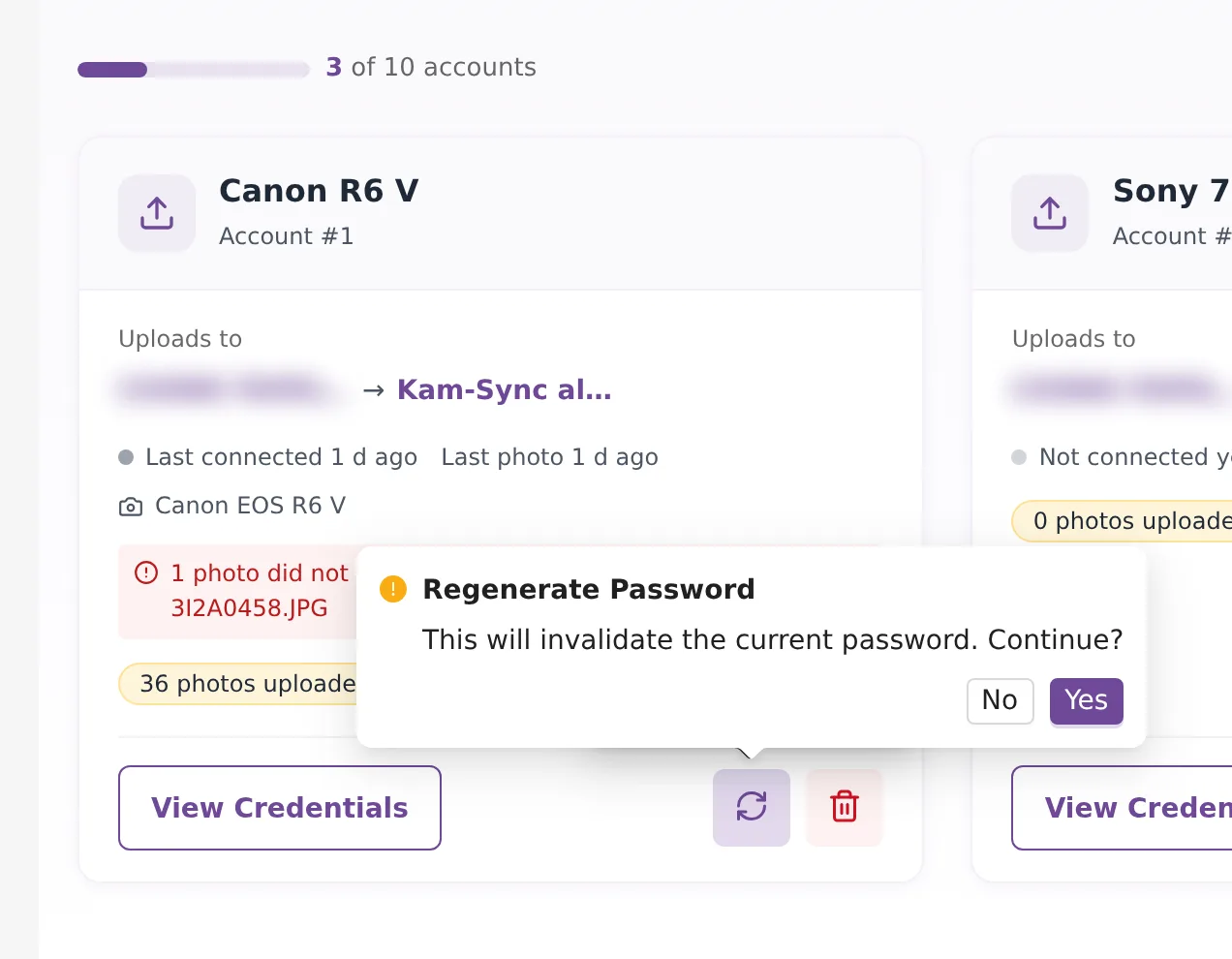
Each account card has two icon buttons next to View Credentials.
- The arrows icon makes a new password. Click Yes to confirm. The old password stops working straight away, so enter the new one in the camera.
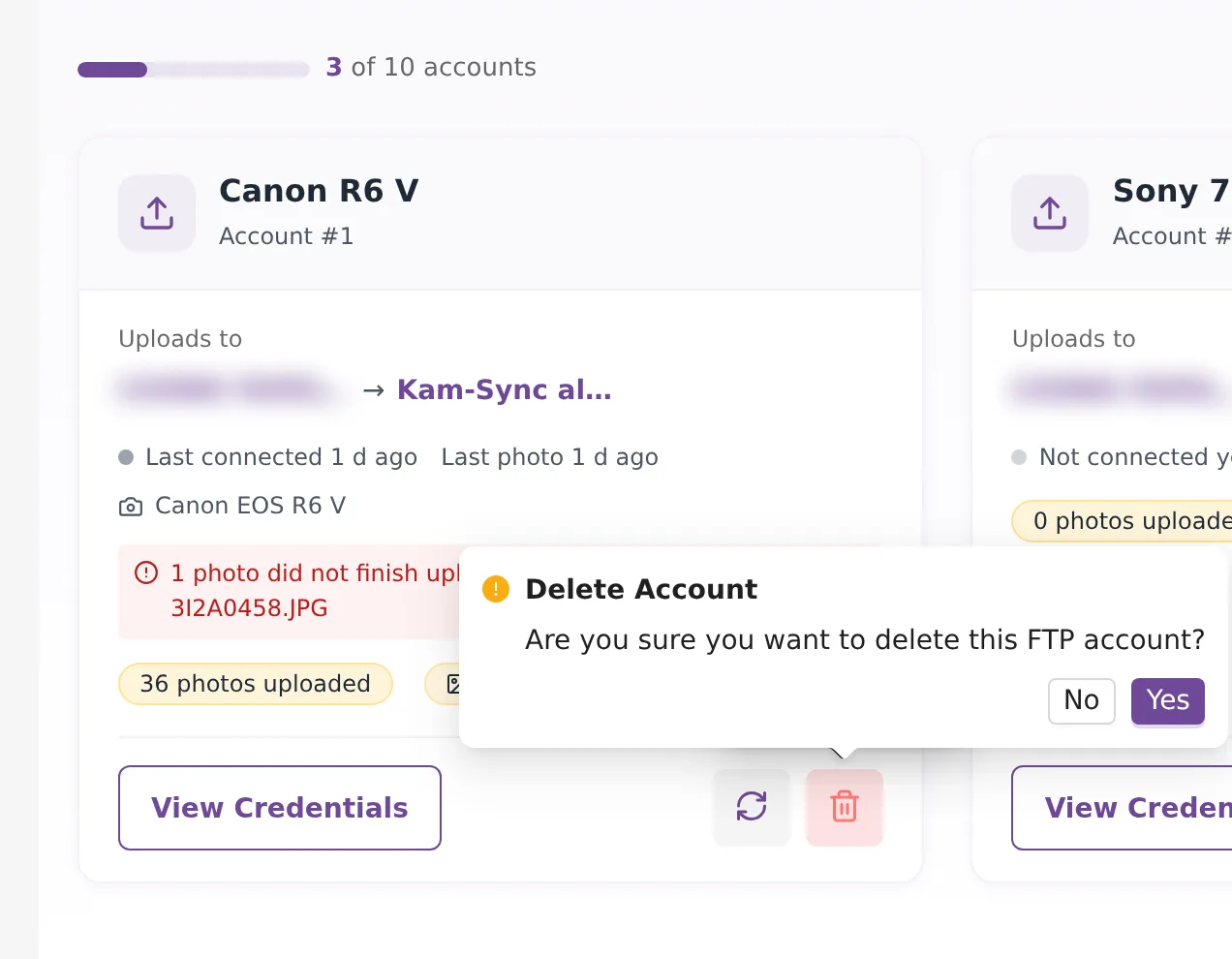
- The bin icon deletes the account. Click Yes to confirm. The camera can't connect any more, but photos it already sent stay in the event.
When photos don't arrive
Look at the account card first. It often names the problem. If it doesn't, check these:
- The camera can't connect. Passive mode is usually off. On Canon this shows as Err 41, on Nikon as Err.37, and on Sony as Failed to connect to an FTP server. Turn passive mode on.
- Certificate or secure connection errors. The camera is set to FTPS. Nikon shows Err.61 to Err.65, Canon shows Err 48 and Fujifilm shows CA ROOT CERTIFICATE IS INVALID. Set the server type or secure protocol to plain FTP.
- The camera connects but the transfer is refused. Canon Err 46, Nikon Err.35, Sony Cannot transfer to the FTP server and Fujifilm CANNOT TRANSFER OR SAVE FILES TO FTP SERVER mean the file was refused. Either the camera is sending RAW files, so set it to send JPEG, or the event is at its photo limit.
- Login fails. Check the username and password, and that you didn't make a new password since you set up the camera.
- The folder field has text in it. Some cameras copy the server name into the folder field. The details screen marks it in red with Yours has the server name in it. Clear the field.
- Venue Wi-Fi with a sign-in page. Cameras can't get past a Wi-Fi sign-in page. Connect the camera to your phone's hotspot instead.
- The camera connects but sends nothing. If no photo arrives within 15 minutes of connecting, turn on automatic transfer in the camera's FTP menu.
- The connection drops now and then. Power saving on the camera can drop Wi-Fi. The camera reconnects on its own, and Kam-Sync skips anything it already received.
If you are still stuck, open a ticket from support tickets and include the account name and the error the camera shows.
Frequently asked questions
Does Kam-Sync cost extra?
No. Kam-Sync is part of your Kamero account and there is nothing separate to buy. Photos that arrive through Kam-Sync count against the event's photo limit like any other upload: a Standard Upload counts 1 photo and an Original Upload counts 2.
How many cameras can I connect?
You can create up to 10 Kam-Sync accounts. Each account is one FTP login, so give every camera or second shooter its own account. Several accounts can send to the same event.
Can Kam-Sync upload RAW files or videos?
No. Kam-Sync takes JPEG and HEIF photos. RAW files are refused and videos are skipped. If you shoot RAW+JPEG, set the camera to send only the JPEG. The camera settings in the dashboard show where that option is for each brand.
Will guests see photos as soon as they arrive?
Only if you send them to a normal album. The Kam-Sync album is hidden from guests and marked Review first, so you can check the photos before you share them. Pick a normal album when you want photos to appear in the gallery straight away.
What happens if the camera sends the same photo twice?
Kam-Sync remembers what each camera has sent and skips copies, so re-sending a card is safe. Photos you deleted from the album are skipped too. Use Clear on the Upload history to let the camera send them again.
Is the FTP connection encrypted?
No. Kam-Sync uses plain FTP because that is what cameras support most reliably, so the password travels without encryption. If you think someone saw your password, regenerate it from the account card and enter the new one in the camera.
More Uploads & Kam-Sync tutorials
Try it in your dashboard
Sign in to Kamero and follow along. Questions? Raise a support ticket from the dashboard.