How to Upload Photos From the Kamero Web Dashboard
You can upload photos to an event straight from your browser at login.kamero.ai, or import a whole folder from Google Drive. This guide covers both, and when the desktop app or Kam-Sync is the better choice.
You need an event first. If you don't have one yet, see Create an event.
1. Pick the album
Open the event from Events. The albums are listed on the left. Click the album the photos belong in. Its name shows above the photo grid, and every upload goes into that album.
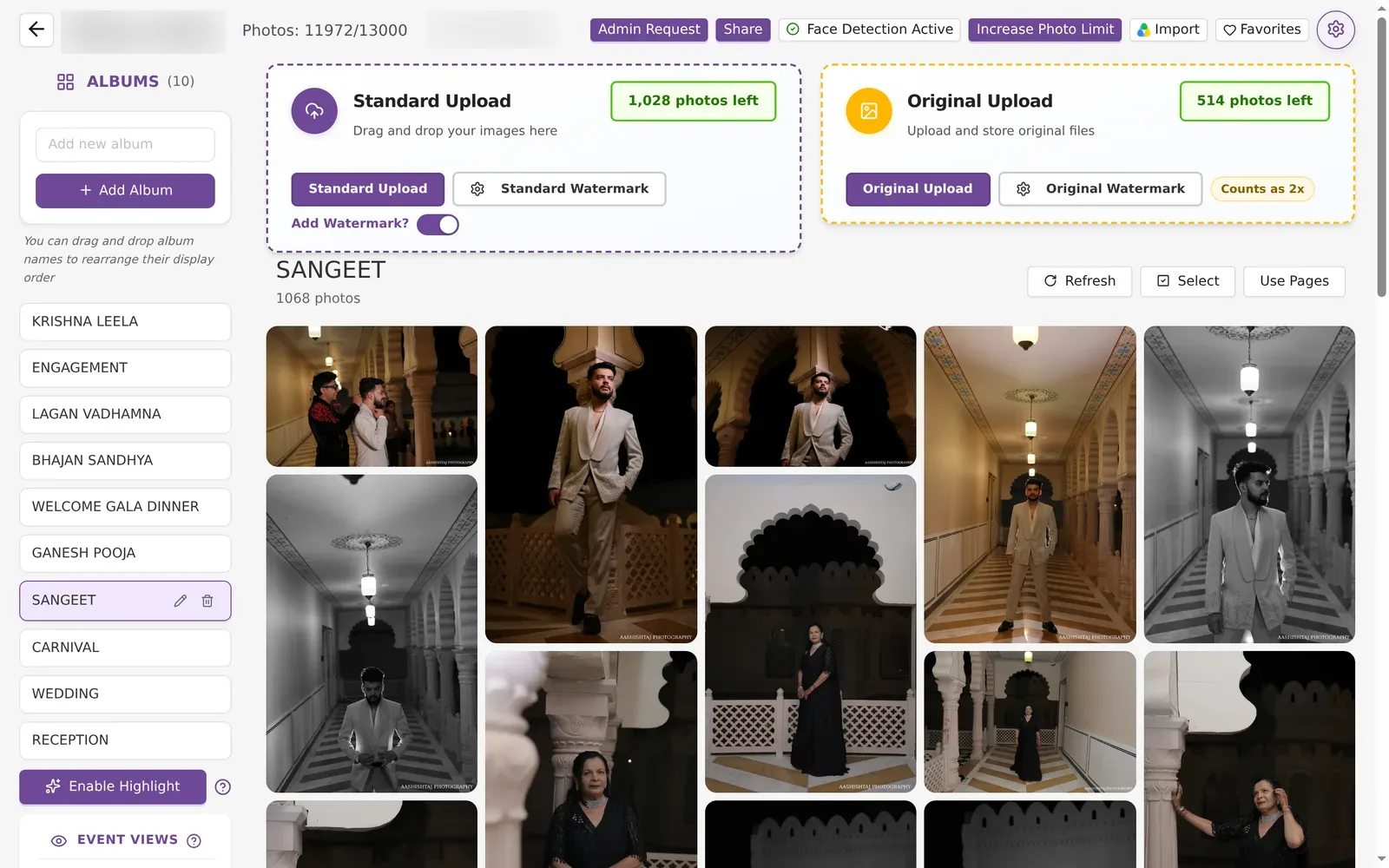
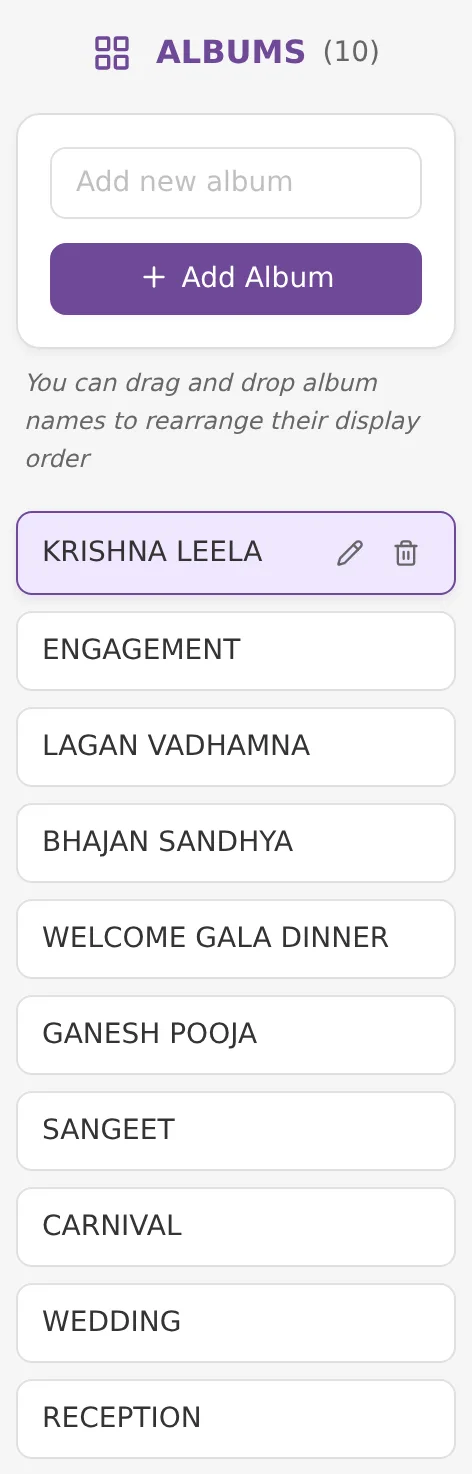
To make a new album, type its name in Add new album and click + Add Album. Drag album names to change the order guests see.
The Guest Uploads album holds photos that guests add themselves. It has no upload panels, so you cannot upload into it. Pick one of your own albums instead.
2. Choose Standard or Original
There are two upload panels at the top of the event page.

- Standard Upload resizes photos to 2K (2560 pixels on the long side) and counts each as 1 photo. This is right for most events. Turn on Add Watermark? to put your watermark on these photos. Set the watermark up with Standard Watermark; see Standard watermark.
- Original Upload stores the file exactly as you shot it. Each photo counts as 2, which is why the panel shows half as many photos left. Use it when the client wants full-size files. Its watermark is set with Original Watermark; see Original watermark.
3. Add the photos
Use either way:
- Click Standard Upload or Original Upload and select the files.
- Drag files from your computer and drop them on the panel.
Kamero takes JPG, JPEG, PNG, GIF, BMP, WebP and HEIC files. Files under 10 KB are skipped as broken. Kamero then checks every file against the photos already in the event. While it checks, the window shows the progress.
4. Check the upload queue
The upload window lists every selected file. Nothing is sent until you click the upload button at the bottom.
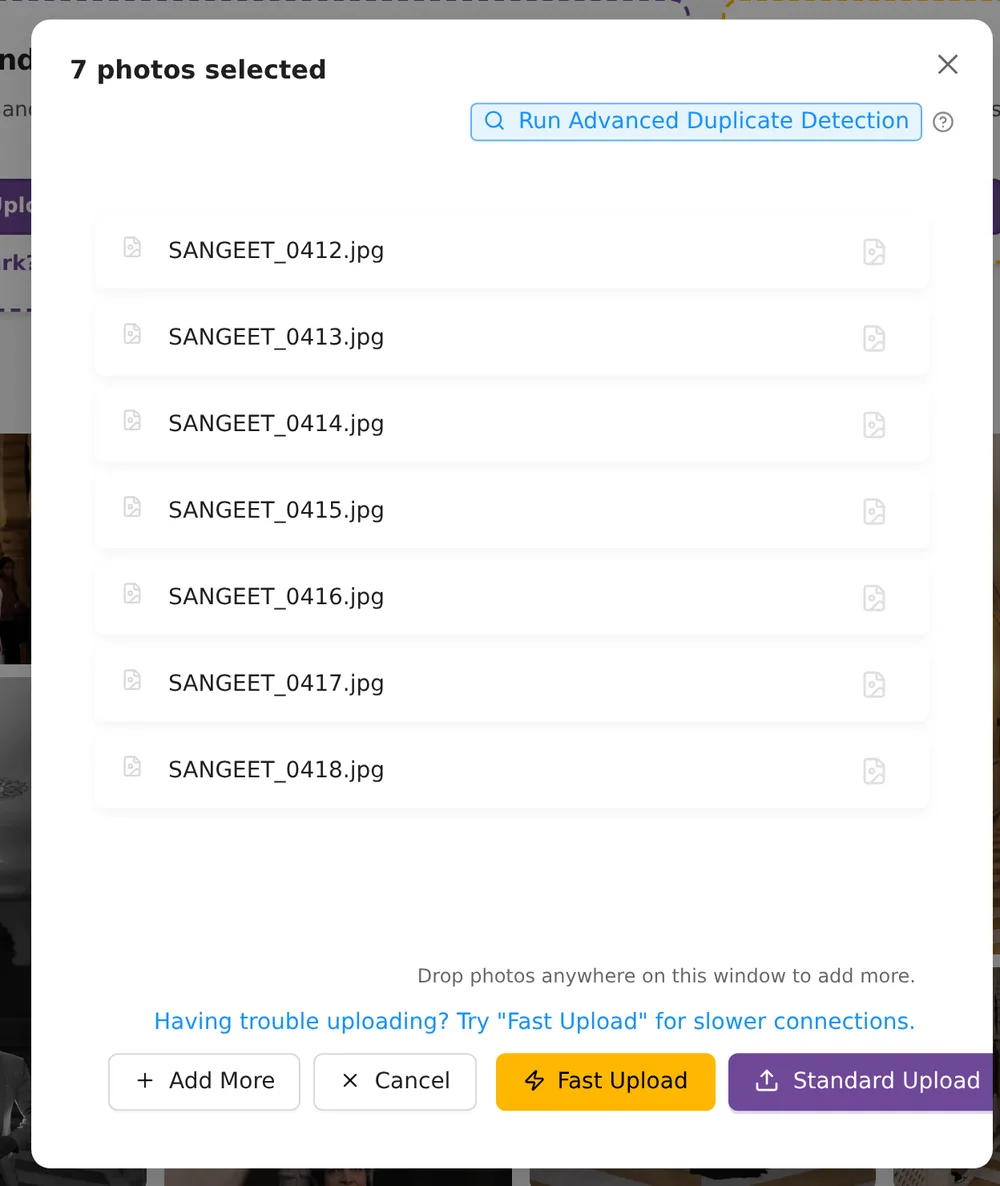
- Add More adds files to the same queue. You can also drop them on the window.
- Cancel closes the window without uploading.
- Fast Upload compresses photos on your computer before sending them. Use it on a slow connection.
- Standard Upload (or Original Upload) starts the upload.
Once it starts, each file shows its progress and then a tick when it is done. Files that fail are retried. Keep the tab open until the queue finishes. If the upload is cut off, the event page offers to resume it later: select the same files again and Kamero picks up the ones that did not finish.
Duplicates
Kamero skips photos that are already in the event, so uploading a card twice does not use your limit. The window lists them as Skipped as duplicate. If you picked the same file twice, it is uploaded once.
The quick check matches on file name, size and date. Click Run Advanced Duplicate Detection to compare the file contents too. It also catches renamed copies, but not photos that were edited. To upload a duplicate anyway, choose Upload as duplicate on that file, or Upload all duplicates.
File size limits
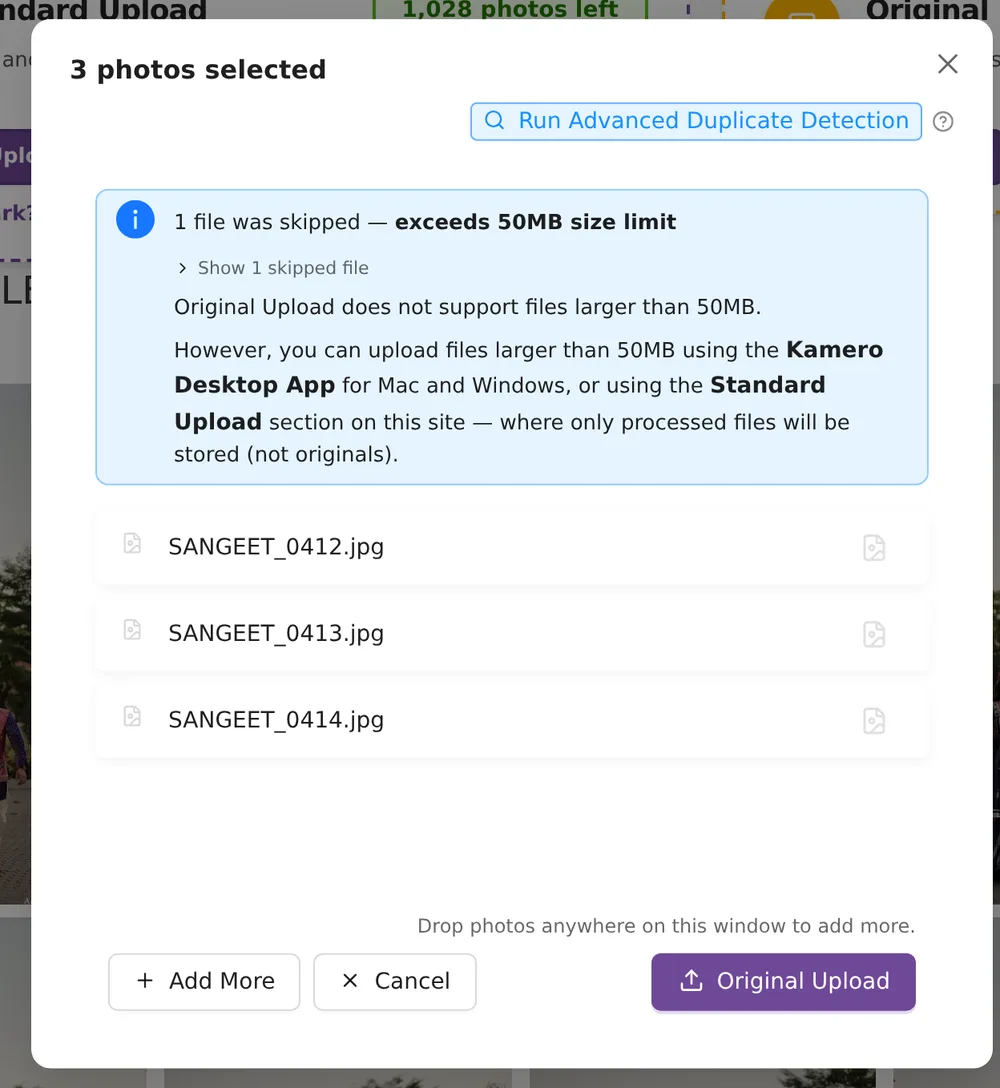
- Original Upload: up to 50 MB per file. Bigger files are skipped, and the window lists them.
- Standard Upload: files over 50 MB are compressed on your computer before they are sent. Files over 100 MB go through Fast Upload.
For full-size files over 50 MB, use the desktop app (see below).
Import from Google Drive
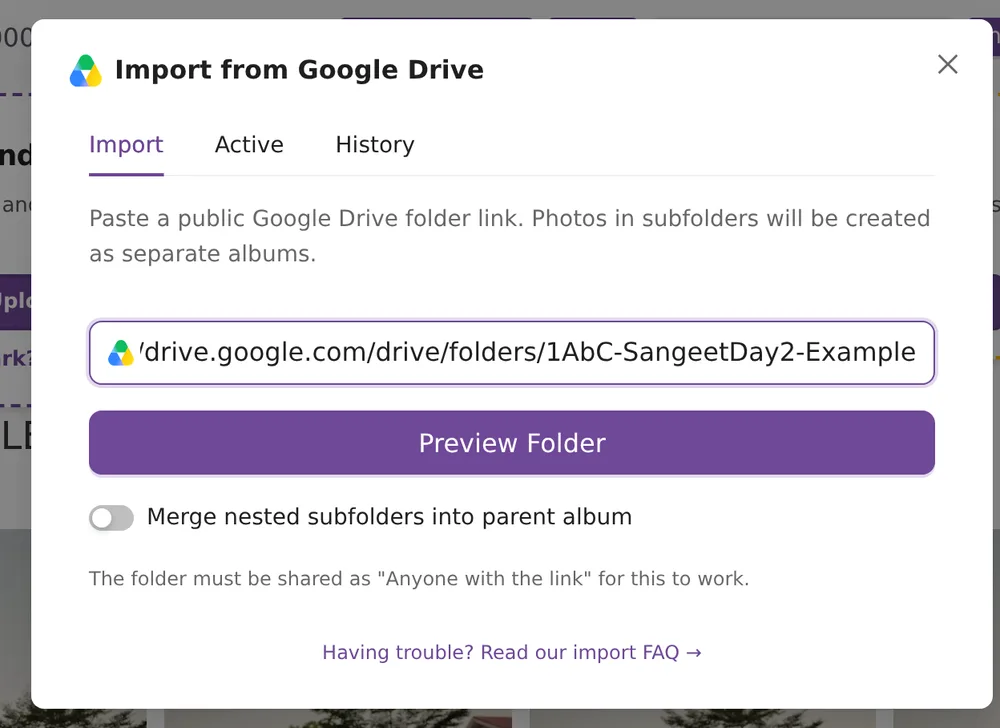
If the photos are already in Google Drive, import the folder instead of downloading and uploading them. Click Import in the event's top bar.

- In Google Drive, share the folder as Anyone with the link and copy the link.
- Paste the link and click Preview Folder. Kamero shows the folder name, how many photos and albums it found, how many are already imported, and how many uploads the event has left.
- Choose Standard Upload (1x) or Original Upload (2x). For Standard you can turn on Apply watermark.
- Leave Create albums from subfolders on to turn each subfolder into its own album. Turn on Merge nested subfolders into parent album if you want deeper folders folded into the one above.
- Click Import with the number of photos. If the button says Exceeds upload limit, add photos to the event first; see Increase an event's photo limit.
The import runs on Kamero's servers, so you can close the page once it starts. Follow it on the Active tab. Finished imports move to History.
If some Drive photos fail
Google limits how often each file can be downloaded per day. When the limit is hit, Google blocks that file for about 24 hours. Retrying straight away makes the block last longer.
- Wait about 24 hours, then import the same folder once more.
- Photos already imported are skipped, so nothing is copied twice.
- For big events, split the photos into folders of 1,000 to 2,000 and import them at quiet times.
- If photos still fail after that, contact support.
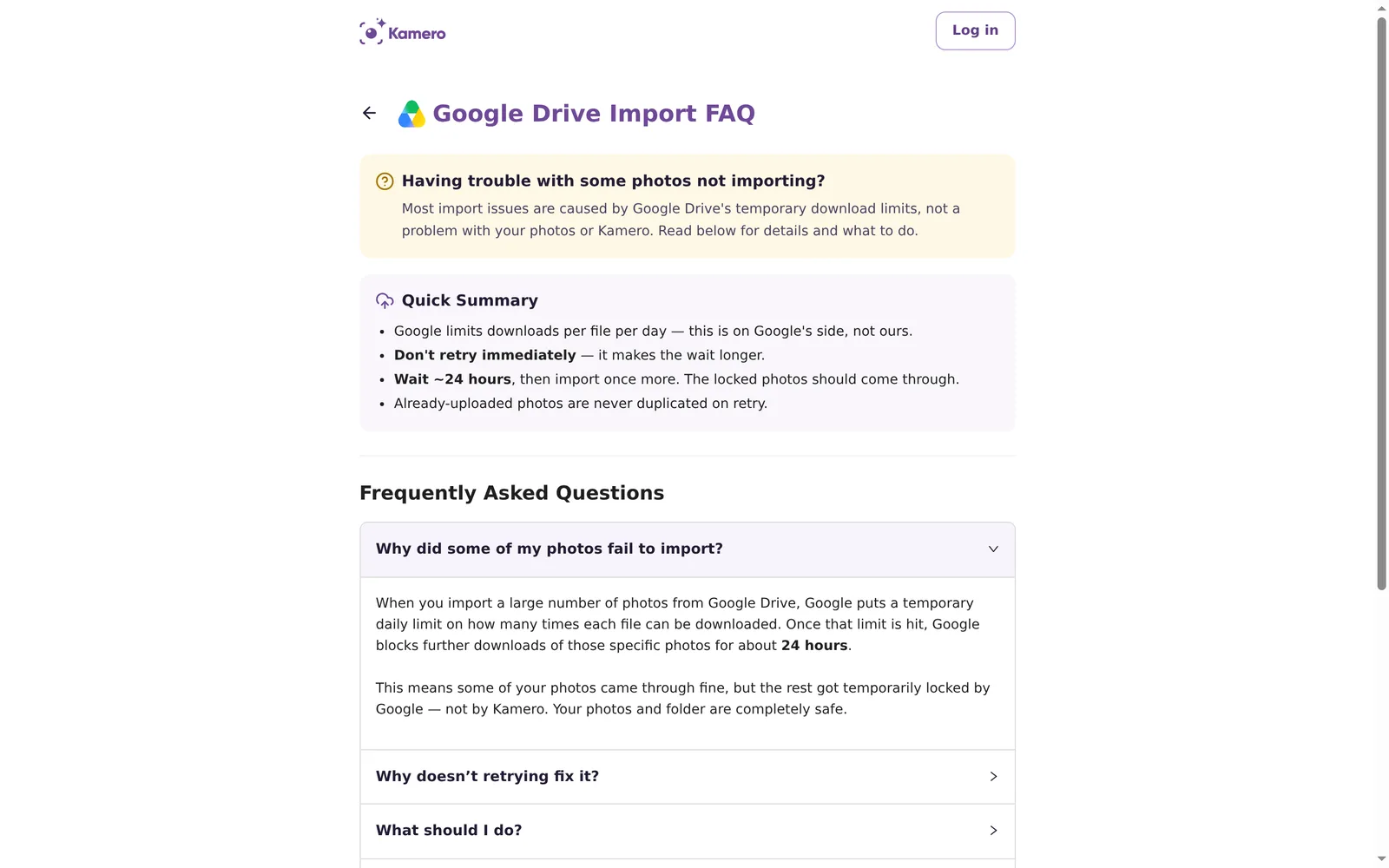
The full FAQ is at login.kamero.ai/help/google-drive-import.
After the upload: move, delete and set covers
Uploaded photos appear in the album's photo grid. To move photos to another album, delete them, set the event or album cover, or change the sort order, see Organise event albums and photos.
When to use the desktop app or Kam-Sync instead

The browser is fine for most uploads. Use the Kamero Desktop App for Mac or Windows when:
- You want to keep original files larger than 50 MB.
- You are uploading thousands of photos and don't want to keep a browser tab open.
- Your connection drops often.
To send photos from the camera while you shoot, use Kam-Sync. See Kam-Sync: camera to cloud.
Frequently asked questions
What is the difference between Standard Upload and Original Upload?
Standard Upload resizes each photo to 2560 pixels on the long side (2K) and stores it as a WebP file. It counts as 1 photo. Original Upload keeps the file exactly as you uploaded it and counts as 2 photos. Guests see the same gallery either way.
What file types can I upload?
JPG, JPEG, PNG, GIF, BMP, WebP and HEIC. Files under 10 KB are skipped because they are usually broken. RAW files and videos cannot be uploaded this way.
Is there a file size limit?
Original Upload skips files over 50 MB. Standard Upload takes larger files: anything over 50 MB is compressed on your computer first. For very large files, use the Kamero Desktop App for Mac or Windows.
Will uploading the same photo twice use up my limit?
No, unless you ask it to. Kamero checks each file against the photos already in the event and skips the ones it has. Run Advanced Duplicate Detection to also catch files that were renamed. You can still choose to upload a duplicate on purpose.
Can I close the tab while photos are uploading?
Keep the tab open until the queue finishes. If an upload is cut off, the event page offers to resume it next time; select the same files again and Kamero matches them by name and size. Google Drive imports are different: they run on our servers, so you can leave the page.
Why did some Google Drive photos fail to import?
Google limits how many times a file can be downloaded in a day. When that limit is hit, Google blocks the file for about 24 hours, and retrying early makes the wait longer. Wait a day and import the folder again. Photos already imported are not copied twice.
More Uploads & Kam-Sync tutorials
Try it in your dashboard
Sign in to Kamero and follow along. Questions? Raise a support ticket from the dashboard.