Increase an event's photo limit, renew it, and extend face recognition
Each pack event has a photo limit and an expiry date. When the event is close to its limit, you add photos to it. When it is close to its expiry date, you renew it for another 12 months. Face recognition has its own expiry date and is renewed separately. This guide covers all three, with the prices the dashboard charges.
Increase the photo limit
- Click Events in the top menu and open the event.
- Click Increase Photo Limit in the event toolbar. On a phone, it is in the menu on the right.
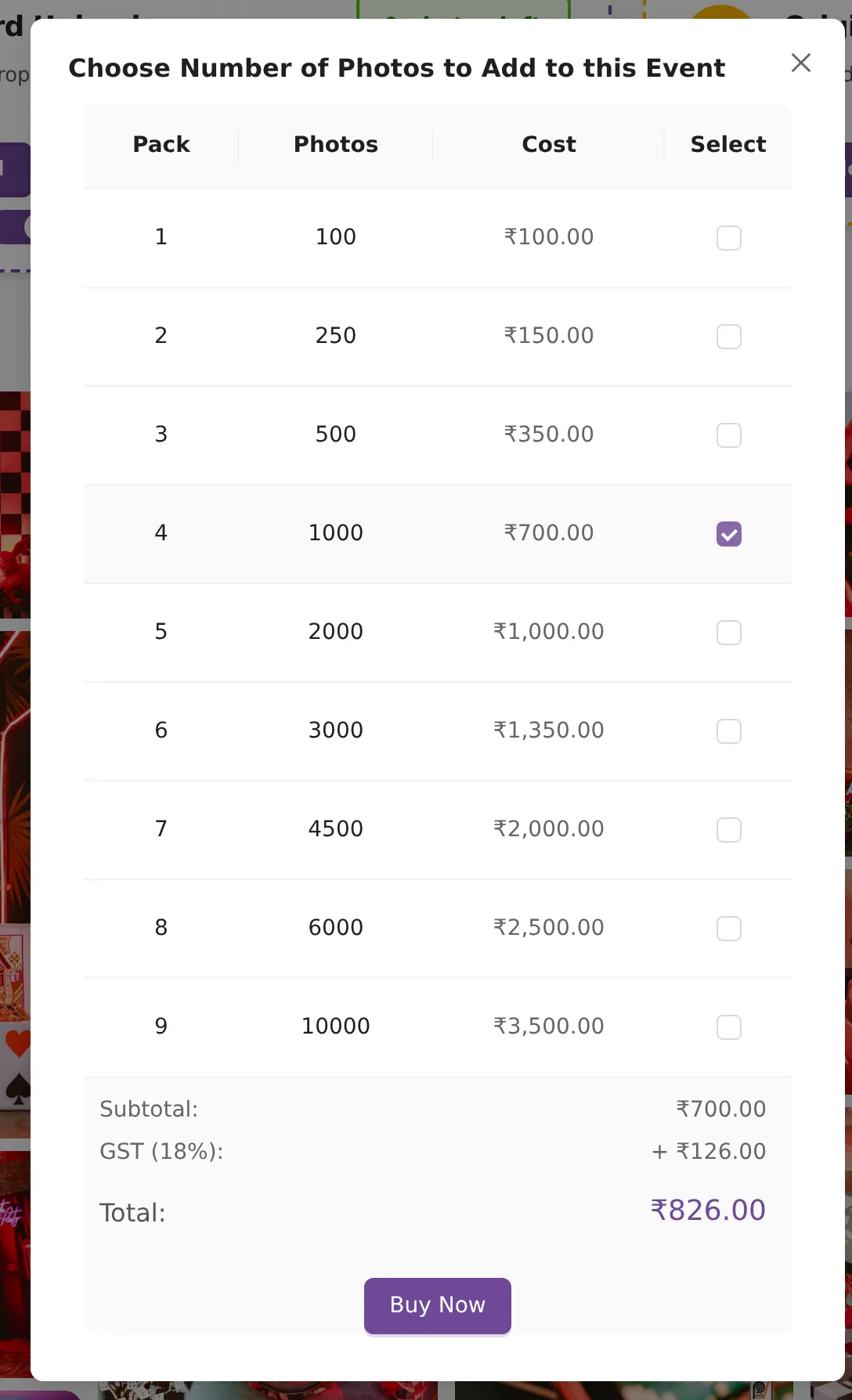
- Select a pack in the table. The totals appear below it.
- Leave Use Credits ticked to pay from your wallet first, or untick it.
- Click Buy Now and complete the payment. If your wallet covers the full amount, the button reads Add Packs and no payment page opens.
After payment you see "Payment successful! Your packs should reflect shortly." The photos in the pack are added to the event's limit. The expiry date does not change.
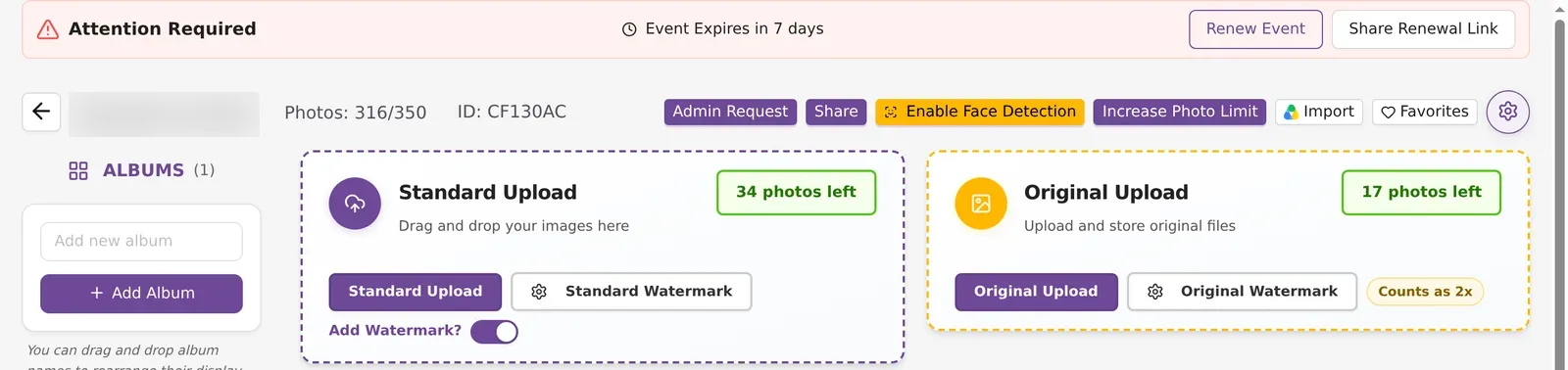
The button appears only on pack events that have at least one album. A free trial event shows a message instead: to add photos, buy an event pack or a subscription. Subscription events have no per-event limit. See subscription plans to upgrade.
Pack prices
The dialog is titled "Choose Number of Photos to Add to this Event". You can buy one pack at a time.
| Photos | Price in India | Price outside India |
|---|---|---|
| 100 | ₹100 | $5 |
| 250 | ₹150 | $10 |
| 500 | ₹350 | $15 |
| 1,000 | ₹700 | $30 |
| 2,000 | ₹1,000 | $45 |
| 3,000 | ₹1,350 | $60 |
| 4,500 | ₹2,000 | $90 |
| 6,000 | ₹2,500 | $120 |
| 10,000 | ₹3,500 | $180 |
In India, 18% GST is added to the amount you pay after credits. A 1,000-photo pack is ₹700 plus ₹126 GST, so ₹826 in total. Outside India you pay in US dollars through PayPal, with no GST and no credits.
Paying with wallet credits
Use Credits is ticked by default and shows your wallet balance. Credits are taken off the price first, and GST is charged only on the rest. The option is hidden when your wallet is empty. See wallet ledger to check your balance.
When an event reaches its limit
Uploads stop and one of these messages appears:
- "This event has reached its photo limit: X of Y used. Delete some photos or buy more for this event to keep uploading." The event holds as many photos as its limit. Delete photos or buy a pack.
- "This event has reached its upload limit: X of Y uploads used, including deleted photos. Buy more photos for this event to keep uploading." Each event allows up to 2.5 times its photo limit in total uploads, and deleted photos count. Deleting photos does not help here. Buy a pack.
If guest uploads are on, the guest limit is kept aside from the event limit. See event settings.
Renew an event
Renewing adds 12 months of validity. The 12 months are added to the current expiry date, or to today if the event has already expired.
Where you see renewal reminders
From 30 days before expiry, the event page shows "Attention Required" and the days left, with Renew Event and Share Renewal Link. After expiry it shows "Event Expired".

The events list also shows a banner when any event has expired or expires within 30 days. A second banner covers face recognition. Click View Details to see the events in a table, with Renew and Share Renewal Link for each one.

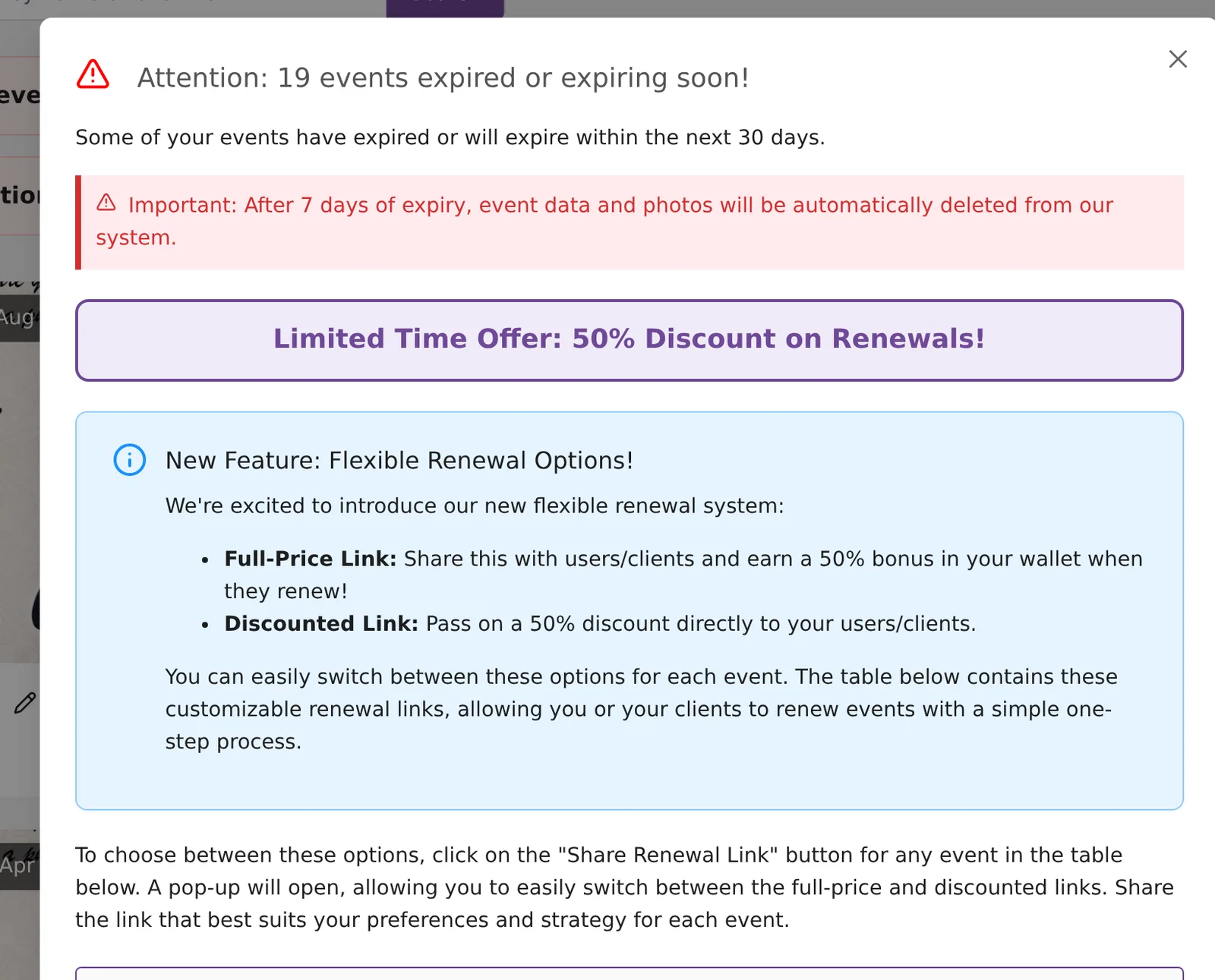
Kamero may archive (remove) an event 7 days after it expires; renew before then to be safe. Archived events cannot be renewed. You see "This event has been archived. Renewal is not possible."
Renew it yourself
- Click Renew Event on the event page, or Renew in the View Details table.
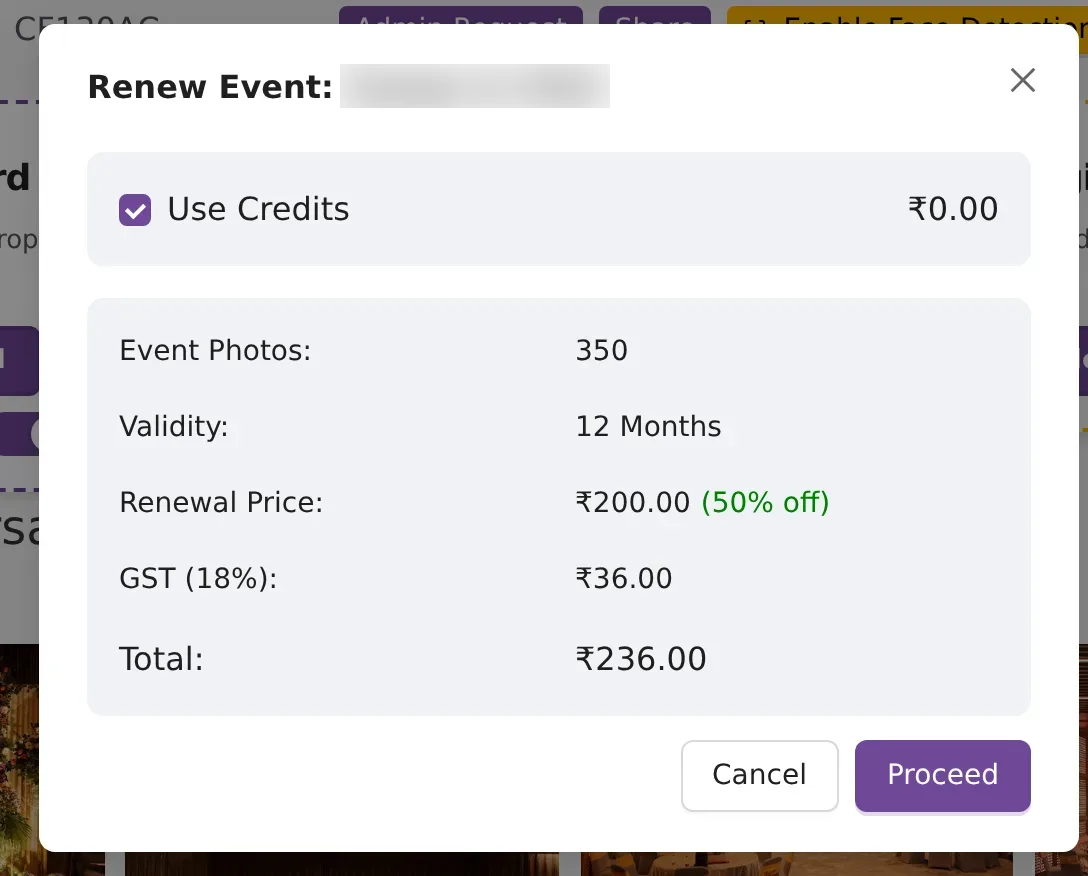
- Check the dialog: the event photos, validity of 12 months, the renewal price, credits used, GST and the total.
- Click Proceed and complete the payment. If credits cover the full amount, the button reads Renew and the event is renewed straight away.
How the renewal price is worked out
The price is based on the event's photo limit, using the pack prices above. The limit is split into the largest packs from 500 photos up. What is left is charged at ₹150 per 250 photos if it divides exactly by 250, ₹1 per photo if it is under 100, and otherwise ₹100 for each started 100 photos. Renewing from the dashboard is 50% off that price, and 18% GST is added.
For example, a 350-photo event is four 100-photo blocks, so ₹400. With 50% off it is ₹200, plus ₹36 GST, so ₹236.
Send a renewal link to your client
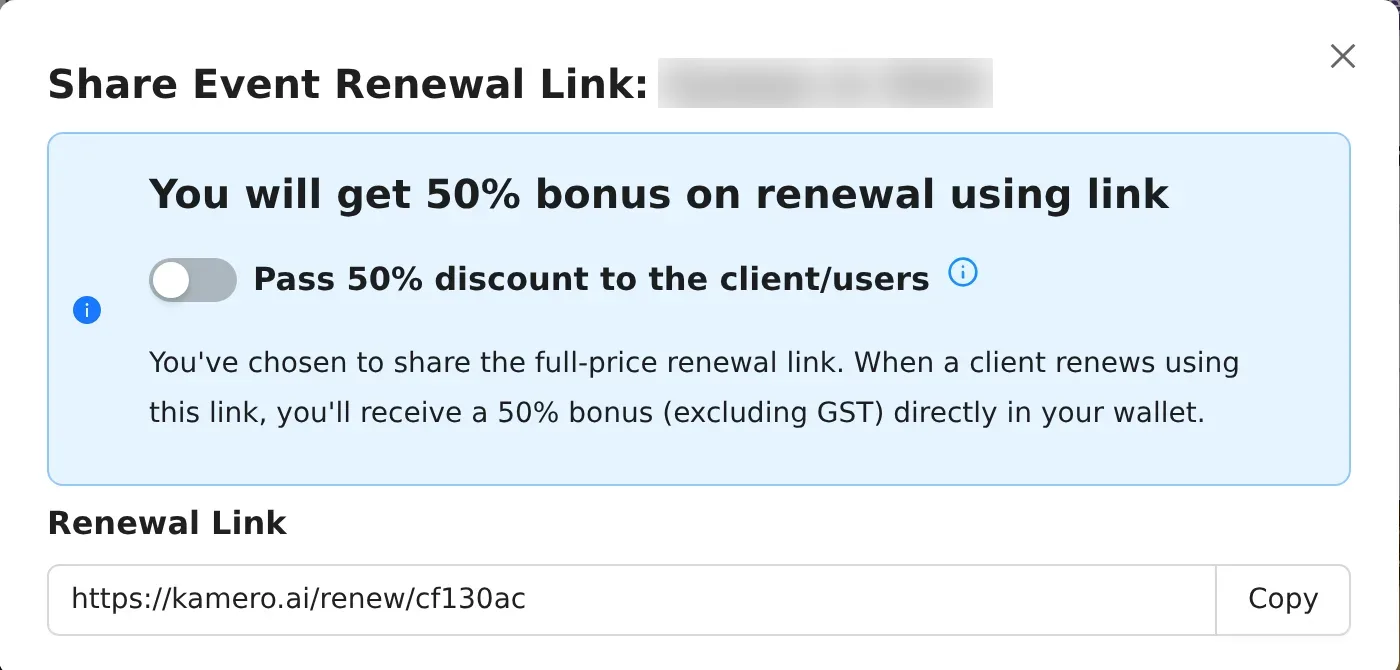
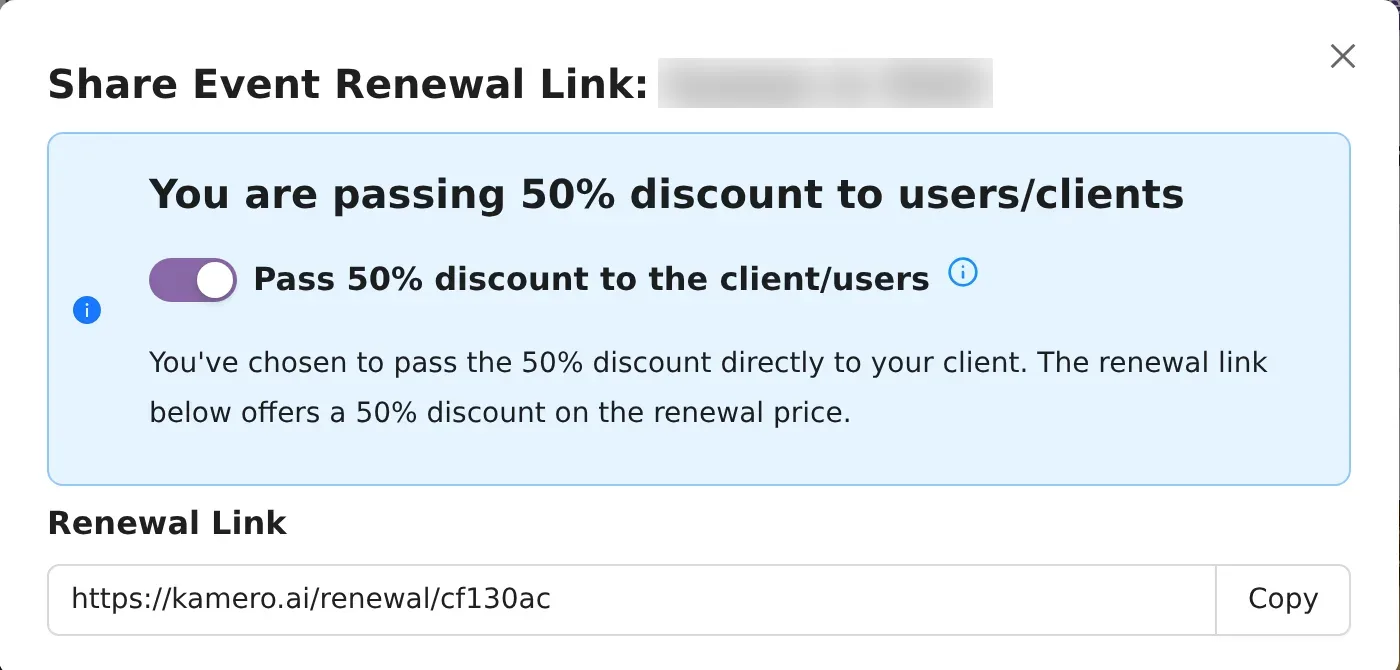
Click Share Renewal Link to let your client pay for the renewal. Send the link with Copy, Send via WhatsApp or Send Email.
- With "Pass 50% discount to the client/users" off, you send the full-price link (kamero.ai/renew/). Your client pays the full price and you earn commission in your wallet.
- With the switch on, you send the discount link (kamero.ai/renewal/). Your client pays 50% less and you earn no commission, even if you set custom renewal pricing.
Your commission is the validity price your client pays, before GST, minus half of the base price. Without custom pricing that is half of the base price: on a ₹1,500 renewal you get ₹750. Face recognition in the same order earns no commission. The Renew Event Access button in an expired gallery and Kamero's reminder emails also use the full-price link. See commission ledger for how commission is paid.
If you have set your own renewal pricing in account settings, the link uses that price. To see the page your client gets, read renew an expired event as a guest. For how expiry works, see event validity and expiry.
Extend face recognition
Face recognition lets guests find their photos with a selfie. It has its own expiry date, and after that date it is turned off for the event.
- On the events list, click View Details on the face recognition banner.
- Click Renew next to the event.
- Check the dialog: the current and new expiry dates, the renewal cost, credits used, GST and the total.
- Click Proceed and complete the payment.
Face recognition is extended for 12 months.
| Event photo limit | Full price | On or before expiry (50% off) |
|---|---|---|
| Up to 4,500 | ₹750 ($10) | ₹375 |
| More than 4,500 | ₹1,000 ($15) | ₹500 |
GST of 18% is added in India. After the expiry date you pay full price, because every photo has to be indexed again. Subscription events already include face recognition.
Common problems
- The Increase Photo Limit button is missing: the event is a subscription event, or it has no album yet.
- The limit went up but the expiry date did not: packs add photos only. Renew the event to add time.
- Use Credits is not shown: your wallet balance is zero, or you are paying in US dollars.
- The renewal dialog says it could not load pricing: click Try again. The price always comes from Kamero's server, so the dialog does not show an estimate.
To upload the new photos, see upload photos from the web dashboard.
Frequently asked questions
Does buying more photos extend the event's validity?
No. A photo pack only raises the photo limit. The expiry date stays the same. To add time, renew the event.
Why can't I upload even though I deleted photos?
Each event allows up to 2.5 times its photo limit in total uploads, and deleted photos still count. A 600-photo event allows 1,500 uploads. Buy more photos for the event to raise both limits.
How much does it cost to renew an event?
The renewal price is the pack price for the event's photo limit, with 50% off, plus 18% GST. A 350-photo event costs Rs 200 plus Rs 36 GST. The Renew Event dialog shows the exact amount before you pay.
What happens if an event is not renewed?
Kamero may archive (remove) an event 7 days after it expires, and archived events cannot be renewed. Renew before then to be safe.
Can my client pay for the renewal?
Yes. Click Share Renewal Link and send the link to your client. The full-price link (kamero.ai/renew/) earns you commission in your wallet. With the discount switch on, the link (kamero.ai/renewal/) takes 50% off and earns no commission.
Is face recognition renewed with the event?
No. Face recognition has its own expiry date and is renewed separately for 12 months. Renew on or before the expiry date to get 50% off.
Can I increase the limit on a subscription event?
Subscription events have no per-event limit, so the Increase Photo Limit button does not appear. Upgrade your plan to get more photos.
More Events tutorials
Try it in your dashboard
Sign in to Kamero and follow along. Questions? Raise a support ticket from the dashboard.