How to add your photos to an event
Photographers: send this page to your guests.
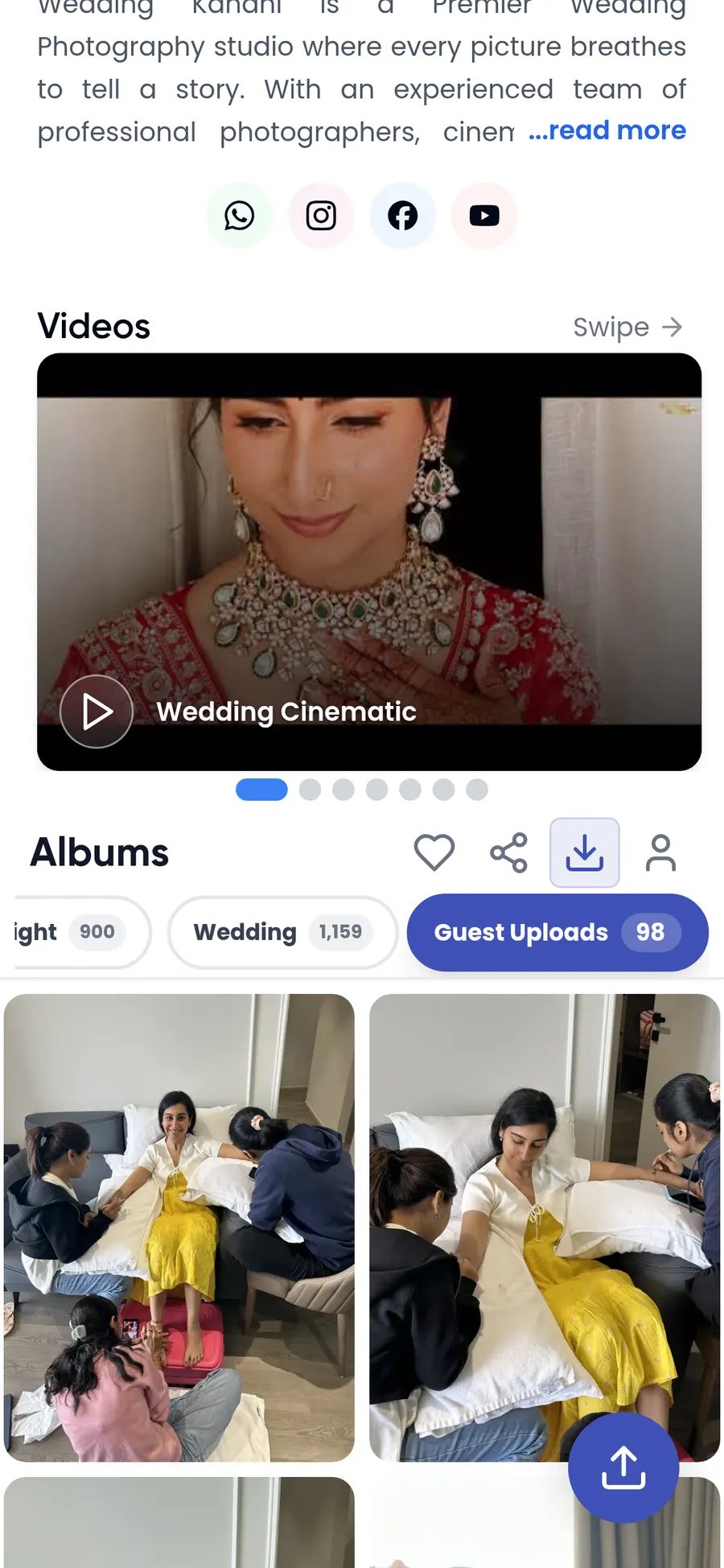
Guests often take great photos on their own phones. Some photographers let you add them to the event gallery, so everyone can see them in one place. Your photos go into an album called Guest Uploads.
When you can upload
You can upload only when the photographer has turned on guest uploads for the event. You then see a Guest Uploads album in the Albums row. If the album is missing, the event does not take guest photos. Photographers can turn this on in event settings.
Upload your photos
- Open the event gallery and tap the Guest Uploads album.
- Tap the round upload button at the bottom right.
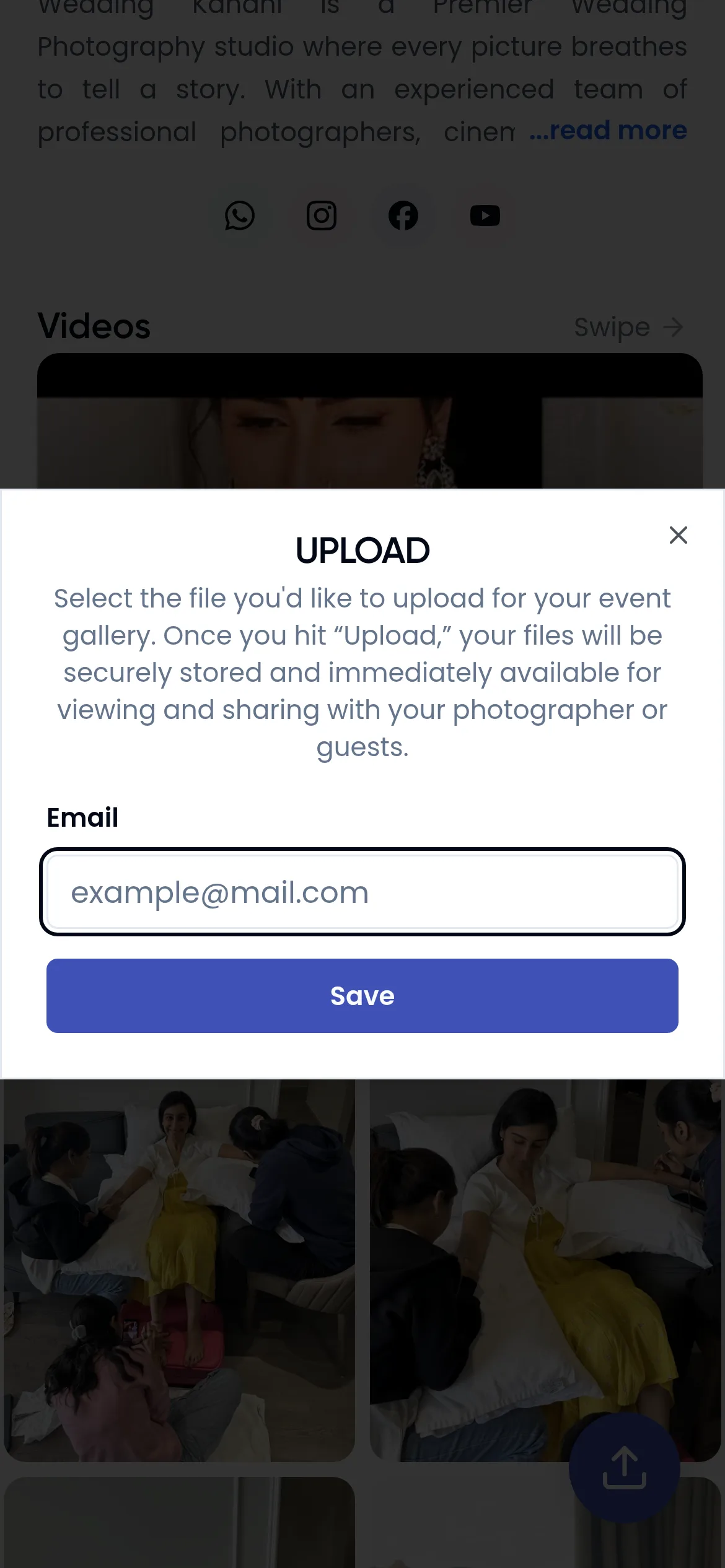
- If an UPLOAD window asks for your email, type it and tap Save.
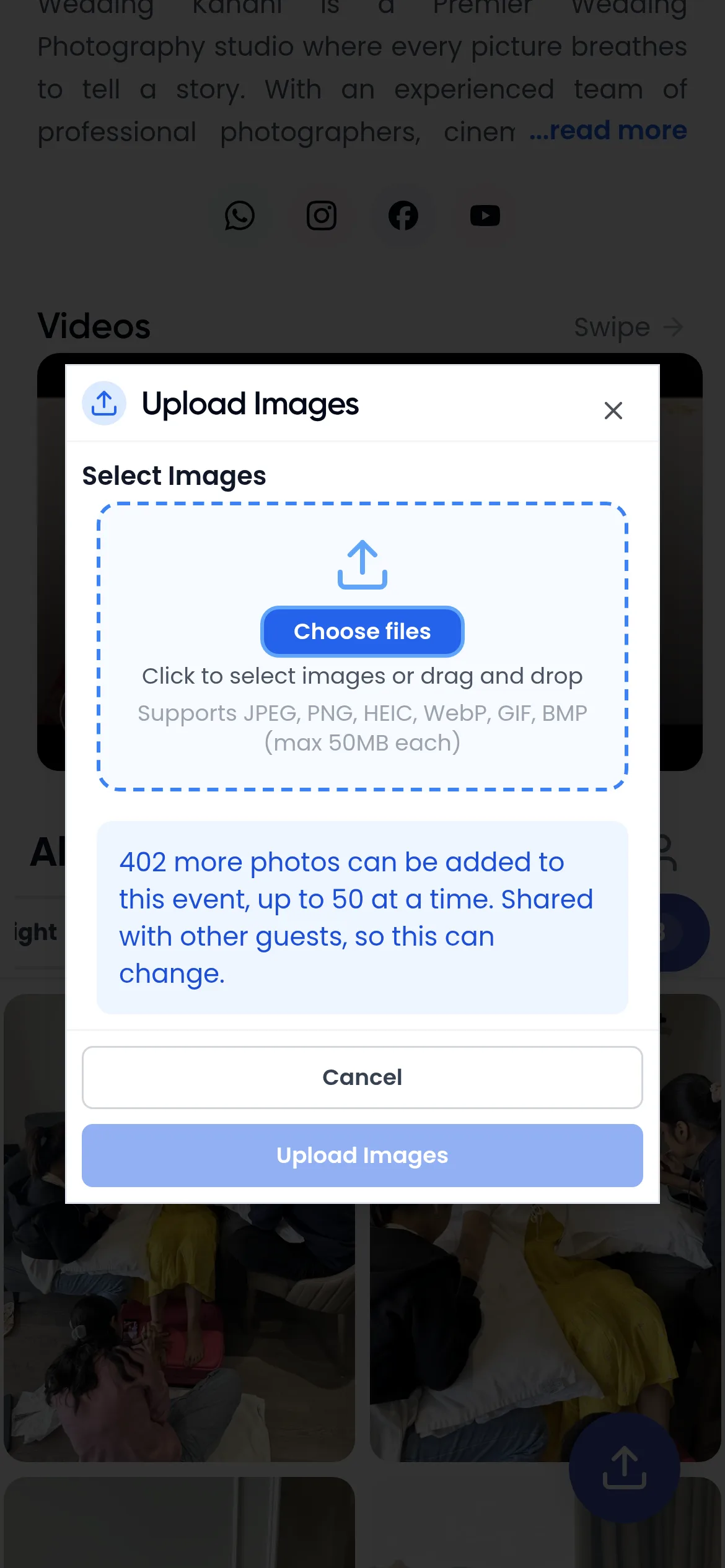
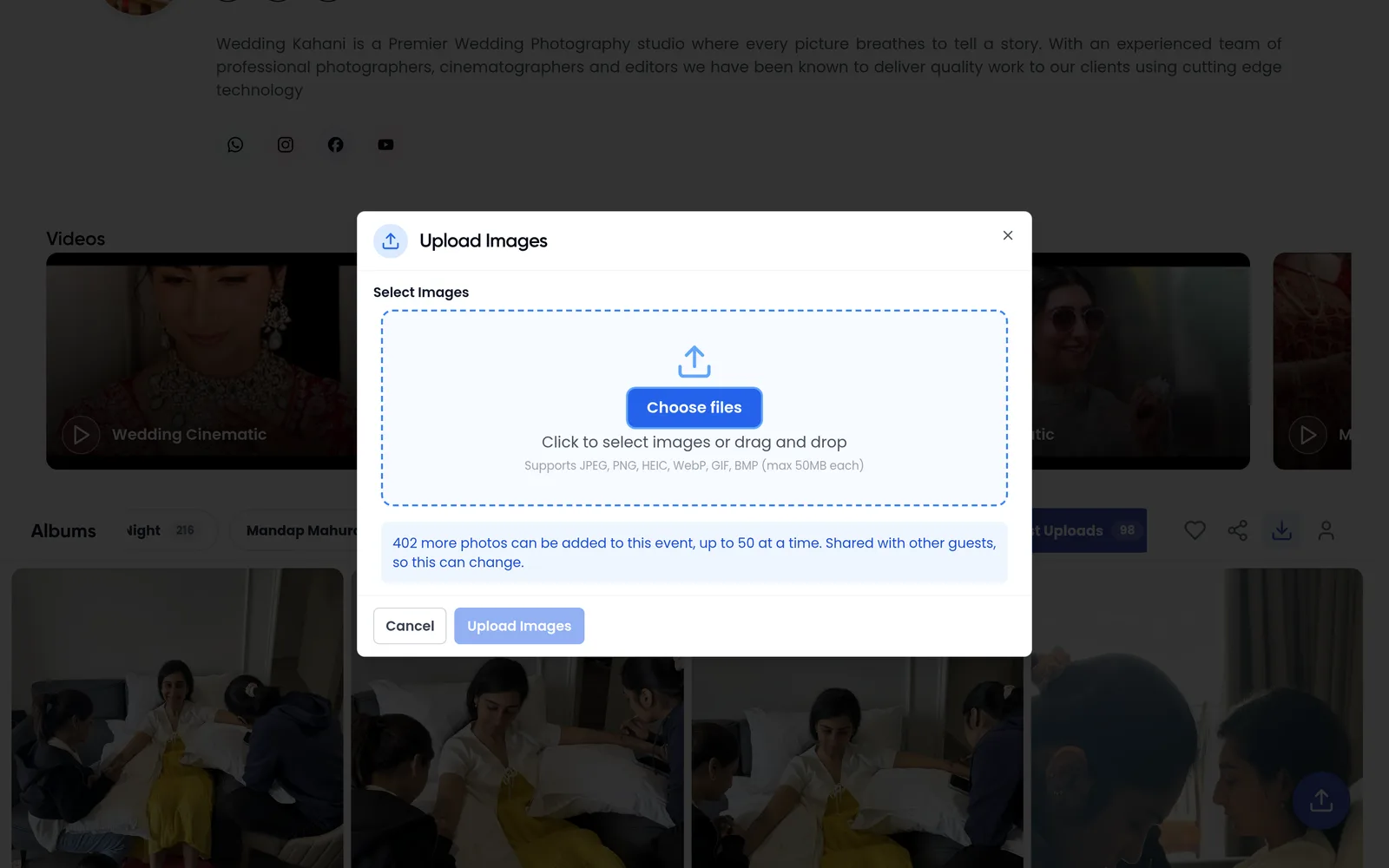
- In Upload Images, tap Choose files and pick your photos. On a computer you can also drag photos into the box.
- Tap Upload Images. The button shows how many photos you picked, such as Upload 12 Images.
- Wait until you see Upload Successful.
Limits
- Up to 50 photos at a time. To add more, upload them in another batch.
- Each photo can be up to 50 MB.
- File types: JPEG, PNG, HEIC, WebP, GIF and BMP. Videos are not accepted.
- The photographer sets a total number of guest photos for the event. All guests share it. The upload window shows how many more can be added, for example "402 more photos can be added to this event". The number can change while you upload, because other guests are uploading too.
Messages you may see
- Checking for duplicate images...: Kamero skips duplicate photos and tells you how many. If every photo you picked is a duplicate, nothing is uploaded.
- Maximum 50 files allowed: pick fewer photos and upload the rest in another batch.
- Can only upload N more images: the event is nearly full. Pick fewer photos.
- Guest uploads only support images up to 50 MB: make the photo smaller and try again.
- Partially Upload Failed or Upload Failed: check your internet and retry the failed photos.
- Maximum photos limit reached or Upload limit reached for this event: the event has all the guest photos it can take. Only the photographer can raise the limit.
Where your photos go
Your photos appear in the Guest Uploads album once they are processed. This takes a few moments. Everyone who can open the gallery can see them, and so can the photographer. The photographer may add their watermark to guest photos.

In the Kamero app
The Kamero app can upload guest photos too. It asks for your email so the photographer knows who sent the photos. See app features.
Frequently asked questions
Why is there no Guest Uploads album in my event?
The photographer has not turned on guest uploads for this event. Only they can turn it on. Ask them if you would like to add your photos.
How many photos can I upload?
Up to 50 photos at a time, each up to 50 MB. The event also has a total limit for guest photos, set by the photographer and shared by all guests. The upload window shows how many more photos can still be added.
Can I upload videos?
No. Guest uploads take photos only: JPEG, PNG, HEIC, WebP, GIF and BMP.
What happens if I upload the same photo twice?
Kamero checks for duplicates before uploading and skips them. You see a message saying how many were skipped.
Who can see the photos I upload?
Anyone who can open the event gallery can see them in the Guest Uploads album, along with the photographer.
It says Maximum photos limit reached. What can I do?
The event has reached the number of guest photos the photographer allowed. Only the photographer can raise the limit, so ask them.
More For guests tutorials
Try it in your dashboard
Sign in to Kamero and follow along. Questions? Raise a support ticket from the dashboard.