Sell in other currencies and confirm direct payments
Say you photograph a school Sports Day in Australia and want to sell the photos in Australian dollars. Kamero does not collect money in other currencies. Parents pay you directly, by bank transfer, a payment link or any way you choose. You pay Kamero a yearly Sell Photos Plan, with no commission on sales. This page shows how to set that up and how to confirm each payment.
When you need direct payments
Each event has one currency. If an event is priced in INR and you are based in India, buyers pay through Kamero's gateway. See Commission, GST and payouts. For every other event, buyers pay you directly:
- Your business is outside India and you sell in your own currency.
- You are in India and price an event in another currency, such as US dollars.
Where the buyer lives does not matter. A parent abroad can buy from an INR event through the gateway. To sell the same photos in two currencies, create two events.
Step 1: Business Settings for another currency
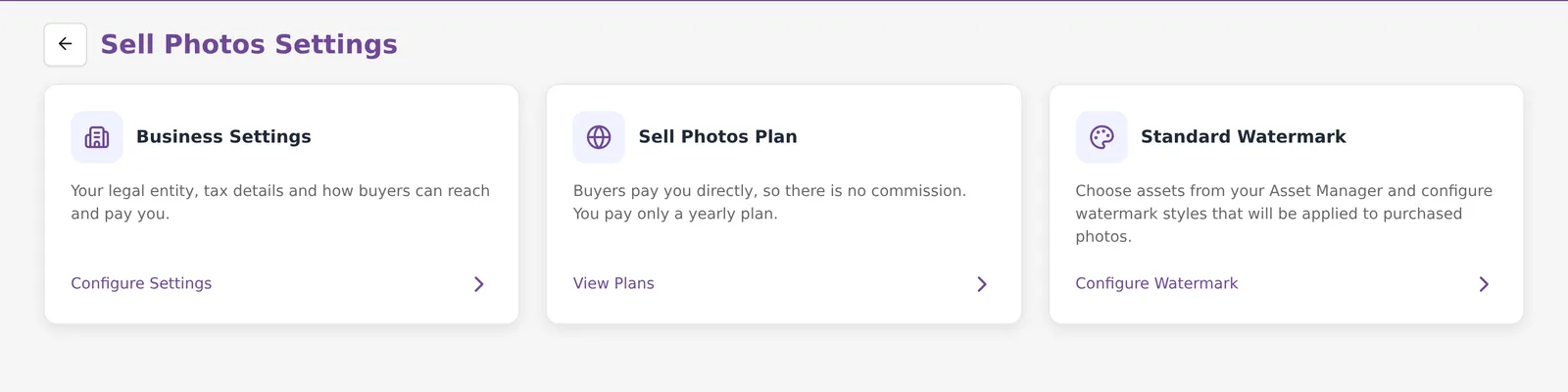
Click Sell Photos in the top bar, then Settings. Click Configure Settings on the Business Settings card.
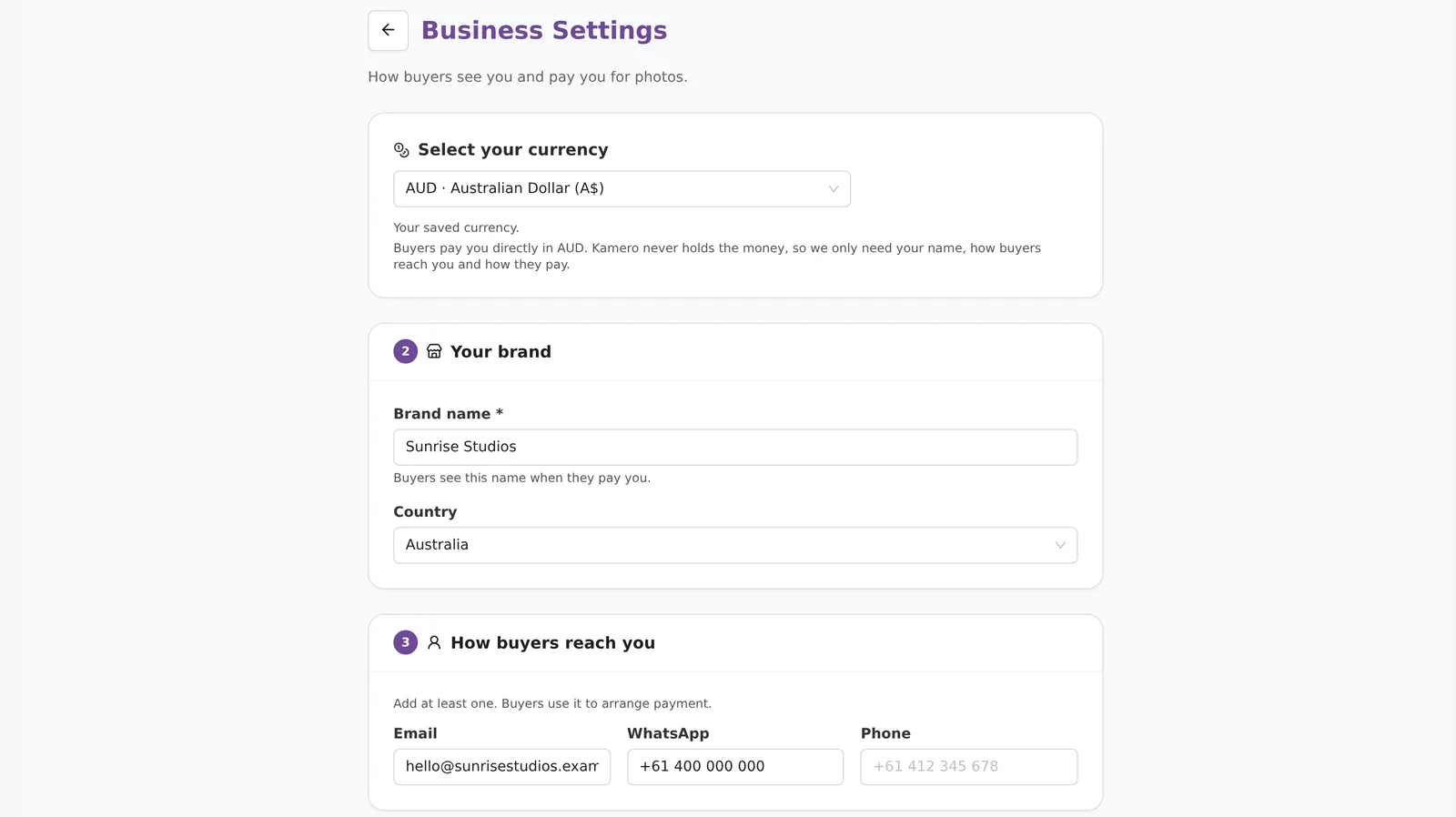
- Under Select your currency, pick your currency, for example AUD · Australian Dollar (A$).
- In Your brand, enter the Brand name. Buyers see this name when they pay you. Pick your Country.
- In How buyers reach you, add at least one of Email, WhatsApp or Phone. Buyers use it to arrange payment.
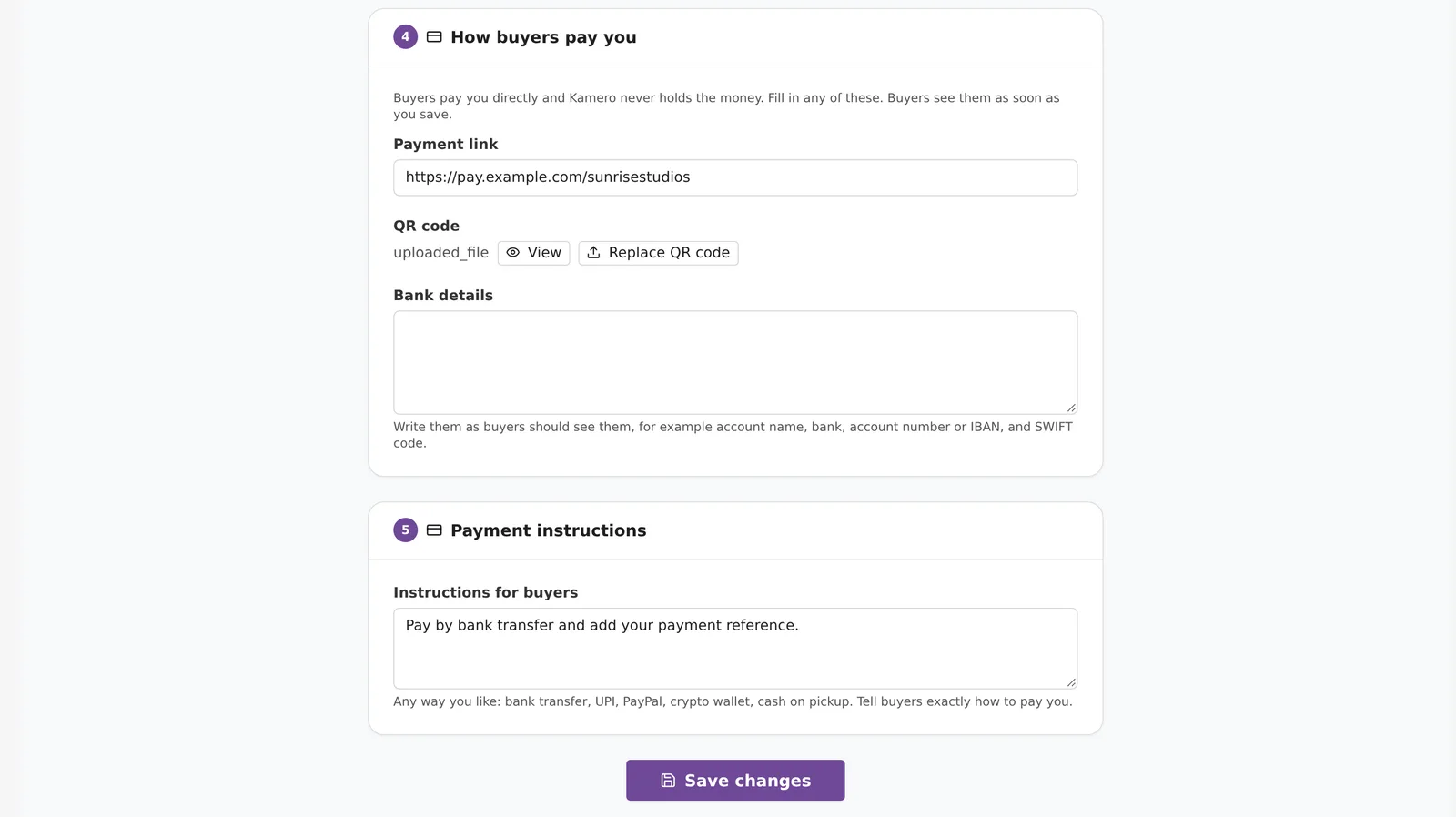
- In How buyers pay you, fill in any of Payment link, QR code and Bank details. Write bank details as buyers should see them, such as account name, bank, account number or IBAN, and SWIFT code.
- In Payment instructions, tell buyers exactly how to pay, for example "Pay by bank transfer and add your payment reference."
- Click Save changes. Buyers see your payment details as soon as you save.
Kamero never holds the money, so this form does not ask for tax or bank documents. If a detail shows Hidden from buyers by Kamero, contact support.
If you are in India and already sell in INR, choosing another currency here makes all your sales direct payments. Your saved PAN, GST and bank details are kept.
Step 2: Choose a Sell Photos Plan
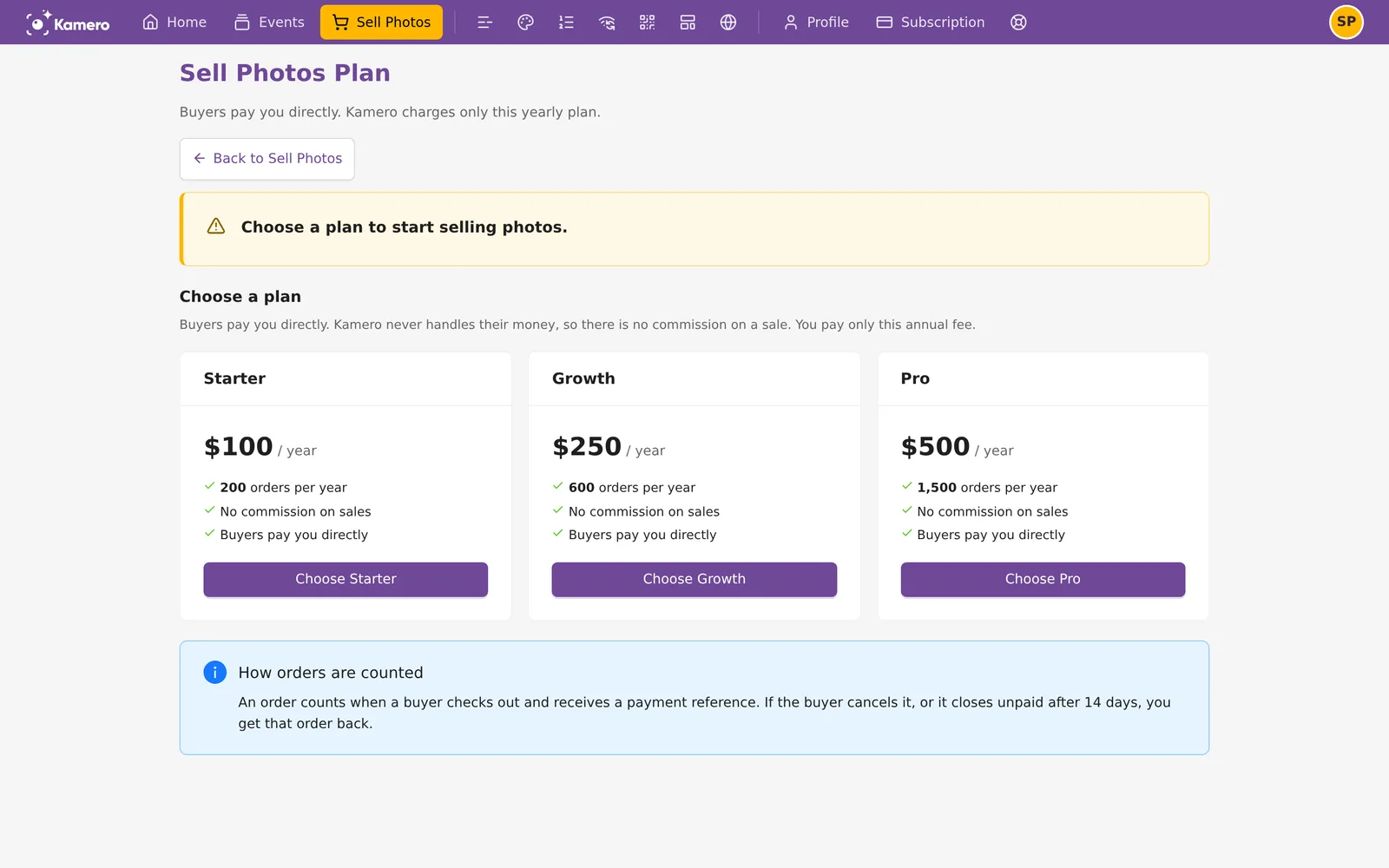
Until you have a plan, the Sell Photos page shows Choose a plan to start selling. Buyers can't check out on your events until you choose one.

Click Choose a plan, or View Plans in Sell Photos Settings. The plans are yearly, paid in US dollars through PayPal, and renew automatically. Prices exclude taxes.
- Starter: $100 a year, 200 orders per year.
- Growth: $250 a year, 600 orders per year.
- Pro: $500 a year, 1,500 orders per year.
Every plan has no commission on sales. Click Choose Starter, Choose Growth or Choose Pro and finish the payment. If you leave before paying, the Sell Photos page shows Finish your plan payment with a Finish payment button.
How orders are counted
- An order counts when a buyer checks out and gets a payment reference.
- If the buyer cancels it, or it closes unpaid after 14 days, you get that order back within the same plan year.
- When you have used 80% of your orders, the Sell Photos page shows how many you have used, for example 160 of 200 orders used.
- When all are used, new checkouts stop until your allowance resets. Orders already placed are not affected. To raise your limit sooner, contact support.
Step 3: What the buyer does
A parent finds their child's photos with a selfie, picks the ones they want, and checks out. They get a payment reference and your payment details. Their order shows Pay photographer and the date it must be paid by. They pay you, quote the reference, and can attach a screenshot or a transaction ID as proof. Their order then shows Photographer checking.
Step 4: Confirm or reject a payment
Open the Seller Dashboard and the Photo Orders tab. When buyers say they have paid, the tab shows Needs your confirmation with a count. Orders have one of two tags:
- AWAITING PAYMENT: the buyer has checked out but has not said they paid.
- CHECK FOR PAYMENT: the buyer says they paid you. Rows with proof show Proof attached.
Click the order. The Order summary shows:
- The order type, the number of photos, the price breakdown and the total.
- The payment Reference, which you can copy.
- The buyer.
- The Payment proof, if the buyer added a screenshot or transaction ID. Proof is optional. Without it, check your account for a payment of that amount with that reference.
You see which photos the buyer chose only after you confirm. Confirming delivers them to the buyer straight away.
To confirm:
- Check that the money is in your account.
- Click Confirm payment. A box asks you to confirm you received the amount.
- Click Yes, I received it. You see Payment confirmed. The buyer can download their photos now.
A confirmation can't be undone. The buyer gets an email that their photos are ready to download.
If the money did not arrive, click Not received, then Not received again in the box. The order goes back to awaiting payment, so the buyer can pay and send proof again.
Direct-pay orders have no Kamero invoice or receipt, because Kamero does not handle the payment. If a buyer needs a receipt, send your own.
Unpaid orders: 14 days and the 3-order limit
- An unpaid order closes after 14 days. You get that order back in your plan allowance.
- A buyer can have at most 3 unpaid orders with you at a time. They can order again once they pay, cancel or an order closes.
Unpaid direct-pay orders also appear in Payment Pending Orders as Awaiting payment. See Follow up with buyers.
Plan renewal and failed payments
- Your plan page shows Renews on and the date. PayPal charges the plan again on that date.
- If PayPal can't collect the payment, the Sell Photos page shows We couldn't collect your plan payment. Selling continues for a few days while PayPal tries again. Check the card on your PayPal account.
- To stop renewing, click Switch off auto-renew on the plan page and confirm. You keep selling until the end of the year you have paid for. Nothing is refunded.
- When a plan ends, the Sell Photos page shows Your plan has ended. Choose a plan to start selling again.
To set up the rest of Sell Photos, such as the watermark, prices and events, see Set up Sell Photos.
Frequently asked questions
Do I need a Sell Photos Plan if I sell only in INR?
No. INR sales go through Kamero's payment gateway and need no plan, even when the buyer is abroad. You need a plan only for events priced in another currency.
Does Kamero take a commission on direct payments?
No. Buyers pay you directly and Kamero never handles the money. You pay only the yearly plan fee.
What happens when I use all the orders in my plan?
New checkouts on your events stop until your allowance resets at the start of your next plan year. Orders already placed are not affected. To raise your limit sooner, contact support.
Can I undo a payment confirmation?
No. Once you confirm, the buyer can download the photos straight away. Check that the money is in your account before you confirm.
Why does a buyer get an error when they try to order again?
A buyer can have at most 3 unpaid orders with you at a time. Once they pay, cancel or the orders close after 14 days, they can order again.
Can I get a refund on my plan?
No. Plan fees are not refundable. If you switch off auto-renew, you keep selling until the end of the year you paid for.
More Plans, orders & billing tutorials
Try it in your dashboard
Sign in to Kamero and follow along. Questions? Raise a support ticket from the dashboard.