Follow up with buyers who didn't finish paying
After a school Sports Day, some parents pick their photos, press checkout, and then leave before paying. The Payment Pending Orders tab on your Seller Dashboard lists those checkouts, so you can check them and follow up. This page shows how to read the list, refresh a payment, and export it.
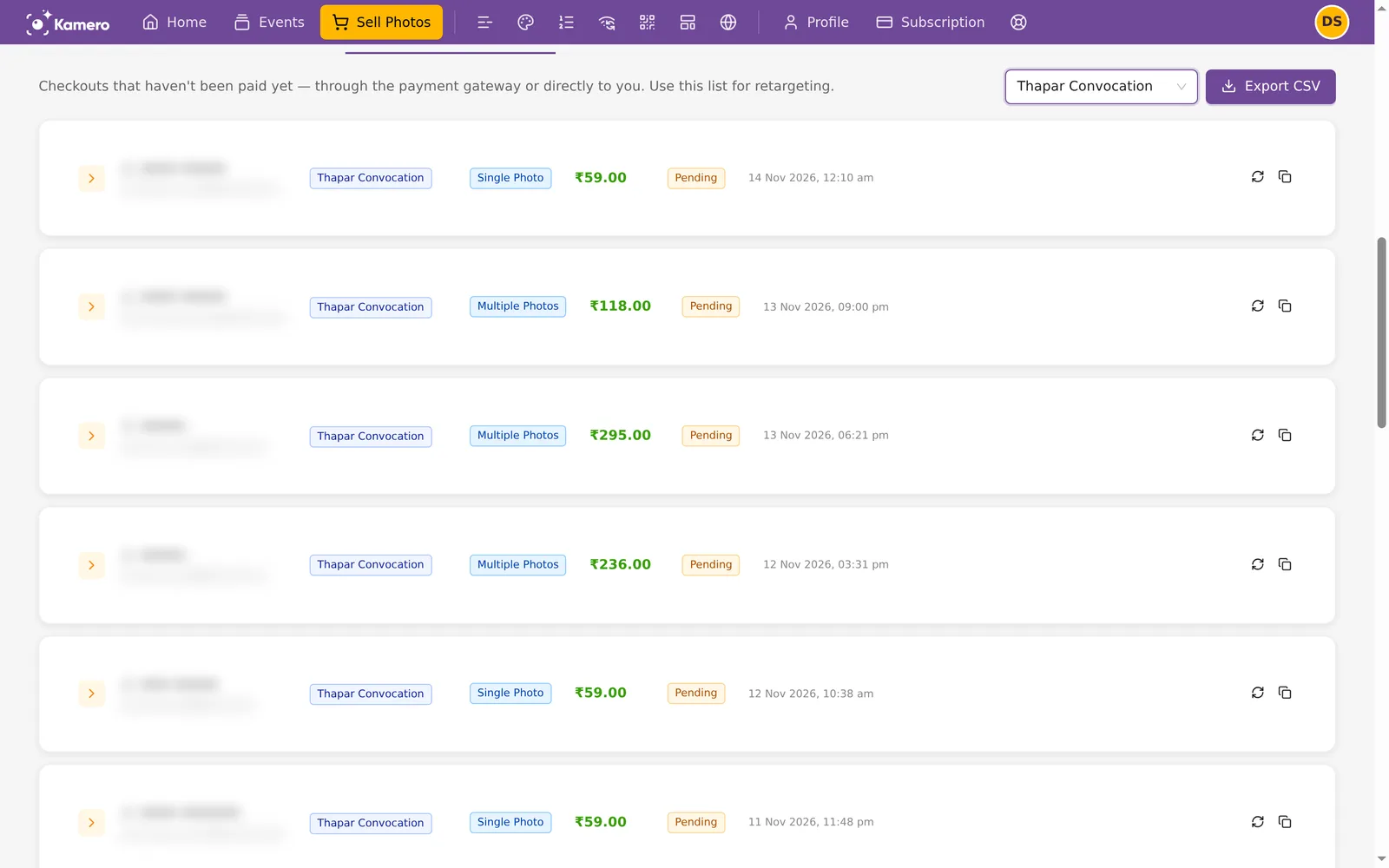
Open the Payment Pending Orders tab
- Click Sell Photos in the top bar, then Seller Dashboard.
- Click the Pending Orders card, or open the Payment Pending Orders tab below the charts. On a phone the tab is called Pending.

What counts as a pending order
A pending order is a checkout that has not been paid yet. It can be a payment through Kamero's gateway, or a direct payment to you for events in other currencies. The list leaves out paid orders, and direct-pay orders where the buyer says they have paid you. Those wait for you in Photo Orders as CHECK FOR PAYMENT.
Each row shows a status:
- Pending, Payment Started or Processing: the buyer started paying through the gateway, but the payment has not finished.
- Failed or Cancelled: the payment failed or the buyer cancelled it.
- Awaiting payment: a direct-pay order the buyer has not paid you for yet. See Sell in other currencies.
Read the list
Use the event filter at the top right to see All events or one event. You can type to search for an event.
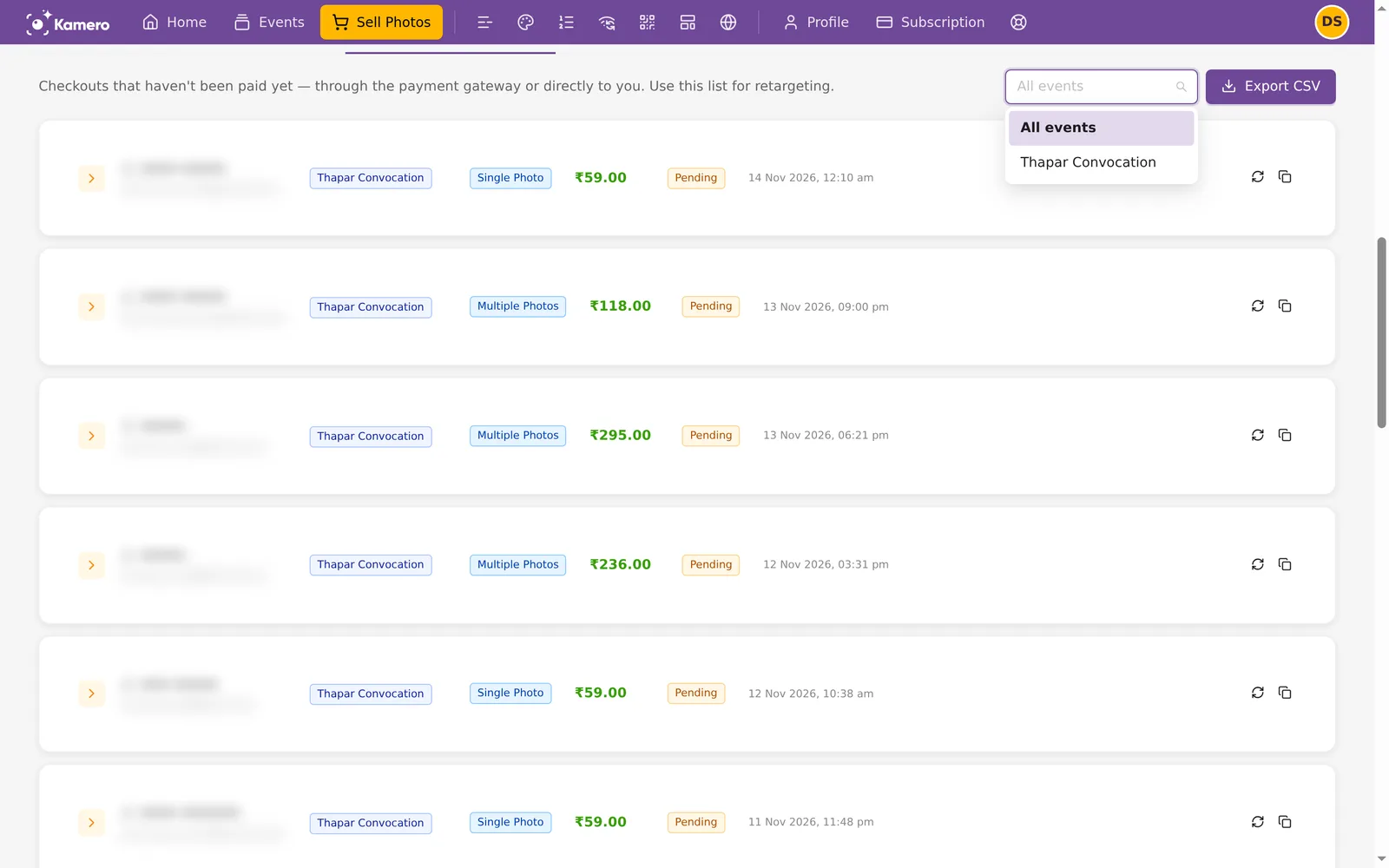
Each row shows:
- The buyer's name and email.
- The event.
- The order type: Single Photo, Multiple Photos or All My Photos.
- The total the buyer would pay, the status and the date.
Click the arrow at the start of a row to open it. You see Customer Details, Event Details, Order Status with the cart value, and Photos in Cart with each photo's file name and price. For direct-pay orders, you see which photos the buyer chose only after you confirm the payment.
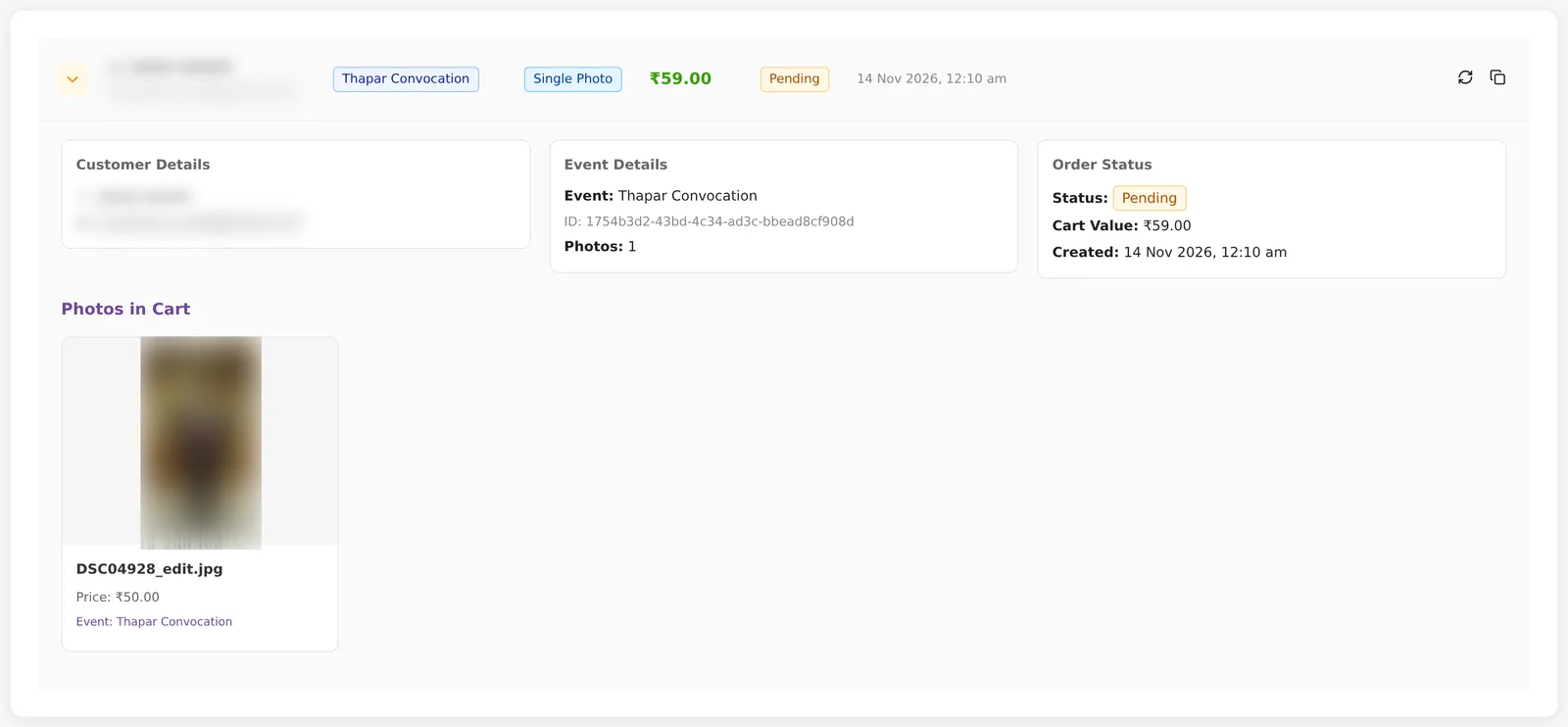
The list shows 20 orders per page. You can change it to 10 or 50 at the bottom.
Refresh a payment status
Sometimes a buyer pays, but the order still shows as pending. Click the Refresh payment status button (the circular arrows) on the row. Kamero checks the payment with the gateway and tells you the result:
- Payment completed! Order moved to completed orders. The buyer can now download their photos, and the sale is added to your balance.
- Order status: FAILED or Order status: CANCELLED. The payment did not go through.
- Payment still pending. Status refreshed. The gateway has not finished the payment yet. Try again later.

Export the list as a CSV
Click Export CSV. You see CSV downloaded successfully and a file downloads. It follows the event filter, and holds up to 10,000 orders. The columns are:
- Order ID
- Order Type
- Customer Name
- Customer Email
- Customer Phone
- Event Name
- Event ID
- Photo Count
- Cart Amount
- Currency
- Order Status
- Created Date
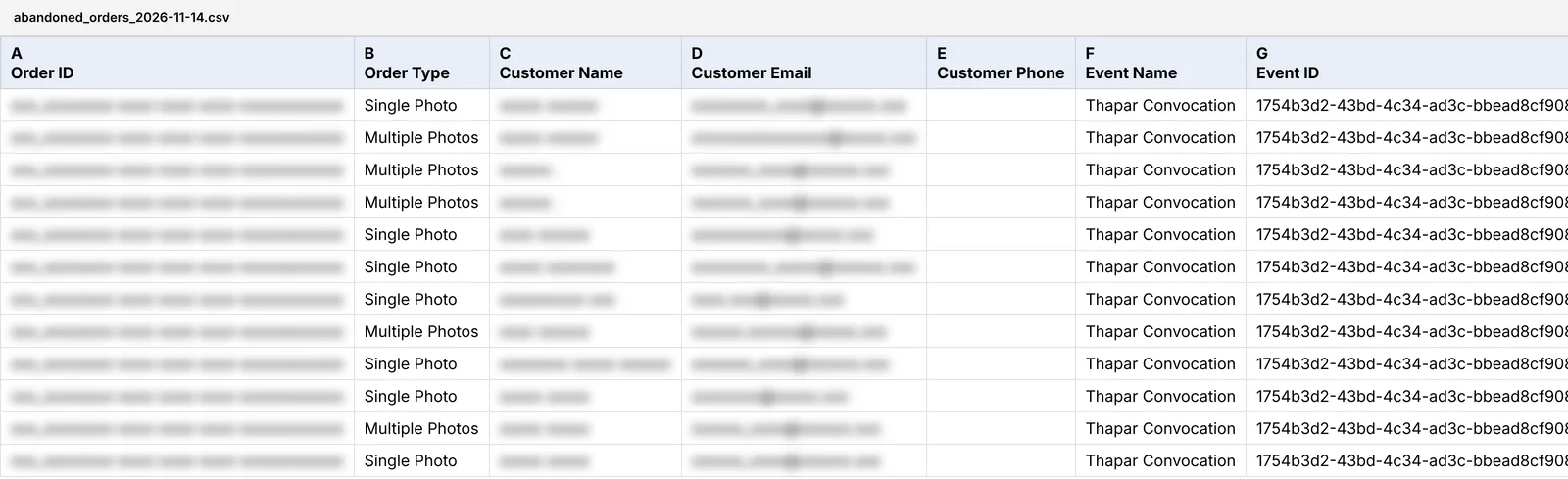
The name, email and phone come from the buyer's Kamero account. The phone column is empty when the buyer has not added a phone number.
Contact buyers yourself
Kamero has no messaging tool for sellers. To follow up, click the Copy email button on a row (you see Email copied!), or use the CSV, and write from your own email or phone. For example: "Hi, your Class 5A Sports Day photos are still in your cart. Here is the link if you would like to finish your order."
Buyers gave their details to place an order, not to get marketing. Contact them only about that order, and don't add them to a mailing list.
Reminder emails Kamero sends for you
Kamero emails signed-in buyers who still have photos in their cart that they have not bought:
- The first email goes about 24 hours later. The subject says they left photos from your event in their cart.
- A second email goes about 72 hours later, with the subject "Still thinking it over?".
Each email has an unsubscribe link. These emails are sent by Kamero, so you don't see them and can't turn them off. If you also contact a buyer, keep your message short so they don't feel chased.
What you can't see
- Carts that never reached checkout. A buyer who added photos but never pressed checkout does not appear in the list.
- Visitors who never signed in. Buyers sign in at checkout. Before that, Kamero has no contact details for them.
For how paid orders turn into your balance, see Commission, GST and payouts. To set up selling, see Set up Sell Photos.
Frequently asked questions
Who shows up in Payment Pending Orders?
Buyers who signed in and pressed checkout on one of your Sell Photos events but have not paid yet. Buyers who only added photos to their cart, and visitors who never signed in, do not show up.
A buyer says they paid, but the order still shows Pending. What do I do?
Click the Refresh payment status button on that row. Kamero checks with the payment gateway. If the payment went through, the order moves to Photo Orders as completed.
Can I send emails or WhatsApp messages from Kamero?
No. Kamero has no messaging tool for sellers. Copy the buyer's email from the row, or export the CSV, and contact them from your own email or phone.
Does Kamero remind buyers about their cart?
Yes. Kamero emails signed-in buyers who still have unbought photos in their cart, once after about 24 hours and again after about 72 hours. Buyers can unsubscribe from these emails. You can't see or turn them off.
Can I add these buyers to my marketing list?
Buyers gave their details to place an order, not to receive marketing. Contact them only about that order, for example to help them finish paying.
More Plans, orders & billing tutorials
Try it in your dashboard
Sign in to Kamero and follow along. Questions? Raise a support ticket from the dashboard.