Guest Favourites: See Who Picked Which Photos and Download Them
Guests can mark photos as favourites in your event gallery. Couples use it to shortlist photos for their album, and families use it to pick the prints they want. In your dashboard you see every guest who favourited at least one photo, how many they picked, and which ones. You can then download each guest's selection and design the album from it.
How guests mark favourites
- The guest opens your event gallery and clicks the heart on a photo (Add to favorites). In full screen view, the heart button is called Favorite.
- If they are not signed in, Kamero asks them to sign in first. Each selection belongs to one guest account.
- To see their picks, the guest clicks Favorites in the album bar. This opens their My Favorites page, where they can remove photos, click Download All (unless you turned off downloads for the event) or click Share.
Share opens Share your favorites with the Photographer. The guest types your email and clicks Send Email. You get an email titled Photo Selection for Event followed by the event name, with the list of file names they picked. You don't need that email, because the same selection is always in your dashboard.
Favourites are always on. There is no setting to turn them off for an event. Other gallery options are in event settings.
Where you see favourites
- Sign in to your Kamero dashboard and click Events.
- Open the event.
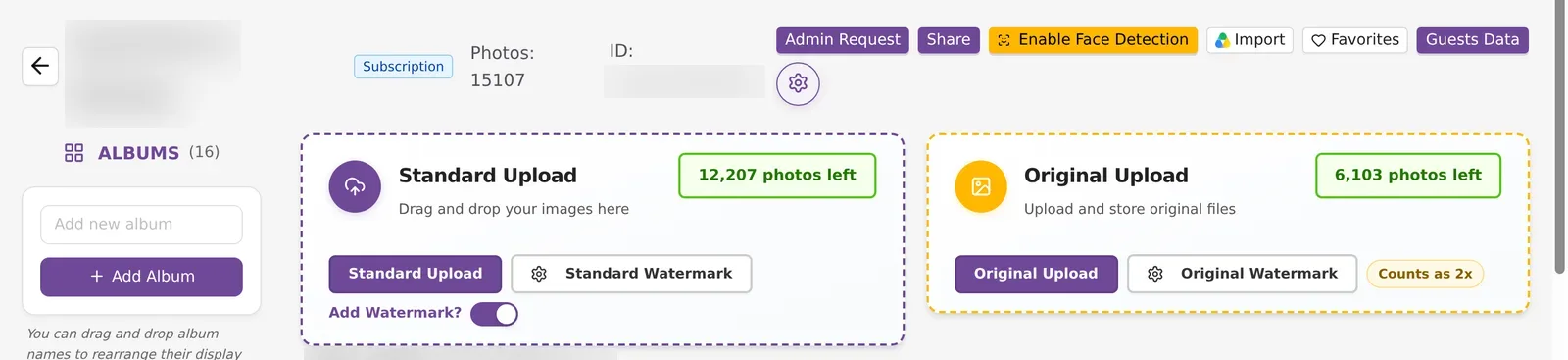
- Click Favorites in the row of buttons at the top of the event page.
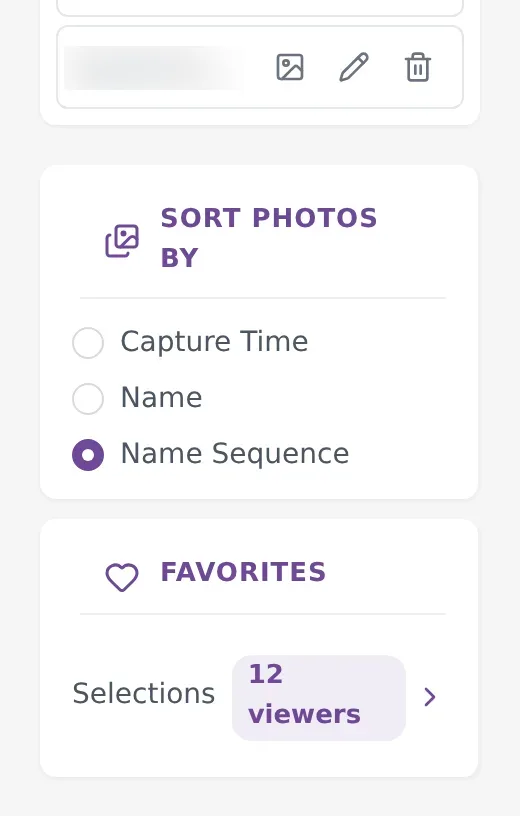
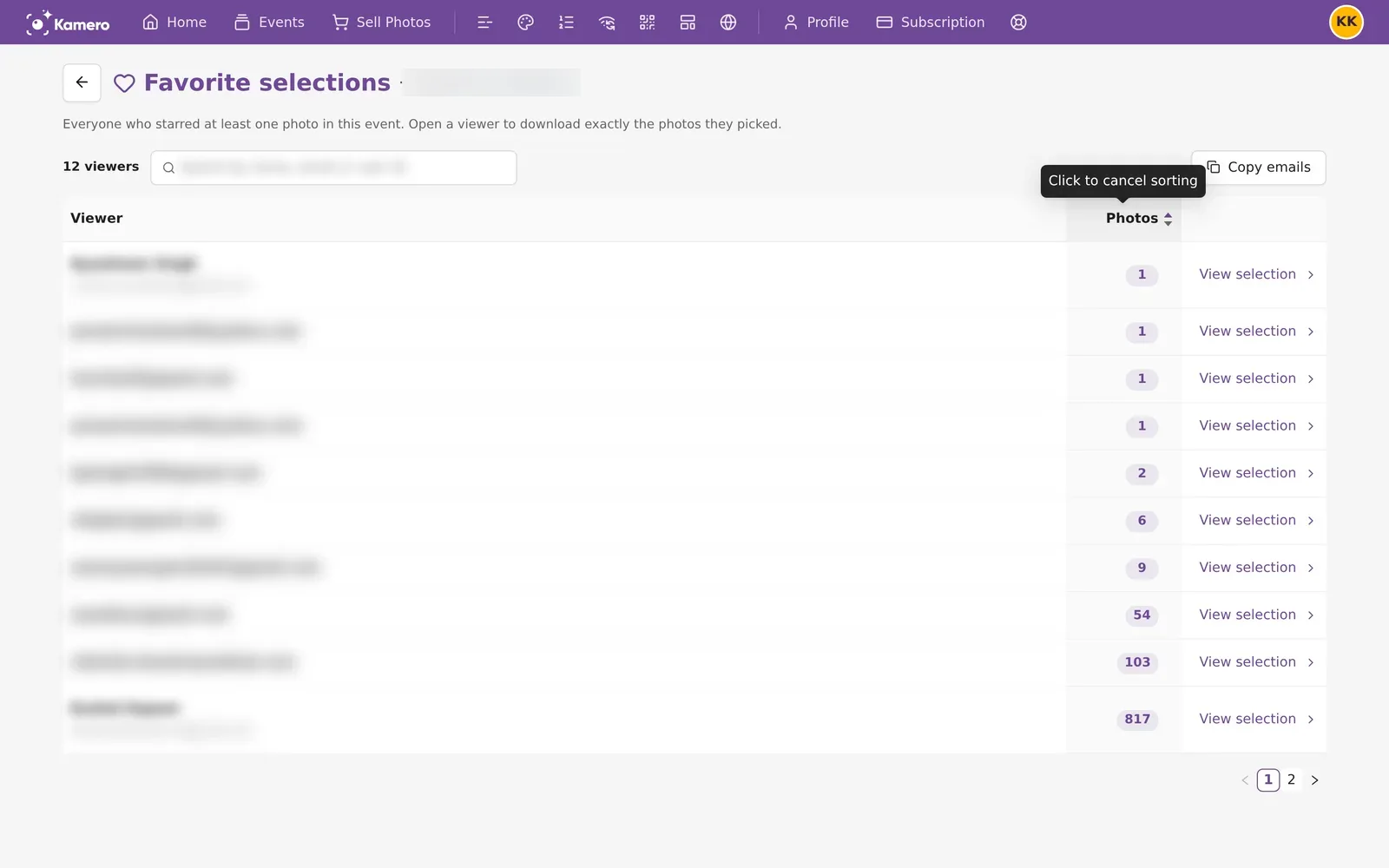
The event page also has a FAVORITES card in the left column, under Sort Photos By. It shows how many guests have made a selection, for example 12 viewers. Click it to open the same page.
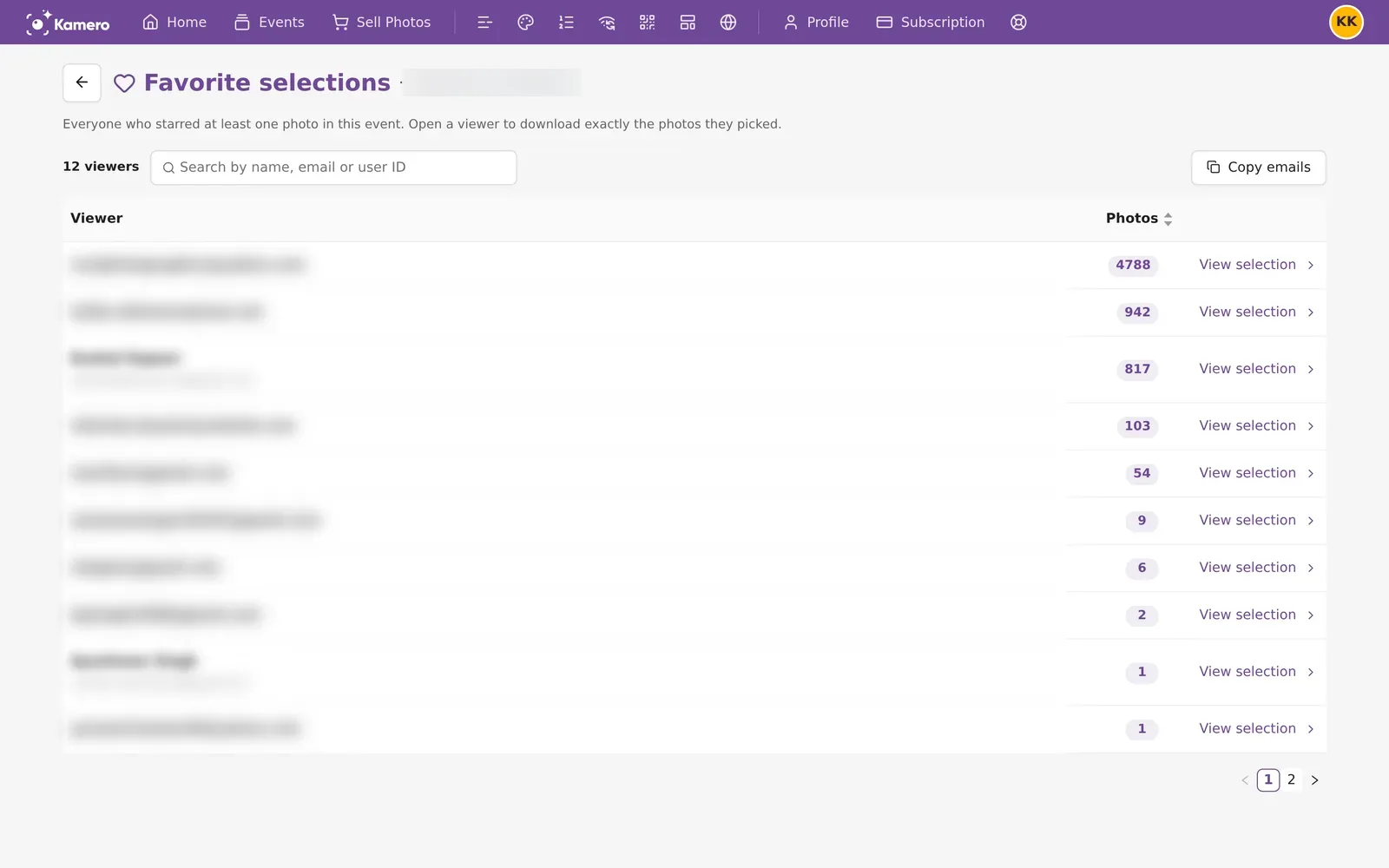
The Favorite selections page
The Favorite selections page lists everyone who favourited at least one photo in the event. Each row shows the guest's name and email (or just the email), the number of photos they picked, and a View selection link. The list shows 10 guests per page, with page numbers at the bottom.
Search and sort the list
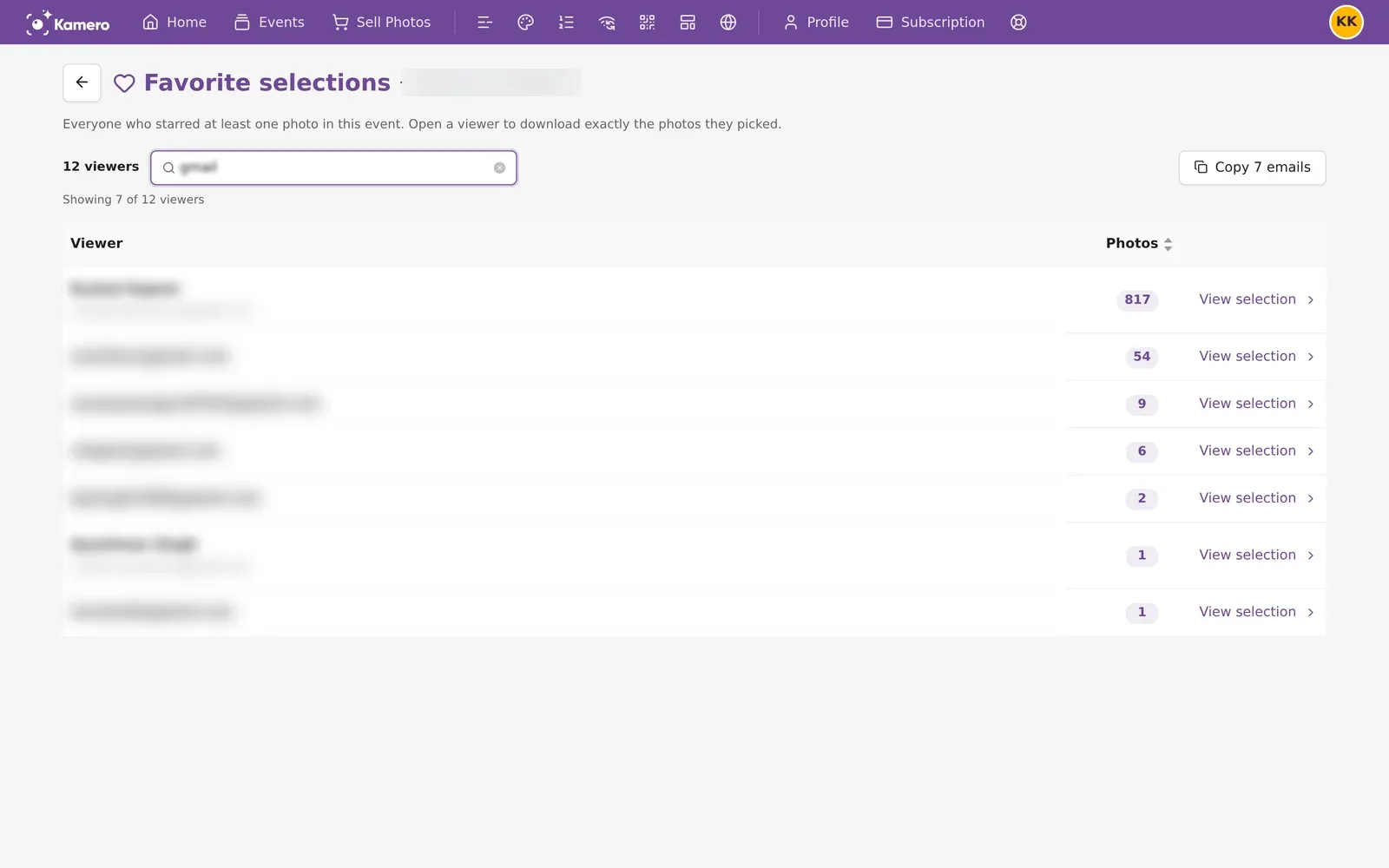
- Type in Search by name, email or user ID to filter the list. A line such as Showing 7 of 12 viewers tells you how many match.
- Click the Photos column header to sort by photo count. Click once for most first, again for fewest first, and a third time to go back to the default order.
Copy guest emails
Click Copy emails to copy every guest email in the list to your clipboard, for example to send them a follow-up. When a search is active, the button reads Copy 7 emails (or however many match) and copies only those.

Open one guest's selection
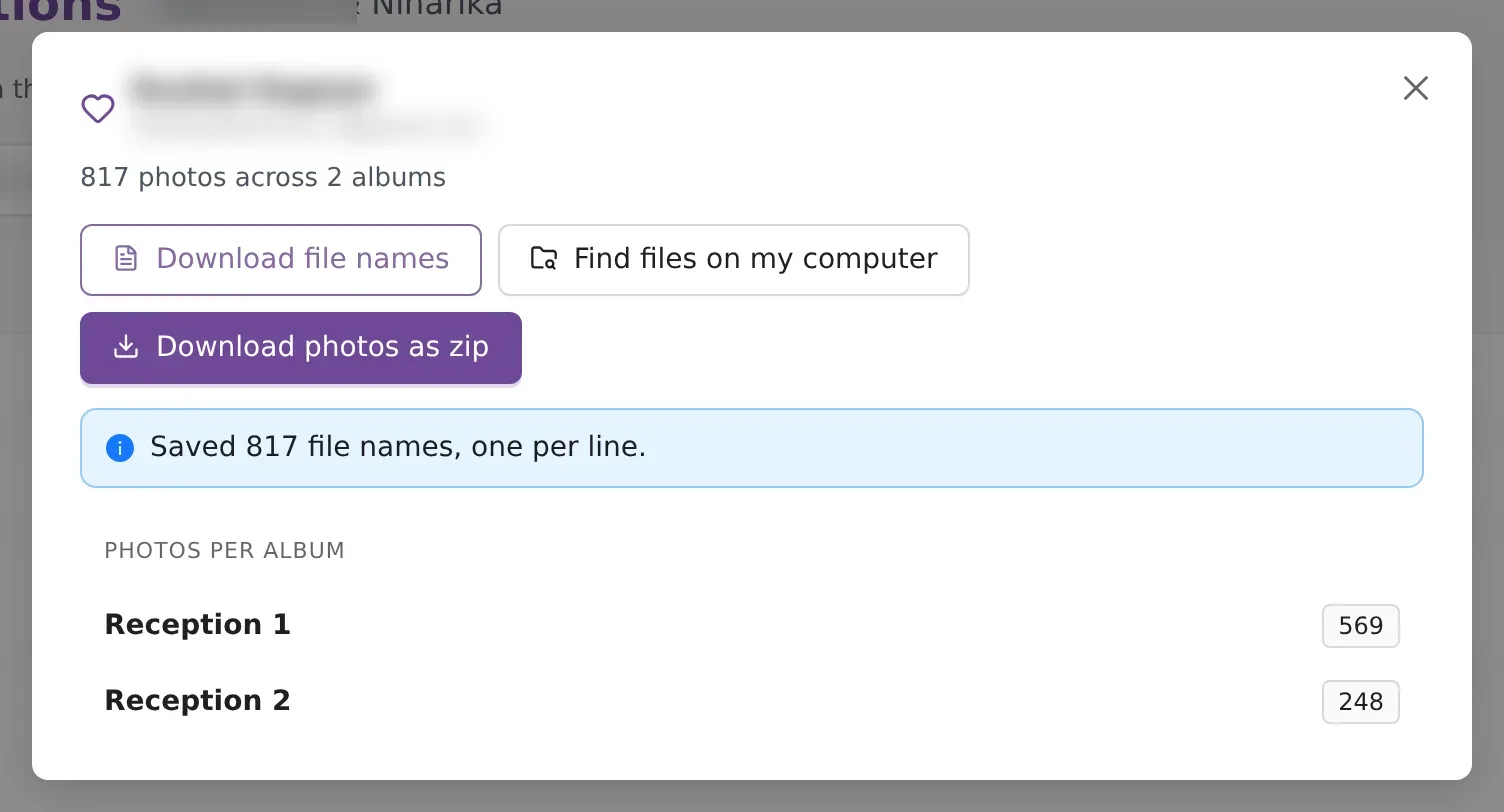
Click View selection on a row. A window opens with the guest's name and email, the total, for example 817 photos across 2 albums, and PHOTOS PER ALBUM, which shows how many they picked in each album. It also has three ways to get the photos.
Download file names
Download file names saves a .txt file with the original file name of each photo, one per line. The file is named after the event and the guest. A message confirms it, for example Saved 817 file names, one per line. Use this list in your editing software or album design tool to find the same photos in your own files.
Download photos as zip
- Click Download photos as zip.
- The Download favorited photos window shows how many photos the zip will hold and how many are originals or processed images.
- Click Start download. Click Stop to cancel while it runs.
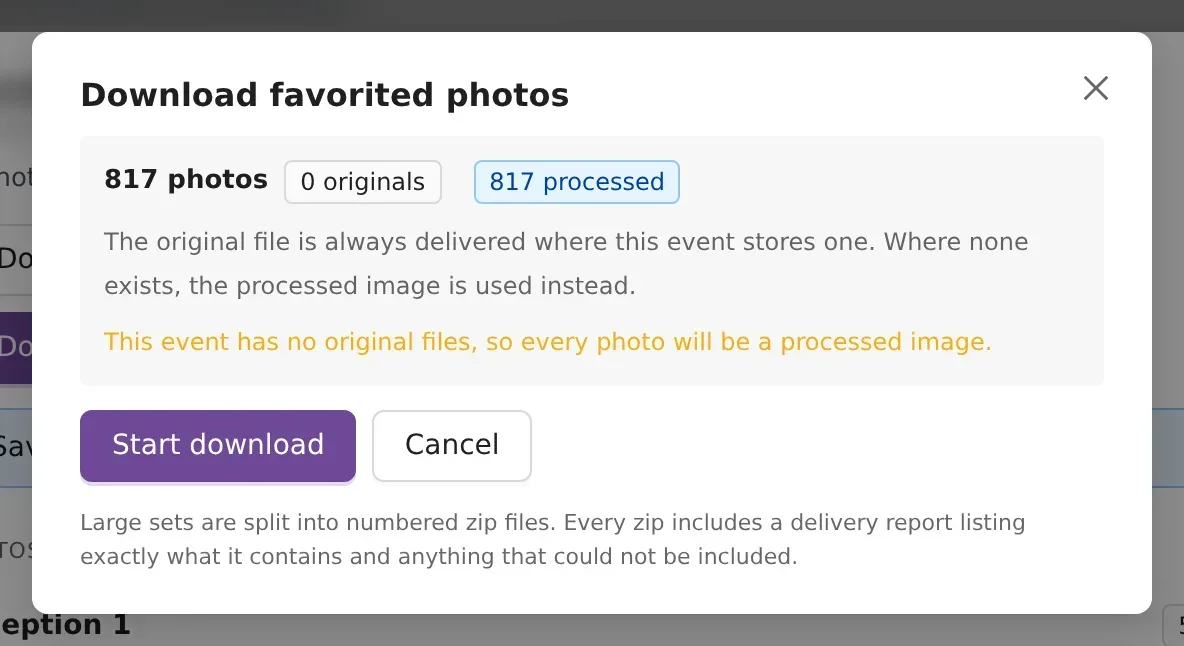
The zip uses the original file where the event stores one, and the processed image where it doesn't. Photos added with Standard Upload have no original in Kamero. Each zip holds up to 2,000 photos, so a bigger selection arrives as several numbered zips. Every zip includes a _delivery_report.txt that lists what it contains and anything that could not be added.
Find files on my computer
This option copies the guest's picks out of the folder on your computer where you keep the full shoot, including RAW files. It matches photos by file name.
- Click Find files on my computer.
- Read How this works and click Choose event folder and copy.
- Pick the folder that holds all the event's photos and allow the browser to edit it.
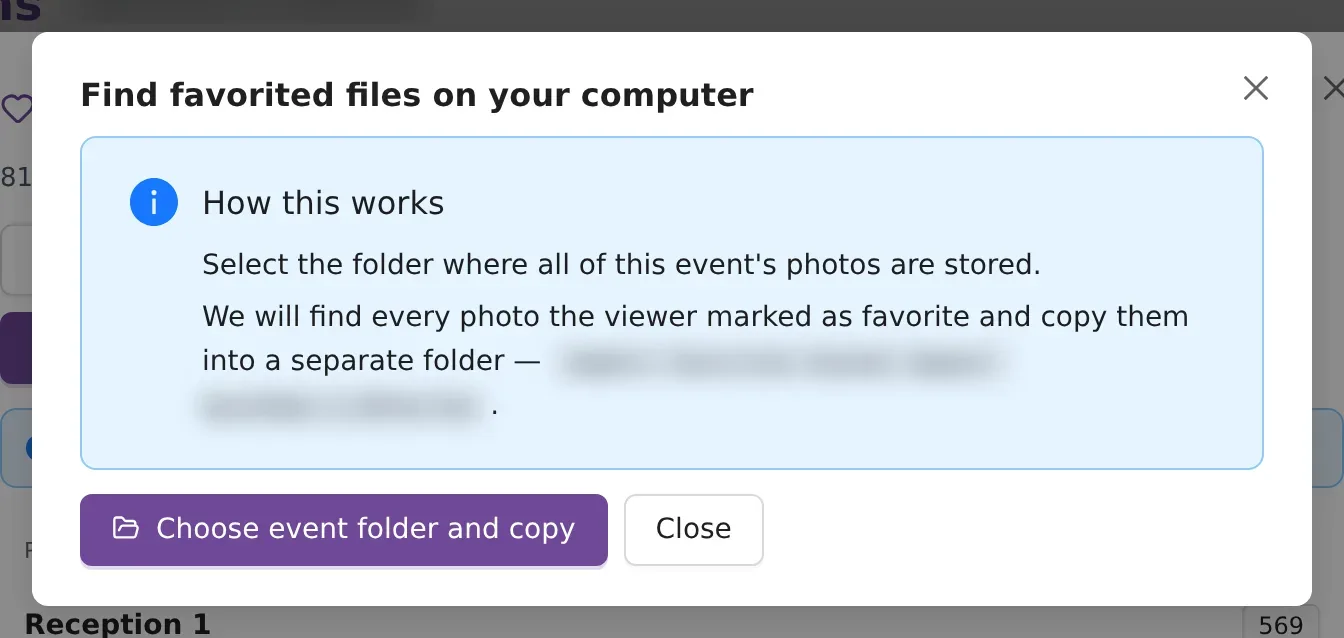
Kamero creates a new folder inside the one you picked, named kamero-favorites- followed by the guest and event names, and sorts the copies into one folder per file type, such as jpg and cr2. It never changes, moves or deletes your own files. If you run it again, it makes a new folder with a number on the end. This option works only in Chrome, Edge and Opera.
Use a selection for album design
- Ask the couple or family to favourite the photos they want in the album.
- Open Favorites on the event and find their row. Search by their email if the list is long.
- Click View selection and check PHOTOS PER ALBUM to see how their picks spread across the day.
- Click Find files on my computer to copy their picks from your edited or RAW files, or Download file names to load the list into your album software.
Common problems
- A yellow note says another live event shares this event's channel. Two of your events share the same internal ID prefix, so the guest list may include guests from the other event. Photo counts are still for this event only.
- A guest is missing or their count is lower. Photos you deleted no longer count. A guest whose picks were all deleted is not listed.
- The list says Nobody has favorited photos yet. No signed-in guest has clicked a heart in this event. Share the gallery and ask guests to sign in and favourite photos.
- No viewers match your search. Clear the search box to see everyone.
- The zip has processed images. The event has no original files for those photos. Use the file names list or your own folder for full-size files. See original uploads and watermarks.
New to the dashboard? Start with getting started with the Kamero dashboard.
Frequently asked questions
Can I turn favourites off for an event?
No. There is no setting for favourites in the dashboard or the gallery. Every event gallery shows the heart on each photo. Guests have to sign in before they can use it.
Do guests need an account to favourite photos?
Yes. A guest clicks the heart and Kamero asks them to sign in. This is how Kamero knows whose selection it is. Guests who open the gallery with a VIP link can browse without signing in, but they still sign in to favourite a photo.
Why does the photo count for a guest look lower than they expected?
Counts only include photos that are still in the event. If you deleted a photo after a guest favourited it, it no longer counts. A guest who favourited only deleted photos drops off the list.
Why does my zip have processed images instead of originals?
The zip uses the original file when the event stores one. Photos uploaded with Standard Upload have no original in Kamero, so the zip uses the processed image. To get your RAW or full-size files, use Download file names or Find files on my computer with your own folder of photos.
Why don't I see Find files on my computer working in Safari or Firefox?
It needs a browser feature that only Chrome, Edge and Opera have. In other browsers, download the file names or the zip instead.
How many photos can one zip hold?
Each zip holds up to 2,000 photos. A bigger selection downloads as several numbered zips. Every zip has a _delivery_report.txt file that lists what is inside and anything that could not be added.
More Events tutorials
Try it in your dashboard
Sign in to Kamero and follow along. Questions? Raise a support ticket from the dashboard.